Can My Beats Connect To My Tv And Stream Audio Wirelessly
Yes, you can connect your Beats to your TV and stream audio wirelessly. Most Beats headphones support Bluetooth, making it easy to enjoy movies, shows, and games without cables. This guide walks you through every step, from pairing to fixing common issues, so you can start listening right away.
Key Takeaways
- Beats headphones use Bluetooth to connect to most modern TVs.
- Some TVs need a Bluetooth adapter if they lack built-in support.
- Audio delay or lag can happen but is usually easy to fix.
- Not all Beats models are equal for TV use.
- Firmware updates can improve your wireless streaming experience.
- Low latency mode reduces audio delay for a better sync.
📑 Table of Contents
Can My Beats Connect To My TV And Stream Audio Wirelessly?
So you want to watch your favorite show without disturbing anyone. Or maybe you want to hear every detail in a movie scene. Either way, connecting your Beats to your TV is a great idea. The good news is that it works for most setups. You just need to know the right steps.
Wireless streaming from your Beats headphones to your TV is simple once you understand the basics. Bluetooth is the main way to do this. But there are a few things you should know before you start. This guide covers everything you need. From pairing to troubleshooting, we have you covered.
Let us be real. Not all TVs and Beats combinations work the same way. Some connect in seconds. Others need a little extra help. That is why we wrote this guide. You will learn how to make it work, no matter what gear you have.
Understanding How Beats Connect To TVs
Before you try to pair anything, it helps to know how the connection works. Wireless audio streaming uses Bluetooth technology. This sends sound from your TV to your headphones without any wires. The process is pretty straightforward once you set it up.
How Bluetooth Streaming Works
Bluetooth sends audio data through the air. Your TV acts as the source. Your Beats act as the receiver. The two devices find each other and create a link. Once paired, they stay connected until you turn one off or move out of range.
Most modern TVs have Bluetooth built in. But some older models do not. If your TV does not support Bluetooth, you can still use your Beats. You just need a Bluetooth adapter. More on that later.
What You Need For A Wireless Connection
Here is what you need to get started:
- A pair of Beats headphones with Bluetooth support
- A TV with Bluetooth or a Bluetooth transmitter
- A quiet space to complete the pairing process
- Patience — sometimes the first try does not work
Setting up your home entertainment system with wireless headphones can change how you watch TV. You get freedom of movement and better sound privacy. It is one of the best small upgrades you can make.
How To Connect Your Beats To Your TV
Now let us get into the actual steps. Connecting your Beats to your TV is not hard. But the exact steps depend on your TV brand and Beats model. We will cover the general process first.
Step By Step Pairing Guide
Follow these steps to pair your Beats with your TV:
- Turn on your Beats headphones and make sure they are charged.
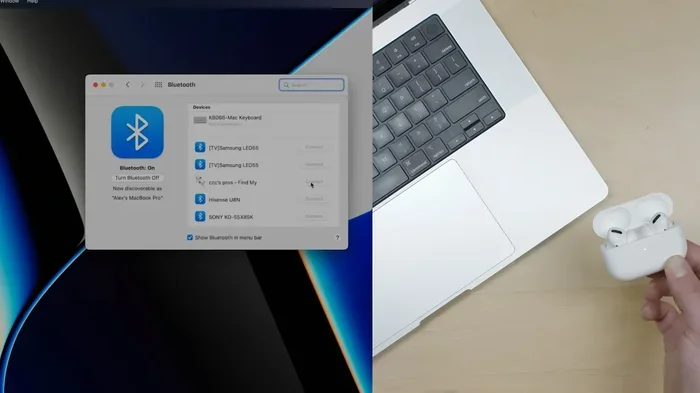
- Put your Beats in pairing mode. Usually, you hold down the power button for a few seconds until the light flashes.
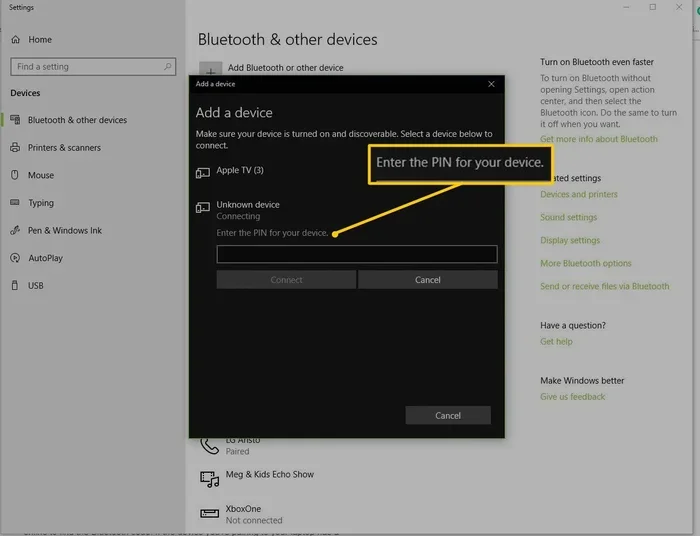
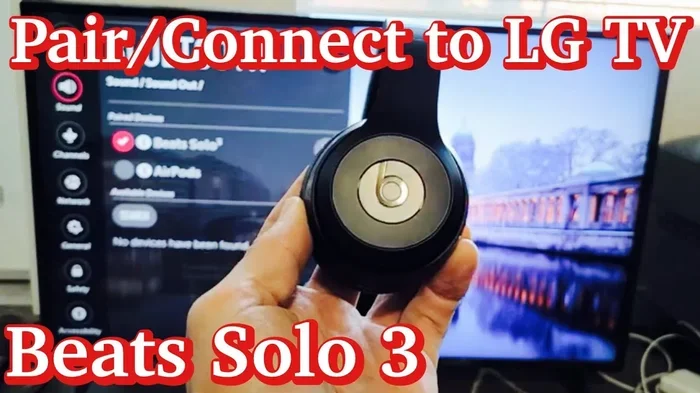
- Go to your TV settings. Look for Bluetooth or Sound Output options.
- Turn on Bluetooth on your TV. Let it search for nearby devices.
- Select your Beats from the list. The name should appear on screen.
- Wait for the connection to confirm. You will hear a tone or see a message.
That is it. You should now hear your TV audio through your Beats. If it does not work right away, do not worry. We will cover troubleshooting below.
Connecting Beats To A Smart TV
Smart TVs from Samsung, LG, Sony, and others usually have Bluetooth built in. The process is almost the same as above. Go to Settings, then Sound, then Bluetooth. Your TV will scan for devices. Select your Beats and you are good to go.
Some smart TVs let you adjust the audio output while watching. You can switch between TV speakers and your wireless headphones anytime. This is super handy if you share a living space.
Using A Bluetooth Adapter For Older TVs
Not all TVs have Bluetooth. If yours does not, you can buy a Bluetooth transmitter. This small device plugs into your TV audio output. It sends the signal to your Beats wirelessly. These adapters cost between 15 and 40 dollars.
Look for a transmitter that supports aptX or low latency codecs. These will give you better sound and less delay. A simple adapter can turn any TV into a wireless audio hub for your Beats.
Beats Models That Work Best With TVs
Not every Beats model is the same for TV use. Some are better than others. Here is a quick look at the top options.
Beats Studio Buds
The Beats Studio Buds are a great choice for TV streaming. They support Bluetooth 5.0, which gives a stable connection. The sound quality is solid for movies and shows. They also have a good battery life of about 8 hours.
One nice feature is the built-in microphone. You can take calls while watching TV without removing the buds. They fit snug and stay in place during long viewing sessions.
Beats Solo 4
The Beats Solo 4 are on-ear headphones with great comfort. They fold up easily, which makes them simple to store. The Bluetooth range is strong, so you can move around the room without losing the connection.
Sound quality on the Solo 4 is warm and clear. They handle dialogue in movies very well. If you watch a lot of talk shows or news, these are a solid pick.
Beats Fit Pro
The Beats Fit Pro are designed for active use but work well for TV too. They have a secure fit thanks to the wing tips. The sound is balanced and clear. They also support spatial audio on supported devices.
One thing to note is that the Fit Pro works best with Apple devices. If you have an Apple TV, these headphones are a natural match.
Quick Comparison Table
| Model | Battery Life | Bluetooth Version | Best For |
|---|---|---|---|
| Beats Studio Buds | 8 hours | 5.0 | All-around TV use |
| Beats Solo 4 | 50 hours | 5.3 | Long viewing sessions |
| Beats Fit Pro | 6 hours | 5.3 | Apple TV users |
Each model has its strengths. Think about how you watch TV and pick the one that fits your style.
Common Problems And How To Fix Them
Even when everything goes right, issues can pop up. Here are the most common problems and how to solve them.
Audio Delay Or Lag
Audio delay is when the sound does not match the video. You see lips move, but the words come a split second late. This is called audio latency. It can be annoying but is usually fixable.
To reduce delay, try these tips:
- Turn on low latency mode if your TV supports it
- Move closer to the TV to strengthen the Bluetooth signal
- Reduce wireless interference from other devices in the room
- Update your Beats firmware using the Beats app
If you are using a Bluetooth adapter, make sure it supports a low-latency codec. Cheap adapters often cause noticeable delay.
Beats Not Showing Up In TV Bluetooth List
This is a common issue. Here is what to do:
- Make sure your Beats are in pairing mode. The flashing light means they are ready.
- Restart both devices. Turn off Bluetooth on the TV and on the Beats. Then turn them back on.
- Check the distance. Keep your Beats within 10 feet of the TV.
- Remove old pairings. Delete the Beats from your TV Bluetooth memory and try again.
Sometimes the fix is as simple as a restart. Do not skip this step. It solves more problems than you think.
Poor Sound Quality
If the sound is fuzzy or quiet, try these fixes:
- Check the TV audio settings. Make sure the output is set to Bluetooth.
- Turn up the volume on both the TV and the Beats.
- Check for obstructions. Walls and furniture can weaken the signal.
- Update your Beats firmware. New updates often improve sound performance.
For the best results, keep your Beats fully charged. Low battery can reduce audio quality and range.
Tips For The Best Wireless Streaming Experience
Once you have your Beats connected to your TV, you want the experience to be smooth. Here are some tips to help you get the most out of it.
Keep Your Firmware Updated
Beats regularly releases firmware updates. These can improve Bluetooth stability and sound quality. Use the Beats app on your phone to check for updates. Keeping your headphones updated is one of the easiest ways to maintain a strong connection.
Optimize Your TV Audio Settings
Go into your TV audio settings and adjust them for headphones. Many TVs have a “night mode” or “dialogue enhancer.” These settings can make speech clearer through your wireless headphones. Experiment with the settings until you find what sounds best.
Manage Your Bluetooth Devices
If you have many Bluetooth devices in your home, they can interfere with the connection. Keep your Beats close to the TV and away from Wi-Fi routers or microwaves. These devices use the same frequency band and can cause signal issues.
Another great tip is to limit the number of devices connected to your TV at once. Fewer connected devices mean a cleaner and more stable Bluetooth streaming experience.
Use Your Beats For More Than Just TV
One of the best things about wireless Beats is their versatility. You can switch between your TV and your phone easily. Just pause the TV audio and play music on your phone. When you are done, switch back. It is that simple.
If you also want to make your setup more fun, check out these 10 Gadgets To Make Moms Life Easier for ideas on other tech that can enhance your home entertainment space. And if you ever need help with phone-related settings, like managing numbers or contacts, you can find useful tips on adding prefixes to numbers on iPhone to keep your device organized.
Is Wireless Streaming Worth It?
The short answer is yes. Streaming audio from your TV to your Beats headphones is convenient and enjoyable. You get to watch late-night shows without waking anyone up. You can hear every detail in action movies and games.
The sound quality of modern Beats is excellent. They deliver clear dialogue, deep bass, and crisp highs. Combined with the freedom of no wires, it is easy to see why so many people make the switch.
There are a few things to keep in mind. Audio delay can be an issue on some setups. And not every TV supports Bluetooth natively. But with the right adapter or a newer TV, these are small hurdles. The payoff is worth it.
Once you get used to wireless streaming, going back to TV speakers feels limiting. You will wonder how you ever watched without your Beats headphones before.
Conclusion
Connecting your Beats to your TV for wireless audio streaming is easy and rewarding. You just need a TV with Bluetooth or a simple adapter. Follow the pairing steps, and you will be watching your favorite content in no time.
Remember to keep your firmware updated and your devices close together. This ensures the best sound and the fewest connection issues. If problems come up, the troubleshooting tips in this guide should help you fix them fast.
Whether you have Beats Studio Buds, Solo 4, or Fit Pro, your TV can become a personal theater. Enjoy the sound. Enjoy the freedom. And most of all, enjoy your shows.
Frequently Asked Questions
Can any Beats headphones connect to a TV?
Most Beats headphones with Bluetooth can connect to a TV. However, the TV must also support Bluetooth or have a Bluetooth transmitter. Check your TV settings to confirm it has Bluetooth capability before trying to pair.
Why is there a delay between video and audio when using Beats with my TV?
Audio delay happens because Bluetooth has a slight processing lag. This is called latency. You can reduce it by using a low-latency Bluetooth adapter or turning on low latency mode in your TV settings. Moving closer to the TV also helps.
Can I connect my Beats to a non-smart TV?
Yes, you can. A non-smart TV can connect to Beats if you use a Bluetooth transmitter. The transmitter plugs into the TV audio output and sends the signal wirelessly to your headphones. It is a simple and affordable solution.
How far can I move away from the TV while streaming audio?
Bluetooth has a range of about 30 feet in open space. Walls and furniture can reduce this distance. For the best experience, stay within 15 to 20 feet of your TV. This keeps the connection strong and reduces audio delay.
Do I need to install any apps to connect Beats to my TV?
You do not need an app to pair Beats with a TV. The connection happens through Bluetooth settings on your TV. However, the Beats app on your phone is useful for updating firmware and checking battery levels.
Can I use my Beats with multiple devices at once?
Some Beats models support multi-device pairing. This lets you stay connected to your TV and phone at the same time. When a call comes in, the audio switches to your phone and switches back when the call ends. Check your Beats model to see if it supports this feature.