Can Micro Usb Cable Be Used For Data Transfer Effectively
Yes, a Micro USB cable can be used for data transfer, but the results depend on the cable type, USB version, and device compatibility. Micro USB cables support file sharing between smartphones, tablets, cameras, and computers. Understanding transfer speeds, cable quality, and common pitfalls helps you get the most out of every connection.
Micro USB cables have been around for a long time. You probably have a drawer full of them at home. But here is the big question: can Micro USB cable be used for data transfer? The short answer is yes. The longer answer is a bit more complicated. Not every Micro USB cable was built the same way. Some handle data just fine. Others are charge-only and will not move a single file.
This guide breaks it all down. We will look at how Micro USB data transfer works. We will explore speeds, compatibility, and common mistakes. By the end, you will know exactly what to expect. You will also learn how to get the best results every time you connect two devices. Whether you are backing up photos or moving documents, this article has you covered.
Key Takeaways
- Micro USB cables do support data transfer between compatible devices like phones, cameras, and computers.
- USB 2.0 Micro USB cables offer slower speeds compared to USB 3.0 versions, so cable type matters a lot.
- Not all Micro USB cables are created equal — some are charge-only and cannot transfer data at all.
- Transfer speed depends on multiple factors including cable quality, port version, and device hardware.
- Using the right cable and proper setup prevents data corruption and ensures reliable file sharing.
- Micro USB is being phased out in favor of USB-C, but it remains widely used in older devices.
- Always check cable specifications before relying on it for important data transfers.
📑 Table of Contents
- What Is a Micro USB Cable and How Does It Work
- Can Micro USB Cable Be Used For Data Transfer Effectively
- How to Set Up Data Transfer with a Micro USB Cable
- Common Problems When Transferring Data with Micro USB
- Micro USB vs Other Cable Types for Data Transfer
- Tips for Safe and Fast Data Transfer with Micro USB
- Why Micro USB Still Matters in a USB-C World
- Final Thoughts on Micro USB Cable Data Transfer
What Is a Micro USB Cable and How Does It Work
A Micro USB cable is a small connector cable used to link electronic devices. It became the standard charging and data port for mobile devices around 2008. Before USB-C took over, Micro USB was everywhere. You found it in smartphones, tablets, Bluetooth speakers, and cameras.
The cable has five pins inside. Two pins handle power. Two pins handle data. The fifth pin acts as a ground. This design allows the cable to do two jobs at once. It can charge your device and transfer files simultaneously. But here is the catch. Not all Micro USB cables use all five pins. Some manufacturers remove the data pins to save money. These cables can only charge devices. They cannot move files.
Understanding the Different Types of Micro USB
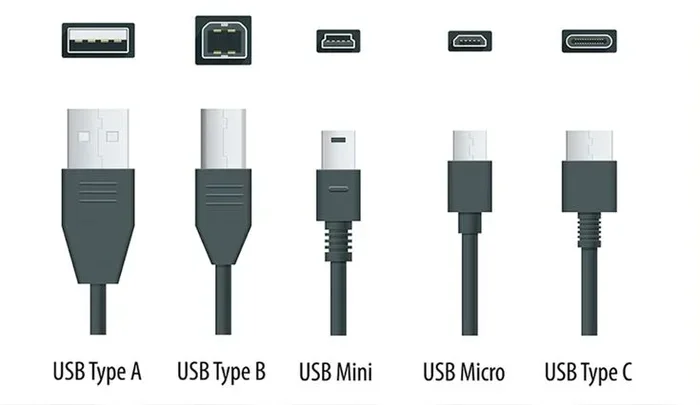
There are actually two main types of Micro USB connectors. The Micro-A and Micro-B designs look slightly different. Micro-A is flatter and thinner. Micro-B is more rectangular and thicker. Both can carry data. But you need to match the right connector to the right port on your device. Using the wrong type may prevent a connection entirely.
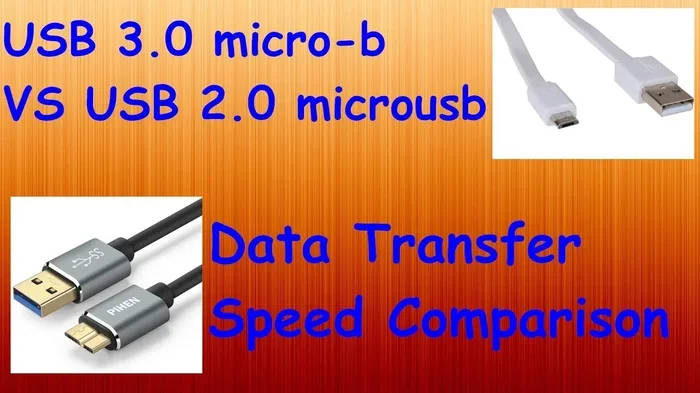
USB 2.0 Micro USB cables are the most common. They have been the workhorse of mobile data transfer for over a decade. USB 3.0 Micro USB cables exist too, but they are rarer. USB 3.0 versions have extra pins inside. These extra pins allow much faster data speeds. If you want the best performance, look for a USB 3.0 Micro USB cable whenever possible.
Can Micro USB Cable Be Used For Data Transfer Effectively
The answer depends on several factors. A Micro USB cable can absolutely transfer data. But the effectiveness of that transfer varies widely. Let us break down what affects performance and reliability.
USB 2.0 vs USB 3.0 Micro USB for Data
USB 2.0 Micro USB cables offer a maximum theoretical transfer speed of 480 Mbps. In real-world use, you will likely see speeds between 25 and 35 Mbps. That is fine for documents and small photos. It becomes painfully slow for large video files.
USB 3.0 Micro USB cables jump to 5 Gbps theoretical speed. Real-world speeds are usually around 400 Mbps. That is a huge improvement. If you regularly move large files, a USB 3.0 cable makes a noticeable difference.
Here is a quick comparison to help you understand the difference.
- USB 2.0 Micro USB: Max theoretical 480 Mbps. Real-world around 25-35 Mbps. Good for small files and quick syncs.
- USB 3.0 Micro USB: Max theoretical 5 Gbps. Real-world around 400 Mbps. Great for large files and video transfers.
- Charge-only cables: No data capability at all. These will not transfer files no matter what.
Transfer Speeds You Can Expect in Real Life
Real-world data transfer speeds depend on more than just the cable. Your device hardware matters. The port version on your computer or phone matters. Even the file type affects speed. A single large video file transfers faster than hundreds of small photos.
For a typical 1 GB file, here is what you can expect:
- USB 2.0 Micro USB cable: About 30 to 40 seconds.
- USB 3.0 Micro USB cable: About 2 to 3 seconds.
- Charge-only cable: No transfer possible.
These numbers give you a realistic picture. Always check your cable specifications before starting an important transfer. If speed matters, invest in a USB 3.0 Micro USB cable. The difference is dramatic.
How to Set Up Data Transfer with a Micro USB Cable
Setting up data transfer with a Micro USB cable is straightforward. But small mistakes can cause big problems. Follow these steps to ensure a smooth connection every time.
Step-by-Step Guide to Transferring Files
- Check your cable type. Look for markings on the cable. USB 2.0 or USB 3.0 should be printed on the connector. If there are no markings, it may be a charge-only cable.
- Connect the cable to both devices. Plug the Micro USB end into your mobile device. Plug the other end into your computer or compatible host.
- Select the correct connection mode. On Android devices, pull down the notification shade. Tap the USB notification. Choose “File Transfer” or “MTP” mode. If you skip this step, your computer may not see the files.
- Access files on your computer. Open File Explorer on Windows or Finder on Mac. Your device should appear as a removable drive. Navigate through the folders to find your files.
- Copy and paste or drag and drop files. Select the files you want to move. Transfer them to your computer or vice versa.
- Eject the device safely. Always use the safe eject option before unplugging. This prevents data corruption.
Quick tip: If your device does not show up on your computer, try a different USB port. Some ports on computers are charge-only and lack data capability. Also, try a different cable. This simple fix solves many connection problems.
Using an OTG Adapter for Expanded Options
Sometimes you need more flexibility. An OTG adapter (On-The-Go) lets you connect USB devices to your phone. You can plug in a flash drive, keyboard, or even a mouse. This opens up new possibilities for file sharing and peripheral devices.
To use an OTG adapter, simply plug the Micro USB end into your phone. Then connect your USB device to the adapter. Your phone should recognize the new device. You can then browse and transfer files directly. OTG adapters are inexpensive and very handy for on-the-go file management.
Common Problems When Transferring Data with Micro USB
Even with the right setup, problems can happen. Here are the most common issues and how to fix them.
Cable Not Recognized by Computer
This is the number one issue people face. If your computer does not detect your phone, the cable is usually the culprit. Charge-only cables will not show up as a data device. Check your cable markings. If it says charge-only, replace it with a proper data cable.
Another common cause is a loose connection. Worn-out Micro USB ports can lose contact over time. Try gently wiggling the cable while it is plugged in. If the connection flickers, the port or cable may be damaged.
Slow Transfer Speeds
Slow transfers are frustrating. Several factors can cause this problem. First, check if you are using a USB 2.0 cable. If so, that explains the slow speed. Second, make sure your phone is not in “charging only” mode. Third, close background apps on both devices. They can slow down the transfer process.
Quick tip: Transfer files in batches instead of one large folder. This often improves speed and reduces errors. Also, avoid using USB hubs or extension cables. Direct connections are always faster and more reliable.
Files Corrupted During Transfer
Data corruption is a serious concern. It happens when a transfer is interrupted. Maybe the cable gets pulled out. Maybe the phone battery dies mid-transfer. Either way, corrupted files are useless.
To prevent this, always ensure a stable connection. Do not move the devices during transfer. Keep both devices charged or plugged into power. If you are transferring important files, consider using a reliable data cable with good build quality. Cheap cables often have inconsistent wiring that leads to data loss.
Micro USB vs Other Cable Types for Data Transfer
Micro USB is not the only option anymore. Let us compare it with other popular cable types. This helps you understand where Micro USB fits in today’s world.
| Cable Type | Max Speed | Data Transfer | Common Devices |
|---|---|---|---|
| Micro USB 2.0 | 480 Mbps | Yes | Older phones, cameras, GPS |
| Micro USB 3.0 | 5 Gbps | Yes | Some cameras, external drives |
| USB-C | 10-40 Gbps | Yes | Modern phones, laptops, tablets |
| Lightning | 480 Mbps (USB 2.0) | Yes | iPhones, iPads |
| Mini USB | 480 Mbps | Yes | Older cameras, MP3 players |
As you can see, Micro USB cables hold their own for basic data transfer. USB-C is faster and more versatile. Lightning cables are limited to Apple devices. But Micro USB remains widely compatible with older gear. If you still use devices with Micro USB ports, a good data cable is essential.
Expert insight: Many people keep a drawer full of old cables. Some of these cables may no longer work for data transfer. Over time, internal wires break and data pins fail. If you have not used a cable in a while, test it before relying on it for an important transfer. Cable quality degrades with age, and that affects both charging and data performance.
Tips for Safe and Fast Data Transfer with Micro USB
Getting the most out of your Micro USB cable comes down to a few smart habits. Follow these tips to protect your data and speed up transfers.
Buy Quality Cables from Trusted Brands
Not all cables are created equal. Cheap no-name cables often use thinner wires and fewer data pins. They may charge slowly or fail at data transfer entirely. Invest in cables from reputable brands. Look for USB-IF certification if possible. These cables meet strict quality standards and deliver reliable performance.
Keep Your Cables Clean and Undamaged
Dust and lint can build up inside Micro USB ports. This blocks the connection and causes transfer errors. Use a soft brush or compressed air to clean ports regularly. Also, avoid bending cables at sharp angles. Kinked cables damage internal wires over time and eventually fail.
Use the Right Connection Mode
On Android devices, always select “File Transfer” or “MTP” mode when connecting via data cable. If you leave it on “Charging only,” no files will move. This simple step is often overlooked but makes all the difference.
Avoid Using Damaged or Worn Cables
If your cable shows signs of wear, replace it. Frayed ends, exposed wires, and bent connectors all signal a failing cable. A damaged cable can cause data loss or even damage your device. Do not take chances with important files.
Consider Data Security During Transfers
When you connect your device to a computer, you are sharing data across systems. If the computer is compromised, your data could be at risk. Using proper VPN settings and keeping your devices secure adds an extra layer of protection. This is especially important when transferring sensitive files like financial documents or personal photos. Always trust the computer you connect to and avoid public or shared machines for private data transfers.
Why Micro USB Still Matters in a USB-C World
USB-C has taken over the new device market. But millions of devices still use Micro USB. Cameras, e-readers, fitness trackers, and many budget phones rely on this older connector. Having a reliable Micro USB data cable in your toolkit remains important.
The transition to USB-C is happening slowly. Many devices still ship with Micro USB cables in the box. And replacement cables are still widely available and affordable. Do not throw away your Micro USB cables yet. They still serve a purpose and work well for basic file sharing tasks.
Some people worry that Micro USB cables are obsolete. They are not. While USB-C is the future, Micro USB data transfer still works perfectly for many everyday tasks. Moving photos from a camera to a computer, syncing files with an older tablet, or backing up data from a legacy device — all of these tasks work great with a good Micro USB cable.
Key takeaway: The cable type matters less than the cable quality. A well-made USB 2.0 Micro USB cable will serve you reliably for years. Focus on buying quality over chasing the latest connector type. A solid Micro USB data cable is still a valuable tool in any tech arsenal.
Final Thoughts on Micro USB Cable Data Transfer
Can Micro USB cable be used for data transfer effectively? Absolutely. The key is understanding your cable, your devices, and your needs. Not every Micro USB cable supports data. But the right one, used correctly, handles file sharing with ease.
Remember these essentials: Check your cable type before transferring. Use the correct connection mode on your device. Invest in quality cables from trusted brands. And always eject your device safely to protect your files. These simple habits save time and prevent data loss.
Micro USB technology has served us well for over a decade. It continues to be a reliable choice for data sync and file sharing across a wide range of devices. Whether you are a casual user or someone who moves files professionally, a good Micro USB cable remains a practical and effective tool. Keep the right cable handy, and you will always be ready to transfer data when you need it most.
Frequently Asked Questions
Can any Micro USB cable transfer data?
No, not all Micro USB cables can transfer data. Some cables are charge-only and lack the internal data pins needed for file sharing. Always check the cable markings or specifications to confirm it supports data transfer before relying on it.
How fast is data transfer with a Micro USB cable?
USB 2.0 Micro USB cables transfer data at real-world speeds of about 25 to 35 Mbps. USB 3.0 Micro USB cables are much faster, reaching around 400 Mbps in practice. Your actual speed depends on the cable type, device hardware, and file size.
Why does my computer not recognize my phone when connected with a Micro USB cable?
This usually happens because the cable is charge-only or the connection mode is set to “Charging only.” Try a different cable, select File Transfer mode on your phone, and use a different USB port on your computer to troubleshoot the issue.
Is Micro USB data transfer safe for important files?
Yes, Micro USB data transfer is safe when you use a quality cable and a stable connection. Always eject your device properly after transferring files. Avoid moving devices during transfer and keep both devices powered to prevent data corruption.
Can I use a Micro USB cable to connect a flash drive to my phone?
Yes, with an OTG adapter you can connect a USB flash drive to your phone using a Micro USB cable. The OTG adapter bridges the connection and allows your phone to read and write files from the flash drive directly.
Will Micro USB cables become completely obsolete soon?
USB-C is replacing Micro USB in new devices, but millions of existing devices still use Micro USB. Replacement cables remain widely available and affordable. For now, Micro USB cables are still relevant and useful, especially for older cameras, e-readers, and budget devices.
=== CONCLUSION ===
Can Micro USB cable be used for data transfer effectively? Yes, it can. A good Micro USB cable handles file sharing between phones, cameras, computers, and more with ease. The key is choosing the right cable and using it correctly. USB 2.0 cables work fine for everyday tasks, while USB 3.0 versions deliver much faster speeds for larger files.
Always check your cable specifications before starting a transfer. Avoid charge-only cables when you need to move files. Keep your cables clean and undamaged for the best results. And never skip the safe eject step on your computer.
Micro USB data transfer may not be the fastest technology anymore, but it remains reliable, affordable, and widely compatible. Keep a quality Micro USB data cable in your bag, at your desk, and in your car. You never know when you will need to move files between devices quickly and safely.