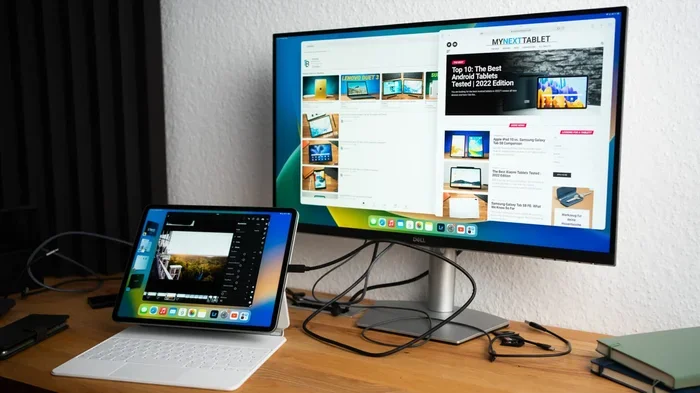
Can I Hook My Tablet Up To A Monitor For Bigger Screen
Yes, you can hook your tablet up to a monitor and instantly double your screen space. Whether you use a simple cable or a wireless connection, this setup turns your tablet into a powerful external display. Hooking a tablet up to a monitor is easier than most people think, and it works with almost any brand or model.
Have you ever wished your tablet screen was bigger? Maybe you are working on a project, watching a movie, or trying to multitask, and the small display just is not cutting it. The good news is that you absolutely can hook your tablet up to a monitor. This simple setup opens up a whole new world of screen space and productivity. Whether you are a student, a professional, or just someone who loves streaming content, connecting your tablet to an external display is a game changer.
Hooking your tablet up to a monitor is not as complicated as it might sound. In fact, most people can set it up in under five minutes. You just need the right cable, adapter, or wireless method. This guide walks you through every option, from wired connections to screen mirroring. By the end, you will know exactly how to get your tablet displayed on a bigger screen. Let us dive in and explore everything you need to know about connecting your tablet to a monitor.
Key Takeaways
- Multiple connection types work: You can use HDMI, USB-C, or wireless casting to connect your tablet to a monitor.
- Adapters are affordable: Most adapters cost under $30 and make the setup process simple.
- Not all tablets support video output: Check your tablet model before buying any cables or adapters.
- Wireless options exist: Miracast, Chromecast, and AirPlay let you cast without any cables at all.
- Productivity boosts significantly: A second screen helps with multitasking, coding, design work, and media consumption.
- Common mistakes happen: Using the wrong adapter or cable is the most frequent problem people face.
📑 Table of Contents
- How to Connect Your Tablet to a Monitor
- Wired vs Wireless Connection Methods
- Best Adapters and Cables for Tablet-to-Monitor Setup
- Which Tablets Support External Monitor Connection
- Quick Tips for a Smooth Tablet-to-Monitor Experience
- Common Mistakes to Avoid When Connecting Tablet to Monitor
- Expert Insights on Tablet-to-Monitor Productivity
- Key Takeaways
- Conclusion
How to Connect Your Tablet to a Monitor
The first step in hooking your tablet up to a monitor is understanding your connection options. There are three main ways to do this: wired, wireless, and docking station setups. Each method has its own benefits, and the right choice depends on your tablet model and what you want to accomplish.
Wired Connections: The Most Reliable Method
A wired connection gives you the most stable and lag-free experience. You plug one end of a cable into your tablet and the other end into your monitor. The signal stays strong, and you do not have to worry about interference or drops. This is the best choice if you need a reliable setup for work or gaming.
There are several cable types you might need:
- HDMI cables: These are the most common and work with most monitors. You will need a USB-C to HDMI adapter if your tablet does not have a full-size HDMI port.
- USB-C cables: Many modern tablets support USB-C video output. You can plug a USB-C cable directly from your tablet to a USB-C monitor.
- DisplayPort cables: Some monitors use DisplayPort. You can use a USB-C to DisplayPort adapter for these setups.
- VGA cables: Older monitors may use VGA. While the quality is lower, it still works for basic screen extension.
The key is to match your tablet’s output port with your monitor’s input port. Most modern tablets use USB-C, so a USB-C to HDMI adapter is the most popular choice. These adapters are small, cheap, and easy to carry around.
Wireless Connections: No Cables Needed
If you do not want to deal with cables, wireless casting is a great option. You can mirror your tablet screen to a compatible monitor or smart TV without any physical connection. This method is perfect for casual use, presentations, or when you want a quick setup without buying extra gear.
Here are the most common wireless methods for screen mirroring:
- Miracast: This is a universal wireless display standard supported by many monitors and TVs. Both your tablet and the display need to support Miracast.
- Chromecast: Google Chromecast lets you cast your tablet screen to any TV or monitor with a Chromecast device plugged in.
- AirPlay: If you have an iPad, AirPlay works seamlessly with Apple TV and AirPlay-compatible monitors.
- Samsung DeX: Samsung tablet users can use DeX mode to get a desktop-like experience on an external monitor via wireless or wired connection.
Wireless casting is convenient, but it can have a slight delay or lower image quality compared to a wired connection. For tasks that need precision, like photo editing or gaming, a wired setup is better. For watching videos or giving presentations, wireless works great.
Using a Docking Station
A docking station is the most complete solution for connecting your tablet to a monitor. You plug one cable from the dock to your tablet, and the dock provides multiple ports for your monitor, keyboard, mouse, and more. This turns your tablet into a full desktop workstation.
Docking stations are especially useful for people who use their tablet as a primary computer. With a single dock, you can connect to an external display, attach peripherals, and charge your tablet all at once. The Samsung DeX dock and Apple USB-C docks are popular choices for this purpose.
Wired vs Wireless Connection Methods
When deciding how to hook your tablet up to a monitor, you need to choose between wired and wireless methods. Each has pros and cons. The table below compares the two approaches side by side.
| Feature | Wired Connection | Wireless Connection |
|---|---|---|
| Image Quality | Full HD or 4K, no compression | Good, but may have slight compression |
| Lag or Delay | None or minimal | Slight delay possible |
| Setup Ease | Plug in cable and go | Pair devices on same Wi-Fi network |
| Cost | Adapter or cable ($10-$30) | Free if you already own a Chromecast or smart TV |
| Portability | Need to carry cables and adapters | No extra gear needed |
| Best For | Work, gaming, design tasks | Casual viewing, presentations, streaming |
| Reliability | Very stable | Depends on Wi-Fi signal strength |
Most people find that a wired connection works best for daily productivity. Wireless casting shines when you want flexibility and do not want to carry extra cables. You can also switch between both methods depending on your needs. For example, use wireless at home and wired when you are at the office.
Best Adapters and Cables for Tablet-to-Monitor Setup
Choosing the right adapter is the most important part of hooking your tablet up to a monitor. The wrong adapter will not work, and you will waste time and money. Here is a breakdown of the best options available.
USB-C to HDMI Adapters
These are the most popular adapters for modern tablets. Almost every Android tablet and newer iPad models support USB-C video output. A USB-C to HDMI adapter plugs into your tablet and gives you a standard HDMI output to connect to any monitor. Look for adapters that support 4K resolution for the best picture quality.
Some top-rated options include the Anker USB-C to HDMI adapter and the UGREEN USB-C to HDMI cable. Both are affordable, reliable, and support high-resolution output. Make sure the adapter supports the resolution and refresh rate your monitor offers.
USB-C Docking Stations
A USB-C docking station is more than just an adapter. It provides multiple ports, including HDMI, USB-A, Ethernet, and SD card slots. This is ideal if you want a full workstation setup. You connect your tablet to the dock with one cable, and then plug in your monitor, keyboard, and mouse to the dock.
The CalDigit USB-C Dock and the Anker PowerExpand Elite are excellent choices. They are compact, durable, and support high-speed data transfer along with video output. If you use your tablet as a laptop replacement, a docking station is a must-have accessory.
Lightning to HDMI Adapters (For Older iPads)
If you have an older iPad with a Lightning port, you will need a Lightning to HDMI adapter. Apple sells its own official adapter, which works reliably with most iPads. Third-party options are also available and are usually cheaper. Just make sure the adapter supports video output, as some Lightning cables are charge-only.
Wireless Display Adapters
For a completely cable-free setup, wireless display adapters like the Microsoft Wireless Display Adapter or the Amazon Fire TV Stick let you cast your tablet screen to any monitor with an HDMI input. These small devices plug directly into your monitor’s HDMI port and connect to your tablet over Wi-Fi.
Which Tablets Support External Monitor Connection
Not all tablets support video output to an external monitor. Before you buy any adapters or cables, check whether your tablet can output a display signal. Here is a quick guide by brand.
iPads
Most iPads support external display connections. iPads with USB-C (iPad Pro, iPad Air 4th generation and later, iPad 10th generation) can connect to monitors using a USB-C to HDMI adapter. Older iPads with Lightning ports work with Apple’s Lightning to HDMI adapter. iPadOS also supports Stage Manager, which gives you a desktop-like experience with an external monitor.
Samsung Galaxy Tabs
Samsung tablets are excellent for monitor connections. The Samsung DeX feature turns your tablet into a desktop environment when connected to an external display. Most Galaxy Tab models support DeX via USB-C to HDMI or wirelessly. The Galaxy Tab S series, including the S7, S8, and S9, all support full DeX mode on external monitors.
Other Android Tablets
Most modern Android tablets with USB-C ports support video output through the USB-C port. Check your tablet’s specifications for “DisplayPort Alt Mode” or “MHL support” to confirm. Brands like Lenovo, Huawei, and Xiaomi generally support external display output on their higher-end models.
Windows Tablets
Windows tablets like the Microsoft Surface line work just like laptops when connected to a monitor. They use standard USB-C or Surface Connect cables and support full desktop mode on external displays. These tablets are the easiest to set up with a monitor because they run full desktop operating systems.
Quick Tips for a Smooth Tablet-to-Monitor Experience
Setting up your tablet with a monitor is usually straightforward, but a few tips can make the experience much smoother. Here are some practical suggestions to keep in mind.
- Check your tablet’s video output support first. Not every tablet can send a video signal to an external display. Look for “DisplayPort Alt Mode” or “MHL” in your tablet’s specs.
- Use high-quality cables and adapters. Cheap adapters can cause flickering, low resolution, or no signal at all. Spending a few extra dollars on a reputable brand saves frustration.
- Match your cable to your monitor’s input. If your monitor has HDMI, use an HDMI adapter. If it has USB-C, use a USB-C cable. Matching the ports avoids unnecessary adapters.
- Adjust your tablet’s display settings after connecting. Go to your tablet’s display settings and choose between mirroring and extending the screen. Extending gives you more workspace, while mirroring shows the same image on both screens.
- Keep your tablet charged or plugged in. Using your tablet as an external display drains the battery faster. Plug it in during extended use to avoid power issues.
- Update your tablet’s software. Software updates often improve display output compatibility and fix bugs related to external monitor connections.
Quick Tip: If your tablet does not support video output natively, you can still use it as a second screen with apps like Duet Display or SpaceDesk. These apps use Wi-Fi or USB to turn your tablet into an extended display for your computer, which is a different but equally useful setup.
Common Mistakes to Avoid When Connecting Tablet to Monitor
Even though hooking your tablet up to a monitor is simple, people still run into problems. Most issues come from avoidable mistakes. Here are the most common ones and how to prevent them.
Using the Wrong Adapter
The most frequent mistake is buying the wrong adapter. For example, buying a USB-C to VGA adapter when your monitor only has HDMI will not work. Always check your monitor’s available ports before purchasing an adapter. If your monitor has HDMI, get a USB-C to HDMI adapter. If it has DisplayPort, get a USB-C to DisplayPort adapter.
Assuming All USB-C Ports Support Video Output
Not all USB-C ports are created equal. Some USB-C ports on tablets are charge-only and do not support video output. Look for “DisplayPort Alt Mode” or “Thunderbolt” in your tablet’s specifications. If your tablet’s USB-C port supports video output, it will work with the right adapter.
Ignoring Resolution and Refresh Rate Limits
Some adapters only support 1080p at 30Hz, which looks blurry on larger monitors. If you want 4K or high refresh rate output, make sure your adapter and cable support it. Check the adapter’s specifications before buying. A good adapter should clearly state its maximum resolution and refresh rate.
Overlooking Wi-Fi Requirements for Wireless Casting
Wireless casting requires a strong and stable Wi-Fi connection. If your tablet and monitor are on different Wi-Fi bands or networks, casting will fail. Make sure both devices are on the same 5GHz Wi-Fi network for the best experience. A weak signal can cause lag, stuttering, or dropped connections.
Not Updating Software Before Setup
Outdated tablet software can cause compatibility issues with external displays. Before you connect your tablet to a monitor, check for software updates. Install any pending updates and restart your tablet. This simple step fixes many connection problems.
Expert Insights on Tablet-to-Monitor Productivity
Connecting your tablet to a monitor is not just about making the screen bigger. It transforms how you work and consume content. Many professionals use their tablet as a secondary display alongside their laptop, while others use it as a standalone workstation with a keyboard and mouse.
For creative professionals, hooking your tablet up to a monitor gives you a larger canvas for drawing and editing. Artists using the iPad with an Apple Pencil can sketch on the tablet and view the result on a bigger external display. This setup is popular among digital illustrators, photo editors, and video creators.
For business users, a tablet-to-monitor setup enables efficient multitasking. You can have your email and calendar on the tablet while working on documents on the monitor. This dual-screen approach increases productivity and reduces the need to switch between windows constantly.
Students also benefit greatly from this setup. Having a bigger display makes reading research papers, watching lectures, and taking notes much more comfortable. A tablet connected to a monitor becomes a lightweight yet powerful study station.
The key to making the most of your tablet-to-monitor setup is choosing the right connection method for your needs. If you prioritize reliability and image quality, go wired. If you value convenience and portability, go wireless. Many power users keep both options available and switch between them depending on the situation.
Key Takeaways
- Multiple connection methods exist: You can use HDMI adapters, USB-C cables, wireless casting, or docking stations to connect your tablet to a monitor.
- Check compatibility first: Not all tablets support video output. Verify your tablet’s specifications before buying any accessories.
- Wired connections are more reliable: For work, gaming, and creative tasks, a wired setup provides the best stability and image quality.
- Wireless is great for casual use: Miracast, Chromecast, and AirPlay offer convenient screen mirroring without any cables.
- The right adapter matters: Match your adapter to your monitor’s input port and your tablet’s output capability for the best results.
- Avoid common mistakes: Using the wrong adapter, ignoring resolution limits, and skipping software updates are the top pitfalls to avoid.
- Productivity increases significantly: A dual-screen setup with your tablet and monitor boosts multitasking, creativity, and overall efficiency.
Conclusion
The answer to the question “Can I Hook My Tablet Up To A Monitor” is a resounding yes. You have multiple options to choose from, whether you prefer a simple cable setup or a wireless casting solution. Hooking your tablet up to a monitor is one of the easiest and most affordable ways to boost your productivity and enjoy a bigger screen experience.
With the right adapter, cable, or wireless method, you can turn any tablet into a powerful external display. The setup process takes just a few minutes, and the benefits last all day. Whether you are working from home, studying, streaming content, or creating digital art, connecting your tablet to a monitor opens up new possibilities.
Start by checking your tablet’s compatibility, pick the right connection method, and grab the appropriate adapter. You will be enjoying a bigger screen in no time. The flexibility and convenience of a tablet-to-monitor setup make it one of the most worthwhile tech upgrades you can make. Give it a try, and you will wonder how you ever worked without it.
Frequently Asked Questions
Can I connect any tablet to any monitor?
Most modern tablets can connect to most monitors, but you need the right adapter. Check your tablet’s output port and your monitor’s input port, then get a compatible adapter. Some older or budget tablets may not support video output at all.
Do I need a special cable to hook my tablet up to a monitor?
It depends on your tablet and monitor. Most modern tablets use USB-C, so a USB-C to HDMI adapter or cable is usually sufficient. Older iPads need a Lightning to HDMI adapter. Wireless methods require no cables at all.
Can I use my tablet as a second monitor for my laptop?
Yes, you can use apps like Duet Display, SpaceDesk, or SuperDisplay to turn your tablet into a second monitor for your laptop. These apps work over Wi-Fi or USB and are very easy to set up.
Does connecting a tablet to a monitor affect battery life?
Yes, using your tablet as an external display drains the battery faster. It is best to keep your tablet plugged in while using it with a monitor for extended periods. A powered USB-C hub or docking station can help manage charging.
What is the best wireless method to cast my tablet screen to a monitor?
The best method depends on your devices. AirPlay works best for iPads with Apple TV. Miracast is a universal option for Android tablets and compatible monitors. Chromecast is a great budget choice for casting to any TV or monitor with a Chromecast device.
Can I get 4K resolution when connecting my tablet to a monitor?
Yes, but you need the right equipment. Use a high-quality USB-C to HDMI adapter that supports 4K output, and make sure your tablet and monitor both support 4K resolution. Cheaper adapters may limit you to 1080p or lower.