Can My Laptop Handle 3 External Monitors Without Lag
Yes, your laptop can handle 3 external monitors in most cases, but performance depends on your graphics card, RAM, and available display outputs. A dedicated GPU with multiple video outputs makes the setup smooth and lag-free, while integrated graphics may struggle with heavy multitasking across three screens. In this guide, you’ll learn how to check your laptop’s compatibility, choose the right cables and adapters, and optimize your display settings for a seamless multi-monitor experience.
Can My Laptop Handle 3 External Monitors Without Lag
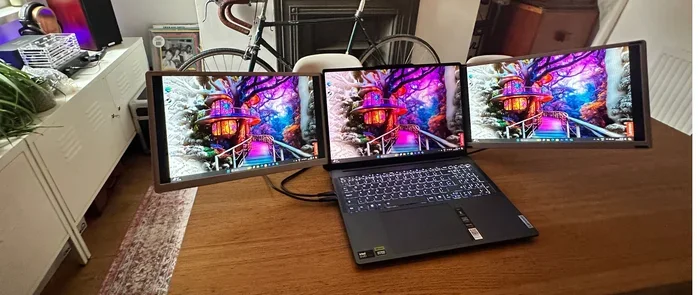
Have you ever wanted to spread your work across three screens and wondered if your laptop could actually handle it? The idea of a triple monitor setup sounds amazing, but the reality can be tricky. Can my laptop handle 3 external monitors without freezing, flickering, or slowing down? That is the question many laptop users ask before diving into a multi-monitor setup.
The short answer is yes, most modern laptops can run three external displays. But the details matter a lot. Your graphics hardware, available ports, and even the type of cables you use all play a role. In this guide, we will walk you through everything you need to know. You will learn what makes a laptop capable of driving three screens, what to watch out for, and how to set it up the right way.
Whether you are a remote worker, a designer, or someone who just loves multitasking, this article has you covered. We will break down the technical stuff into plain language so you do not need to be a tech expert. Let us get started.
Key Takeaways
- Check your laptop’s GPU first — it determines if three external monitors run smoothly.
- Use USB-C or Thunderbolt docks for the simplest and most reliable multi-monitor setup.
- Verify your laptop’s display output ports before buying any external monitors or adapters.
- Update your graphics drivers regularly to prevent lag and ensure stable multi-monitor performance.
- Adjust display resolution and refresh rate to reduce strain on your laptop’s hardware.
- Not all laptops support triple displays — always confirm compatibility before investing in monitors.
📑 Table of Contents
- Understanding Your Laptop Graphics Capabilities
- What You Need to Connect 3 External Monitors
- Common Problems and How to Fix Them
- Best Laptops for Running 3 External Monitors
- Step-by-Step Setup Guide for 3 Monitors
- Real-World Performance What to Expect
- Quick Tips for a Smooth Multi-Monitor Experience
- Key Takeaways
Understanding Your Laptop Graphics Capabilities
The first thing to check is your laptop graphics hardware. This is the engine behind everything you see on screen. Without enough graphical power, even the best monitors will struggle.
Integrated vs Dedicated Graphics
Most laptops come with one of two types of graphics processing units. You have integrated graphics, which share memory with your main processor. Then there is the dedicated GPU, which has its own separate memory and processing power.
Integrated graphics have improved a lot in recent years. Many modern chips from Intel and AMD can handle two external monitors easily. But three screens? That is where things get tighter. A dedicated graphics card gives you much more headroom. If your laptop has a discrete GPU from NVIDIA or AMD, you are in a much better position.
Here is a quick way to check what you have. On Windows, right-click your desktop and select Display Settings. On macOS, click the Apple menu and choose About This Mac. Look for your graphics information there.
How GPU Memory Affects Multi-Monitor Performance
GPU memory, or VRAM, matters more than you might think. Each external monitor you add needs the GPU to render a separate image. More screens mean more memory demand. If your GPU does not have enough VRAM, you will notice lag, stuttering, or delayed responses.
For a basic triple monitor setup, 4GB of VRAM is a decent starting point. If you plan to use high resolutions like 4K on all three screens, aim for 8GB or more. This is especially important if you also run demanding applications like video editing software or 3D modeling tools.
What You Need to Connect 3 External Monitors
Having a capable GPU is only half the battle. You also need the right ports, cables, and sometimes extra hardware. Let us walk through what you actually need to connect three external monitors to your laptop.
Check Your Available Video Ports
Start by looking at the back of your laptop. How many video output ports do you see? Common options include:
- HDMI – Found on most laptops. Supports high-definition video and audio over a single cable.
- DisplayPort – Offers excellent bandwidth and supports high resolutions and refresh rates.
- USB-C or Thunderbolt – Versatile ports that can carry video signals with the right adapter or cable.
- VGA or DVI – Older connection types. They work but lack modern features and bandwidth.
The number and type of ports on your laptop will determine how many monitors you can connect directly. Many laptops only have two video outputs. That is where adapters and docking stations come in handy.
The Role of Docking Stations and Adapters
A USB-C or Thunderbolt docking station can be a game changer. It expands your laptop’s connectivity and lets you connect multiple monitors through a single cable. This is especially useful for laptops with limited video ports.
When choosing a docking station, look for one that supports the total number of displays you need. Not all docks can handle three monitors. Check the product specifications carefully. A good dock will also provide stable power delivery to your laptop, which helps maintain performance during long work sessions.
Resolution and Bandwidth Considerations
Each monitor you add demands bandwidth from your laptop. Higher resolutions like 2560×1440 or 3840×2160 need more bandwidth than standard 1080p displays. If your connection type cannot handle the total load, you may experience lag or reduced refresh rates.
For a smooth experience with three monitors, aim for 1080p or 1440p resolution on each screen. 4K on all three screens is possible but requires a powerful GPU and high-bandwidth connections like Thunderbolt 4 or DisplayPort 1.4.
Common Problems and How to Fix Them
Even with a capable laptop, you might run into issues when setting up three external monitors. Here are the most common problems and practical solutions.
Laptop Screen Flickers or Goes Black
This usually happens when the GPU cannot keep up with the display load. Try lowering the resolution on one or more monitors. You can also reduce the refresh rate from 144Hz to 60Hz. This takes some of the strain off your graphics hardware.
Monitors Not Detected After Connection
If your laptop does not recognize a connected monitor, start with the basics. Unplug the cable and plug it back in. Try a different port or a different cable altogether. Outdated display drivers are also a common culprit. Visit your laptop manufacturer’s website or GPU manufacturer’s site to download the latest drivers.
Performance Drops When All Three Screens Are Active
Running three displays simultaneously uses more system resources. If you notice sluggishness, close unnecessary background applications. Check your task manager to see if any program is using excessive GPU or CPU power. Sometimes simply reducing the number of open apps makes a big difference.
Audio Issues with External Monitors
Some monitors have built-in speakers, but audio routing can get confusing with multiple screens. Go to your sound settings and set the correct playback device. On Windows, right-click the speaker icon in your taskbar and select Sound Settings. On macOS, go to System Settings and choose Sound.
Best Laptops for Running 3 External Monitors
If you are shopping for a new laptop or thinking about upgrading, some models handle triple monitor setups much better than others. Here is what to look for and a few examples that perform well.
Key Specifications to Look For
When choosing a laptop for a multi-monitor setup, focus on these specs:
- A dedicated GPU with at least 4GB of VRAM
- Three or more video output ports
- A modern processor with enough CPU power for multitasking
- At least 16GB of system RAM
- Thunderbolt 4 or USB4 support for docking station flexibility
Laptop Models That Excel at Multi-Monitor Work
Several laptop brands and models stand out for their multi-display support. Workstations from Dell and Lenovo often come with powerful dedicated GPUs and multiple display outputs. Apple MacBook Pro models with M-series chips can drive up to three external displays on certain configurations. Gaming laptops from brands like ASUS and MSI are also excellent choices since they are built to handle heavy graphical workloads.
Before buying, always check the manufacturer’s specifications for maximum supported displays. This information is usually listed in the product details or technical specifications section.
Step-by-Step Setup Guide for 3 Monitors
Ready to set up your triple monitor configuration? Follow these steps for a smooth setup process.
Step 1: Prepare Your Workspace
Before you connect anything, organize your desk. Make sure you have enough space for three monitors. Position them so the main screen is directly in front of you and the side monitors are at comfortable viewing angles. Good ergonomics reduce eye strain and improve productivity.
Step 2: Connect Your Monitors
Start by plugging in your first monitor to an available HDMI or DisplayPort on your laptop. Then connect the second monitor the same way. For the third monitor, you may need to use a USB-C adapter or a docking station if your laptop does not have enough native ports.
Power on all three monitors and your laptop. Give them a moment to detect each other.
Step 3: Configure Display Settings
Once all monitors are connected, go to your display settings. On Windows, right-click the desktop and choose Display Settings. On macOS, go to System Settings and click Displays.
You should see three displays listed. You can drag them to match your physical arrangement. This helps your mouse move naturally between screens. Choose whether to extend your desktop across all three or duplicate the display.
Step 4: Adjust Resolution and Orientation
Set each monitor to its native resolution for the sharpest image. If you have monitors in different orientations, adjust the rotation settings accordingly. Landscape mode works best for most tasks, but portrait mode is great for coding or reading documents.
Step 5: Test and Fine-Tune
Open a few applications and spread them across the three screens. Watch for any lag or delay. Adjust your power settings to prevent your laptop from sleeping or dimming the displays during use. You are now ready to enjoy a productive triple-screen workspace.
Real-World Performance What to Expect
So what happens when you actually use three external monitors in everyday scenarios? Let us break down what you can expect based on different use cases.
Office Work and Web Browsing
For typical office tasks like email, spreadsheets, and web browsing, three external monitors work beautifully. Even laptops with integrated graphics handle this workload well. You will notice a significant boost in productivity as you can keep reference material, communication tools, and your main workspace all visible at once.
Creative Work and Video Editing
If you do creative work, three monitors can transform your workflow. You can have your editing timeline on one screen, your preview on another, and your tools and palettes on the third. Just make sure your laptop has a dedicated GPU with enough VRAM to keep things running smoothly.
Gaming Across Multiple Screens
Gaming on three monitors is a different story entirely. Not every game supports multi-display setups. Even those that do require serious graphical horsepower. For casual gaming across three screens, a high-end laptop with a powerful dedicated GPU is essential.
Quick Tips for a Smooth Multi-Monitor Experience
Here are some practical tips to keep your triple monitor setup running without issues:
- Update your graphics drivers regularly. New drivers often fix compatibility issues and improve performance.
- Use high-quality cables. Cheap cables can cause signal loss and flickering.
- Match your refresh rates across monitors when possible. Mixed refresh rates can cause visual inconsistencies.
- Use a surge protector or uninterruptible power supply to protect your equipment.
- Adjust your power plan settings to prevent your laptop from throttling performance.
- Keep your laptop well-ventilated. Three monitors plus heavy workloads generate more heat.
Key Takeaways
So, can your laptop handle three external monitors without lag? The answer depends on your specific hardware and setup. A laptop with a dedicated GPU, sufficient video ports, and enough system RAM can absolutely manage a triple monitor configuration. Laptops with integrated graphics can do it too, but with more limitations.
Start by checking your laptop specifications. Verify your GPU capabilities, available ports, and supported display count. Choose the right cables and adapters for your setup. And do not forget to keep your drivers up to date for the best performance.
A well-configured three-monitor setup can dramatically improve your productivity and multitasking ability. The investment in extra screens pays off quickly for anyone who spends long hours at their laptop. With the right preparation and knowledge, you can enjoy a seamless multi-monitor setup that makes your workday smoother and more efficient.
Frequently Asked Questions
Can My Laptop Handle 3 External Monitors Without Lag?
It depends on your laptop’s graphics card, processor, and available ports. Most modern laptops with dedicated GPUs can run three monitors smoothly, but older or budget models may struggle with performance.
What Graphics Card Do I Need to Run 3 External Monitors?
You need a dedicated GPU with at least three display outputs, such as an NVIDIA GeForce or AMD Radeon card. Integrated graphics from Intel or AMD can also support three monitors, but performance may drop during demanding tasks.
Will Using 3 External Monitors Cause Lag on My Laptop?
Lag can occur if your laptop’s hardware is not powerful enough to drive all three screens simultaneously. Closing unnecessary background apps and lowering display resolutions can help reduce lag significantly.
Can I Connect 3 Monitors to a Laptop with Only One HDMI Port?
Yes, you can use a docking station, USB-C adapter, or DisplayLink technology to add extra display outputs. These solutions are affordable and work well for most users who need multiple screens without upgrading their laptop.
Is It Possible to Game on 3 External Monitors Without Lag?
Gaming across three monitors requires a high-end GPU with plenty of VRAM and processing power. Most mid-range laptops will experience lag, so check your laptop’s graphics capabilities before setting up a triple-monitor gaming rig.
How Can I Check If My Laptop Supports 3 External Monitors?
You can check your laptop’s specs on the manufacturer’s website or use the Device Manager in Windows to view your graphics card details. Most support pages list the maximum number of displays your laptop can handle at once.