Can I Upgrade My Surface Laptop 3 And What Happens Next
Can I Upgrade My Surface Laptop 3? The short answer is yes, but with limits. You can swap out the SSD storage and add more RAM, but the process is not as simple as upgrading a desktop PC. Microsoft designed the Surface Laptop 3 with a sealed chassis, so you need the right tools and a steady hand. This guide walks you through every upgrade option, what to expect, and how to avoid common mistakes.
So, you have a Surface Laptop 3 sitting on your desk, and you are wondering if there is any way to squeeze more life out of it. Maybe the storage is full, or the performance feels slower than it used to. You are not alone. Many Surface Laptop 3 owners ask the same question: Can I Upgrade My Surface Laptop 3? The good news is that some upgrades are possible. The not-so-good news is that Microsoft made this laptop harder to upgrade than a traditional notebook. In this guide, we will break down exactly what you can upgrade, what you cannot, and what happens after you make your changes.
We will cover every component you might want to swap out. We will look at storage upgrades, memory options, and even the tools you need. By the end of this article, you will know exactly whether an upgrade makes sense for your situation. Let us get into it.
Key Takeaways
- SSD Upgrade Possible: You can replace the M.2 SSD in the Surface Laptop 3 for more storage.
- RAM Upgrade Is Tricky: The RAM is soldered in most models, but some configurations allow limited upgrades.
- You Need the Right Tools: A pentalobe screwdriver and patience are essential for opening the device.
- Warranty May Be Affected: Opening the laptop can void your Microsoft warranty if not done carefully.
- Performance Gains Are Real: Upgrading to a faster SSD can noticeably improve boot times and app loading.
- Know Your Model First: Different Surface Laptop 3 models have different upgrade paths.
- Professional Help Is an Option: If you are not confident, a certified technician can handle the upgrade safely.
📑 Table of Contents
- Understanding the Surface Laptop 3 Hardware
- Can You Upgrade the RAM on a Surface Laptop 3?
- Upgrading the SSD Storage on Your Surface Laptop 3
- What Happens When You Upgrade Your Surface Laptop 3?
- Upgrade vs. Buying a New Surface Laptop
- Tips for a Safe and Successful Upgrade
- How Upgrades Affect the Surface Laptop 3 Lifespan
- Final Thoughts on Upgrading the Surface Laptop 3
Understanding the Surface Laptop 3 Hardware
Before we dive into upgrades, it helps to understand what is inside the Surface Laptop 3. Microsoft built this device with a sleek aluminum body that feels premium. But that design choice came with trade-offs. The laptop is sealed tight, which means you cannot simply pop off a back panel like you would on many other laptops.
The Surface Laptop 3 comes in two sizes: 13.5 inches and 15 inches. Both models share a similar internal layout, but there are some differences. The 13.5-inch model uses Intel 10th gen processors, while the 15-inch model steps up to Intel 10th gen quad-core chips. Both options offer solid performance for everyday tasks, but they are now a few generations old.
What Components Are Inside?
Here is a quick look at the key hardware inside the Surface Laptop 3:
- Processor: Intel Core i5 or Core i5 Plus, or Core i7 on the 15-inch model
- RAM: 8GB or 16GB, depending on your configuration
- Storage: 128GB, 256GB, 512GB, or 1TB SSD
- Display: PixelSense touchscreen at 2256 x 1504 resolution
- Battery: Built-in lithium-ion battery
Now that you know what is inside, let us talk about what you can actually change.
Can You Upgrade the RAM on a Surface Laptop 3?
This is the question most people ask first. Can I Upgrade My Surface Laptop 3 RAM? The answer depends on your specific model. Here is the full picture.
The RAM Situation Explained
Microsoft soldered the RAM directly onto the motherboard in the Surface Laptop 3. This means you cannot just pull out a memory stick and swap it for a bigger one. In most Surface Laptop 3 models, the RAM is not user-upgradeable. If you bought the 8GB version, you are stuck with 8GB unless you replace the entire motherboard.
However, there is a small exception. Some early Surface Laptop 3 models used removable SO-DIMM RAM. But these are rare and hard to find. The vast majority of Surface Laptop 3 units have soldered memory.
What Can You Do If You Need More RAM?
If your Surface Laptop 3 feels slow because of low memory, you have a few options:
- Close unused apps and browser tabs: This frees up memory instantly.
- Use ReadyBoost with a fast USB drive: Windows can use external storage as temporary memory.
- Upgrade to a 64-bit operating system: Make sure you are not wasting RAM on a 32-bit OS.
- Consider replacing the motherboard: This is expensive and risky, but it is technically possible.
- Buy a new laptop: If 8GB is not enough for your needs, a newer device will serve you better.
Bottom line: do not buy a Surface Laptop 3 expecting to add RAM later. Choose the configuration that fits your needs from day one.
Upgrading the SSD Storage on Your Surface Laptop 3
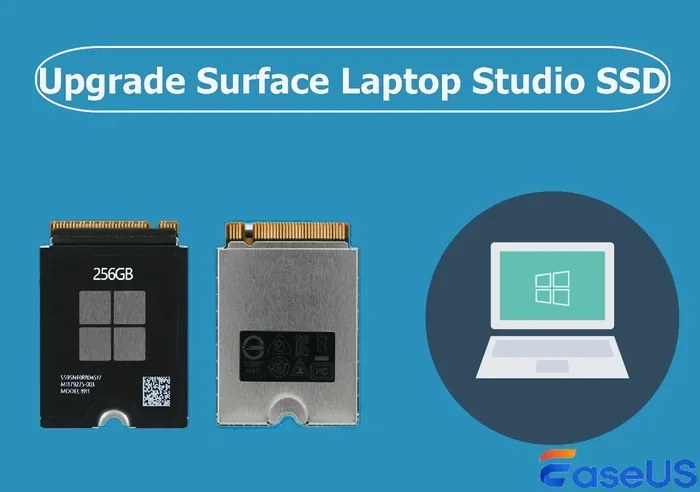
This is where things get more exciting. Can I Upgrade My Surface Laptop 3 storage? Yes! The SSD in the Surface Laptop 3 is replaceable. This is the most practical and rewarding upgrade you can perform.
How the SSD Upgrade Works
The Surface Laptop 3 uses a standard M.2 NVMe SSD. These drives are widely available and come in various capacities. You can replace your current drive with a larger one, or swap it for a faster model. A 1TB or 2TB NVMe SSD will give you plenty of room for files, apps, and media.
The upgrade process involves opening the laptop, disconnecting the old drive, and connecting the new one. It sounds simple, but the Surface Laptop 3’s sealed design makes it a bit more challenging than a typical notebook.
Steps to Replace the SSD
- Power down your laptop completely and unplug it.
- Gather your tools: You need a pentalobe screwdriver (also called a penta-lobe or P5 screwdriver).
- Remove the screws on the bottom of the laptop. There are several small screws holding the case together.
- Carefully pry open the chassis using a plastic spudger or guitar pick. Do not use metal tools, as you can damage the internal components.
- Disconnect the battery connector before touching the SSD. This prevents electrical damage.
- Locate the SSD and remove the single screw holding it in place.
- Slide out the old drive and slide in the new one at the same angle.
- Secure the new SSD with the screw you removed earlier.
- Reconnect the battery and snap the case back together.
- Boot up your laptop and clone your old drive or install a fresh copy of Windows.
Recommended SSDs for the Surface Laptop 3
Not all NVMe drives work perfectly inside the Surface Laptop 3. Here are some reliable options:
- Samsung 970 EVO Plus: Fast, reliable, and widely available.
- WD Black SN770: Great performance at a competitive price.
- Crucial P3 Plus: A budget-friendly option with solid speeds.
- Seagate FireCuda 530: Top-tier performance for power users.
Make sure the drive you buy is the M.2 2280 form factor. This is the standard size that fits the Surface Laptop 3.
What Happens When You Upgrade Your Surface Laptop 3?
Once you complete an upgrade, you will notice some real changes in how your laptop performs. Let us walk through what to expect.
Storage Upgrade Results
Swapping in a new SSD delivers immediate improvements. Your laptop will boot faster, apps will launch quicker, and file transfers will feel snappier. If you upgraded from a 128GB drive to a 1TB drive, you will suddenly have plenty of breathing room. No more deleting old photos just to make space for a new document.
A faster NVMe drive also improves the overall responsiveness of Windows. The system feels more fluid when you are switching between apps, opening folders, or searching for files. These gains are especially noticeable if your original drive was running low on space.
RAM Upgrade Results (If Applicable)
If you managed to replace the motherboard with a higher-RAM version, you will see a big difference in multitasking. More RAM means you can keep more apps open at the same time without the system slowing down. Video editing, virtual machines, and heavy browser sessions all benefit from extra memory.
What Stays the Same After an Upgrade
It is important to set realistic expectations. Upgrading the SSD or RAM will not turn your Surface Laptop 3 into a brand-new machine. The processor and graphics capabilities remain the same. You will not gain features that came with newer Surface models. Think of an upgrade as a way to extend the useful life of your current device, not as a complete transformation.
Upgrade vs. Buying a New Surface Laptop
At some point, every laptop owner faces this question: should I upgrade what I have, or buy something new? Let us compare both paths for the Surface Laptop 3.
| Factor | Upgrade Your Surface Laptop 3 | Buy a New Laptop |
|---|---|---|
| Cost | $50 to $150 for an SSD | $800 to $1,500+ for a new device |
| Effort | Moderate DIY effort required | Plug in and set up in minutes |
| Warranty | May void existing warranty | Full new warranty included |
| Performance Gain | Noticeable but limited | Significant across all components |
| Storage Gain | Up to 2TB possible | Varies by model |
| RAM Gain | Practically impossible | Up to 32GB on newer models |
| Risk | Moderate risk of damage | No risk to existing device |
If your Surface Laptop 3 still handles your daily tasks well, an SSD upgrade is a smart and affordable move. But if the processor itself is holding you back, a new laptop is the better long-term investment.
Tips for a Safe and Successful Upgrade
Opening up your Surface Laptop 3 is not something you want to do carelessly. Here are some tips to make the process smooth and safe.
Preparation Is Everything
- Back up your data before you start. Use OneDrive, an external drive, or both.
- Work on a clean, flat surface with good lighting.
- Use the right screwdriver. A pentalobe bit is essential. Using the wrong tool can strip the screws.
- Take photos as you go. This makes reassembly much easier if you get confused.
- Ground yourself. Touch a metal surface before handling internal components to prevent static damage.
Common Mistakes to Avoid
- Forcing parts apart: The Surface Laptop 3 clips together tightly. Use plastic tools and gentle pressure.
- Skipping the battery disconnect: Always disconnect the battery before working on internal components.
- Using the wrong SSD: Make sure your drive is M.2 NVMe and the 2280 form factor.
- Losing screws: Keep screws organized. A magnetic mat or a small container helps a lot.
- Rushing reassembly: Take your time. Forcing the case closed can crack the chassis or pinch cables.
When to Call a Professional
If you are not comfortable opening your laptop yourself, that is perfectly okay. Microsoft Support can help, and there are many certified technicians who specialize in Surface devices. Paying a professional $50 to $100 for an SSD upgrade is a small price for peace of mind. You avoid the risk of damage and keep your warranty intact.
How Upgrades Affect the Surface Laptop 3 Lifespan
A storage upgrade can breathe new life into an aging Surface Laptop 3. Many users report that their devices feel like new after swapping in a fast NVMe SSD. The boot time drops, apps launch faster, and the overall experience becomes much more pleasant.
That said, there are limits to what an upgrade can achieve. The Surface Laptop 3 will not receive the latest Windows features forever. Microsoft typically supports its devices with updates for about five to seven years. Your laptop may eventually reach a point where it can no longer run the latest version of Windows securely.
An SSD upgrade can push your Surface Laptop 3 another two to three years of useful life. For many users, this extends the device well beyond its original expected lifespan. It is a cost-effective way to get more value from your investment.
Final Thoughts on Upgrading the Surface Laptop 3
So, can you upgrade a Surface Laptop 3? Yes, but the options are limited. The SSD is your best and most practical upgrade path. You can swap it out for a larger or faster drive and see real improvements in speed and storage. RAM upgrades are generally not possible due to soldered memory. The processor and other components are fixed.
If you are asking Can I Upgrade My Surface Laptop 3, the answer is a qualified yes. You can upgrade the storage, and that alone can make a significant difference. Just go in with realistic expectations, follow the right steps, and back up your data first.
A Surface Laptop 3 is still a capable machine in 2024 and beyond. With a simple SSD upgrade, it can keep up with everyday tasks, web browsing, office work, and light creative projects. Before you spend money on a new laptop, consider whether an upgrade might be all you need.
Take a look at your current storage usage. If you are constantly running out of space or your drive is showing its age, an upgrade makes a lot of sense. It is one of the easiest and most affordable ways to refresh an older laptop. Give it a try, and you might be surprised at how much better your Surface Laptop 3 feels afterward.
Frequently Asked Questions
Can I upgrade the RAM in a Surface Laptop 3?
In most Surface Laptop 3 models, the RAM is soldered to the motherboard and cannot be upgraded. A very small number of early units used removable RAM, but these are rare. Your best option is to choose the right RAM configuration when you purchase the device.
What type of SSD does the Surface Laptop 3 use?
The Surface Laptop 3 uses an M.2 NVMe SSD in the 2280 form factor. This is a standard size found in many modern laptops. Make sure any replacement drive matches this specification for compatibility.
Will upgrading the SSD void my warranty?
Opening your Surface Laptop 3 may void the Microsoft warranty. If your device is still under warranty, consider having the upgrade performed by a certified technician or at a Microsoft service center to keep your coverage intact.
How long does it take to upgrade the SSD in a Surface Laptop 3?
For someone with experience, the SSD swap takes about 20 to 30 minutes. If you are doing it for the first time, set aside an hour or so. Take your time, follow each step carefully, and do not rush the process.
Can I use the Surface Laptop 3 after replacing the SSD?
Yes. After replacing the SSD, you will need to reinstall Windows or clone your old drive to the new one. Once the operating system is set up, the laptop works exactly as before, just with more storage or faster speeds.
Is it worth upgrading a Surface Laptop 3 in 2024?
If your Surface Laptop 3 still meets your performance needs, an SSD upgrade is absolutely worth it. It is affordable, easy to do, and can make the device feel significantly faster. Just keep in mind that the processor and RAM cannot be upgraded, so a new laptop may be a better choice if those components are holding you back.
=== CONCLUSION ===
Can I Upgrade My Surface Laptop 3? The answer is a clear yes for storage and a no for RAM in most cases. The SSD upgrade is the single best thing you can do to refresh your Surface Laptop 3. It is affordable, straightforward, and delivers noticeable performance gains. You get more space, faster speeds, and a better overall experience without spending hundreds of dollars on a new machine.
Just remember to back up your data, use the right tools, and take your time. If you are not comfortable doing it yourself, a professional technician can handle the job for you. Whether you choose to upgrade or buy new, the most important thing is to make a decision that fits your needs and budget. Your Surface Laptop 3 still has plenty of life left in it, and a simple upgrade can help you get the most out of it.