How Do I Activate My Personal Hotspot For Beginners
Activating your personal hotspot is simple and lets you share your phone’s cellular data with other devices. Whether you use an iPhone or Android, this guide walks you through every step with clear instructions. You will learn how to set up your hotspot name, password, and connect devices safely in minutes.
Key Takeaways
- Quick Activation: You can turn on your personal hotspot in just a few taps on both iPhone and Android.
- Carrier Matters: Some plans like AT&T unlimited plans include built-in hotspot data you can use right away.
- Security Is Key: Always set a strong password to keep your personal hotspot safe from strangers.
- Battery Impact: Running a mobile hotspot drains your phone battery faster, so keep a charger handy.
- Troubleshooting Helps: Simple fixes like restarting your phone often solve most hotspot connection issues.
- Multiple Devices: You can connect laptops, tablets, and even gaming devices to your hotspot for internet access.
📑 Table of Contents
- How Do I Activate My Personal Hotspot For Beginners
- How to Activate Your Personal Hotspot on iPhone
- How to Activate Your Personal Hotspot on Android
- Connecting Other Devices to Your Hotspot
- How Much Data Does a Hotspot Use?
- Common Hotspot Problems and How to Fix Them
- Tips to Save Battery While Using Your Hotspot
- Is It Safe to Use a Personal Hotspot?
- When Should You Use a Dedicated Hotspot Instead?
- Final Thoughts
How Do I Activate My Personal Hotspot For Beginners
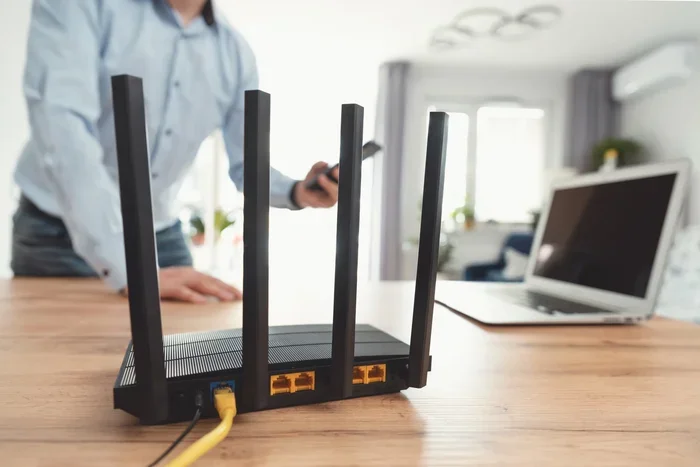
Have you ever been somewhere without Wi-Fi and wished your phone could share its internet connection? That is exactly what a personal hotspot does. It turns your phone into a mini Wi-Fi router. Other devices like laptops and tablets can then connect to the internet through your phone’s cellular data.
Activating your mobile hotspot might sound technical, but it really is not. In just a few minutes, you can have your phone broadcasting a Wi-Fi signal. This guide will show you every step in plain, simple language. No tech degree needed. Just follow along and you will be online in no time.
Whether you have an iPhone or an Android phone, the process is pretty similar. We will cover both. You will also learn how to set a strong password, fix common problems, and save battery life while using your portable hotspot. Let us get started.
What Is a Personal Hotspot?
A personal hotspot is a feature built into your smartphone. It lets you share your phone’s cellular data with other devices. Think of it as a bridge between your phone’s data plan and your laptop or tablet.
When you turn on your hotspot, your phone creates a small Wi-Fi network. Other devices can see this network and connect to it. Once connected, they can browse the web, stream videos, and use apps just like they would on a regular Wi-Fi network.
Some people also call this tethering. The term just means connecting one device to another for internet access. But “personal hotspot” is the most common name you will see on your phone’s settings screen.
Now that you know what it is, let us talk about why you might want to use one. Maybe you are traveling and there is no Wi-Fi available. Or perhaps your home internet is down and you need to get work done. A wireless hotspot solves both problems. You just need a phone with a working data plan.
How to Activate Your Personal Hotspot on iPhone
Turning on your hotspot on an iPhone is very straightforward. Apple makes it easy to find the setting. Here is exactly what to do.
First, open the Settings app on your iPhone. It is the gray gear icon on your home screen. Once you are in Settings, look for the option called Personal Hotspot. It is usually near the top of the list, right below your name and Apple ID settings.
If you do not see Personal Hotspot right away, try this. Go to Settings, then tap on Cellular. From there, tap on Cellular Data Options. You should see the Personal Hotspot option listed. Tap on it.
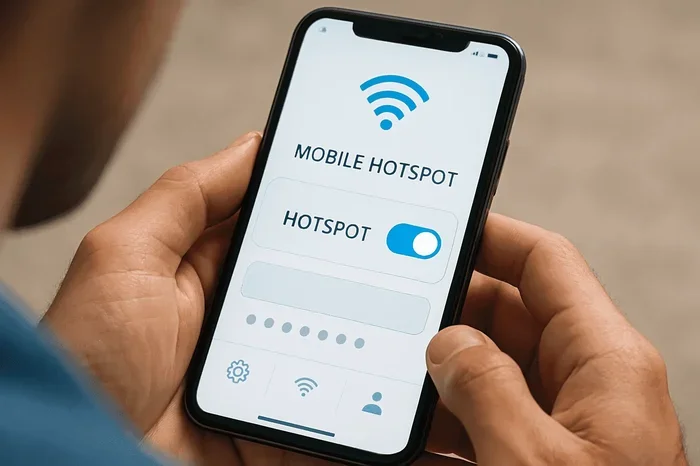
Now you will see a toggle switch next to Allow Others to Join. Slide it to the right. The switch will turn green. That means your hotspot is now active.
Your iPhone will show a Wi-Fi password below the toggle. This is the password other devices need to connect. You can change it by tapping on Wi-Fi Password and typing in a new one. Make sure it is something strong and hard to guess.
Other devices will now be able to find your iPhone’s hotspot in their Wi-Fi settings. Look for your iPhone’s name in the list of available networks. Tap on it, enter the password, and you are connected.
Quick Tip: If other devices cannot find your hotspot, try toggling it off and back on. This simple fix works more often than you would think.
How to Set Up Your Hotspot Name and Password
Your iPhone lets you customize both the hotspot name and password. To change the name, go to Settings and then tap on General. From there, tap on About. Look for the field called Name. This is the name other devices will see when searching for Wi-Fi networks.
Type in a name that is easy for you to recognize. Avoid using personal information like your full name. Something simple like “My iPhone Hotspot” works great.
For the password, go back to the Personal Hotspot settings screen. Tap on Wi-Fi Password. Choose a password that is at least eight characters long. Mix uppercase letters, lowercase letters, numbers, and symbols. A strong password keeps strangers from using your data without permission.
How to Activate Your Personal Hotspot on Android
Android phones work a bit differently, but the process is still very simple. The exact steps may vary slightly depending on your phone brand. Samsung, Google Pixel, and Motorola all have slight differences. But the basic steps are the same.
Start by opening the Settings app on your Android phone. Look for the Network or Connections option. On some phones, you will see Mobile Hotspot and Tethering. Tap on that.
You will see a toggle for Mobile Hotspot. Slide it to turn it on. Your phone will immediately start broadcasting a Wi-Fi signal. Other devices can now find and connect to it.
To change your hotspot settings, tap on Mobile Hotspot again. You can set a new hotspot name, change the password, and choose the security type. We recommend using WPA3 or WPA2 for the best security.
Some Android phones also let you set up a Wi-Fi hotspot through the quick settings panel. Swipe down from the top of your screen. Look for the Hotspot icon. Tap it to turn it on quickly. This is a great shortcut if you need to activate your hotspot fast.
Quick Tip: If your Android phone does not show the hotspot option, check with your carrier. Some plans require you to add a hotspot data add-on before the feature becomes available.
Finding the Hotspot Setting on Different Android Brands
On Samsung phones, go to Settings, then Connections, then Mobile Hotspots and Tethering. On Google Pixel phones, go to Settings, then Network and Internet, then Hotspot and Tethering. On Motorola phones, go to Settings, then Network and Internet, then Hotspot.
No matter which brand you have, the path always leads to the same place. You are looking for the hotspot toggle switch. Once you find it, tap to turn it on. That is all there is to it.
Connecting Other Devices to Your Hotspot
Now that your hotspot is active, let us connect another device. The process is the same whether you are connecting a laptop, tablet, or another phone.
On the device you want to connect, open the Wi-Fi settings. Look for the name of your hotspot in the list of available networks. It will be the name you set earlier. Tap on it.
A prompt will ask for the password. Type in the password exactly as it appears on your phone. Make sure you match uppercase and lowercase letters correctly. Then tap Connect.
Within a few seconds, the device should connect. You will see a Wi-Fi icon appear in the status bar. You are now using your phone’s data connection to get online.
Quick Tip: If the connection fails, double-check the password. Passwords are case-sensitive, so “Password123” is different from “password123.”
You can usually connect around five to ten devices at once. But keep in mind that more devices means more data usage and slower speeds. If you want to learn more about sharing data between phones, check out this guide on sharing mobile data with another phone for extra tips.
How Much Data Does a Hotspot Use?
This is a great question, and the answer matters a lot. Your personal hotspot uses data just like your phone does. Every website you visit, every video you stream, and every app you open on a connected device eats up your data.
Here is a rough idea of how much data common activities use per hour.
- Web browsing: About 60 MB per hour
- Email: About 5 MB per hour
- SD video streaming: About 1 GB per hour
- HD video streaming: About 3 GB per hour
- Video calls: About 1.5 GB per hour
- Music streaming: About 100 MB per hour
As you can see, video uses the most data by far. If you plan to watch movies or shows through your hotspot, keep an eye on your data usage. Some plans limit how much hotspot data you can use each month.
For example, if you want to check if your carrier includes hotspot data, look into whether you can add hotspot data to your AT&T unlimited plan for more options. This can save you from surprise overage charges.
Quick Tip: Turn off your hotspot when you are not using it. This saves both data and battery life. It is an easy habit to build.
Common Hotspot Problems and How to Fix Them
Sometimes things do not work perfectly. Hotspot issues are common and usually easy to fix. Here are the most frequent problems and their solutions.
Devices Cannot Find the Hotspot
If other devices cannot see your hotspot, the first thing to do is turn it off and back on again. This refreshes the connection. Also make sure your phone is not in airplane mode. Airplane mode disables all wireless connections including your hotspot.
Another reason could be that your phone is too far from the other device. Move closer and try again. Walls and furniture can weaken the signal. A portable hotspot works best within about 30 feet of the connected device.
Connected But No Internet Access
This happens when a device connects to the hotspot but cannot actually get online. The most common cause is that your phone has no data signal. Check your phone’s data connection first. Make sure you have bars showing cellular signal.
Another cause could be that your data plan has run out. If you have used up your monthly data, your hotspot will not work until the next billing cycle. Consider getting a dedicated hotspot if you find yourself running out of data often.
Slow Internet Speeds
Hotspot speeds depend on your cellular signal strength. If you are in an area with weak signal, your speeds will be slow. Move to a different location if possible. Being near a window or outside often helps.
Also, too many connected devices can slow things down. Disconnect devices you are not using. This frees up bandwidth for the devices that need it most.
If you want to test your speeds, try using a speed test app on one of the connected devices. This tells you exactly how fast your hotspot is performing.
Tips to Save Battery While Using Your Hotspot
Running a mobile hotspot uses a lot of battery power. Your phone has to work harder to maintain the Wi-Fi signal for other devices. But there are easy ways to reduce battery drain.
- Plug in your phone: Keep your phone charging while the hotspot is on. This prevents your phone from dying mid-use.
- Lower screen brightness: Your phone screen uses a lot of power. Turning it down saves battery.
- Close unused apps: Apps running in the background drain battery. Close the ones you are not using.
- Use a battery pack: A portable charger is a lifesaver when you are on the go with your hotspot active.
- Turn off hotspot when done: Do not leave it running all day. Only turn it on when you need it.
Following these simple tips can double or even triple your phone’s battery life while using a hotspot. It makes a big difference, especially during long trips or workdays.
Is It Safe to Use a Personal Hotspot?
Yes, using your own personal hotspot is very safe. In fact, it is often safer than public Wi-Fi networks. When you use a hotspot, your data stays between your phone and the devices you choose to connect.
Here are a few security tips to keep in mind.
- Always use a password: Never leave your hotspot open without a password. This prevents strangers from connecting and using your data.
- Use WPA2 or WPA3 encryption: These are the most secure options. Avoid WEP encryption because it is outdated and easy to crack.
- Change your password regularly: Just like your home Wi-Fi, changing your hotspot password from time to time adds an extra layer of protection.
- Limit connected devices: Only allow devices you trust to connect. You can usually see which devices are connected in your hotspot settings.
Following these steps keeps your data safe and your hotspot secure. You can browse, work, and stream with confidence knowing your connection is protected.
When Should You Use a Dedicated Hotspot Instead?
A personal hotspot works great for most situations. But sometimes a dedicated hotspot device is a better choice. Dedicated hotspots are separate devices made just for sharing internet. They are not tied to your phone battery or screen.
You might want a dedicated hotspot if you travel a lot. If you need to connect many devices for a long time, a standalone device handles the job better. It also keeps your phone free for calls and messages.
Dedicated hotspots often have better battery life and stronger antennas than phones. They can also connect to multiple carriers for the best signal. If you want to explore this option, you can learn more about getting a hotspot instead of Wi-Fi and whether it makes sense for your situation.
For most everyday uses though, your phone’s built-in hotspot is more than enough. It is convenient, free (if your plan includes it), and always with you.
Final Thoughts
Activating your personal hotspot is one of the most useful skills you can learn on your phone. Whether you are working remotely, traveling, or just need internet on your laptop, your phone has you covered.
The process is simple on both iPhone and Android. You just find the hotspot setting, turn it on, set a password, and connect your devices. Within minutes, you are online.
Remember to keep your password strong, monitor your data usage, and take care of your phone’s battery. These small habits make a big difference in your hotspot experience.
Now that you know how to activate and use your mobile hotspot, you are ready to go. Try it out today and enjoy the freedom of having internet anywhere you go.
Frequently Asked Questions
Can I use my phone hotspot without Wi-Fi at home?
Yes, you absolutely can. Your personal hotspot uses your phone’s cellular data to create a Wi-Fi network. It does not need home Wi-Fi to work. As long as you have a data plan and cellular signal, your hotspot will function anywhere.
How many devices can connect to my personal hotspot at once?
Most phones allow five to ten devices to connect at the same time. The exact number depends on your phone model and carrier. Keep in mind that more connected devices will slow down your speeds and use more data faster.
Will using my hotspot drain my phone battery quickly?
Yes, running a hotspot does drain your battery faster than normal use. Your phone is working hard to broadcast a Wi-Fi signal. To reduce battery drain, keep your phone plugged in and lower the screen brightness while using the hotspot.
Can I get Wi-Fi from my phone without a data plan?
No, you need an active cellular data plan for your hotspot to work. The hotspot shares your phone’s data connection with other devices. Without data, there is nothing to share. You can check if you can get Wi-Fi from your phone through your carrier’s data options.
Is it safe to leave my hotspot on all the time?
It is not recommended. Leaving your hotspot on drains your battery and uses data even when no devices are connected. Turn it off when you are not using it. This saves battery, data, and keeps your connection more secure.
What is the difference between a personal hotspot and mobile data?
Mobile data is the internet connection on your phone. A personal hotspot is a feature that shares that mobile data connection with other devices. Your phone uses its own data plan to create a small Wi-Fi network that other devices can join and use to get online.
=== CONCLUSION ===
Activating your personal hotspot is quick, easy, and incredibly useful. You now know how to turn it on, set it up, and connect your devices on both iPhone and Android. You also know how to fix common problems, save battery, and keep your connection secure.
The key is to practice. The more you use your hotspot, the more comfortable you will become with it. Soon it will feel like second nature. And whenever you need internet on the go, your phone will be your best tool.
Start today. Turn on your hotspot, connect a device, and experience the freedom of having internet anywhere. You will wonder how you ever managed without it.