How Do I Access My Wifi Internet Connection at Home
Accessing your wifi internet at home is easier than you think. This guide walks you through setting up your router, connecting devices, and fixing common issues. You will learn practical tips to get online fast and keep your network secure.
Key Takeaways
- Know your equipment: A modem and router are the two key pieces you need to access wifi at home.
- Setup is simple: Following a few basic steps gets your wireless network running in minutes.
- Connection issues are common: Most wifi problems have easy fixes you can do yourself.
- Signal strength matters: Placement of your router affects how well you access wifi throughout your home.
- Security is essential: Protecting your network keeps your data safe from unwanted users.
- Multiple devices work together: You can connect phones, laptops, TVs, and more to one home network.
- Mesh systems help big homes: Adding mesh wifi extends coverage to every room.
📑 Table of Contents
- How Do I Access My Wifi Internet Connection at Home?
- Understanding Your Home Wifi Setup
- How to Set Up Your Home Wifi Network
- Connecting Different Devices to Your Wifi
- Troubleshooting Common Wifi Access Problems
- Improving Your Wifi Signal and Coverage
- Keeping Your Home Wifi Network Secure
- When to Call Your Internet Service Provider
- Final Thoughts on Accessing Your Wifi Internet
How Do I Access My Wifi Internet Connection at Home?
Getting online at home should feel simple. Yet many people struggle with their wifi internet connection every day. Whether you just moved into a new place or your network keeps dropping, this guide has you covered.
In this article, we will walk you through everything you need to access your wifi internet from start to finish. You will learn how your home network works, how to set it up, and how to fix the most common problems. We also share tips to boost your signal and keep your network safe.
By the end, you will feel confident connecting any device to your home wireless network. No tech degree required. Let us get started.
Understanding Your Home Wifi Setup
Before you can access wifi internet, you need to understand the basic pieces involved. A home network is not complicated once you see how the parts fit together.
What Is a Modem?
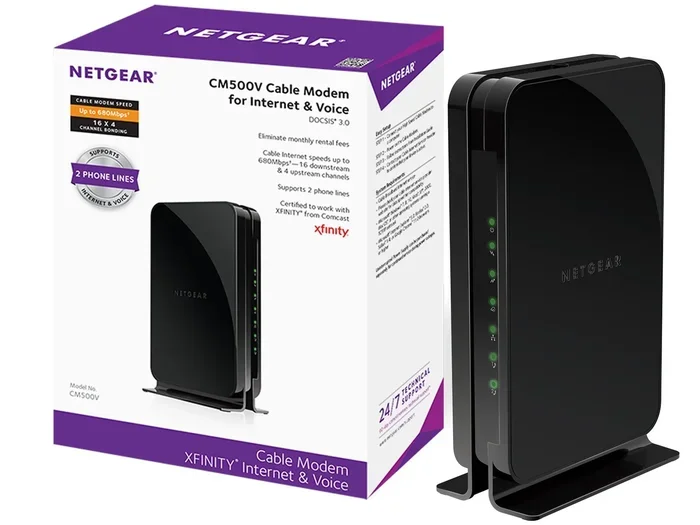
A modem is the box that brings the internet into your home. It connects to your internet service provider (ISP) through a cable or phone line. Your modem turns that signal into data your devices can use.
Most ISPs give you a modem when you sign up for a plan. Some people choose to buy their own wifi box instead. This can save money over time and give you more control over your setup.
What Is a Router?
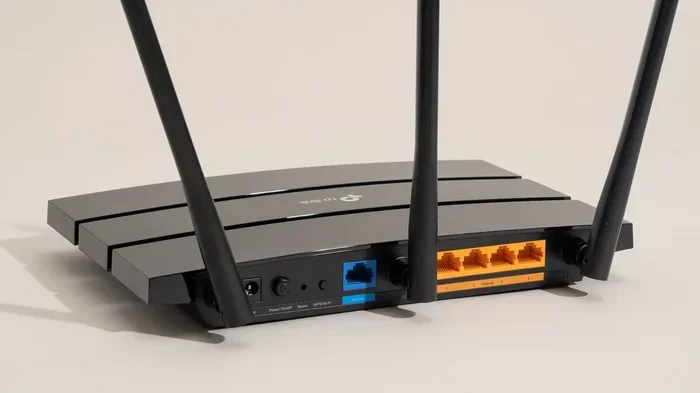
A router takes the signal from your modem and turns it into a wireless network. It broadcasts wifi so your phones, laptops, and smart TVs can connect without cables. Think of the router as the traffic cop that directs data to the right device.
Many people use a combined modem-router unit. This single device does both jobs. It is simpler to set up and takes up less space. But separate devices can offer better performance and more features.
Can You Have Your Own Personal Wifi Router?
Yes, you absolutely can. Buying your own personal wifi router gives you more options. You can pick a model that fits your home size and usage needs. You also get to control your network settings without waiting on your ISP.
If you are considering this route, check out our guide on Can I Have My Own Personal Wifi Router for more details on what to look for.
How to Set Up Your Home Wifi Network
Setting up your home wifi network does not need to be scary. Follow these steps and you will be online in no time.
Step 1: Connect Your Modem
Start by plugging your modem into the wall outlet or cable connection from your ISP. Wait for the lights on the modem to stabilize. This usually takes about one to two minutes. The solid green or white light means the modem is ready.
Step 2: Connect Your Router
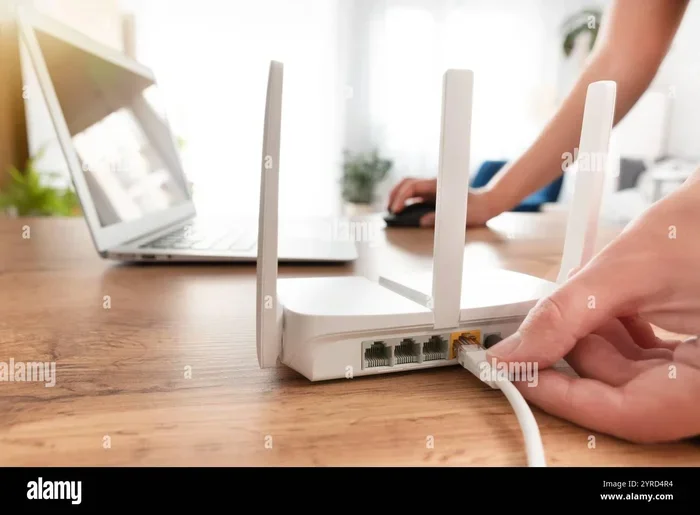
Use an ethernet cable to link your modem to the router. Plug one end into the modem and the other into the router’s WAN or internet port. Power on the router and give it a minute to start up.
Step 3: Find Your Default Wifi Name and Password
Look at the sticker on the bottom or back of your router. You will see the default SSID (that is just the technical name for your wifi name) and a default password. Write these down before you change anything.
Step 4: Change Your Wifi Name and Password
Open a web browser on a connected device and type your router’s IP address into the address bar. This is often 192.168.1.1 or 192.168.0.1. Log in with the default admin credentials, then update your wifi name and wifi password. Pick something easy for you to remember but hard for others to guess.
Step 5: Connect Your Devices
On your phone, laptop, or tablet, go to your wifi settings. Find your new network name and enter the password you just created. That is it. You are now connected to your home wireless network.
If you want to skip cables entirely and get online using your phone, check out our article on Can I Get Wi Fi From My Phone for helpful alternatives.
Connecting Different Devices to Your Wifi
Once your wireless network is running, you need to connect your devices. Each type of device has a slightly different process. Here is how to handle the most common ones.
Connecting a Laptop or Desktop Computer
On Windows, click the wifi icon in your taskbar. Select your network and click Connect. On a Mac, click the wifi symbol in the top menu bar and choose your network. Enter the password when prompted.
If your computer does not have built-in wifi, you can add a wifi adapter. These small USB devices plug right into your computer and let it connect wirelessly. You can also use an ethernet cable for a wired connection, which is often faster and more stable.
Connecting Smartphones and Tablets
Go to Settings, then Wifi. Toggle it on and select your network. Type in your password. Your phone or tablet will remember it for future use. This makes reconnecting fast and easy every time you come home.
Connecting Smart TVs and Streaming Devices
Smart TVs and devices like Roku or Chromecast connect through their network settings menu. Navigate to Settings, then Network or Internet, and pick your wifi network. Enter the password and wait for the connection to establish.
Some people prefer to connect devices like Chromecast using their phone as a hotspot. If you want to learn more about that, read our guide on Can I Use My Phone Hotspot For Chromecast.
Connecting Game Consoles
PlayStation, Xbox, and Nintendo Switch all have built-in wifi settings. Go to the network section in each console’s settings menu, scan for available networks, and select yours. Enter the password and test the connection before you start gaming.
Troubleshooting Common Wifi Access Problems
Even with a great setup, you may run into issues now and then. The good news is most problems have simple solutions.
Wifi Works But No Internet
This is one of the most common issues. If your device shows it is connected to wifi but nothing loads, the problem is usually with your modem or ISP. Try unplugging your modem for 30 seconds, then plugging it back in. Wait a full minute before testing again.
Slow Wifi Speeds
Slow speeds can ruin your browsing experience. Start by running an internet speed test on a site like Speedtest.net. If your speeds are much lower than what your plan promises, try these fixes:
- Move closer to your router and test again.
- Restart your modem and router.
- Check if too many devices are using bandwidth at once.
- Switch your wifi channel to a less crowded one in your router settings.
Device Won’t Connect to Wifi
If a specific device refuses to connect, try forgetting the network and reconnecting. On most devices, you can do this in your wifi settings. Also make sure you are entering the correct password. Passwords are case-sensitive, so double-check caps lock.
Sometimes the issue is with your device’s wireless adapter. Updating your network drivers can fix this on computers. On phones, toggling airplane mode on and off often does the trick.
Can You Connect Your PC to Wifi Without Ethernet?
Yes, you can absolutely connect your PC to wifi without ethernet. You just need a working wireless adapter, which most modern laptops and desktops have built in. If yours does not, a USB wifi adapter is an inexpensive fix.
For more guidance on this topic, visit our article on Can I Connect My Pc To Wi Fi Without Ethernet.
Improving Your Wifi Signal and Coverage
A strong wifi signal makes everything faster and more reliable. Here are proven ways to improve your home network coverage.
Place Your Router in the Right Spot
Where you put your router matters a lot. Keep it in a central location in your home. Avoid hiding it in a closet or behind furniture. Walls, metal objects, and microwaves can all weaken your wireless signal.
Elevate your router on a shelf or mount it on a wall. This helps the signal spread more evenly throughout your space.
Reduce Interference
Other electronics can interfere with your wifi connection. Cordless phones, baby monitors, and Bluetooth devices all operate on similar frequencies. Keep your router away from these devices for the best performance.
Update Your Router Firmware
Router manufacturers release updates that improve performance and fix bugs. Check your router’s admin panel for firmware updates every few months. This simple step can make a big difference in your network speed and stability.
Add a Mesh Wifi System
If your home is large or has thick walls, a single router may not cover every room. A mesh wifi system uses multiple nodes to spread coverage evenly. You can add mesh wifi to your existing router to extend your network without losing speed.
Mesh systems are especially helpful for homes with multiple floors or large open spaces. They create one seamless network name so your devices switch smoothly as you move around.
Use a Wifi Range Extender
A range extender is a cheaper alternative to mesh. It picks up your existing signal and rebroadcasts it to areas with weak coverage. Place the extender halfway between your router and the dead zone for the best results.
Keeping Your Home Wifi Network Secure
Accessing your wifi internet is only half the battle. You also need to protect it. An unsecured network can let strangers use your internet and potentially access your personal data.
Use a Strong Password
Your wifi password should be at least 12 characters long. Mix uppercase letters, lowercase letters, numbers, and symbols. Avoid using your name, address, or birthday. A strong password keeps unwanted users out of your home network.
Enable WPA3 or WPA2 Encryption
Check your router settings and make sure your network encryption is set to WPA3 or at least WPA2. These are the most secure protocols available. Older protocols like WEP can be cracked easily and should be avoided.
Hide Your Network Name
You can choose to hide your SSID so it does not show up in the list of available networks. This adds a layer of privacy. You will need to manually enter the network name when connecting a new device, but it keeps your network less visible to passersby.
Create a Guest Network
Most modern routers let you set up a guest network. This gives visitors internet access without letting them see your main network and connected devices. It is a smart way to keep your personal data safe while still being hospitable.
Regularly Update Your Router Password
Change your wifi password every few months. Also update your router admin login if you have not done so recently. These small habits go a long way in keeping your home network safe from intruders.
When to Call Your Internet Service Provider
Most wifi issues you can fix yourself. But some problems need professional help. Call your ISP if you experience the following:
- No internet connection even after restarting your modem and router.
- Frequent outages that happen at the same time each day.
- Very slow speeds that do not improve after troubleshooting.
- Physical damage to your modem or router equipment.
Your ISP can run remote diagnostics and send a technician if needed. Before calling, have your account information and a description of the problem ready. This saves time and gets you back online faster.
If you are exploring options for getting just wifi at home without a full cable package, check out our article on Can I Get Just Wi Fi At Home for helpful insights.
Final Thoughts on Accessing Your Wifi Internet
Accessing your wifi internet connection at home is a straightforward process once you understand the basics. From setting up your modem and router to connecting all your devices, the steps are simple and repeatable. When problems arise, the troubleshooting tips in this guide will help you get back online quickly.
Remember to keep your network secure with strong passwords and up-to-date settings. A well-maintained home wireless network gives you fast, reliable internet every day. Take the time to optimize your router placement and consider a mesh system if your home needs better coverage.
With the right setup and a little know-how, you can access your wifi internet with confidence. Enjoy your connection and all the possibilities it brings.
Frequently Asked Questions
How do I access my wifi internet at home for the first time?
Start by connecting your modem to your ISP’s cable or phone line, then attach your router with an ethernet cable. Power on both devices and wait for the lights to stabilize. Use the default wifi name and password on your router’s label to connect your first device, then change these to something secure.
Why can’t I access my wifi internet even though I’m connected?
This usually means your modem or ISP connection has an issue. Unplug your modem for 30 seconds, then plug it back in. Wait one full minute and try again. If the problem continues, contact your internet service provider for assistance.
Can I access my wifi internet without a password?
Some routers have a guest network that works without a password, but this is not recommended for regular use. An open network is less secure and can let strangers access your connection. Always use a strong password for your main home wireless network.
How can I improve my wifi signal to access the internet faster?
Move your router to a central, elevated location away from walls and electronics. Update your router firmware regularly. Switch to a less crowded wifi channel in your router settings. For larger homes, consider adding a mesh wifi system or range extender.
What should I do if my wifi internet keeps disconnecting?
Restart your modem and router first. Check if too many devices are using bandwidth at the same time. Update your router firmware and check for interference from other electronics. If the problem persists, contact your ISP to check for service issues in your area.
Is it better to use wifi or ethernet to access the internet at home?
Ethernet provides a faster, more stable connection because it uses a physical cable. Wifi is more convenient and works well for most everyday tasks. For activities like gaming or video calls, ethernet is the better choice. You can use both in the same home for the best of both worlds.