How Can I Get Wireless Wi Fi At Home Without Cables
Want to know how can I get wireless Wi-Fi at home without cables? Setting up a wireless home network is easier than you think. You just need a good router, a modem, and a few simple steps. This guide walks you through every part of the process.
Setting up a wireless home network might feel confusing at first. But it is actually much simpler than most people think. If you have been asking yourself, how can I get wireless Wi-Fi at home without cables, you are in the right place.
This guide breaks everything down into easy steps. You do not need to be a tech expert to get online wirelessly. Whether you live in a small apartment or a big house, you can set up a strong wireless connection today. Let us dive in and get you connected.
Key Takeaways
- Wireless Wi-Fi is the most popular way to connect to the internet at home without messy cables.
- A good Wi-Fi router is the heart of any wireless home network setup.
- You can get Wi-Fi on your own by choosing the right plan and equipment.
- Placement matters a lot for getting the best wireless signal throughout your home.
- Wi-Fi extenders and mesh systems help boost coverage in larger homes.
- Avoiding common setup mistakes saves time and keeps your network running smoothly.
📑 Table of Contents
Understanding Wireless Wi-Fi at Home
What Is Wireless Wi-Fi?
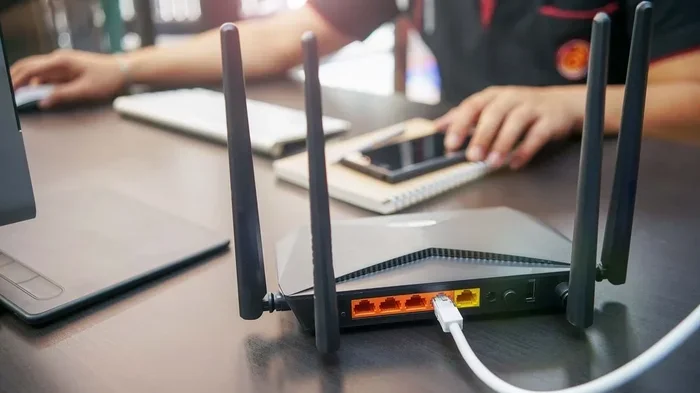
Wireless Wi-Fi is a way to connect your devices to the internet without using cables. Instead of plugging in an ethernet cable, your phone, laptop, and tablet connect through radio signals. These signals come from a device called a Wi-Fi router.
Think of a Wi-Fi router like a radio tower for your home. It sends out a signal that your devices can pick up. This is what makes wireless networking so convenient. You can move around your home and stay connected the whole time.
Most homes today use wireless Wi-Fi as their main internet connection. It is fast, reliable, and easy to set up. If you are wondering how to get started, you are already in the right place.
Why Go Wireless at Home?
There are many reasons to choose a wireless setup over a wired one. Here are the biggest benefits:
- No messy cables running across your floors and walls.
- Freedom to move around with your phone, tablet, or laptop.
- Easy to add new devices like smart TVs, smart speakers, and game consoles.
- Less clutter in your living space.
- Simple setup that most people can do in under 30 minutes.
Going wireless also means you can share your connection easily. Family members and guests can all connect without needing extra cables. It is one of the best ways to build a home network that works for everyone.
How to Set Up Wireless Wi-Fi at Home
Step 1: Get a Modem and Router
The first step in setting up a home Wi-Fi network is getting the right equipment. You need two main devices: a modem and a router. The modem connects to your internet service provider (ISP). The router takes that signal and broadcasts it wirelessly.
Many ISPs offer a combo unit that works as both a modem and a router. This is the easiest option for most people. You just plug it in, and you are good to go. If you want more control, you can buy a separate router and modem.
When choosing a router, look for one that supports the latest Wi-Fi standard, which is Wi-Fi 6. This gives you faster speeds and better coverage. It also handles more devices at once without slowing down.
Step 2: Choose an Internet Plan
Before you can get online, you need an internet plan from a provider. Plans vary by location, speed, and price. For most households, a plan with at least 100 Mbps is enough for streaming, browsing, and video calls.
If you are unsure where to start, check if getting Wi-Fi on your own is an option in your area. Some providers offer self-installation kits that make the process even easier. You can often save money by setting things up yourself instead of waiting for a technician.
Compare plans from local providers and look at the speeds they offer. Keep in mind that your actual speeds may vary based on your location and the number of devices connected.
Step 3: Connect and Configure Your Router
Once you have your modem and router, it is time to set things up. Here is what to do:
- Plug your modem into the wall outlet and connect it to your ISP line.
- Wait for the modem lights to stabilize. This usually takes about one to two minutes.
- Connect your router to the modem using the included ethernet cable.
- Plug in the router and wait for it to fully start up.
- Use a phone or computer to find the router’s default Wi-Fi network name.
- Open a browser and go to the router’s setup page.
- Follow the on-screen prompts to set your network name and password.
That is really all there is to it. Once configured, your wireless network is ready to use. You can now add Wi-Fi to your PC or any other device by searching for the network and entering the password.
Ways to Get Wi-Fi Without Cables
If you are looking for options beyond a traditional router, there are several ways to get wireless internet at home. Each method has its own advantages depending on your situation.
Using a Wi-Fi Router Directly
The most common way to get wireless internet is by using a Wi-Fi router connected to a modem. This is what most households do. The router sends out a signal that covers your entire home.
For best results, place your router in a central location. Avoid putting it in a closet or behind furniture. Walls and metal objects can block the signal and weaken your connection. A clear line of sight helps your devices stay connected.
Using a Mobile Hotspot
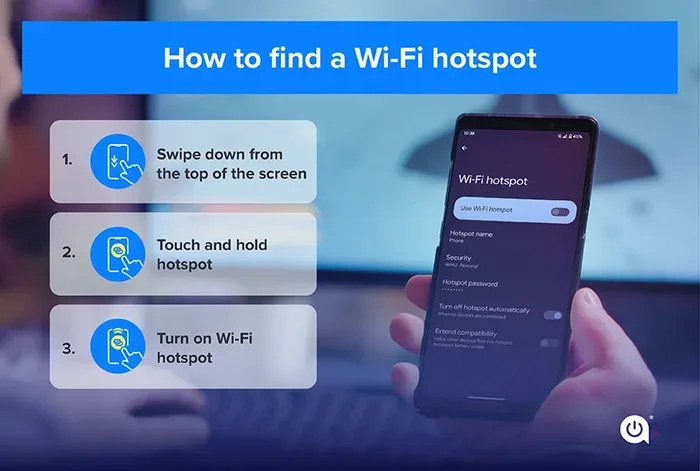
Another option is to use your phone as a mobile hotspot. This turns your cellular data into a Wi-Fi signal that other devices can use. It is a great backup option if your home internet goes down.
You can also check if using your phone hotspot for streaming or browsing works for your needs. Keep in mind that hotspots use your mobile data, so watch your usage limits. This method works best for temporary or short-term needs.
Using a Wi-Fi Adapter or Stick
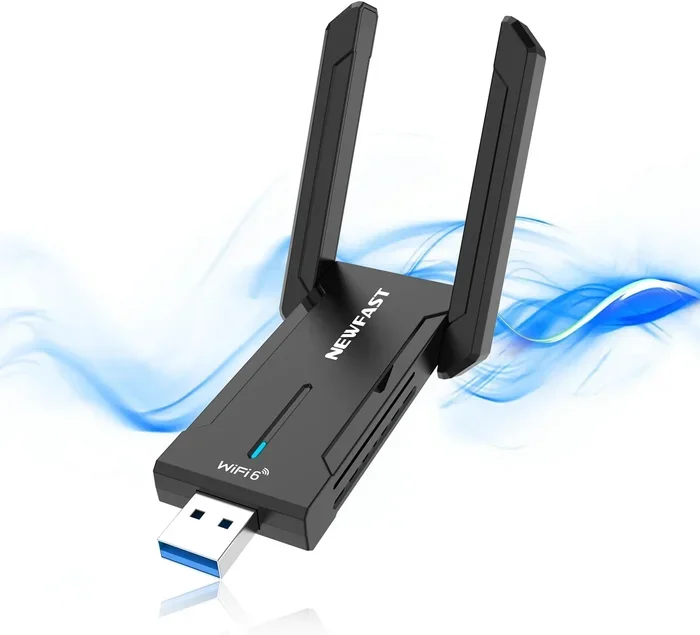
If your computer does not have built-in wireless capability, you can use a Wi-Fi adapter or stick. These small devices plug into a USB port and give your computer wireless access. They are affordable and easy to set up.
Many older computers and desktops do not come with wireless built in. A Wi-Fi stick solves this problem quickly. You simply plug it in, install the drivers, and connect to your network. This is a simple way to connect your PC to Wi-Fi without Ethernet and enjoy a fully wireless setup.
Tips to Improve Your Wireless Signal
Even with the best setup, you might notice weak spots in your home. Here are some easy tips to boost your wireless signal strength:
- Move your router to a central location. This helps spread the signal evenly.
- Keep the router elevated. Placing it on a shelf works better than on the floor.
- Avoid interference from other electronics. Microwaves and cordless phones can disrupt the signal.
- Update your router firmware. Manufacturers release updates that improve performance.
- Use a Wi-Fi extender or mesh system. These devices expand coverage to hard-to-reach areas.
- Switch to a less crowded channel. This reduces interference from neighboring networks.
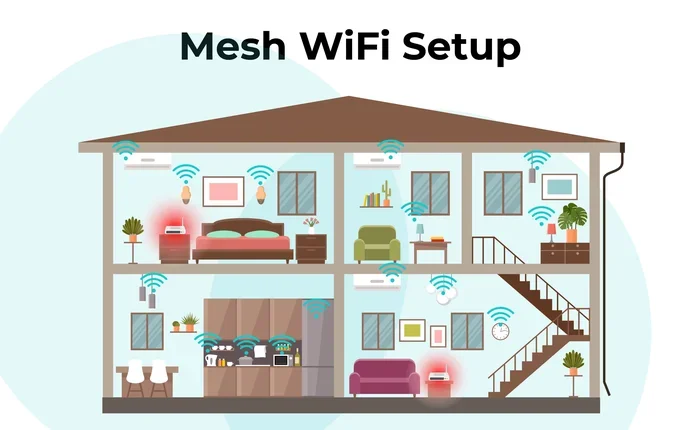
For larger homes, a mesh Wi-Fi system is a game changer. It uses multiple nodes placed around the house to create one seamless network. Every room gets strong coverage without any dead zones.
Quick Tips for Better Wi-Fi
Here are a few quick tips you can try right now:
- Restart your router once a week to keep things running smoothly.
- Use the 5GHz band for faster speeds in close range.
- Use the 2.4GHz band for better range through walls.
- Change your default network name and password for security.
- Check for firmware updates in your router settings.
Common Mistakes to Avoid
Setting up wireless internet is simple, but small mistakes can cause big problems. Here are the most common ones to watch out for:
- Placing the router in a bad spot. Corners, basements, and closets weaken the signal.
- Using outdated equipment. Old routers cannot handle modern internet speeds.
- Skipping the password setup. An open network is a security risk and slows down your connection.
- Ignoring interference. Other wireless devices can disrupt your signal.
- Not updating firmware. Updates fix bugs and improve performance.
Avoiding these mistakes helps you get the most out of your wireless network. A little effort upfront saves you frustration later.
Expert Insights on Home Wireless Networks
Networking experts agree that the key to a great home Wi-Fi setup is planning. Before you buy any equipment, think about your home size and the number of devices you will connect. A small apartment needs very different equipment than a three-bedroom house.
Experts also recommend checking if getting just Wi-Fi at home without extra equipment is possible through your ISP. Many providers offer wireless gateway devices that combine a modem and router in one unit. This simplifies setup and reduces clutter.
If you are not comfortable with the setup process, most providers offer support. You can also find plenty of online tutorials and guides. The goal is to make your wireless internet setup as smooth as possible.
Final Thoughts
Now you know the answer to how can I get wireless Wi-Fi at home without cables. You have learned about routers, modems, setup steps, and ways to boost your signal. Setting up a wireless home network is one of the most useful skills you can have today.
Start with the basics: get a good router, choose a solid internet plan, and place your router in the right spot. From there, you can expand your network with extenders or mesh systems if needed. The beauty of wireless Wi-Fi is that it grows with your needs.
Do not let cables and complexity hold you back. With the right setup, you can enjoy fast, reliable internet everywhere in your home. Get started today and experience the freedom of a fully wireless connection.
Frequently Asked Questions
Can I get Wi-Fi at home without a provider?
You need an internet service provider to get Wi-Fi at home. The provider gives you the internet connection, and your router broadcasts it wirelessly. Without a provider, you cannot access the wider internet.
What is the best way to get wireless internet at home?
The best way is to use a Wi-Fi router connected to a modem from your ISP. This setup gives you strong coverage, fast speeds, and easy access for all your devices. A mesh system is ideal for larger homes.
Can I add Wi-Fi to my PC without built-in wireless?
Yes, you can use a USB Wi-Fi adapter or stick. These devices plug into your computer and give it wireless capability. They are affordable and easy to install.
How can I connect to Wi-Fi without an ethernet cable?
You can connect to Wi-Fi wirelessly by selecting your network from your device’s settings and entering the password. If your PC lacks wireless hardware, a USB Wi-Fi adapter solves this easily.
Do I need special equipment to set up a wireless home network?
You need a modem (or a modem-router combo) and an internet plan from a provider. A good Wi-Fi router ensures strong coverage. Most providers offer equipment rental options as well.
Can I use my phone as a Wi-Fi source at home?
Yes, you can use your phone as a mobile hotspot. This turns your cellular data into a Wi-Fi signal for other devices. It works well as a temporary solution but uses your mobile data allowance.