How Can I Get More Mbps For Wifi On My Home Network
Want more Mbps for wifi at home? You can boost your speed by updating router firmware, switching to the 5GHz band, optimizing router placement, and reducing network congestion. These practical steps help you squeeze every bit of speed from your internet plan without paying for an expensive upgrade.
Slow wifi is one of the most frustrating things in modern life. You are trying to stream a movie, join a video call, or game online, and everything buffers or lags. The good news is that you do not need to be a tech expert to fix this. There are many simple ways to get more Mbps for wifi on your home network.
Whether you are dealing with a weak signal in the bedroom or constant buffering in the living room, this guide covers it all. I will walk you through easy fixes, smart upgrades, and proven strategies that actually work. Let us dive in and make your wifi faster today.
Key Takeaways
- Router placement matters: Central, elevated positioning dramatically improves your wifi signal and speed.
- Switch to 5GHz: The 5GHz band offers faster speeds than 2.4GHz for nearby devices.
- Update firmware regularly: Outdated router software can slow down your network significantly.
- Reduce interference: Other electronics and neighboring networks can steal your bandwidth.
- Consider a mesh system: Mesh wifi extends coverage and maintains speed throughout your home.
- Check your internet plan: Sometimes the bottleneck is your ISP speed tier, not your equipment.
📑 Table of Contents
Understanding What Mbps Means For Your Wifi
Mbps stands for megabits per second. It measures how fast data travels between your router and your devices. The higher the number, the faster your connection feels. When you run a speed test, you see two numbers: download speed and upload speed. Both matter for a smooth internet experience.
Most internet plans advertise download speeds. But upload speed counts too, especially if you video call, upload files, or stream live content. A plan with 100 Mbps download and 10 Mbps upload feels very different from one with 100 Mbps download and 35 Mbps upload.
Your wifi speed also depends on your router, your devices, and your home setup. Even if your ISP gives you 500 Mbps, a cheap router or poor placement can cut that down to a fraction. Understanding this helps you know where to focus your efforts.
Quick Ways to Boost Your Wifi Speed Today
Before you buy anything new, try these quick fixes. They cost nothing and take just a few minutes. Many people skip these simple steps and jump to expensive solutions instead.
Restart Your Router
Unplug your router, wait 30 seconds, and plug it back in. This clears the cache and refreshes the connection. It is like giving your router a quick nap. You will be surprised how much this alone can improve your speed.
Move Your Router to a Better Spot
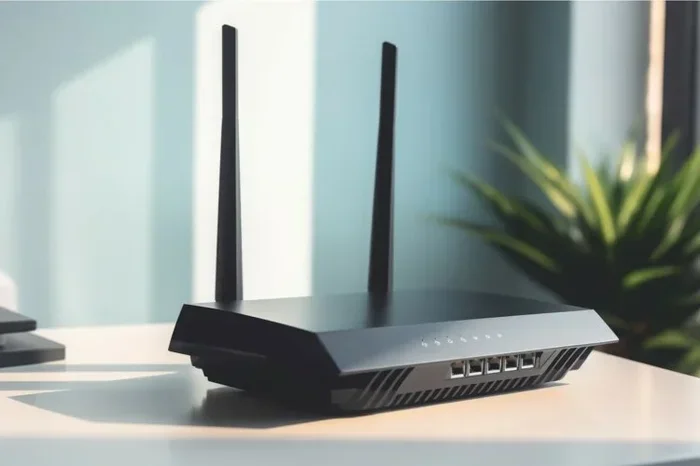
Where you place your router has a huge impact on wifi performance. Keep it in a central location, away from walls and metal objects. Avoid hiding it in a closet or behind a TV. The more open and visible your router is, the better the signal reaches every room.
Check for Network Congestion
Too many devices on one network slows everyone down. If everyone in your house is streaming, gaming, and browsing at the same time, your bandwidth gets stretched thin. You can check which devices are using the most data in your router settings. If someone is downloading huge files in the background, pause it.
You can also block a device from using your wifi if someone is hogging bandwidth without your permission. This is especially helpful in shared households or if you suspect someone is using your network without authorization.
Optimize Your Router Settings for Faster Wifi
Your router has settings that you can adjust to squeeze out more speed. You do not need advanced technical skills. Just a few minutes in the settings panel can make a big difference.
Switch to the 5GHz Band
Most modern routers broadcast on two bands: 2.4GHz and 5GHz. The 2.4GHz band reaches farther but is slower. The 5GHz band is faster but has a shorter range. If your device is close to the router, switch to 5GHz for better performance.
Think of it this way. The 2.4GHz band is like a wide, slow highway. The 5GHz band is like a narrow, fast highway. For nearby devices, the fast highway wins every time.
Change Your Wifi Channel
Your neighbors also have wifi routers. If everyone in your apartment building uses the same channel, there is interference. This slows down your connection. You can use a free app like WiFi Analyzer to find the least crowded channel and switch to it in your router settings.
Update Your Router Firmware
Router manufacturers release firmware updates that fix bugs and improve performance. Check your router settings for a firmware update option. Some routers even update automatically. Keeping your firmware current is one of the easiest ways to maintain top speed.
Enable QoS (Quality of Service)
QoS lets you prioritize certain types of traffic. For example, you can tell your router to prioritize video calls over background downloads. This ensures your most important activities get the bandwidth they need first.
Upgrade Your Equipment for Better Speeds
Sometimes software tweaks are not enough. Your hardware might be the bottleneck. Here is when to consider an upgrade.
Buy Your Own Wifi Router
If you are renting a router from your internet provider, it might be outdated or underpowered. Buying your own router gives you more control and better performance. Look for routers that support WiFi 6 or WiFi 6E. These newer standards offer much faster speeds and handle more devices at once.
You can buy your own wifi box and save money on monthly rental fees. Over time, the savings add up. Plus, you get a much better experience.
Add a Mesh Wifi System
If your home is large or has thick walls, a single router might not cover everything. A mesh wifi system uses multiple nodes to spread coverage evenly throughout your home. This means you get strong speeds in every room, not just near the router.
You can add mesh wifi to your existing router or replace your current setup entirely. Mesh systems are especially helpful for two-story homes, basements, and large open floor plans.
Mesh systems also make it easy to manage your network through a phone app. You can see which devices are connected, run speed tests, and even set up parental controls.
Use an Ethernet Cable for Key Devices
Nothing beats a wired connection for speed and stability. If your gaming console, desktop PC, or smart TV supports ethernet, use it. You get the full speed of your internet plan without any wifi interference.
If running a cable everywhere is not practical, you can extend your wifi with an ethernet cable to bring a wired connection to a distant room. Then use a second router or access point to broadcast wifi from that spot.
Check Your Wireless Adapter
Sometimes the problem is not your router but your device. Older laptops and phones have older wireless adapters that cannot handle modern speeds. If your device only supports WiFi 4 or WiFi 5, it will cap your speed no matter how good your router is.
You can also connect your PC to wifi without a wifi adapter using a USB wifi dongle or a USB-to-ethernet adapter. These small upgrades can breathe new life into older computers.
Advanced Tips for Power Users
If the basics are not enough, here are some advanced strategies that can push your wifi speed to the next level.
Change Your DNS Settings
DNS translates website names into IP addresses. By default, your ISP assigns DNS servers that might be slow. Switching to faster public DNS servers like Google DNS (8.8.8.8) or Cloudflare DNS (1.1.1.1) can improve browsing speed and reduce latency.
Reduce Signal Interference
Other electronics can interfere with your wifi signal. Microwaves, baby monitors, cordless phones, and even Bluetooth devices can cause problems. Keep your router away from these devices for the best performance.
Limit the Number of Connected Devices
Every device connected to your network uses bandwidth, even when idle. Smart home devices, phones, tablets, laptops, and smart TVs all compete for speed. Disconnect devices you are not actively using to free up bandwidth.
Run Regular Speed Tests
Use a tool like Speedtest.net to check your wifi speed regularly. This helps you spot problems early and track whether your changes are working. Test from different rooms to see where the signal is weakest.
When to Call Your Internet Provider
If you have tried everything and your speed is still slow, it might be time to call your ISP. Here are signs that the problem is on their end:
- Your speed test results are much lower than your plan promises
- You experience slow speeds at all times, not just during peak hours
- Restarting your router does not help
- Multiple devices show the same slow speeds
Your provider might need to send a technician or adjust your service. Sometimes a simple plan upgrade solves everything. Other times, there might be a line issue that needs repair.
Final Thoughts
Getting more Mbps for wifi does not have to be complicated. Start with the simple fixes, like restarting your router and moving it to a better spot. Then move on to optimizing settings and upgrading equipment if needed. Each step you take brings you closer to a faster, more reliable connection.
The key is to be patient and test as you go. Small changes can lead to big improvements. You do not need to spend a fortune to enjoy better wifi. With the right approach, your home network can be fast, stable, and ready for anything you throw at it.
Frequently Asked Questions
How do I check my current wifi speed?
Use a free tool like Speedtest.net on any device connected to your network. Run the test from different rooms to see where your speed drops. This helps you identify weak spots and measure improvement after making changes.
Does restarting my router really make a difference?
Yes, it does. Restarting clears temporary data and refreshes your connection to the ISP. Many people notice a noticeable speed boost after a simple restart. Make it a habit to reboot your router once a week for best results.
What is the difference between 2.4GHz and 5GHz wifi bands?
The 2.4GHz band covers a wider area but at slower speeds. The 5GHz band is faster but has a shorter range. For devices near your router, 5GHz gives you the best performance. For devices far away, 2.4GHz may be more stable.
Can too many devices slow down my wifi?
Absolutely. Every connected device uses bandwidth, even when idle. The more devices you have, the more your speed gets shared. Disconnecting unused devices and enabling QoS can help manage this effectively.
Should I buy my own router instead of renting one?
In most cases, yes. Owning your own router gives you better performance and more features. You also save on monthly rental fees over time. Look for WiFi 6 or WiFi 6E routers for the best speed and device handling.
How can I extend my wifi coverage to other rooms?
You can use a mesh wifi system, a wifi extender, or run an ethernet cable to a distant room. Mesh systems are the easiest to set up and provide the most consistent coverage. You can also extend your wifi with an ethernet cable to a secondary router for a strong wired backhaul.