How Can I Extend My Fiber Optic Wifi Range Effectively
Extending your fiber optic wifi range is easier than you think. You can boost your signal using mesh networks, ethernet cables, and smart router placement. This guide covers simple, actionable steps to eliminate dead zones and get strong wifi everywhere in your home.
Fiber optic internet delivers blazing fast speeds to your home. But having a strong connection at the modem does not mean every room gets great wireless coverage. Many people struggle with wifi dead zones in their bedrooms, basements, or backyards. The good news is that you can take simple steps to extend fiber optic wifi range without spending a fortune.
In this guide, we walk you through everything you need to know. From router placement to mesh networks, we cover all the proven methods. You will learn what works, what does not, and how to choose the right solution for your home. Let us get started.
Key Takeaways
- Mesh wifi systems are the most effective way to extend fiber optic wifi range across large homes.
- Router placement matters a lot. Central, elevated positions give the best wireless coverage.
- Ethernet backhaul provides a stable, fast connection between your modem and extended nodes.
- Wifi extenders and repeaters are budget-friendly but may reduce speed compared to mesh setups.
- Interference from walls and appliances can weaken your signal significantly.
- Updating firmware and using the right network adapter can improve performance.
- Professional installation may be worth it for complex home layouts.
📑 Table of Contents
- Understanding Fiber Optic Wifi and Why Range Matters
- Common Reasons Your Fiber Optic Wifi Signal Drops
- Best Ways to Extend Your Fiber Optic Wifi Range
- Fiber Optic Modem vs Router: What You Need to Know
- Quick Tips to Boost Your Wifi Signal Today
- When to Call a Professional for Help
- Frequently Asked Questions
Understanding Fiber Optic Wifi and Why Range Matters
Fiber optic internet uses light signals to transfer data. This makes it much faster than traditional copper cables. Your fiber optic modem converts those light signals into wifi that your devices can use. But the wifi signal itself travels through the air, and air has limits.
The range of your wireless coverage depends on several factors. Walls, floors, and even microwaves can weaken the signal. A large home or multi-story building makes this worse. When the signal has to travel far, it loses strength. This leads to slow speeds and frustrating disconnections.
Understanding this helps you see why extending your range is so important. You want every corner of your home to enjoy the full speed your fiber plan offers. A strong signal strength in every room means smoother streaming, faster downloads, and better video calls.
How Fiber Optic Wifi Differs from Standard Wifi
Fiber optic connections are different from cable or DSL. They offer much higher internet bandwidth and lower latency. But the wifi part works the same way. Your router still broadcasts a radio signal. That signal can only travel so far before it gets too weak.
The speed of your fiber connection does not matter if the wifi coverage area cannot reach your devices. Think of it like a garden hose. You can have the best water pressure, but if the hose is too short, the far end of the garden stays dry. Extending your range is like adding a longer hose.
Common Reasons Your Fiber Optic Wifi Signal Drops
Before fixing the problem, you need to understand what causes it. Several common issues can weaken your broadband range. Here are the main culprits.
Physical Obstacles
Walls, floors, and large furniture block wifi signals. Concrete and brick are the worst offenders. A single thick wall can cut your signal strength in half. If your router is in one room and your bedroom is two rooms away, the signal may be very weak by the time it arrives.
Electronic Interference
Other electronics in your home can interfere with your network range extension. Microwaves, baby monitors, and cordless phones all operate on similar frequencies. Even neighboring wifi networks can cause congestion. This is especially common in apartments and dense neighborhoods.
Outdated Equipment
Older routers may not support the latest wifi standards. A router that only supports wifi 4 or 5 will not perform as well as one with wifi 6. Your fiber optic modem may also be outdated. If your ISP provided it years ago, it might be time for an upgrade.
Poor Router Placement
Where you place your router matters a lot. Putting it in a corner, behind a TV, or in a closet hurts your signal. The best spot is usually a central, elevated location in your home. This gives the signal the best chance to reach every room.
Best Ways to Extend Your Fiber Optic Wifi Range
Now that you know why your signal drops, let us look at the solutions. There are several effective methods to boost your wifi signal and get better coverage. Some are free, and some require a small investment.
1. Optimize Your Router Placement
This is the easiest and cheapest fix. Move your router to a more central location in your home. Keep it off the floor and away from walls. Ideally, place it in an open area where the signal can spread freely.
Do not hide your router behind furniture or inside cabinets. Even a bookshelf can block the signal. If your router has antennas, point them straight up. This gives the best horizontal coverage across each floor.
Try this simple test. Stand in the room where you have the weakest signal. Walk around your home with your phone and check the signal strength in different spots. This helps you find the best place for your router.
2. Use a Mesh Wifi System
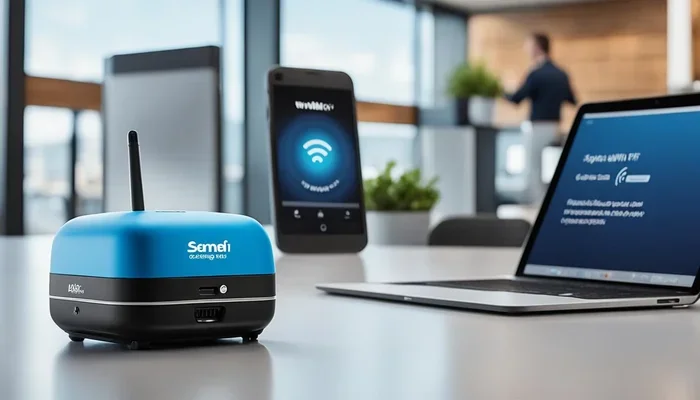
A mesh wifi system is one of the best ways to extend your range. It uses multiple nodes placed around your home. Each node talks to the others and creates one seamless network. You can add mesh wifi to your existing router and create a stronger, more reliable network.
Mesh systems are great because they handle network range extension automatically. Your phone or laptop connects to the nearest node without any manual switching. The speed stays strong even as you move from room to room.
Popular mesh systems include Google Nest Wifi, TP-Link Deco, and Netgear Orbi. They range in price from about $100 to $400 depending on the number of nodes. For most homes, a two- or three-pack works perfectly.
3. Connect with an Ethernet Cable
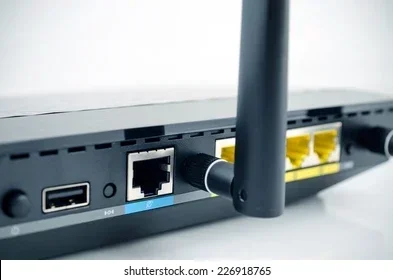
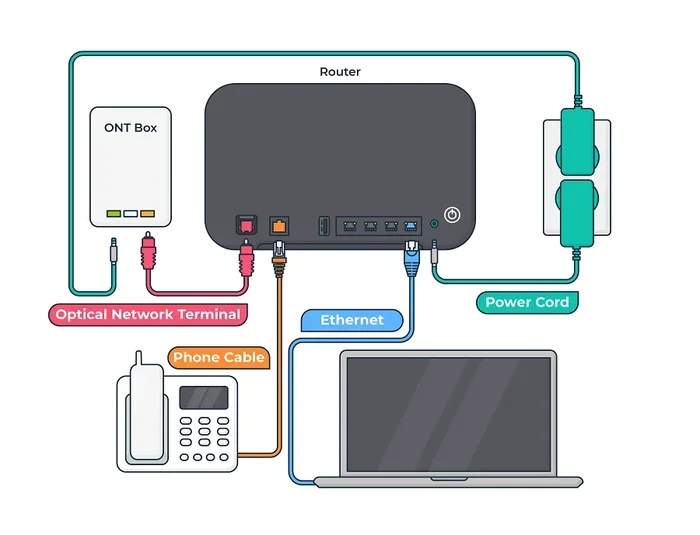
An ethernet cable gives you the most stable and fastest connection. You can run a cable from your modem to a second router or access point. This is called wired backhaul, and it does not lose speed like wireless signals do.
If running a cable through your walls sounds hard, there are easier options. Powerline adapters use your home’s electrical wiring to carry the internet signal. You plug one adapter near your modem and another in the room where you need better coverage.
If you are wondering whether you can use an ethernet cable to improve your setup, check out this guide on extending wifi with an ethernet cable. It covers practical ways to wire your home for better performance.
4. Use a Wifi Extender or Repeater
A wifi extender is a budget-friendly option for boosting your signal. It picks up your existing wifi and rebroadcasts it in another area. Extenders are easy to set up and cost between $20 and $80.
However, extenders have a downside. They usually cut your speed in half because they use the same radio to receive and send data. For basic browsing and email, this is fine. For gaming or 4K streaming, you may notice a drop in performance.
Place your extender halfway between your router and the dead zone. If you put it too far from the router, it will not get a strong enough signal to repeat effectively.
5. Upgrade Your Equipment
Sometimes the best fix is simply getting new equipment. A modern router with wifi 6 support can handle more devices and reach farther than older models. Check if your ISP offers a newer fiber optic modem or if you can use your own.
You might also need a better network adapter for your computer or laptop. An external usb wifi adapter can give your device a stronger receiver. This helps it connect to distant routers more reliably.
If you are considering buying your own equipment, make sure it is compatible with your ISP. Some providers require specific modem models. You can learn more about your options in this guide on buying your own wifi box.
6. Reduce Interference and Congestion
Switching your wifi channel can make a big difference. Most routers default to channel 1, 6, or 11 on the 2.4GHz band. If your neighbors are all on the same channel, there is congestion. Use a wifi analyzer app to find the least crowded channel and switch to it.
You can also split your network into two bands. Use the 5GHz band for devices close to the router. It is faster but has a shorter range. Use the 2.4GHz band for devices farther away. It is slower but travels through walls better.
Turning off unused devices on your network also helps. Every connected device takes up bandwidth. The fewer devices competing, the better your signal strength will be for the ones that matter.
Fiber Optic Modem vs Router: What You Need to Know
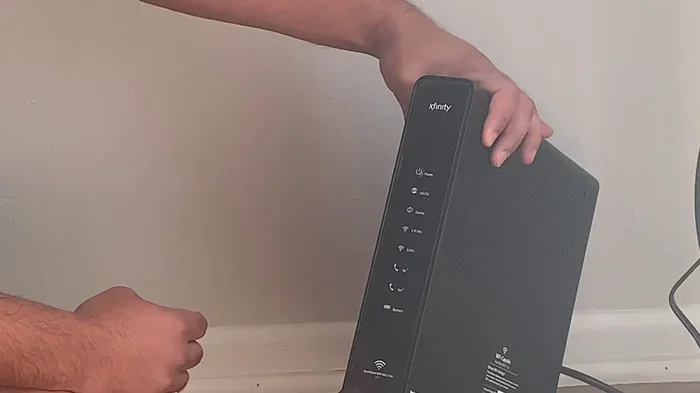
Many people confuse their modem and router. They are two different devices with different jobs. Your fiber optic modem connects to the fiber line and brings internet into your home. Your router takes that internet and broadcasts it as wifi.
Some devices combine both functions into one unit. These are called gateway devices. They are convenient but may not offer the best performance. Separate modem and router setups often give you better wireless coverage and more control.
If you want to extend your range, the router is the key component. A better router with stronger antennas and newer wifi standards can make a huge difference. Your modem just needs to handle the speed your fiber plan provides. Focus your upgrade budget on the router side.
Some people also ask whether they can get just wifi at home without a traditional setup. While fiber requires a modem to convert the light signal, you do have options for how you distribute that connection. You can explore different setups in this article about getting just wifi at home.
Quick Tips to Boost Your Wifi Signal Today
Want fast results without buying new equipment? Try these quick tips right now.
- Restart your router once a week. This clears the cache and refreshes the connection.
- Update your router firmware. Manufacturers release updates that improve performance and fix bugs.
- Change your wifi password regularly. This prevents neighbors from leeching your bandwidth.
- Keep your router cool. Overheating can slow down performance. Make sure the vents are not blocked.
- Use a wifi analyzer app to find the best channel and avoid interference.
- Set your router to the 5GHz band for devices in the same room for faster speeds.
These small changes can make a noticeable difference in your network speed and coverage. Try them before investing in new hardware.
When to Call a Professional for Help
Most range issues can be fixed with the tips above. But sometimes, you need expert help. If you have tried everything and still have dead zones, a professional can assess your home.
Professional installers can run ethernet cables through your walls and set up a custom network. They use specialized tools to map your wireless coverage and find the best spots for access points. This is especially helpful for large homes, multi-story buildings, or homes with thick walls.
If you are renting or cannot make permanent changes, a professional can set up a wireless solution that works without drilling holes. They can also help you choose the right equipment for your specific needs and budget.
Frequently Asked Questions
Can I extend my fiber optic wifi range without buying new equipment?
Yes, you can. Start by repositioning your router to a central, elevated location. Change your wifi channel to reduce interference. Restart your router regularly and update its firmware. These free steps often improve coverage significantly without any new purchases.
Is a mesh wifi system worth the investment?
Absolutely. Mesh systems provide seamless coverage throughout your home. Unlike extenders, they maintain full speed as you move between nodes. They are especially worth it for homes larger than 2,000 square feet or homes with multiple floors.
Does a wifi extender slow down my internet speed?
Most wifi extenders do cut your speed in half because they use the same radio to receive and rebroadcast the signal. For light browsing and email, this is usually fine. For gaming or streaming, a wired connection or mesh system will give you much better performance.
Can I connect my PC to wifi without an ethernet cable?
Yes, you can connect your PC to wifi without an ethernet cable using your router’s wireless signal. If your PC lacks a built-in wifi adapter, you can add a USB wifi adapter. You can also use powerline adapters to bring the connection to your PC through your home’s electrical wiring.
How many mesh nodes do I need for my home?
As a general rule, one node covers about 1,500 square feet. For a 3,000-square-foot home, two nodes work well. For larger homes or homes with thick walls, three nodes may be needed. Most mesh systems sell packs of two or three, and you can add more as needed.
Can walls really block my wifi signal that much?
Yes, walls can significantly block wifi signals. Concrete and brick walls are the worst. Drywall and wood are less blocking but still reduce signal strength. Each wall your signal passes through weakens it. This is why central router placement is so important for maximizing wireless coverage in your home.