How Can I Connect My Desktop To Wifi Without Wifi Adapter
You can connect your desktop to wifi without a traditional wifi adapter using several simple and affordable methods. Whether you use a USB wifi dongle, share your phone’s mobile hotspot, or run an ethernet cable, getting your desktop online is easier than you think. This guide walks you through each method step by step so you can pick the best option for your setup.
So you just got a desktop computer, and you want to go online. But wait — there is no wifi adapter in sight. You look at the back of your tower and see a bunch of ports, but nothing that says “wireless.” What do you do now?
Don’t panic. You have more options than you think. Connecting your desktop to wifi without a wifi adapter is totally doable, and it does not have to cost a lot of money. Whether you need a quick fix or a permanent solution, this guide covers every method you can try today.
In this article, we will walk you through each option in plain language. No tech jargon. No confusing steps. Just clear, simple instructions that anyone can follow. By the end, you will know exactly which method works best for your situation. Let us get your desktop connected.
Key Takeaways
- USB Wifi Dongles: A small and affordable way to add wireless connectivity to any desktop without opening the case.
- Phone Hotspot: You can use your smartphone as a temporary or permanent wifi source for your desktop.
- Ethernet Connection: A wired connection through your router is often faster and more stable than wireless options.
- Powerline Adapters: These let you extend your network through your home’s electrical wiring for hard-to-reach desktops.
- Driver Updates: Keeping your network drivers up to date helps prevent connection problems and boosts speed.
📑 Table of Contents
- Why Does Your Desktop Not Have Built-In Wifi?
- Method 1: Use a USB Wifi Adapter (Dongle)
- Method 2: Connect Through Your Phone’s Mobile Hotspot
- Method 3: Connect with an Ethernet Cable
- Method 4: Use a Powerline Adapter
- Troubleshooting Common Desktop Wifi Connection Issues
- Expert Tips for a Stronger Desktop Wifi Signal
- Which Method Should You Choose?
- Conclusion
Why Does Your Desktop Not Have Built-In Wifi?
Many desktop computers do not come with built-in wifi. Unlike laptops, which are designed to be portable, desktops are often meant to stay in one place. Manufacturers sometimes skip the wireless hardware to save money or because they expect users to connect through an ethernet cable.
Here are a few reasons your desktop might lack wireless capability:
- Budget models: Cheaper desktops often leave out wifi hardware to keep costs low.
- Older machines: Wifi technology has changed a lot over the years. Older desktops simply were not built with it.
- Gaming or work towers: Some users prefer a wired connection for speed and stability, so manufacturers skip the wireless card.
- Custom builds: If you or someone else built your desktop, they may have chosen not to include a wireless component.
The good news is that none of these reasons mean you are stuck. You can still get your desktop online with a wireless connection. Let us look at how.
Method 1: Use a USB Wifi Adapter (Dongle)
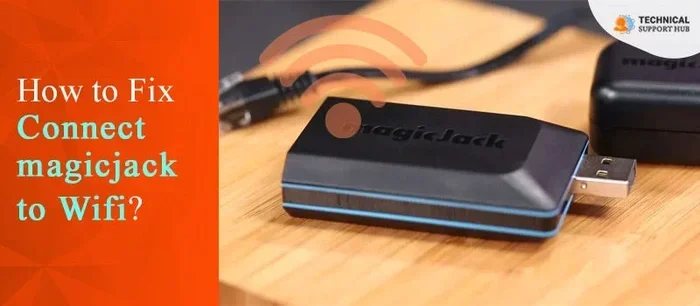
The easiest and most popular way to add wifi to a desktop is with a USB wifi adapter, also called a wifi dongle. This is a small device you plug directly into a USB port. It is like giving your computer a tiny wifi antenna.
Most USB wifi adapters cost between $10 and $40. They are small enough to leave plugged in all the time, and they work with almost every desktop. If you are not sure where to start, check out our guide on how to add wifi to my PC for more tips on choosing the right one.
How to Set Up a USB Wifi Adapter
Setting up a USB wifi adapter is simple. Follow these steps:
- Plug the adapter into any available USB port on your desktop.
- Wait for Windows to recognize the device. This usually takes a few seconds.
- Windows may install the driver automatically. If it does not, insert the CD that came with the adapter or download the driver from the manufacturer’s website.
- Click on the wifi icon in your taskbar.
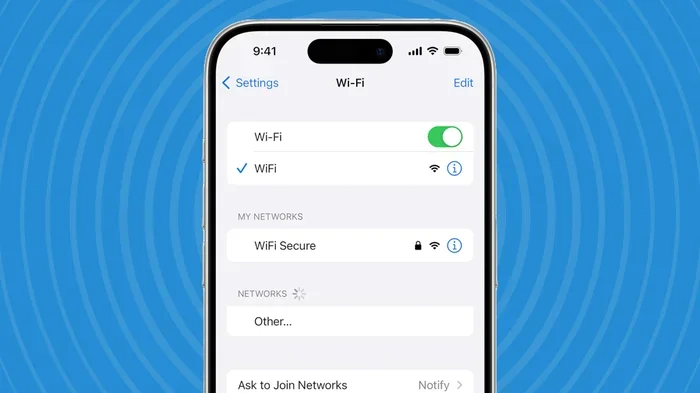
- Select your network from the list.
- Enter your wifi password and click Connect.
That is it. You are now connected to the internet. No need to open your computer case or touch any internal parts.
Choosing the Right USB Wifi Adapter
Not all usb wifi adapters are the same. Here is what to look for when buying one:
- Wifi standard: Look for an adapter that supports at least Wifi 5 (802.11ac) or Wifi 6 (802.11ax) for the best speeds.
- USB 3.0 connection: USB 3.0 adapters offer faster data transfer than USB 2.0 models.
- Antenna type: Some adapters have external antennas for better range. If your desktop is far from the router, this helps a lot.
- Compatibility: Make sure the adapter works with your version of Windows or Linux.
If your desktop does not have wifi capability built in, a wifi stick for pc is one of the simplest upgrades you can make. For more details on finding the right stick, you can read our article on getting a wifi stick for a pc without built-in wifi.
Method 2: Connect Through Your Phone’s Mobile Hotspot
Another great way to get your desktop online is by using your phone as a mobile hotspot. This turns your phone into a wifi router. Your desktop connects to the internet through your phone’s cellular data plan.
This method works well when you do not have access to a home router or when you need a temporary connection. It is also helpful if you are setting up a new desktop and do not want to buy extra equipment yet.
How to Set Up a Mobile Hotspot
Setting up a hotspot on your phone is quick and easy. Here is how:
- Open the Settings app on your phone.
- Look for “Personal Hotspot” or “Mobile Hotspot.”
- Turn the hotspot on.
- Set a strong password for the hotspot network.
- On your desktop, click the wifi icon and find your phone’s network name.
- Enter the password and connect.
Your desktop is now using your phone’s data to get online. Just keep an eye on your data usage, especially if you have a limited data plan. Streaming videos or downloading large files can eat through data fast.
When to Use a Mobile Hotspot
A mobile hotspot is best for short-term or temporary use. Here are some situations where it makes sense:
- You are moving into a new place and your internet is not set up yet.
- Your home router is down and you need a quick fix.
- You are working from a location without a router.
- You only need internet for a few hours or days.
For long-term use, a dedicated wifi adapter or ethernet connection is usually better. Mobile hotspots can also drain your phone battery quickly, so keep it plugged in while using it.
Method 3: Connect with an Ethernet Cable
Do you have an ethernet cable and a router nearby? Then you can connect your desktop directly to the internet with a wired connection. This is often the fastest and most reliable way to get online.
Wired connections give you lower latency, faster speeds, and a more stable connection than most wireless options. If you use your desktop for gaming or video calls, ethernet is hard to beat.
If your desktop does not have an ethernet port, you can buy a USB-to-ethernet adapter for a few dollars. This is another great option if you are looking for a wired solution without a wifi adapter.
Setting Up an Ethernet Connection
Here is how to set up an ethernet connection in just a few minutes:
- Plug one end of the ethernet cable into your router.
- Plug the other end into your desktop’s ethernet port (or USB-to-ethernet adapter).
- Windows should automatically detect the connection.
- Open your browser and test the connection by visiting a website.
No passwords, no searching for networks, no setup headaches. Just plug it in and go. If you want to learn more about extending your network using ethernet, check out our guide on extending wifi with an ethernet cable.
Method 4: Use a Powerline Adapter
A powerline adapter is a clever little device that uses your home’s electrical wiring to send internet signals. It is like running an ethernet cable through your walls without actually drilling any holes.
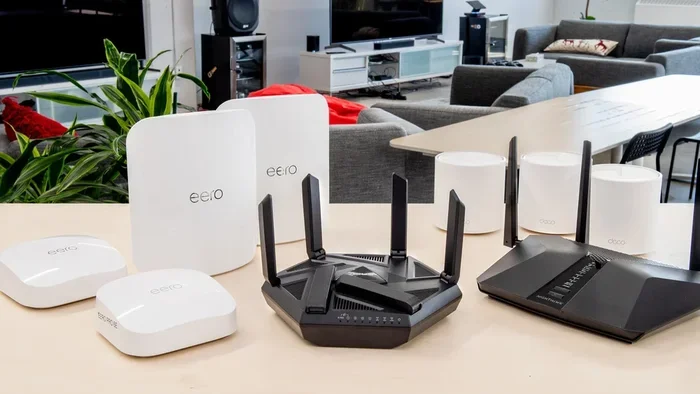
Powerline adapters come in pairs. You plug one near your router and connect it with an ethernet cable. Then you plug the second one near your desktop and connect it the same way. The internet signal travels through your home’s wiring to reach your computer.
This method is great for desktops that are far from the router or in rooms where wifi signal is weak. It is also a good choice if you want a wired connection but cannot run a long ethernet cable across the room.
Pros and Cons of Powerline Adapters
Like any solution, powerline adapters have their strengths and weaknesses:
- Pros: Easy to set up, no drilling required, works through most walls, provides a stable wired connection.
- Cons: Speed depends on your home’s wiring quality, may not work well on older electrical systems, costs more than a simple usb adapter.
Overall, powerline adapters are a solid choice for desktops that need a reliable connection but are too far from the router for a direct ethernet cable.
Troubleshooting Common Desktop Wifi Connection Issues
Even after you get connected, you might run into problems. Slow speeds, dropped connections, and inability to find networks are common issues. Most of the time, these problems have simple fixes.
Your Desktop Cannot Find Any Wifi Networks
If your desktop does not see any networks, try these steps:
- Make sure your wifi adapter is properly plugged in.
- Restart your desktop and your router.
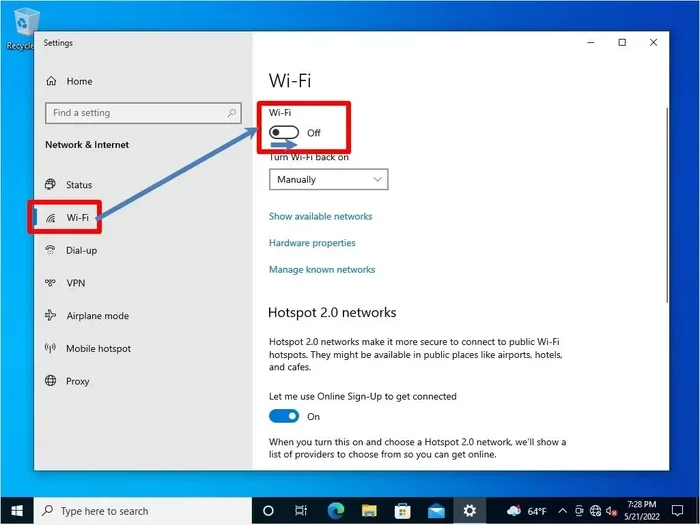
- Check that wifi is turned on in your settings.
- Update your wifi adapter drivers through Device Manager.
Slow Internet Speeds
Slow speeds can be frustrating. Here are some things that can help:
- Move closer to your router to get a stronger wifi signal.
- Switch to a less crowded wifi channel in your router settings.
- Make sure your adapter drivers are up to date.
- Try connecting via ethernet to see if the problem is with the wireless connection or your internet plan.
Connection Keeps Dropping
If your connection drops frequently, consider these fixes:
- Check for interference from other electronic devices.
- Update your wireless network adapter drivers.
- Restart your router and modem.
- Replace your USB wifi adapter if it is old or damaged.
Most connection issues are easy to solve with a few basic steps. You do not need to be a tech expert to fix them.
Expert Tips for a Stronger Desktop Wifi Signal
Want to get the best possible performance from your desktop’s wireless connection? Here are some expert tips that make a real difference:
Position Your Router Smartly
Place your router in a central location in your home. Keep it away from thick walls, metal objects, and large appliances. The closer your desktop is to the router, the stronger the signal will be.
Keep Your Drivers Updated
Outdated network drivers can cause slow speeds and connection drops. Check for updates regularly through your device manager or the manufacturer’s website. A simple driver update can sometimes solve multiple problems at once.
Use a Wifi Extender if Needed
If your desktop is far from the router, a wifi range extender can boost the signal. These devices are affordable and easy to set up. They pick up your existing wifi signal and repeat it to areas with weak coverage.
Secure Your Network
An unprotected network can be slowed down by neighbors or strangers using your bandwidth. Always set a strong wifi password and use WPA3 encryption if your router supports it. This keeps your connection fast and safe.
Which Method Should You Choose?
Every method has its own strengths. Here is a quick comparison to help you decide:
- USB Wifi Adapter: Best for permanent wireless connectivity. Affordable and easy to install.
- Mobile Hotspot: Best for temporary or emergency use. No extra equipment needed.
- Ethernet Cable: Best for speed and reliability. Ideal for gaming and video calls.
- Powerline Adapter: Best for desks far from the router. Provides a wired connection without running cables across the room.
If you are still unsure, a USB wifi adapter is the most versatile option. It works in almost any situation and costs very little. For more guidance on choosing the right method, you might also want to read about connecting your PC to wifi without ethernet for additional options.
The most important thing is to just take action. Pick the method that fits your needs, follow the steps, and you will be online in no time. Do not let the lack of a built-in wifi adapter stop you from enjoying everything the internet has to offer.
Conclusion
Connecting your desktop to wifi without a wifi adapter is easier than most people think. You have several great options, from simple USB dongles to phone hotspots and ethernet cables. Each method has its own advantages, so pick the one that fits your needs and budget best.
Start with a USB wifi adapter if you want a permanent, affordable solution. Use your phone hotspot for quick temporary access. Choose ethernet for the fastest and most stable connection. And consider a powerline adapter if your desktop is far from the router.
No matter which method you choose, the key is to get started. You do not need expensive equipment or technical skills. With the right approach, your desktop can be connected to the internet in just a few minutes. Get out there and get your desktop online today.
Frequently Asked Questions
Can I connect my desktop to wifi without any extra hardware?
It depends on your desktop. Some older desktops have no wifi hardware at all. However, if your desktop has a USB port, you can use a phone hotspot without buying anything extra. Just turn on the hotspot feature on your phone and connect your desktop to it wirelessly.
Is a USB wifi adapter safe to use?
Yes, USB wifi adapters are completely safe. They plug into your USB port and work just like any other external device. Make sure you buy from a reputable brand and keep the drivers updated for the best performance and security.
How fast is a connection through a phone hotspot?
Phone hotspot speeds depend on your cellular data plan and signal strength. In most cases, you can browse the web, stream videos, and even video call without problems. However, it is not ideal for heavy downloads or gaming because data limits and speeds vary.
Do I need to install drivers for a USB wifi adapter?
Many modern USB wifi adapters install drivers automatically on Windows 10 and 11. If your computer does not recognize the adapter, you can download the latest drivers from the manufacturer’s website. The setup process is usually very straightforward and takes only a few minutes.
Can I use a powerline adapter with any router?
Yes, powerline adapters work with almost any router. You just need an available ethernet port on your router and a nearby electrical outlet. The adapters communicate through your home’s existing wiring, so no special equipment is needed on the router side.
What is the best wifi standard to look for in a USB adapter?
Look for adapters that support Wifi 5 (802.11ac) or Wifi 6 (802.11ax). These standards offer the fastest speeds and best range. If you only need basic browsing, a Wifi 4 (802.11n) adapter will also work, but newer standards give you much better performance.