Can I Install Windows 10 For Free On My Laptop Now
Yes, you can install Windows 10 for free on your laptop using official Microsoft tools and legal upgrade paths. You do not need to pay upfront to download and set up Windows 10 on your computer. However, activating the OS unlocks full features, removes watermarks, and eliminates nag screens. This guide covers every legal method, step-by-step instructions, and what to expect if you skip activation.
So you want to know if you can install Windows 10 for free on your laptop. The short answer is yes. You absolutely can download and set up Windows 10 without spending a single dollar. But the full story has some important details you need to understand before you start.
Many people think they must buy a product key just to get Windows running. That is not true. Microsoft offers several paths to get Windows 10 on your machine for free. Some are official upgrade routes from older versions. Others let you install the OS and use it without activation for a long time. Let us walk through every option so you can make the right choice for your laptop.
Before you dive in, it helps to understand what you are signing up for. Installing Windows 10 without a product key works fine for basic use. You get a desktop, a working browser, and access to all your apps. But you will see a watermark on your screen. You also lose access to some personalization settings. And you will get periodic reminders to activate. That said, none of these block your ability to use the computer day to day.
This guide is built to help you every step of the way. We will cover system requirements, download methods, activation options, and common pitfalls. Whether you are a student, a casual user, or someone on a tight budget, you will find practical advice here. Let us get started.
Key Takeaways
- Free Installation Is Possible: You can download and install Windows 10 without paying a dime using Microsoft’s official tools.
- Digital Licenses Exist: If you upgraded from a genuine Windows 7 or 8 copy, your digital license may already be linked to your hardware.
- No Product Key Needed to Try: You can use Windows 10 without a product key, though with some limitations.
- Activation Removes Watermarks: Activating your copy removes the “Activate Windows” watermark and personalization restrictions.
- The Media Creation Tool Is Key: Microsoft’s official tool makes downloading and installing Windows 10 simple and safe.
- Avoid Scams: Many sites sell fake Windows 10 keys. Stick to official sources to keep your PC secure.
📑 Table of Contents
- Understanding Windows 10 Installation Without a Product Key
- Legal Ways to Install Windows 10 for Free
- Step-by-Step Guide to Installing Windows 10 for Free
- What to Expect With an Unactivated Copy of Windows 10
- Common Mistakes People Make When Installing Windows 10 for Free
- Expert Tips for a Smooth Windows 10 Installation
- Can You Activate Windows 10 Without Paying?
- Is It Safe to Install Windows 10 Without a Product Key?
- Frequently Asked Questions
- Final Thoughts
Understanding Windows 10 Installation Without a Product Key
Installing Windows 10 for free on your laptop is simpler than most people think. Microsoft designed the OS to be accessible. You do not need a credit card or a license key just to download the setup files. The process is legal, safe, and supported by Microsoft itself.
When you install Windows 10 without entering a product key, the system runs in what Microsoft calls “unactivated mode.” You get nearly all the features of a fully activated copy. The core functions work perfectly. Windows Update still delivers security patches. The Start menu works. You can browse the web, edit documents, and play games. The only differences are cosmetic and minor restrictions.
What Happens When You Do Not Activate Windows 10
Running an unactivated copy of Windows 10 comes with a few visible changes. These are not harmful, but they can be annoying over time.
- Watermark on Desktop: A “Activate Windows” watermark appears in the bottom-right corner of your screen.
- Personalization Lock: You cannot change your wallpaper, accent color, or theme without activation.
- Periodic Notifications: Windows will show reminders to activate every few days.
- No Official Support: Microsoft does not offer full support for unactivated copies.
None of these issues affect your core computing experience. You can still get real work done, browse the internet, and use your favorite apps. The watermark and notifications are the main trade-offs. Most users find them easy to ignore after the first week.
System Requirements for Windows 10
Before you download anything, make sure your laptop meets the minimum requirements. Running Windows 10 on underpowered hardware leads to frustration. Here is what you need.
- Processor: 1 GHz or faster with at least two cores on a 64-bit system.
- RAM: 2 GB for the 64-bit version (1 GB for the 32-bit version).
- Storage: 20 GB of free hard drive space for the 64-bit version.
- Graphics: DirectX 9 or later with a WDDM 1.0 driver.
- Display: Minimum resolution of 800 x 600 pixels.
- Internet Connection: Needed for updates and some features during setup.
Most laptops made after 2012 easily meet these specs. If your machine is older, consider upgrading your RAM or switching to a lightweight Linux distribution instead. Trying to force Windows 10 on a very old laptop will likely lead to a poor experience.
Legal Ways to Install Windows 10 for Free
There are several legitimate methods to get Windows 10 running on your laptop without paying money. Each method has its own requirements and benefits. Let us explore them one by one.
The Windows 7 and Windows 8 Upgrade Path
If your laptop came with Windows 7 or Windows 8, you may already have a free upgrade entitlement. Microsoft offered a free upgrade window for users of these older operating systems. While the official deadline passed in 2016, many people still have a digital license linked to their hardware.
Here is how it works. When you install Windows 10 on a machine that previously ran a genuine copy of Windows 7 or 8, the system can automatically detect your digital license. You skip the product key step during setup. After connecting to the internet, Windows 10 activates itself automatically. This is one of the easiest and most reliable ways to install Windows 10 for free on your laptop.
To check if you have a digital license, go to Settings > Update & Security > Activation. If it says “Windows is activated with a digital license,” you are good to go. No key needed.
Using the Media Creation Tool
Microsoft offers a free tool called the Media Creation Tool. This official utility lets you download a genuine Windows 10 ISO file and create a bootable USB drive. You can then install Windows 10 from scratch on any compatible laptop.
The Media Creation Tool is the safest and most recommended way to download Windows 10. It ensures you get a clean, unmodified copy directly from Microsoft. No third-party sites, no risk of malware, no sketchy product keys. Just a straightforward download and installation process.
Digital License Tied to Your Microsoft Account
If you ever purchased a Windows 10 license or upgraded a genuine PC, Microsoft may have linked a digital license to your Microsoft account. You can check this by signing into your account at the Microsoft activation page. If a digital license is tied to your account, you can reinstall Windows 10 on the same hardware and it will activate automatically.
This method is especially useful if you reformatted your laptop or replaced a hard drive. As long as the hardware remains the same, your digital license stays valid. You simply reinstall Windows 10 using the Media Creation Tool and let the system activate itself.
Step-by-Step Guide to Installing Windows 10 for Free
Now that you understand the options, let us walk through the actual installation process. This guide uses the Media Creation Tool method, which works for almost every laptop.
Step 1: Check Your Current System
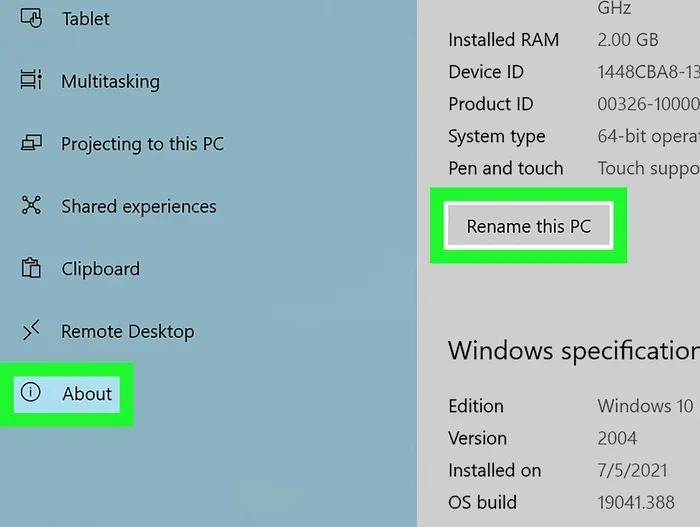
Before anything else, confirm your laptop meets the system requirements. Open Settings > System > About. Look at your processor type, RAM, and system type (64-bit or 32-bit). Write this information down. You will need it during the installation.
Step 2: Download the Media Creation Tool
Visit the official Microsoft website and search for “Media Creation Tool.” Download the latest version. This tool is free, safe, and updated regularly. Never download Windows 10 ISO files from third-party websites. Those files can contain malware or unwanted software.
Step 3: Create a Bootable USB Drive
You will need a USB flash drive with at least 8 GB of storage. Plug it into your laptop and run the Media Creation Tool. Follow the on-screen prompts to create a bootable USB installer. The tool will download the Windows 10 files and prepare the USB drive automatically.
Quick Tip: Back up any important files on the USB drive before starting. The tool will format the drive completely.
Step 4: Boot from the USB Drive
Restart your laptop and enter the BIOS or boot menu. This is usually done by pressing F2, F12, Del, or Esc during startup. The exact key depends on your laptop brand. Once in the boot menu, select your USB drive to boot from it.
Step 5: Install Windows 10
The Windows setup wizard will launch. Choose your language, time format, and keyboard layout. Click “Install Now.” When asked for a product key, click “I do not have a product key.” Select the Windows 10 edition you want to install. Most users should choose Windows 10 Home. Follow the on-screen prompts to complete the installation.
After installation, Windows 10 will boot to the setup screen. Go through the initial configuration steps. Create a user account, connect to Wi-Fi, and let Windows update. Once you reach the desktop, your copy of Windows 10 will be running without activation.
What to Expect With an Unactivated Copy of Windows 10
Using Windows 10 without activation is completely legal for personal use. Microsoft allows this intentionally. They want users to experience the OS before committing to a purchase. But there are limitations you should know about.
Personalization Restrictions
An unactivated copy of Windows 10 locks several personalization features. You cannot change your desktop wallpaper. You cannot apply custom themes or accent colors. The lock screen background stays gray. These restrictions are annoying but not dealbreakers for most users.
Activation Reminders and Watermark
The persistent “Activate Windows” watermark can distract you during work. It sits in the bottom-right corner of every screen. Activation reminders pop up in the Settings menu every few days. They are easy to dismiss, but they do add up over time.
Windows Updates Still Work
One of the biggest concerns people have is whether updates work without activation. The answer is yes. Microsoft continues to push security updates to unactivated copies of Windows 10. This is important for keeping your laptop safe from vulnerabilities. You should always keep Windows 10 updated, regardless of activation status.
No Phone Support or Features
Unactivated Windows 10 does not receive phone support from Microsoft. Some optional features may also be disabled. For example, you cannot use some built-in themes or get certain Xbox app features. These limitations do not affect everyday computing tasks.
Common Mistakes People Make When Installing Windows 10 for Free
Many users run into problems during the installation process. Most of these mistakes are easy to avoid with a little preparation.
Downloading From Untrusted Sources
The biggest mistake is downloading Windows 10 from unofficial websites. These sites often bundle malware, adware, or unwanted programs with the ISO file. Always use the official Microsoft Media Creation Tool. It is free, safe, and guarantees a clean copy of Windows 10.
Skipping Backups
Installing Windows 10 erases everything on your hard drive. If you skip backing up your files, you will lose photos, documents, and personal data. Always create a backup before starting the installation process. Use an external hard drive or cloud storage to save your important files.
Choosing the Wrong Edition
Windows 10 comes in several editions. Home, Pro, and Education are the most common. Most home users should install Windows 10 Home. Choosing Pro when you do not need its advanced features wastes time and can cause confusion. Stick with the edition that matches your needs.
Ignoring Driver Updates
After installing Windows 10, your laptop may not have all the right drivers. Graphics cards, Wi-Fi adapters, and audio devices sometimes need manual driver updates. Visit your laptop manufacturer’s website and download the latest drivers for your specific model.
Buying Fake Product Keys Online
Some websites sell cheap Windows 10 product keys that do not work. These keys often come from volume licensing or regional pricing loopholes. Microsoft eventually deactivates them. Save yourself the trouble and avoid these scams. Stick with official Microsoft channels or your digital license.
Expert Tips for a Smooth Windows 10 Installation
Getting Windows 10 running on your laptop does not have to be stressful. A few expert tips can save you time and headaches.
- Use a Reliable USB Drive: A slow or faulty USB drive can cause installation errors. Use a high-quality USB 3.0 flash drive for the best results.
- Connect to Power: Never install Windows 10 on battery power alone. A power outage during installation can corrupt your system. Keep your laptop plugged in throughout the process.
- Disable Fast Startup in BIOS: Some laptops have trouble booting from USB when Fast Startup is enabled. Disable it in your BIOS settings before attempting the installation.
- Keep Your Internet Connection Stable: Windows 10 needs a reliable internet connection during setup to download updates and drivers. A weak Wi-Fi signal can slow down or interrupt the process.
- Check Your BIOS Settings: Make sure Secure Boot is enabled and your boot mode matches the Windows 10 ISO (usually UEFI). Mismatched settings can prevent the installer from running properly.
- Be Patient During First Boot: The first boot after installation can take 10 to 20 minutes. Do not panic if your laptop seems slow or unresponsive. Let it finish configuring itself.
Following these tips ensures a clean, smooth installation every time. Even if you have never installed an operating system before, the process is straightforward with the Media Creation Tool.
Can You Activate Windows 10 Without Paying?
Some users want to know if they can activate Windows 10 without spending money. The honest answer is that there is no legitimate permanent activation method without a valid license. However, there are a few things worth mentioning.
If you previously upgraded from Windows 7 or 8, your digital license may still be active. Reinstalling Windows 10 on the same hardware often triggers automatic activation. You can also check your Microsoft account for any linked digital licenses. If neither of these works, you may need to purchase a genuine license to fully activate your copy.
Some people look for free Windows 10 product keys online. These keys rarely work long-term. Microsoft actively detects and blocks invalid keys. Using them can also expose your PC to security risks. Always opt for official methods whenever possible.
The good news is that you can use Windows 10 for free without activation for as long as you want. The watermark and reminders are the only real downsides. For many users, these are perfectly acceptable trade-offs.
Is It Safe to Install Windows 10 Without a Product Key?
Yes, it is completely safe. Microsoft themselves allow you to download and install Windows 10 without a product key. The OS receives all security updates and functions normally for everyday use. There is no malware, no hidden tracking, and no legal risk involved in running an unactivated copy for personal use.
The only thing to avoid is downloading Windows 10 from unofficial sources. Third-party websites sometimes modify ISO files to include malicious code. Always use the official Microsoft website and the Media Creation Tool to stay safe.
If you plan to use your laptop for business or sensitive work, consider purchasing a genuine license. Activation ensures you have full access to Microsoft support and all features. But for casual home use, an unactivated copy of Windows 10 works just fine.
Frequently Asked Questions
Can I install Windows 10 for free without a product key?
Yes, you can install Windows 10 for free without a product key using Microsoft’s Media Creation Tool. The installation process does not require a key. You can use the OS fully, though you will see a watermark and some personalization restrictions until you activate it.
Is installing Windows 10 without activation legal?
Yes, installing Windows 10 without activation is legal for personal use. Microsoft allows you to download and try the OS without a license key. Activation is required for commercial or business use, but personal users can run an unactivated copy without any legal issues.
What is the difference between a digital license and a product key?
A digital license is tied to your hardware and linked to your Microsoft account. It activates automatically when you reinstall Windows 10. A product key is a 25-character code you enter during setup. Digital licenses are more convenient because you do not need to remember or type in a key.
Will Windows 10 work forever without activation?
Yes, Windows 10 will continue to work without activation indefinitely. You will still receive security updates, and the core functions remain fully operational. The only differences are the watermark, activation reminders, and locked personalization settings.
Can I upgrade from Windows 7 or 8 to Windows 10 for free?
While the official free upgrade offer ended in 2016, many users with genuine Windows 7 or 8 licenses still have a digital upgrade entitlement. When you install Windows 10 on those machines, the system can detect the old license and activate automatically without requiring a new product key.
What should I do if my Windows 10 installation fails?
If your installation fails, check that your USB drive is properly formatted and bootable. Make sure your laptop BIOS is set to boot from USB. Disable Secure Boot if it is causing conflicts. You can also try using a different USB port or a different flash drive. If problems persist, visit the Microsoft support page for troubleshooting steps.
Final Thoughts
Installing Windows 10 for free on your laptop is entirely possible and surprisingly straightforward. You do not need to spend money upfront to get a fully functional operating system on your computer. Whether you use the Media Creation Tool, rely on a digital license, or take advantage of an old upgrade entitlement, Microsoft gives you the tools to do it yourself.
The process takes about 30 to 60 minutes from start to finish. You need a USB drive, a stable internet connection, and a laptop that meets the minimum system requirements. Once installed, you can use Windows 10 for all your daily tasks without any limitations on core functionality.
Remember that activation removes the watermark, unlocks personalization options, and gives you access to full Microsoft support. But even without activation, Windows 10 remains a powerful and capable operating system. Millions of users run unactivated copies every day without any issues.
So go ahead and give it a try. Download the Media Creation Tool, create your bootable USB, and install Windows 10 on your laptop today. It is free, it is legal, and it is easier than you might think.