Does Netgear WiFi Extender Really Work With Any WiFi
Yes, a Netgear WiFi extender works with most any WiFi router, but there are a few important compatibility checks you need to know first. Whether you have a basic ISP router or a high-end mesh system, the right extender can eliminate dead zones and improve your WiFi coverage throughout your home. This guide walks you through exactly how Netgear extenders work, which models are best, and what to avoid during setup.
This is a comprehensive guide about Does Netgear Wi Fi Extender Work With Any Wi Fi.
Key Takeaways
- Broad Compatibility: Netgear WiFi extenders work with nearly any standard WiFi router from any brand.
- Easy Setup: Most Netgear extenders use a simple WPS push or web interface to connect within minutes.
- Speed Trade-offs: Extenders can reduce bandwidth slightly, but modern dual-band models minimize this impact.
- Placement Matters: Where you put your extender makes a huge difference in performance and coverage.
- Not All Models Are Equal: Older or budget extenders may not support newer WiFi standards like WiFi 6.
- Mesh vs. Extender: Netgear Orbi mesh systems offer a smoother experience than traditional extenders for large homes.
[FEATURED_IMAGE_PLACEHOLDER]
Does Netgear WiFi Extender Really Work With Any WiFi?
The short answer is yes. Netgear WiFi extenders are designed to work with the vast majority of WiFi routers on the market. Whether your router came from Comcast, AT&T, Verizon, or you bought a standalone unit from TP-Link, ASUS, or Netgear itself, an extender can typically connect to it.
But “works with” doesn’t mean “works perfectly in every situation.” There are differences in WiFi standards, frequency bands, and setup requirements that can affect how well your extender performs. A Netgear WiFi extender that works with your neighbor’s router might not deliver the same results in your home if there are walls, interference, or outdated equipment involved.
In this guide, we will walk you through everything you need to know. We will cover WiFi compatibility, setup steps, speed expectations, and common mistakes that cause extenders to underperform. By the end, you will know exactly what to expect from a Netgear WiFi range booster in your own home.
How Does a Netgear WiFi Extender Work?
A Netgear WiFi extender is a device that receives your existing WiFi signal from your router, amplifies it, and rebroadcasts it to areas of your home that have weak or no coverage. Think of it as a relay station for your WiFi signal.
Most Netgear extenders use a dual-band design, meaning they can connect to your router on both the 2.4 GHz and 5 GHz frequency bands. The extender then creates a new network (or extends your existing one) that devices can connect to.
The Two-Band Advantage
Dual-band extenders are important because they reduce what is called the “backhaul bottleneck.” Here is what that means in simple terms:
- Single-band extenders use the same frequency band to talk to your router and to your devices. This cuts your speed in half.
- Dual-band extenders use one band to connect to the router and another to connect to your devices. This preserves much more of your original speed.
When you buy a Netgear WiFi range booster, look for dual-band or tri-band models. These deliver the best real-world performance and are compatible with most modern routers.
WiFi Standards and Compatibility
Netgear makes extenders that support different WiFi standards. Here is a quick breakdown:
- WiFi 5 (802.11ac): Works with most routers made after 2013. Fast and reliable for everyday use.
- WiFi 6 (802.11ax): The newest standard. Offers better speed and handles more devices at once.
- WiFi 4 (802.11n): Older standard. Still works but much slower than newer options.
Your extender will work with your router as long as both support at least one common WiFi standard. This is why Netgear WiFi extenders are so widely compatible. Even if your router is older, a basic extender will still boost your signal.
Setting Up Your Netgear WiFi Extender
One of the biggest advantages of Netgear extenders is how easy they are to set up. You do not need to be a tech expert. Most people can get their Netgear WiFi extender running in under 15 minutes.
Method 1: WPS Push Button
The fastest way to set up your extender is using the WPS (Wi-Fi Protected Setup) button. Here is how:
- Plug your Netgear extender into a power outlet halfway between your router and the area with weak signal.
- Wait for the power LED to turn solid green.
- Press the WPS button on your router.
- Within two minutes, press the WPS button on your extender.
- Wait for the LED to turn solid. Your extender is now connected.
Method 2: Netgear Nighthawk App
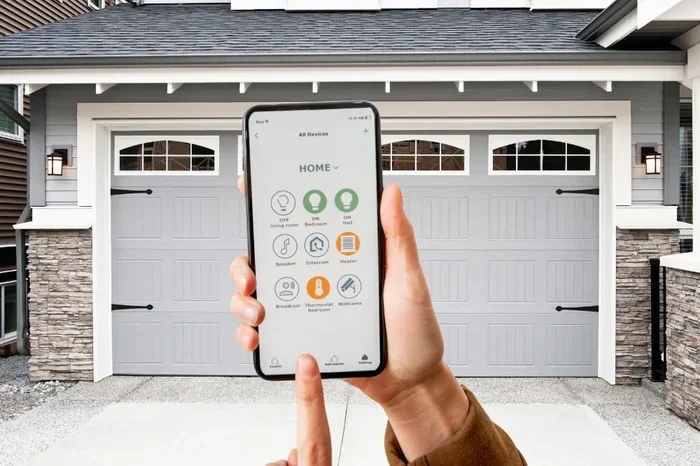
If WPS is not available on your router, you can use the Netgear Nighthawk app on your phone. This app walks you through setup step by step and lets you manage your extender from anywhere. You can also change the network name and password right from the app.
Method 3: Web Browser Setup
You can also access the extender settings by typing mywifiext.net into your browser. This gives you access to advanced settings like band steering, LED control, and guest network configuration.
Quick Tip: Always place your extender where it still gets a strong signal from your router. If you put it too far away, it will extend a weak signal, and your speed will suffer.
Compatibility: What Routers Work With Netgear Extenders?
Netgear WiFi extenders are built to be universal. They work with routers from every major brand including Netgear, TP-Link, ASUS, Linksys, and even ISP-provided gateways. But let us look at some specific scenarios.
ISP Routers (Comcast, AT&T, Spectrum, Verizon)
Most people get their WiFi router from their internet provider. These routers are often basic and may not cover the whole home. A Netgear WiFi range booster works great with these routers. You just need to make sure your ISP router is broadcasting a normal WiFi network and is not locked into bridge mode that blocks client connections.
Mesh WiFi Systems
Mesh systems like Google Nest WiFi or Eero are designed to be self-contained. You can still add a Netgear extender to a mesh network, but it may not integrate as smoothly as a native mesh node. The extender will create a separate network name in most cases.
Older Routers
Even if your router is several years old, a Netgear WiFi extender can still help. As long as the router supports WiFi 4 (802.11n) or newer, the extender will connect and boost your signal. You just should not expect blazing fast speeds from very old equipment.
Does a WiFi Extender Slow Down Your Internet?
This is the question most people ask, and the honest answer is: it depends. A Netgear WiFi extender does not slow down your internet plan speed directly. But it can reduce the speed you get on connected devices because of how the signal is relayed.
Why Speed Drops Happen
When your extender receives a WiFi signal and rebroadcasts it, it uses the same radio to both listen and transmit. This creates a natural speed reduction. Single-band extenders can cut your speed by up to 50 percent. Dual-band and tri-band extenders reduce this loss significantly.
Another factor is the distance between your extender and router. If the extender is too far away, it gets a weak signal from the router, and the rebroadcasted signal is even weaker. This is why placement is so important for your Netgear WiFi extender setup.
How to Minimize Speed Loss
- Place the extender where it gets at least two bars of signal from your router.
- Use a dual-band or tri-band model for the best speed preservation.
- Avoid placing the extender near microwaves, cordless phones, or other devices that cause WiFi interference.
- If your router supports WiFi 6, choose a WiFi 6 extender to match.
- Keep your extender firmware updated through the Nighthawk app.
Netgear Extender Models: Which One Should You Buy?
Netgear makes dozens of extender models. Choosing the right one depends on your home size, the number of devices you have, and your budget. Here is a quick comparison of popular models.
| Model | WiFi Standard | Bands | Best For | Price Range |
|---|---|---|---|---|
| Netgear EX6120 | WiFi 5 (AC) | Dual | Small to medium homes | $25-$35 |
| Netgear EX7300 | WiFi 5 (AC) | Tri-band | Medium homes with many devices | $60-$80 |
| Netgear EX8000 | WiFi 6 (AX) | Tri-band | Large homes with WiFi 6 routers | $100-$130 |
| Netgear Orbi RBK752 | WiFi 6 (AX) | Tri-band | Very large homes (mesh system) | $250-$300 |
If you have a small apartment, the EX6120 is a solid budget choice. For larger homes with many devices streaming at once, the EX7300 or EX8000 will give you much better performance. And if you want a full-home solution without dealing with extenders at all, the Netgear Orbi mesh system is worth the investment.
One thing to keep in mind is that your WiFi adapter on your laptop or phone also matters. If your device only supports WiFi 4, even the best extender will not make it faster than WiFi 4 speeds. Make sure your devices can take advantage of the extender’s capabilities.
Common Mistakes That Cause Netgear Extenders to Fail
Many people buy a Netgear WiFi extender and expect it to work like magic. When it does not, they assume the device is defective. In most cases, the problem is a setup or placement mistake. Here are the most common errors.
Placing the Extender Too Far from the Router
This is the number one mistake. Your extender needs a strong signal from your router to rebroadcast a strong signal to your devices. If you place it in the far corner of your house, it will extend a weak signal, and everything will feel slow.
Not Updating Firmware
Netgear regularly releases firmware updates that fix bugs and improve compatibility. If you skip updates, your extender may not work well with newer routers. Always check for updates through the Nighthawk app or web interface.
Using the Same Channel as Your Router
In some cases, having your extender on the same WiFi channel as your router can cause interference. The Nighthawk app usually handles this automatically, but if you are using manual setup, make sure the extender channel is different from the router channel.
Expecting the Extender to Fix Everything
A WiFi extender boosts signal, but it cannot fix problems caused by ISP throttling, outdated modems, or damaged wiring. If your internet is slow everywhere, not just in certain rooms, the extender will not solve the root problem. You may need to contact your ISP or consider upgrading your router.
When Should You Choose a Mesh System Instead?
While a Netgear WiFi extender works great for many homes, there are times when a mesh system is a better choice. Mesh systems use multiple nodes that work together as one seamless network. They do not create separate network names like traditional extenders do.
You should consider a mesh system if:
- Your home is larger than 2,500 square feet.
- You have many rooms with thick walls or multiple floors.
- You have more than 20 WiFi-connected devices.
- You want seamless roaming without your phone switching between networks.
- You are willing to spend more for a premium experience.
For most standard homes under 2,000 square feet, a Netgear WiFi extender is more than enough. It is also much more affordable than a full mesh system. If you just need to cover one dead zone or one room, an extender is the smarter choice.
Final Thoughts
So, does a Netgear WiFi extender work with any WiFi? Yes, it does. These devices are built for broad compatibility and easy setup. Whether your router is brand new or several years old, a Netgear extender can improve your WiFi coverage and eliminate frustrating dead zones.
The key is to choose the right model for your needs, place it correctly, and keep the firmware updated. Avoid the common mistakes we covered, and your extender will deliver a noticeably better WiFi experience throughout your home.
If you are still unsure about compatibility, you can always check your router’s specifications or contact Netgear support. They are helpful and can walk you through the setup process. A Netgear WiFi range booster is one of the easiest and most affordable ways to improve your home network. Give it a try, and you will wonder why you did not do it sooner.
FAQs
Will a Netgear WiFi extender work with my ISP-provided router?
Yes, in most cases. Netgear extenders are compatible with routers from Comcast, AT&T, Spectrum, Verizon, and other providers. Just make sure your ISP router is broadcasting a normal WiFi network and is not in a mode that blocks external connections.
Do I need to reset my Netgear extender if I change routers?
It is a good idea to reset the extender and set it up again when you switch routers. This ensures the extender connects properly to the new router’s network and settings. A quick reset through the Nighthawk app takes less than a minute.
Can I use a Netgear WiFi extender with a mesh WiFi system?
Yes, but it may not integrate seamlessly. The extender will usually create a separate network name rather than becoming part of the mesh. For the best experience with a mesh system, use a native mesh node from the same brand.
Why is my Netgear extender connected but showing no internet?
This usually means the extender is not getting a proper internet connection from your router. Try moving the extender closer to the router, restarting both devices, and checking that your router’s internet light is solid. If the problem persists, update the extender firmware.
Can I extend my WiFi without an Ethernet cable using a Netgear extender?
Yes, a Netgear WiFi extender connects wirelessly to your router. You do not need an Ethernet cable for the extender to work. However, if you have an Ethernet cable available, connecting the extender via cable will give you the best possible speed and stability.
How many devices can a Netgear WiFi extender handle?
Most Netgear extenders can handle between 15 and 32 devices simultaneously. If you have a large household with many smart home devices, streaming boxes, and phones all connected, a tri-band model like the EX7300 or EX8000 will perform better under heavy load.
Frequently Asked Questions
What is Does Netgear Wi Fi Extender Work With Any Wi Fi?
Does Netgear Wi Fi Extender Work With Any Wi Fi is an important topic with many practical applications.