Does Netgear Ax1800 Have a WPS Button You Need to Know
The Netgear AX1800 does include a WPS button that makes wireless setup fast and easy. This feature lets you connect devices to your network without typing a long password. In this guide, we walk you through everything about the WPS button on the Netgear AX1800, including how to use it, troubleshoot issues, and keep your network secure.
Have you just set up your new Netgear AX1800 router and want to connect your devices fast? You might be wondering if this router has a WPS button. The short answer is yes. The Netgear AX1800 comes with a WPS button that makes wireless setup a breeze. But there is a lot more to know about how it works and when to use it.
In this article, we will cover everything you need to know about the WPS button on the Netgear AX1800. We will explain what WPS is, how to use it, and what to do when things do not work. We will also share tips on keeping your network safe while using this handy feature. Whether you are a tech beginner or someone who just needs a quick refresher, this guide has you covered.
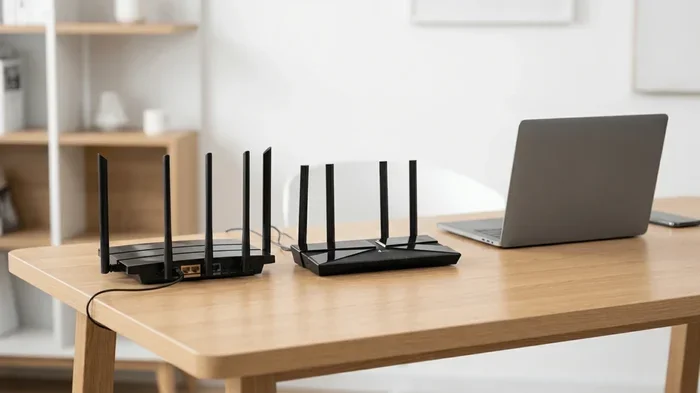
Wireless routers have come a long way. The Netgear AX1800 is a solid choice for home internet. It offers dual band connectivity, which means it uses both 2.4 GHz and 5 GHz bands. This gives you flexibility and speed. But the WPS feature is what makes connecting new devices so much easier. Let us dive into the details.
Key Takeaways
- WPS Button Present: The Netgear AX1800 has a dedicated WPS button on the back for quick device pairing.
- Two WPS Methods: You can use either the push button method or the PIN method to connect devices.
- Easy Setup: WPS saves time compared to manually entering your Wi-Fi password on every device.
- Security Considerations: While WPS is convenient, it has known vulnerabilities you should be aware of.
- LED Indicators: The WPS LED on the router helps you track the connection process step by step.
- Troubleshooting Tips: Simple fixes can resolve most WPS connection problems with the Netgear AX1800.
📑 Table of Contents
- What Is WPS and Why Does It Matter?
- Where Is the WPS Button on the Netgear AX1800?
- Can You Use WPS with Any Device?
- Is WPS Safe to Use on the Netgear AX1800?
- Common WPS Problems and How to Fix Them
- How to Disable WPS on the Netgear AX1800
- WPS vs Manual Connection: Which Is Better?
- Final Thoughts on the Netgear AX1800 WPS Button
What Is WPS and Why Does It Matter?
WPS stands for Wi-Fi Protected Setup. It is a network security standard that was created to make connecting devices to a wireless router simpler. Instead of typing a long Wi-Fi password, you can press a button or enter a short PIN. This is especially helpful when you have guests over or when you are setting up multiple devices.
The WPS button method is the most common way people use this feature. You simply press the button on your router and then on your device. The two devices pair up automatically. The whole process takes just a few seconds. It is much faster than digging out your router and typing in a complex password.
Some people also use the PIN method. With this approach, you enter an eight-digit PIN on your device. The router then grants access. However, the push button method is generally safer and more convenient. Most users prefer the button method for everyday use.
How WPS Works on the Netgear AX1800
The Netgear AX1800 supports both WPS methods. On the back of the router, you will find a clearly labeled WPS button. When you press it, the router starts looking for devices to pair with. You then have about two minutes to complete the connection on your device. If you do not connect within that time, the process resets.
The router also has a WPS LED light. This light tells you the status of your WPS connection. When the light starts blinking, it means the router is ready to pair. When it stays solid, the connection was successful. If the light turns off, the pairing attempt has failed or timed out.
One thing to keep in mind is that WPS works best with devices that support it. Most modern smartphones, tablets, and laptops have WPS capability built in. Older devices might not support it. If your device does not have WPS, you will need to enter your Wi-Fi password manually.
Where Is the WPS Button on the Netgear AX1800?
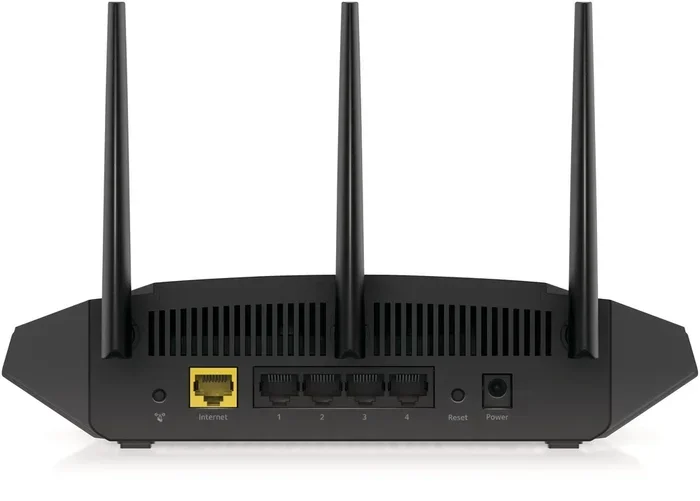
Finding the WPS button on the Netgear AX1800 is easy. The button is located on the back panel of the router. It sits right next to the Ethernet ports. The button is clearly marked with the letters WPS. It is usually a small, square button that you press with your finger.
On some models, the WPS button might share space with the reset button. This is important to know because pressing the wrong button can cause problems. Always double check the label before you press anything. If you accidentally press the reset button, your router will go back to factory settings.
If you have trouble finding the button, check the user manual that came with your router. The manual has a diagram that shows every button and port on the back panel. You can also visit the Netgear support website for visual guides. This is especially helpful if your router model has a slightly different layout.
Quick Tip: Using the WPS Button Correctly
Here is a simple step-by-step process for using the WPS button on your Netgear AX1800:
- Make sure your router is powered on and fully started.
- Find the WPS button on the back of the router.
- Press the WPS button once. The WPS LED will start blinking.
- Go to the device you want to connect.
- Select the WPS option in your device settings.
- Wait for the device to connect. This usually takes less than a minute.
- When the WPS LED on the router becomes solid, the connection is complete.
That is it! You are now connected to your wireless network without typing a single character of your password. It is fast, simple, and works with most devices that support WPS.
Can You Use WPS with Any Device?
Not all devices support WPS. Most modern smartphones and laptops do. But some older devices or certain smart home gadgets might not have WPS capability. Before you try using WPS, check if your device supports it. You can usually find this information in the device settings or user manual.
For example, if you want to connect a smart TV to your network, check the TV network settings for a WPS option. Many newer smart TVs include this feature. But older models might not. In those cases, you will need to enter your Wi-Fi password the traditional way.
Similarly, if you are setting up a Wi-Fi stick for a PC that does not have Wi-Fi in the motherboard, make sure the stick supports WPS. This can save you a lot of time during setup. You can learn more about Wi-Fi options for PCs in our guide on Wi-Fi sticks for PCs.
Devices That Commonly Support WPS
- Smartphones and tablets (most models from the last five years)
- Laptops with built-in wireless adapters
- Smart TVs and streaming devices
- Game consoles like Xbox and PlayStation
- Printers with wireless capability
- Smart home devices like cameras and speakers
If your device is not on this list, it might still support WPS through a software option. Check your device settings under network or Wi-Fi preferences. Look for a button that says “Connect with WPS” or “Push Button Configuration.”
Is WPS Safe to Use on the Netgear AX1800?
This is a question many people ask, and the answer is not a simple yes or no. WPS was designed to make life easier, but it has some security weaknesses. The main concern is with the PIN method. Hackers can sometimes guess the WPS PIN and gain access to your network. This is why many security experts recommend turning off WPS entirely.
However, the push button method is much safer. When you use the button method, someone needs to be physically near your router to connect. This makes it much harder for a remote attacker to break in. If you only use the button method and keep the PIN method disabled, your network stays much safer.
Most modern routers, including the Netgear AX1800, let you turn WPS on or off in the settings. You can access these settings by typing your router IP address into a web browser. From there, you can find the WPS section and disable the PIN method if you prefer. This gives you the best of both worlds: convenience and security.
Expert Insight: Balancing Convenience and Security
Security experts suggest a simple rule. Use WPS for quick connections with trusted devices. Turn it off when you are not actively using it. This way, you get the speed and ease of WPS without leaving your network exposed. It is a small habit that makes a big difference in keeping your home network safe.
Also, make sure your main Wi-Fi password is strong. Even if someone bypasses WPS, a strong Wi-Fi password adds another layer of protection. Use a mix of letters, numbers, and symbols. Avoid common words or easy-to-guess combinations like “password123.”
If you have young children in the home, you might also want to set up parental controls on your router. You can learn more about child-safe internet practices in our article about kids and laptops. Keeping your family safe online starts with a secure network setup.
Common WPS Problems and How to Fix Them
Sometimes WPS does not work the way it should. This can be frustrating, but most issues have simple fixes. Let us look at the most common problems and how to solve them.
WPS Button Does Not Work
If pressing the WPS button does nothing, try these steps. First, make sure the router is fully powered on. The power LED should be solid green. If the router just started up, wait a minute or two for it to fully initialize. Sometimes the WPS function is not ready immediately after startup.
Second, check if WPS is enabled in the router settings. You might have accidentally turned it off during a previous setup. Log into the router admin panel and look for the WPS section. Make sure it is turned on. If you recently changed any settings, try resetting the router to factory defaults.
Third, make sure you are pressing the correct button. As we mentioned earlier, some Netgear routers have the WPS button share space with the reset button. Pressing the reset button instead of WPS will not start the pairing process. Always look for the WPS label.
WPS Connection Times Out
If the WPS LED blinks but then goes off without connecting, the pairing timed out. This usually happens when you do not complete the device connection within two minutes. Try again and move quickly after pressing the router button.
Another reason for timeouts is distance. If your device is too far from the router, the WPS signal might be too weak. Move closer to the router and try again. Once the device connects, you can move it back to its normal location.
Interference from other electronic devices can also cause WPS to fail. Microwaves, cordless phones, and baby monitors can all interfere with wireless signals. Try turning off nearby devices and attempt the connection again.
WPS Works but No Internet Access
Sometimes your device connects via WPS but you still cannot get online. This usually means the router itself has an internet problem. Check if other devices can connect to the internet. If they cannot too, the issue is with your internet service, not WPS.
Try restarting your modem and router. Unplug both devices, wait 30 seconds, and plug them back in. Wait for the lights to stabilize before trying WPS again. This simple step fixes most internet connection issues.
How to Disable WPS on the Netgear AX1800
If you decide WPS is not for you, you can easily turn it off. Disabling WPS is a good security practice, especially if you are concerned about unauthorized access to your network.
Here is how to disable WPS on the Netgear AX1800:
- Open a web browser on a device connected to your router.
- Type the router IP address into the address bar. The default is usually 192.168.1.1 or routerlogin.net.
- Log in with your admin username and password.
- Navigate to the Wireless Settings section.
- Find the WPS option.
- Select “Disable” or turn off the WPS toggle.
- Click Apply to save your changes.
Once WPS is disabled, you will need to enter your Wi-Fi password manually when connecting new devices. This takes a bit more time, but it is more secure. You can always re-enable WPS later if you need it again.
Keep in mind that if you share your network with others, disabling WPS might make it harder for them to connect new devices. It is a good idea to explain the manual connection process to anyone who uses your network regularly.
WPS vs Manual Connection: Which Is Better?
Both WPS and manual connection have their pros and cons. Let us compare them side by side.
| Feature | WPS Connection | Manual Connection |
|---|---|---|
| Speed | Very fast (under 1 minute) | Slower (requires typing password) |
| Convenience | Excellent for quick setups | Good, but more steps involved |
| Security | Good with button method; weaker with PIN | Very secure (no PIN vulnerability) |
| Device Compatibility | Requires WPS support | Works with all Wi-Fi devices |
| Best For | Trusted devices, guest access | Secure networks, shared spaces |
For most home users, WPS is the better choice for everyday devices. It saves time and effort. But for sensitive devices or shared networks, manual connection offers better control and security.
If you have multiple devices at home, you can use both methods. Connect trusted devices like your phone and laptop with WPS. Use manual entry for devices that handle sensitive data or that you want extra security on.
Final Thoughts on the Netgear AX1800 WPS Button
The Netgear AX1800 is a great router that includes a WPS button for easy wireless setup. Whether you are connecting a new smartphone, smart TV, or gaming console, the WPS feature saves you time and hassle. Just remember to use the push button method for better security and disable the PIN method if you are concerned about unauthorized access.
Keep your network safe by using strong passwords and updating your router firmware regularly. If you ever run into issues, the troubleshooting tips in this guide should help you get back on track. WPS is a handy tool when used correctly, and the Netgear AX1800 makes it simple to take advantage of this feature.
We hope this guide has answered your questions about the WPS button on the Netgear AX1800. If you found it helpful, share it with friends or family who might be setting up their own network. And if you have any tips or experiences to share, we would love to hear from you in the comments below.
Frequently Asked Questions
Does the Netgear AX1800 have a WPS button?
Yes, the Netgear AX1800 has a dedicated WPS button on the back of the router. It is clearly labeled and sits next to the Ethernet ports. Pressing this button initiates the WPS pairing process with compatible devices.
How do I use the WPS button on my Netgear AX1800?
Simply press the WPS button on the router and then select the WPS option on your device. The two devices will pair automatically within a minute. Make sure your device is within range of the router for the best results.
Is WPS safe to use on the Netgear AX1800?
The push button method of WPS is generally safe. However, the PIN method has known vulnerabilities. For the best security, use the button method and consider disabling the PIN method in your router settings. You can also turn off WPS entirely when you are not using it.
Can I connect a device that does not support WPS to the Netgear AX1800?
Yes, you can still connect devices that do not support WPS. You will need to manually enter your Wi-Fi password in the device network settings. This works with any device that has Wi-Fi capability, regardless of WPS support.
What should I do if the WPS button on my Netgear AX1800 does not work?
First, make sure the router is fully powered on. Check that WPS is enabled in the router settings. If the issue persists, try restarting both your router and modem. You can also try pressing the WPS button again and completing the device connection within the two-minute window.
How do I disable WPS on the Netgear AX1800?
Log into your router settings by entering the router IP address in a web browser. Navigate to the Wireless Settings section and find the WPS option. Select Disable and click Apply. This turns off WPS and requires manual password entry for all new device connections.
=== CONCLUSION ===
The Netgear AX1800 has a WPS button that makes connecting devices to your wireless network quick and easy. Whether you use the push button method or the PIN method, WPS saves you from typing long passwords every time you add a new device. Just remember to balance convenience with security by using the button method and keeping your Wi-Fi password strong.
With the tips and troubleshooting steps in this guide, you should feel confident using the WPS feature on your Netgear AX1800. If you ever run into issues, the solutions provided here should help you get back online fast. Happy surfing, and enjoy the simplicity of wireless connectivity with your Netgear AX1800 router.