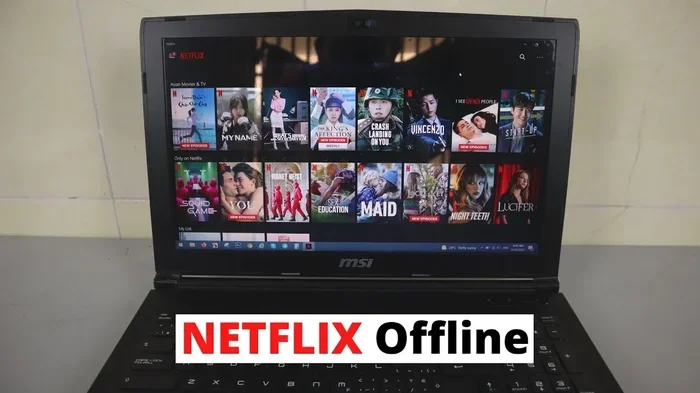
Can I Download Netflix To Watch Offline On My Laptop
Yes, you can download Netflix to watch offline on your laptop. This guide covers everything you need to know about downloading Netflix offline, including setup steps, download limits, plan requirements, and troubleshooting tips for a smooth offline Netflix experience on your computer.
Key Takeaways
- Netflix offline downloads are supported on laptops using the Windows app, not through a web browser.
- You need a Netflix Standard or Premium plan to access the download feature on any device.
- Download limits vary by plan, with Premium allowing up to four devices and six profiles.
- Downloaded content expires after 48 hours once you start playing or 30 days if unwatched.
- Storage space matters — a single movie can take up to 1 GB depending on quality settings.
- Not all Netflix titles are available for offline viewing due to licensing restrictions.
- Wi-Fi is recommended for downloads to avoid using up your mobile data allowance.
📑 Table of Contents
- Can I Download Netflix To Watch Offline On My Laptop?
- How Netflix Offline Downloads Work on Laptops
- Step-by-Step Guide to Downloading Netflix on Your Laptop
- Netflix Download Limits and Restrictions
- Which Netflix Plans Support Offline Downloads?
- Tips for a Better Offline Netflix Experience on Your Laptop
- Common Problems and How to Fix Them
- Expert Insights on Netflix Offline Viewing
- Final Thoughts
Can I Download Netflix To Watch Offline On My Laptop?
The short answer is yes. You can download Netflix to watch offline on your laptop. But there are a few things you need to know before you start. Not every laptop setup works the same way. And not every Netflix title is available for download. This guide walks you through everything step by step.
Whether you are on a long flight, a noisy commute, or staying somewhere with spotty Wi-Fi, offline Netflix access is a game changer. You do not need an internet connection to enjoy your favorite shows and movies. But you do need the right plan, the right app, and a bit of storage space on your laptop.
In this article, we will cover exactly how to download Netflix content on your laptop. We will look at which plans support downloads, the step-by-step process, common problems, and expert tips to make the experience smoother. By the end, you will know everything you need to start watching Netflix offline on your laptop with confidence.
How Netflix Offline Downloads Work on Laptops
Netflix allows you to download select titles directly to your device. This includes laptops running Windows 10 or later. The downloaded files are stored locally on your hard drive or SSD. You can then watch them without an active internet connection. This feature is part of what Netflix calls offline playback.
Here is how the process works behind the scenes. When you tap the download button on a title, Netflix encrypts the file and stores it in a protected folder on your laptop. This prevents unauthorized sharing. The file can only be played through the Netflix app. You cannot transfer it to another device or play it in a media player like VLC.
Supported Devices and Platforms
Not all laptops can run the Netflix download feature. You need a compatible operating system and the correct app. Here is what Netflix officially supports for offline downloads on laptops:
- Windows 10 and Windows 11 — the Netflix desktop app from the Microsoft Store.
- macOS — Netflix does not currently offer a dedicated download-enabled desktop app for Mac users.
- Chrome OS — limited support through the browser, but downloads are not natively supported.
- Linux — not officially supported for Netflix offline downloads.
If you are on a Mac, you may need to explore workarounds. Some users use the Netflix mobile app through a simulator, but this is not officially supported and can be unreliable. For Windows users, the process is straightforward and well-supported.
Netflix App vs Browser Downloads
One of the most important things to understand is that you cannot download Netflix content through a web browser. Whether you use Chrome, Firefox, Edge, or Safari, the browser version of Netflix does not offer a download button. The download feature is exclusive to the Netflix desktop application on Windows.
This is a common point of confusion. Many people try to find the download option while watching Netflix in their browser. It simply does not exist there. You must install the Netflix app from the Microsoft Store to access offline viewing on your laptop.
Step-by-Step Guide to Downloading Netflix on Your Laptop
Getting started with Netflix offline downloads is simple once you have the right setup. Follow these steps carefully to avoid any confusion.
Step 1: Check Your Netflix Plan
Before anything else, confirm that your Netflix subscription supports downloads. The Netflix Basic plan does not include offline viewing. You need either the Standard or Premium tier. Here is a quick breakdown:
- Basic with Ads: No download support.
- Standard Plan: Supports downloads on up to two devices.
- Premium Plan: Supports downloads on up to four devices.
If you are unsure which plan you have, log into your Netflix account on the website. Go to Account Settings and look at your plan details. If downloads are not available, you may need to upgrade your subscription.
Step 2: Install the Netflix App from the Microsoft Store
Open the Microsoft Store on your Windows laptop. Search for “Netflix.” Click the official Netflix app from Netflix, Inc. Click Install and wait for the download to complete. This app is free to install. You will log in using your Netflix credentials once you open it.
Make sure your laptop is connected to a stable Wi-Fi network before you begin. The app itself is small, but you will need good internet speed for downloading movies and shows later.
Step 3: Find Downloadable Content
Open the Netflix app on your laptop. Browse to any TV show or movie. If the title is available for offline viewing, you will see a Download icon on the description page. It looks like a downward-pointing arrow. Click it, and the download will begin.
Not every title on Netflix has a download option. Licensing agreements restrict which content can be saved for offline viewing. If you do not see the download icon, that title is simply not available for download at this time.
Step 4: Manage Your Downloads
Once a download starts, you can track its progress in the My Downloads section of the Netflix app. This is accessible from the left-hand menu. You will see all your downloaded titles listed there. You can pause, resume, or delete downloads from this screen.
It is a good idea to check your storage space before downloading. A two-hour movie in standard quality takes about 1 GB. In high quality, it can take up to 3 GB. Make sure you have enough free space on your laptop’s main drive.
Netflix Download Limits and Restrictions
Netflix puts several limits on offline downloads. Understanding these rules helps you manage your library more effectively. Let us break down the key restrictions.
How Many Downloads Can You Have?
The number of downloads you can store depends on your Netflix plan. The Standard plan allows downloads on two devices. The Premium plan allows downloads on four devices. Within those limits, you can download as many titles as your storage space allows.
Each Netflix profile can have its own set of downloads. So if you share a Premium account with three other people, each profile can maintain its own downloaded library. This is a great feature for families who all want to watch different content offline.
Download Expiration Rules
Downloaded Netflix content does not last forever. There are two expiration rules you should know:
- 30-day rule: If you do not start watching a downloaded title, it will expire after 30 days.
- 48-hour rule: Once you start playing a downloaded title, you have 48 hours to finish watching it before it expires.
Some titles have shorter expiration windows due to licensing agreements. Netflix will show you the expiration date on the download screen. Keep this in mind if you plan to watch something later.
Storage Space and Quality Settings
Netflix lets you control the download quality. Higher quality means better picture but uses more storage. You can adjust this in the app settings under App Download settings. Options typically include Low, Medium, High, and Automatic.
Here is a rough guide to storage usage per hour of content:
- Low quality: About 300 MB per hour.
- Medium quality: About 700 MB per hour.
- High quality: About 1.5 GB per hour.
If your laptop has limited storage, consider using lower quality settings for downloaded content. You can always re-download in higher quality later when you have more space.
Which Netflix Plans Support Offline Downloads?
This is one of the most common questions people ask. The answer is straightforward. Only Netflix Standard and Premium plans support offline downloads. The Basic plan and the Basic with Ads plan do not include this feature.
Here is a comparison of Netflix plans and their download capabilities:
Basic with Ads: No downloads allowed. You must be connected to the internet to watch anything.
Basic Plan: No downloads. This plan focuses on single-screen streaming at standard quality.
Standard Plan: Downloads supported on two devices. You get full HD streaming and two screens at once.
Premium Plan: Downloads supported on four devices. You get Ultra HD streaming and four screens at once.
If you travel frequently or often find yourself without reliable internet, upgrading to the Standard or Premium plan is worth it. The offline download feature alone can justify the small extra cost for many users.
Tips for a Better Offline Netflix Experience on Your Laptop
Once you have your downloads set up, a few simple tips can make a big difference. These are practical suggestions that real users find helpful.
Download Over Wi-Fi Only
Netflix downloads can use a lot of data. If you are on a limited data plan, always connect to Wi-Fi before downloading. You can also change the download settings to only allow downloads on Wi-Fi. Go to App Settings in the Netflix app and toggle on “Download Only on Wi-Fi.”
Download Before You Travel
Do not wait until you are on a plane or in a remote area to start your downloads. Make sure you have a strong Wi-Fi connection at home or at your hotel before you leave. Download everything you think you will want to watch. It is better to have extra content downloaded than to realize you forgot something.
Keep Your App Updated
Netflix regularly updates its app to fix bugs and improve performance. An outdated app may cause download failures or playback issues. Check the Microsoft Store for updates to the Netflix app at least once a week. Keeping the app current ensures smooth offline viewing.
Manage Your Downloads Regularly
Over time, downloaded content can take up a lot of space. Go through your downloads folder every couple of weeks. Delete titles you have already watched. This frees up storage for new content. The Netflix app makes this easy — just right-click any downloaded title and select Delete.
Watch Out for Licensing Changes
Netflix licenses content from studios and production companies. These licenses expire. When they do, the content is removed from Netflix entirely — including any downloaded copies. If a title disappears from the platform, your downloaded copy will also stop working. Always check the expiration date for downloaded titles.
Common Problems and How to Fix Them
Even with a proper setup, you may run into issues when downloading Netflix on your laptop. Here are the most common problems and their solutions.
Download Button Is Missing or Grayed Out
If you do not see the download button on a title, it is likely not available for offline viewing. Netflix does not offer every title for download. Licensing restrictions are the most common reason. Try a different show or movie to see if the download option appears.
Another reason could be that your Netflix plan does not support downloads. Check your subscription tier. If you are on the Basic plan, you will need to upgrade to access the download feature.
Downloads Fail or Get Stuck
Stuck downloads are frustrating but usually easy to fix. Try these steps:
- Check your internet connection and switch to a different Wi-Fi network.
- Restart the Netflix app completely.
- Clear the app cache through the Settings menu.
- Make sure you have enough free storage space on your laptop.
- Update the Netflix app to the latest version.
If none of these work, try uninstalling and reinstalling the Netflix app. This resets any corrupted files that might be causing the problem.
Downloaded Content Will Not Play
If a downloaded title refuses to play, the file may be corrupted. Try deleting the download and downloading it again. Also make sure your laptop has enough RAM and processing power to play the file smoothly.
Sometimes the Netflix app needs a fresh login. Sign out of the app, close it completely, and sign back in. This often resolves playback issues with downloaded content.
Expert Insights on Netflix Offline Viewing
According to Netflix’s own support documentation, offline viewing is one of the most requested features among users. The company has invested heavily in making Netflix download offline work reliably across supported devices. However, they are clear that this feature depends on device compatibility and plan type.
Tech experts also point out that the Netflix download feature works best when you stay within the official ecosystem. Using third-party tools or screen recorders to capture Netflix content violates the platform’s terms of service and can result in account suspension. Always stick to the official download feature for the safest and most reliable experience.
Streaming analysts note that Netflix has been gradually expanding the number of titles available for download. The library of downloadable content grows each month. Some newly released shows and movies are added to the offline catalog within days of their premiere. This is great news for fans who want to watch new content without a constant internet connection.
Final Thoughts
Can I download Netflix to watch offline on my laptop? Absolutely. As long as you have a Standard or Premium Netflix plan and a Windows laptop with the Netflix desktop app installed, you are good to go. The process is simple, the feature is reliable, and it opens up a world of entertainment without needing an internet connection.
Remember to keep an eye on your storage space, manage your downloads regularly, and stay aware of expiration dates. These small habits make a big difference in your overall experience. Offline Netflix viewing is one of the best features the platform offers, and now you have everything you need to use it effectively on your laptop.
Start downloading your favorite shows today. You will be glad you did the next time you are somewhere without reliable Wi-Fi. Happy watching.
Frequently Asked Questions
Can I download Netflix on a laptop without the desktop app?
No, you cannot download Netflix content through a web browser. The download feature is only available through the Netflix desktop app on Windows 10 and Windows 11. You must install the app from the Microsoft Store to access offline viewing on your laptop.
How many titles can I download on Netflix?
There is no set limit on the number of titles you can download. Your limit is based on available storage space on your laptop. A standard movie takes about 1 to 3 GB depending on quality settings. Check your free disk space before downloading multiple titles at once.
Do Netflix downloads expire?
Yes, downloaded Netflix content expires based on two rules. If you do not start watching, the download expires after 30 days. Once you start playing, you have 48 hours to finish watching before it expires. Some titles have shorter windows due to licensing agreements.
Can I download Netflix on a Mac laptop?
Netflix does not currently offer a dedicated desktop app with download support for macOS. Mac users cannot natively download Netflix content for offline viewing. Some users explore workarounds, but these are not officially supported and may not work reliably.
Why can’t I find the download button on Netflix?
The download button is missing for a few reasons. The title may not be available for offline viewing due to licensing restrictions. Your Netflix plan may not support downloads — only Standard and Premium plans do. Also, make sure you are using the Netflix desktop app and not the browser version.
Is it legal to download Netflix content for offline viewing?
Yes, downloading Netflix content for personal offline viewing is legal and supported by Netflix itself. It is part of the official feature set available to subscribers on eligible plans. However, sharing downloaded files or using third-party tools to record Netflix content violates Netflix’s terms of service.
=== CONCLUSION ===
Downloading Netflix to watch offline on your laptop is simple, practical, and increasingly popular. With the right plan and the Netflix desktop app, you can enjoy your favorite shows and movies anywhere, anytime. The key is understanding the requirements, managing your downloads wisely, and staying within Netflix’s official tools and guidelines.
Whether you are a frequent traveler or someone who deals with unreliable internet, offline Netflix viewing on your laptop is a must-have feature. Follow the steps in this guide, keep your app updated, and manage your storage space. You will be set for seamless offline entertainment on your laptop.