Does A Wi Fi Router Work As A Wi Fi Extender Or Not
The short answer to does a Wi-Fi router work as a Wi-Fi extender is no. A standard router creates a network but cannot repeat an existing signal like an extender does. However, you can often reconfigure a router in bridge mode or access point mode to extend your wireless coverage. This guide explains why a router is not a true extender, how to set it up, and when a dedicated range extender is a smarter choice.
If you have a dead zone in your home, you might wonder if that old router gathering dust can save the day. The idea of repurposing a router as a Wi-Fi extender sounds simple and cost-effective. But the reality is more complicated.
Does a Wi-Fi router work as a Wi-Fi extender? The short answer is no, but there is a bit more to the story. A router and a range extender serve different purposes. A router connects to your modem and builds a local network. An extender takes that existing signal and rebroadcasts it to reach farther corners. You cannot simply unplug a router and expect it to magically repeat your neighbor’s signal. However, with the right settings, some routers can act as a wireless bridge. This guide walks you through the differences, the setup process, and why a dedicated extender is usually the better path.
Key Takeaways
- A router is not an extender: It creates a network but cannot repeat an existing one without special settings.
- Bridge mode can help: Some routers support bridge mode to act as a wireless bridge, but it is not the same as an extender.
- Speed loss is a risk: Using a router as an extender often halves your bandwidth because it must receive and retransmit data.
- Dedicated extenders are easier: They plug in and work instantly with minimal configuration.
- Mesh systems are the modern fix: They provide seamless coverage without the speed penalties of repeaters.
- Check your router’s firmware: Not all routers support extender-like modes, so verify before trying.
📑 Table of Contents
- What Is the Difference Between a Router and a Wi-Fi Extender?
- Can You Use a Router as a Wi-Fi Extender?
- Why a Dedicated Wi-Fi Extender Usually Wins
- Alternative Ways to Extend Your Wi-Fi Without a Router
- Step-by-Step: Setting Up Your Router as an Extender
- Common Mistakes When Using a Router as an Extender
- Conclusion
What Is the Difference Between a Router and a Wi-Fi Extender?
What a Router Does
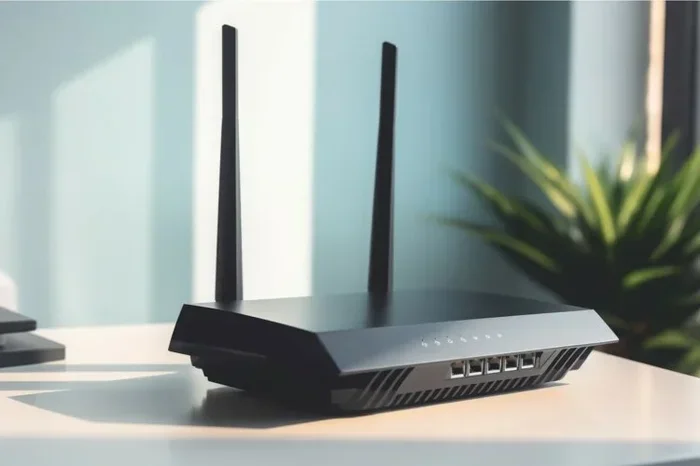
A router is the brain of your home network. It connects to your modem and assigns IP addresses to every device. It routes traffic between your computers, phones, and the wider internet. A standard router also broadcasts a Wi-Fi signal. That signal lets your laptop, tablet, and smart TV connect wirelessly. The router manages all the data flowing in and out. It handles security, parental controls, and quality of service. In short, a router builds and manages a network from scratch.
When you buy a new router, you plug it into your modem. You then configure the SSID, set a password, and choose a frequency band. The router becomes the central hub. Every device talks to the router, and the router talks to the modem. This setup works perfectly for most homes. But what happens when the signal cannot reach every room? That is where the confusion starts.
What a Wi-Fi Extender Does
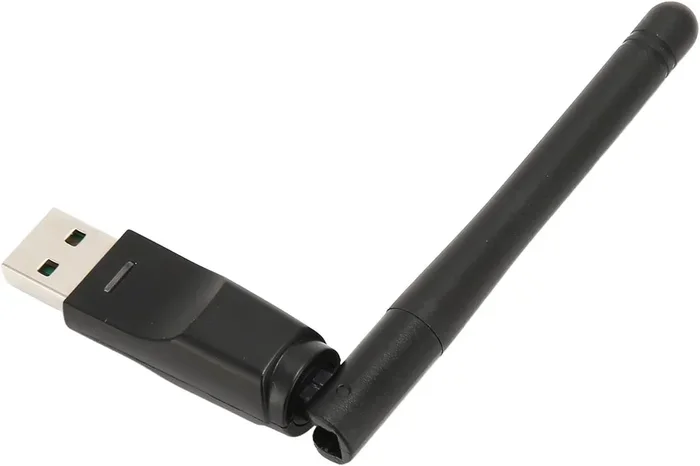
A Wi-Fi extender, also called a repeater, does one job. It receives the existing Wi-Fi signal from your router and sends it out again. The extender does not create a new network. It simply amplifies the current one. This can push your coverage into the backyard or the basement. An extender plugs into a wall outlet and needs very little setup. You press a button or follow a simple app guide, and it is ready.
The key difference is that an extender works with a signal that already exists. A router without a modem cannot do this. It has no upstream connection to repeat. Even if you connect a router to your main network via Ethernet, it still acts as a switch or access point, not a true extender. The router does not have the built-in logic to capture and rebroadcast a wireless signal on the same radio. That is why a dedicated range extender is the right tool for the job.
Can You Use a Router as a Wi-Fi Extender?
The Role of Bridge Mode
Some advanced routers include a bridge mode or wireless distribution system. In bridge mode, the router connects to the main router wirelessly and then creates a new network. This sounds like extender behavior, but it is not quite the same. Bridge mode is designed to link two separate networks together. It is often used in business settings or large homes with multiple routers. For a typical homeowner, bridge mode can feel like an extender, but it usually requires a wired Ethernet backhaul or very specific configuration.
You cannot just take any router and turn it into an extender. The router must support client mode or bridge mode. Even then, the setup can be tricky. You need to access the router’s admin panel, find the wireless settings, and enter the main network’s SSID and password. If your router does not have these options, you are out of luck. Before you try anything, check if your router’s firmware includes a repeater or bridge function. If you are unsure about the hardware, you might want to review our guide on buying and installing a router yourself to understand what features to look for.
Access Point Mode Limitations
Many routers offer access point mode. In this mode, the router turns off its routing functions and acts like a simple wireless access point. It still broadcasts Wi-Fi, but it does not create a new network. It simply extends the existing one through a wired connection. This is a great way to add wireless coverage to a room that has an Ethernet cable. However, access point mode requires a physical Ethernet cable between the main router and the access point. It does not work wirelessly like a true extender.
If you do not have an Ethernet cable running to the dead zone, access point mode will not help. You cannot use it to wirelessly repeat a signal. The router simply does not have the hardware to do both receiving and transmitting on the same radio without dropping the connection. This is a common mistake people make. They think plugging an old router into the wall will magically extend the Wi-Fi. It will not. The router needs a wired connection to the main network to act as an access point.
Why a Dedicated Wi-Fi Extender Usually Wins
Signal Strength and Speed Loss
A dedicated range extender is built for one purpose: repeating Wi-Fi signals. It uses special hardware to receive and retransmit data with minimal delay. When you try to use a router as an extender, you often lose half your bandwidth. This happens because the router must use the same radio to talk to the main router and to your devices. It cannot do both at the same time, so it cuts the speed in half. A dual-band extender can avoid this by using one band to receive and another to transmit, but a standard router usually cannot.
Speed loss is not the only issue. Latency can also increase. If you are gaming or video calling, the extra delay from a router acting as a repeater can be frustrating. A dedicated extender is optimized to minimize this latency. It also has better antennas and amplifiers designed specifically for signal repeating. An old router simply does not have the same radio power or tuning.
Setup and Convenience
Plugging in a dedicated extender takes about two minutes. You press the WPS button on your main router, then press the button on the extender. It is done. No IP addresses to remember, no admin panels to navigate. A router used as an extender requires logging into a web interface, finding the right settings, and hoping it works. If it fails, you have to troubleshoot a second router. That is a lot of hassle for a temporary fix.
Dedicated extenders also come with features like Ethernet ports on the back. You can plug a smart TV or gaming console directly into the extender for a wired connection. Old routers often lack these ports or have outdated Ethernet speeds. For a seamless experience, a purpose-built extender is almost always the smarter choice.
Alternative Ways to Extend Your Wi-Fi Without a Router
Powerline Adapters
Powerline adapters use your home’s electrical wiring to carry data. You plug one adapter near your router and connect it with an Ethernet cable. Then you plug the second adapter in the dead zone. The second adapter broadcasts a new Wi-Fi signal or provides an Ethernet port. This method bypasses the need for a router to act as an extender entirely. Powerline adapters are reliable and do not suffer from the speed loss of wireless repeaters. They work well in homes where Wi-Fi signals struggle to pass through thick walls.
Mesh Wi-Fi Systems
If you are serious about whole-home coverage, a mesh system is the gold standard. A mesh setup uses multiple nodes that talk to each other seamlessly. Your phone automatically switches to the strongest node without dropping the connection. Unlike a router pretending to be an extender, a mesh system is designed from the ground up for this job. The nodes work together to create one big, fast network. The price is higher, but the performance and ease of use are worth it.
Using a Hotspot Instead
For a single room or a quick fix, a mobile hotspot can be a lifesaver. You can use your phone’s data connection to provide internet to a laptop or tablet. If you are wondering whether you can ditch your home Wi-Fi entirely for a hotspot, check out our article on getting a hotspot instead of Wi-Fi. It explains when a hotspot makes sense and when it does not. This approach is not a long-term solution for whole-home coverage, but it works perfectly for a home office or a guest room.
Step-by-Step: Setting Up Your Router as an Extender
Check Compatibility
Before you begin, you need to confirm your router supports bridge mode or client mode. Log into the router’s admin panel by typing its IP address into a browser. Look for settings named “Bridge Mode,” “Repeater Mode,” or “Wireless Client.” If you do not see any of these options, your router cannot act as an extender. Stop here and consider a dedicated range extender instead. If you find the settings, make sure your router’s firmware is up to date. Outdated firmware can cause compatibility issues and security vulnerabilities.
Enable Bridge Mode
Once you find the bridge mode option, enable it. The router will ask for the main Wi-Fi network’s name and password. Enter them carefully. Save the settings and reboot the router. After it restarts, it should connect to the main network wirelessly. You can check the connection status in the admin panel. If it shows a successful link, you are halfway there. The router is now receiving the main signal and rebroadcasting it.
Positioning Your Router Correctly
Placement is critical. Put the router halfway between your main router and the dead zone. Do not place it too close to the main router, or it will not extend the coverage. Do not place it too far, or it will not get a strong enough signal to repeat. A good rule of thumb is to ensure the router still gets at least two to three bars of signal from the main router. Also, keep the router away from thick walls, metal appliances, and microwaves. These obstacles weaken the signal before it even reaches the router.
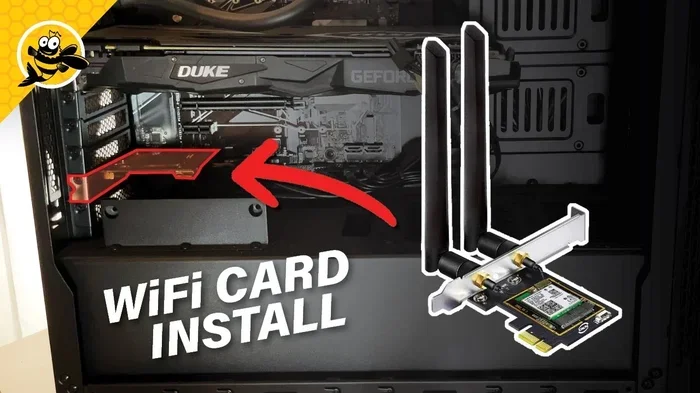
For a stable backhaul, you can connect the router to your PC via Ethernet and add Wi-Fi to your PC if needed. This wired connection ensures the router has a strong link to the main network. Once everything is set, connect your devices to the new extended network. You should see improved speeds in the previously dead zone.
Common Mistakes When Using a Router as an Extender
Placing It Too Far Away
The most common mistake is putting the router too far from the main source. If the router cannot get a solid signal from the main router, it cannot repeat anything. You end up with a new dead zone instead of fixing the old one. Always test the signal strength at the proposed router location before committing to a permanent spot. Use your phone’s Wi-Fi analyzer app to check the bars.
Ignoring Dual-Band Limitations
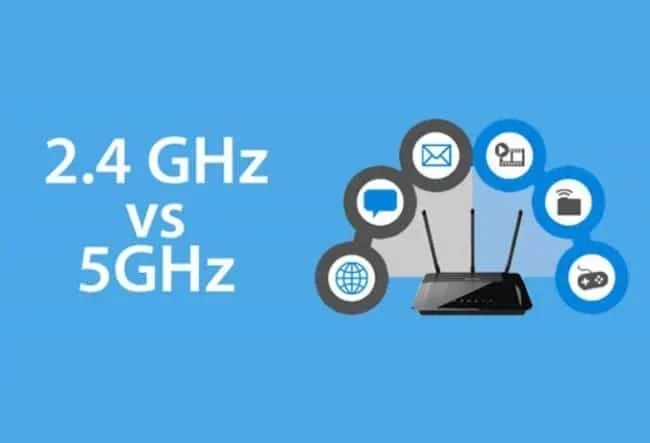
Many old routers only have a single 2.4 GHz band. Using a single band for both receiving and transmitting creates a massive bottleneck. The router will cut your speed in half, and interference from neighbors can make it worse. If your router supports dual-band, try using the 5 GHz band for the backhaul and the 2.4 GHz band for client devices. This can improve performance, but it still will not match a dedicated extender’s efficiency.
Forgetting to Change the Default Password
When you repurpose an old router, it may still have the factory password. This is a security risk. Anyone within range could access your network settings. Change the admin password immediately after setting up bridge mode. Also, give the extended network a strong, unique password. Do not reuse the same password as your main network, especially if guests will use the extended signal.
Conclusion
So, does a Wi-Fi router work as a Wi-Fi extender? Not directly. A standard router builds a network, but it cannot wirelessly repeat an existing signal without special modes like bridge or client mode. Even then, the performance and setup complexity often make it a frustrating experience. A dedicated range extender or a mesh system is almost always the better investment. They are designed to solve dead zones with minimal hassle and maximum speed. If you have an old router lying around, you can try the bridge mode trick, but manage your expectations. For reliable, fast coverage, stick with the right tool for the job.
Frequently Asked Questions
Can any router be used as a Wi-Fi extender?
No, not every router supports bridge mode or client mode. You need to check your router’s admin panel for these options. If the firmware does not include a repeater or bridge setting, the router cannot function as an extender.
Will using a router as an extender slow down my internet?
Yes, it often will. A router acting as a repeater must receive and retransmit data on the same radio, which can cut your bandwidth in half. Dedicated extenders handle this more efficiently, and dual-band models can avoid the speed loss entirely.
Is bridge mode the same as a range extender?
Not exactly. Bridge mode connects two networks together, often using a wired link. A range extender is designed specifically to repeat a wireless signal. While bridge mode can feel similar, it usually requires more setup and does not work as seamlessly as a plug-and-play extender.
Can I use an old router as a Wi-Fi extender without Ethernet?
You can try wireless bridge mode, but it is not guaranteed to work well. The router must support wireless client mode, and the signal between the two routers will still suffer from speed loss. A wired Ethernet connection always produces better results.
What is the easiest way to extend Wi-Fi in a dead zone?
The easiest way is to buy a dedicated range extender or a mesh Wi-Fi system. A range extender plugs into a wall outlet and takes two minutes to set up. A mesh system offers the best whole-home coverage but costs more. Both options are far simpler than trying to repurpose an old router.
Does a Wi-Fi extender reduce internet speed?
A Wi-Fi extender can reduce speed because it rebroadcasts the signal. The amount of speed loss depends on the extender’s quality and whether it uses a dual-band design. Cheap single-band extenders often cut speeds in half, while better models minimize the impact.