Does A Firestick Need Wi Fi To Unlock Its Full Potential
Yes, a Firestick needs Wi-Fi to unlock its full potential, but there are clever workarounds if you lack a wireless network. This guide covers everything from initial setup to streaming quality, gaming, and privacy concerns. You will learn how to get the most out of your Amazon Fire TV Stick with or without a traditional Wi-Fi connection.
Key Takeaways
- A Firestick requires Wi-Fi for most features: Streaming, app downloads, and software updates all depend on a wireless connection.
- Limited offline use is possible: You can sideload apps and cast local content without Wi-Fi in certain scenarios.
- Internet speed matters a lot: At least 5-10 Mbps is needed for HD streaming, and 25+ Mbps for 4K content.
- Mobile hotspot is a solid alternative: You can use your phone’s data to power a Firestick when no Wi-Fi is available.
- Guest Wi-Fi has privacy risks: Other users on the same network may be able to see your browsing activity.
- Ethernet adapters help stabilize connections: A wired setup can eliminate buffering and lag during streaming.
📑 Table of Contents
- What Is a Firestick and Why Does Wi-Fi Matter?
- Does a Firestick Need Wi-Fi to Work at All?
- How Wi-Fi Affects Your Firestick Streaming Experience
- Using a Firestick Without Wi-Fi: Workarounds and Alternatives
- Optimizing Your Wi-Fi for the Best Firestick Performance
- Privacy and Security Concerns With Firestick Wi-Fi
- Common Firestick Wi-Fi Problems and How to Fix Them
- Final Thoughts
What Is a Firestick and Why Does Wi-Fi Matter?
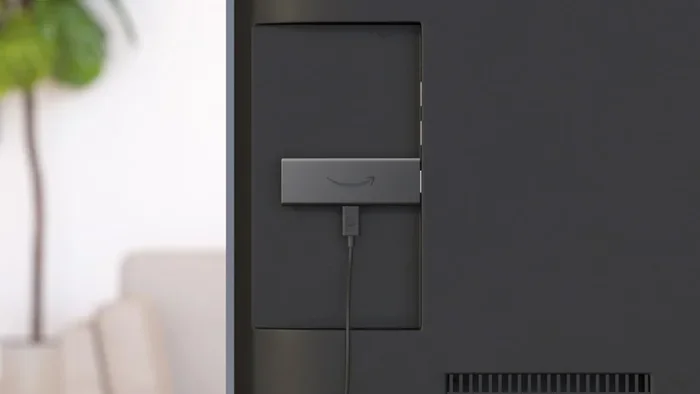
The Amazon Fire TV Stick is a small streaming device that plugs directly into your TV’s HDMI port. It turns any regular television into a smart TV. You can watch Netflix, YouTube, Hulu, and thousands of other apps. It is one of the most popular streaming devices on the market today.
But here is the big question many people ask. Does a Firestick need Wi-Fi to do all the things it was designed to do? The short answer is yes. Wi-Fi is the backbone of the Firestick experience. Without it, you lose access to most of what makes the device so useful. Let us break down exactly why that matters and what you can do about it.
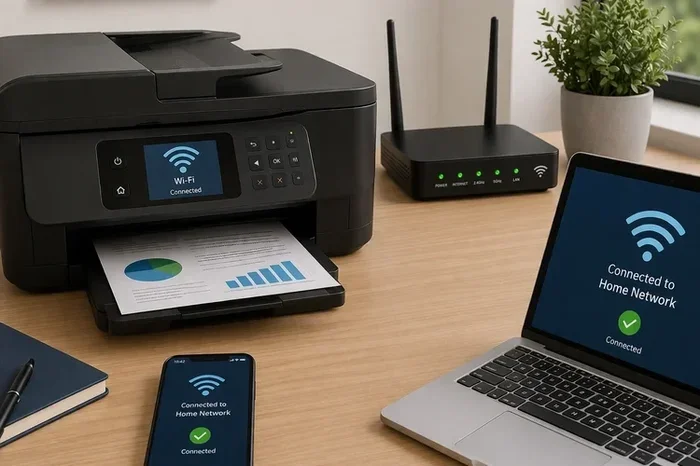
A Firestick connects to the internet through your wireless network. This connection lets it pull video content, download apps, and receive software updates. Think of Wi-Fi as the fuel for your Firestick. No fuel means the engine will not run. At least not the way most people expect it to.
Does a Firestick Need Wi-Fi to Work at All?
Here is where things get interesting. A Firestick can technically turn on and display its home screen without Wi-Fi. But the moment you try to do anything useful, you will hit a wall. Most apps require an active internet connection to load content. Even the home screen will show limited information without a connection.
So what can you do with a Firestick when there is no Wi-Fi? Not much in terms of streaming. However, there are a few niche uses. You can connect a Firestick to a local network through an Ethernet adapter. Some users also sideload apps that play local media files stored on a USB drive. These workarounds are not the same as full functionality, but they do offer some value.
What Happens When You First Set Up a Firestick?
During initial setup, the Firestick will ask you to connect to a Wi-Fi network. This step is mandatory. You cannot skip it and still use the device for streaming. The setup process also requires you to sign in to your Amazon account. Both steps need an internet connection to complete successfully.
If you do not have Wi-Fi at home, you can use your phone’s mobile hotspot as a temporary solution. This lets you finish the setup process. But for long-term use, a stable Wi-Fi connection is essential.
How Wi-Fi Affects Your Firestick Streaming Experience
The quality of your Wi-Fi connection directly impacts how well your Firestick performs. A weak signal means constant buffering. A strong signal means smooth, beautiful picture quality. Let us look at the numbers.
For standard definition streaming, you need at least 3 to 5 Mbps. For HD content, aim for 10 Mbps or higher. And if you want to watch 4K Ultra HD content, you will need 25 Mbps or more. These are Amazon’s official recommendations, and they are a good place to start.
Why Wi-Fi Speed Matters for Streaming
When you press play on a movie, the Firestick starts downloading video data in real time. If your Wi-Fi speed is too slow, the video will pause to buffer. This is the spinning circle nobody wants to see. Fast Wi-Fi eliminates this frustration and lets you enjoy your content without interruption.
Your wireless network quality also depends on your router’s placement. Walls, distance, and interference from other devices can all weaken your signal. If your Firestick is far from the router, consider moving the router closer or using a Wi-Fi extender.
2.4 GHz vs. 5 GHz: Which Is Better for Firestick?
Most modern routers broadcast two bands: 2.4 GHz and 5 GHz. The 2.4 GHz band travels farther but is slower. The 5 GHz band is faster but has a shorter range. For Firestick streaming, the 5 GHz band is almost always better. It provides the speed needed for HD and 4K content without interruption.
If your Firestick is in the same room as your router, use the 5 GHz band. If it is in a different room or farther away, the 2.4 GHz band may be more stable. The trade-off is speed versus distance.
Using a Firestick Without Wi-Fi: Workarounds and Alternatives
What if you simply do not have Wi-Fi available? Maybe you are in a cabin in the woods or renting a place with no internet. Can you still use a Firestick? The answer is yes, but with limitations.
One popular workaround is using a mobile hotspot from your smartphone. You can share your phone’s cellular data connection with the Firestick. This works well for light streaming. Just keep an eye on your data usage, as HD and 4K content can eat through a lot of data quickly.
Another option is using an Ethernet adapter. Amazon sells a official Ethernet adapter for the Fire TV Stick 4K. This lets you connect the Firestick directly to your modem or router with a cable. It is more stable than Wi-Fi and can reduce buffering issues significantly.
Some users also connect their PC to the Firestick using screen mirroring. If you have a wired connection on your computer, you can mirror your screen to the TV. This is a creative workaround, but it is not as seamless as native streaming. You can read more about connecting devices without traditional Wi-Fi in our guide on Can I Connect My PC To Wi-Fi Without Ethernet.
Can You Sideload Content for Offline Viewing?
Yes, you can sideload apps like VLC Media Player onto a Firestick. These apps can play video files from a USB drive or a local network server. This means you can watch downloaded movies and TV shows without an internet connection. It is not the same as having full app access, but it works for offline entertainment.
Optimizing Your Wi-Fi for the Best Firestick Performance
If you have Wi-Fi but your Firestick still buffers or lags, it is time to optimize your network. Small changes can make a big difference in streaming quality.
Place Your Router Strategically
Your router should be in a central location in your home. Walls, metal objects, and even microwaves can interfere with the Wi-Fi signal. The closer the router is to your Firestick, the better the connection will be.
Reduce Network Congestion
Too many devices on the same network can slow things down. If everyone in your house is streaming, gaming, or downloading at the same time, your Firestick will suffer. Consider upgrading your internet plan or using Quality of Service (QoS) settings on your router to prioritize streaming traffic.
For those who enjoy gaming on their streaming device, network performance becomes even more critical. Check out our article on Can I Game On My Wi-Fi for tips on optimizing your connection for low-latency gameplay.
Keep Your Firestick Software Updated
Amazon regularly releases software updates for the Fire TV Stick. These updates often include performance improvements and bug fixes. Go to Settings, then My Fire TV, and select About to check for updates. Keeping your device current ensures the best possible performance.
Clear Cache and Uninstall Unused Apps
Over time, apps store temporary data that can slow down your Firestick. Go to Manage Installed Applications and clear the cache for apps you use frequently. Uninstall apps you no longer need. This frees up memory and can improve overall speed.
Privacy and Security Concerns With Firestick Wi-Fi
Using Wi-Fi with your Firestick also raises some privacy questions. When you connect to a network, your streaming activity travels through that network. Who else is on that network, and can they see what you are doing?
Can Guest Wi-Fi Users See Your Search History?
If you share your Wi-Fi network with guests, they could potentially see your browsing activity. This depends on your router settings and whether you use encryption. Always use WPA3 or WPA2 encryption on your Wi-Fi network. This scrambles your data and makes it much harder for others to intercept.
If you are worried about privacy on shared networks, you should read our guide on Can Guest Wi-Fi See What You Search. It covers practical steps to protect your privacy while still sharing your connection.
Using a VPN With Your Firestick
A Virtual Private Network (VPN) encrypts your internet traffic and hides your IP address. This adds a layer of privacy when streaming on your Firestick. Many people use VPNs to access content that is restricted in their region. A VPN can also prevent your internet service provider from throttling your streaming speed.
Setting up a VPN on a Firestick is straightforward. You can download VPN apps directly from the Amazon Appstore. Some popular options include NordVPN, ExpressVPN, and Surfshark. These services are easy to install and configure.
Common Firestick Wi-Fi Problems and How to Fix Them
Even with a good network, Firestick users sometimes run into Wi-Fi issues. Here are the most common problems and their solutions.
Firestick Keeps Disconnecting From Wi-Fi
This is a frustrating but common issue. It usually happens because of a weak signal or router problems. Try moving the router closer to the Firestick. You can also restart both your router and the Firestick. Unplug the router for 30 seconds, plug it back in, and do the same with the Firestick.
Slow Streaming and Constant Buffering
Slow streaming is almost always a Wi-Fi problem. Check your internet speed using a speed test app on the Firestick. If your speed is below the recommended levels, try the following steps:
- Move closer to the router
- Switch from 2.4 GHz to 5 GHz
- Reduce the number of devices on your network
- Restart your router
- Use an Ethernet adapter for a wired connection
Firestick Will Not Connect to Wi-Fi at All
If your Firestick refuses to connect, the problem could be with the Wi-Fi password. Double-check that you entered it correctly. Also, make sure your router is broadcasting on a frequency band the Firestick supports. Most Firesticks work with 2.4 GHz and 5 GHz networks, but older models may only support 2.4 GHz.
Software Glitches After an Update
Sometimes a Firestick software update can cause Wi-Fi connectivity issues. If this happens, try clearing the cache or performing a factory reset. Go to Settings, then My Fire TV, and select Reset to Factory Defaults. This will erase all your settings and apps, so use it as a last resort.
Final Thoughts
So, does a Firestick need Wi-Fi? The answer is a clear yes if you want to unlock its full potential. Wi-Fi powers every core feature of the Firestick, from streaming movies to downloading apps and receiving updates. Without it, you are left with a device that has very limited usefulness.
That said, there are workarounds. Mobile hotspots, Ethernet adapters, and sideloaded media players can fill the gap when Wi-Fi is not available. These options are not perfect, but they keep you entertained when you need them most.
Optimizing your Wi-Fi network makes a huge difference in your Firestick experience. A strong, fast connection means buffer-free streaming, crisp picture quality, and smooth navigation. Take the time to set up your network properly, and your Firestick will reward you with hours of entertainment.
Whether you are a casual viewer or a dedicated streamer, understanding how Wi-Fi affects your Firestick is essential. Use the tips in this guide to get the most out of your device. And remember, a little effort in your network setup goes a long way toward a better streaming experience.
Frequently Asked Questions
Can I use a Firestick without any internet connection at all?
You can turn on a Firestick without Wi-Fi, but you will not be able to stream content or use most apps. The device is designed to rely on an internet connection. Without it, you are limited to very basic functions and sideloaded local media files.
What internet speed do I need for 4K streaming on a Firestick?
Amazon recommends at least 25 Mbps for 4K Ultra HD streaming. If your Wi-Fi speed is below that, you may experience buffering or automatic resolution drops. A wired Ethernet connection can help stabilize the speed if your wireless network is not fast enough.
Can I use my phone as a hotspot for my Firestick?
Yes, you can use your phone’s mobile hotspot to connect a Firestick to the internet. This works well for temporary use or when you do not have access to Wi-Fi. Just be mindful of your cellular data limits, as HD and 4K streaming can consume a lot of data quickly.
Does a Firestick work better with Ethernet than Wi-Fi?
Generally, yes. A wired Ethernet connection is more stable and faster than most Wi-Fi connections. It reduces buffering and provides a consistent streaming experience. You will need an Ethernet adapter for the Firestick, but the improvement in reliability is noticeable.
Can I connect my Firestick to a neighbor’s Wi-Fi?
You can, but it is not recommended without permission. Using someone else’s network without consent is illegal in many places. Additionally, guest networks often have slower speeds and weaker security, which can affect your streaming quality and privacy.
Why does my Firestick buffer even with a strong Wi-Fi signal?
A strong signal does not always mean fast speeds. Network congestion, router limitations, or ISP throttling can all cause buffering. Try restarting your router, reducing the number of connected devices, or using a VPN to prevent throttling from your internet provider.