Can Arduino Send Data To PC And What You Need To Know
Can Arduino Send Data To PC easily using a simple USB cable and serial communication. This guide covers everything from hardware setup to writing Python scripts. You will learn how to transfer sensor data, troubleshoot common issues, and build real-world projects.
Can Arduino Send Data To PC? Absolutely. You can easily send information from your Arduino board to a computer. This process opens up a world of possibilities for hobbyists, students, and makers. Whether you want to log sensor readings or control software from hardware, the connection is straightforward. The key is understanding serial communication and the right setup steps.
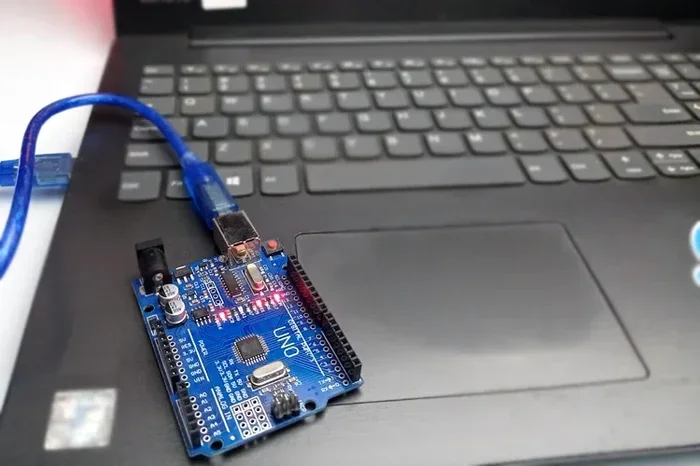
Most Arduino boards use a simple USB cable to talk to a PC. The board appears as a virtual serial port. You can then use the Arduino IDE or custom software to read the data. Wireless options like Bluetooth and Wi-Fi are also available if you need freedom from wires. This guide will walk you through every method in detail.
You will learn about hardware setup, software configuration, and writing code to transfer data. We will also cover common problems and real-world projects. By the end, you will know exactly how to get your Arduino talking to your computer. Let us start with the basics of serial communication.
Key Takeaways
- Arduino can send data to a PC via USB serial, Bluetooth, or Wi-Fi.
- You need a USB cable, drivers, and the Arduino IDE to get started.
- The Serial Monitor is the quickest way to test data transfer.
- Python scripts can automate reading and logging sensor data.
- Common mistakes include wrong COM port and baud rate mismatches.
- Wireless options like Bluetooth and Wi-Fi offer mobility but need extra setup.
- Real-world applications include data logging, home automation, and IoT projects.
📑 Table of Contents
Can Arduino Send Data To PC Through Serial Communication
Serial communication is the method Arduino uses to send data one bit at a time. It is the most common way to connect a microcontroller to a PC. The Arduino board converts sensor readings into digital signals. These signals travel through the USB cable to the computer. Your PC sees the Arduino as a virtual COM port.
Software like the Serial Monitor can read these signals. You can also use Python, Processing, or MATLAB to receive the data. The baud rate determines how fast the data moves. A standard rate like 9600 or 115200 works for most projects. Matching the baud rate on both sides is essential for clear communication.
How the USB Connection Works
When you plug an Arduino into a PC, the USB cable does two jobs. It provides power to the board. It also creates a serial communication link. The USB-to-serial chip on the Arduino board handles this conversion. For example, the Arduino Uno uses an ATmega16U2 chip. This chip translates USB signals into serial data. Your computer then recognizes the board as a new device.
You will see it listed in your Device Manager on Windows or System Report on Mac. The virtual serial port allows your PC to treat the Arduino like a simple text stream. This makes it easy to send and receive information without complex networking knowledge.
Quick Tips for Serial Setup
- Always use a known good USB cable. Some cables only charge and lack data wires.
- Check the board manager in the Arduino IDE to select the correct board.
- Match the baud rate in your code with the Serial Monitor setting.
- Restart the Arduino IDE after plugging in the board if it does not appear.
Common Mistakes When Setting Up Serial
- Using a USB cable that only charges the board.
- Selecting the wrong COM port in the Arduino IDE.
- Forgetting to set the baud rate in both the code and the monitor.
- Not installing the proper drivers for the board.
Setting Up the Hardware and Software
Before you can send data, you need the right hardware and software. This section covers the essentials. You will learn about cables, drivers, and the Arduino IDE. A proper setup prevents most connection headaches later.
Choosing the Right USB Cable
Not all USB cables are the same. You need a cable that supports data transfer. A charge-only cable will not work. Look for a USB-A to USB-B cable for most Arduino boards. The Arduino Uno and Mega use a standard USB-B connector. The Arduino Nano and Micro often use a Mini-B or Micro-B connector. Always check your board’s specifications. A good quality cable ensures stable data flow and prevents intermittent disconnects.
Installing Drivers and Arduino IDE
On Windows, you may need to install drivers. The Arduino IDE usually includes them. When you first plug in the board, Windows might try to install generic drivers. This can cause issues. To fix this, open the Arduino IDE. Go to Tools > Board and select your board. Then go to Tools > Port and see if the board appears. If not, you may need to manually install the driver from the Arduino website.
On Mac and Linux, drivers are usually built into the operating system. However, some clones use CH340 or CP2102 chips. You may need to download a specific driver for those. Always download the latest Arduino IDE from the official website. It includes the latest drivers and fixes for common compatibility issues.
Configuring the COM Port
The COM port is the virtual connection between the Arduino and the PC. Each time you plug in the board, it may get a different port number. You must select the correct one in the Arduino IDE. To find the port, go to the Arduino IDE menu. Click Tools > Port. You will see a list of available ports. The Arduino will be listed with its board name. On Windows, it might say COM3 or COM4. On Mac, it will be something like /dev/cu.usbmodem14101.
Expert Insight: Driver Troubles on Windows and Mac
Driver issues are the number one reason Arduino fails to connect. On Windows 10 and 11, sometimes the default driver is a generic USB device. You can fix this by opening Device Manager. Look for an unknown device under Other Devices. Right-click and update the driver. Browse to the Arduino drivers folder. On Mac, you might see a kext signing issue. You may need to allow the driver in System Preferences > Security & Privacy. Always download the latest Arduino IDE from the official website. It includes the latest drivers and fixes.
Sending Data from Arduino to PC with Code
Now that your setup is ready, you can start sending data. This is where the magic happens. You will write a simple sketch and read the output on your PC. We will cover the built-in Serial Monitor and custom Python scripts.
Using the Serial Monitor for Quick Tests
The Serial Monitor is built into the Arduino IDE. It is the fastest way to test data transfer. You can send text or numbers from the Arduino to the PC screen. In your Arduino sketch, use the Serial.begin() function in the setup block. Set the baud rate to 9600. Then in the loop, use Serial.println() to send data. Open the Serial Monitor by clicking the magnifying glass icon. You should see the text appearing line by line.
This method is perfect for debugging. You can quickly check if a sensor is reading correctly. You can also send commands from the PC to the Arduino using Serial.available() and Serial.read(). It is the simplest way to establish a two-way PC interface.
Writing a Python Script to Read Data
For more control, you can write a Python script. Python is a popular language for data analysis. It can read serial data from the Arduino in real time. First, install the pyserial library. Open your terminal and type pip install pyserial. Then write a simple script that opens the COM port. Set the baud rate to match your Arduino code. Use a loop to read lines and print them. This method lets you save data to a file or plot it live.
Here is a basic example. Import serial and time. Create a Serial object with the port and baud rate. Use a while loop to read a line with readline(). Decode the bytes to a string and print it. Add a small delay to avoid overloading the buffer. This script forms the foundation for any data logging project.
Sending Sensor Data in Real Time
Imagine you have a temperature sensor connected to the Arduino. The board reads the analog value and converts it to Celsius. You can send this value to the PC every second. Use the Serial.print() function to send the number. Add a delay of 1000 milliseconds between readings. On the PC side, a Python script can plot this data using matplotlib. This creates a live graph of temperature changes. It is a great way to visualize sensor behavior.
You can also send multiple values at once. Use Serial.print() with a comma separator. On the PC side, split the string by commas. This technique works well for sending GPS coordinates, accelerometer data, or any multi-sensor array. The key is to keep the data format simple and consistent.
Key Takeaways for Data Sending
- Serial Monitor is perfect for quick debugging and simple tests.
- Python scripts allow automated logging and custom data processing.
- Real-time sensor data can be plotted instantly for visual feedback.
- Always match the baud rate between the Arduino and the PC software.
- Use comma-separated values for sending multiple data points in one line.
Comparison of Communication Methods
Arduino can send data to a PC in several ways. Each method has its pros and cons. This table compares the three main options. USB Serial is the most common. Bluetooth adds wireless convenience. Wi-Fi offers the longest range and internet access.
| Method | Range | Speed | Setup Difficulty | Best For |
|---|---|---|---|---|
| USB Serial | Up to 2 meters (cable length) | High (up to 12 Mbps) | Very Easy | Desktop projects, data logging |
| Bluetooth | Up to 10 meters | Medium (up to 3 Mbps) | Moderate | Wireless short-range control |
| Wi-Fi (ESP8266/ESP32) | Up to 100 meters (local network) | High (up to 150 Mbps) | Moderate to Hard | IoT, remote monitoring |
USB Serial is the simplest and most reliable. It requires no extra hardware. Bluetooth adds wireless convenience but needs a module like HC-05. Wi-Fi offers the longest range and internet access. It uses boards like the ESP32, which are Arduino-compatible. Each option serves different project needs. Choose based on your mobility and range requirements.
Quick Tips for Choosing a Communication Method
- Stick with USB Serial for beginners. It is the easiest to debug.
- Use Bluetooth when you need to move around without a cable.
- Choose Wi-Fi for projects that need to send data to the cloud.
- Always check the voltage levels. Some modules use 3.3V logic.
Common Mistakes When Choosing Wireless Methods
- Using a Bluetooth module without matching the voltage (5V vs 3.3V).
- Forgetting to pair the Bluetooth module with the PC first.
- Assuming Wi-Fi range is unlimited. Walls and distance reduce signal.
- Not using a stable power supply for wireless modules.
Common Applications and Real-World Projects
Once you can send data to a PC, the projects are endless. Here are some popular uses that makers build every day. Each application builds on the serial communication skills you have learned.
Data Logging and Graphing
Data logging is one of the most common applications. You can connect a sensor and record readings over time. The Arduino sends the data to a Python script. The script saves it to a CSV file. You can then open the file in Excel or Google Sheets. This is perfect for science experiments. You can track temperature, humidity, or light levels. The data becomes a visual chart. It helps you understand patterns and trends.
You can also use the Arduino IDE Serial Plotter. It provides a quick graph without any extra software. The plotter reads serial data and draws a live waveform. This is great for monitoring analog sensor values in real time. It makes debugging sensor circuits much faster.
Home Automation and IoT
Home automation projects often involve sending sensor data to a PC. You can monitor your garden soil moisture from your desk. The Arduino reads a moisture sensor and sends the value via USB or Wi-Fi. With Wi-Fi, you can send data to a web dashboard. Platforms like ThingSpeak or Blynk make this easy. You can set alerts when values go out of range. This turns a simple Arduino into a smart home device.
You can also send commands from the PC back to the Arduino. For example, a Python script can turn a relay on or off. This creates a complete feedback loop. The PC acts as a central control hub for all your sensors and actuators. It is a powerful way to build a connected home environment.
Educational Tools and STEM
Teachers use Arduino to teach data collection. Students connect sensors and write code to send readings to a PC. They learn about serial communication, programming, and data analysis. This hands-on approach makes STEM subjects fun. Students see real-world applications of math and physics. They can graph their own data and draw conclusions. It builds critical thinking and problem-solving skills.
Many schools now use Arduino in physics labs. Students measure acceleration with a tilt sensor. They send the data to a laptop and plot velocity graphs. This bridges the gap between theory and practice. It makes abstract concepts tangible and memorable.
Expert Insight: Building a Data Logger That Actually Works
Many beginners struggle with data logging. The key is to keep the code simple. Use a consistent sampling rate. Add a timestamp if possible. Save the data in a plain text format. This makes it easy to import into other tools later.
Also, always test with the Serial Monitor first. Once you see the data flowing, move to the Python script. This step-by-step approach saves hours of debugging. Keep your code well-commented. Future you will thank present you when you need to revisit the project.
Troubleshooting Connection Issues
Even with a good setup, problems can happen. This section helps you fix the most common issues quickly. Most connection problems come from a few simple sources.
Common Mistakes That Break the Connection
- Wrong COM port: The Arduino IDE must match the port shown in Device Manager.
- Baud rate mismatch: If the code says 9600 but the monitor says 115200, you get garbage text.
- Faulty USB cable: A damaged cable will not transfer data. Try a different cable.
- Missing drivers: On Windows, the board may not show up without the proper driver.
- Power issues: Some boards need external power when connected to many sensors.
- Serial buffer overflow: Sending data too fast without reading it can crash the connection.
Quick Tips for Stable Data Transfer
- Always upload your code before opening the Serial Monitor. The monitor resets the board.
- Add a small delay after Serial.begin() to let the connection stabilize.
- Use a grounded USB hub if you have multiple devices connected.
- Keep the cable short to reduce interference. Longer cables can lose signal integrity.
- Restart the Arduino IDE if the port disappears. Sometimes the OS needs a refresh.
- Check your board’s power LED. If it is not on, the board is not receiving power.
When to Seek Help
If you have tried all the tips and still have issues, it is time to search for help. The Arduino community forums are very active. Search for your specific board and error message. Often, someone has already solved the same problem. You can also check the official Arduino reference page for detailed troubleshooting steps.
Conclusion: Can Arduino Send Data To PC Easily
Can Arduino Send Data To PC? Yes, and it is easier than you think. With a simple USB cable and the right software, you can transfer sensor data, build dashboards, and create interactive projects. The serial communication method works reliably for most needs. Wireless options add flexibility when you need to move around.
Remember to check your cable, drivers, and port settings. Match the baud rate in your code and your PC software. Start with the Serial Monitor for quick tests. Then graduate to Python scripts for advanced control. The skills you learn here apply to countless maker projects.
Now you have the knowledge to connect your Arduino to any computer. Go ahead and try it. Your next great project is just a serial connection away. Happy making!
Frequently Asked Questions
What is the best way to send data from Arduino to a PC?
The best way is using a USB cable with serial communication. It is simple, reliable, and requires no extra hardware. The Arduino IDE Serial Monitor lets you see the data instantly. For automated projects, a Python script with the pyserial library gives you full control.
Do I need special software to read Arduino data on my computer?
You need the Arduino IDE for basic testing with the Serial Monitor. For advanced projects, you can use Python with the pyserial library. Other options include Processing, MATLAB, or custom applications. The choice depends on your project’s complexity and your programming experience.
Can I send data wirelessly from Arduino to a PC?
Yes, you can use Bluetooth modules like HC-05 or Wi-Fi boards like the ESP32. These wireless options let you send data without a physical cable. They require a bit more setup than USB serial but offer greater mobility. Bluetooth works well for short-range projects, while Wi-Fi is ideal for remote monitoring and IoT applications.
Why is my Arduino not showing up on my PC?
The most common reasons are a missing driver, a faulty USB cable, or the wrong COM port selection. Try a different USB cable that supports data transfer. Check Device Manager on Windows to see if the board is listed. Make sure you have installed the correct driver for your specific Arduino board model.
What baud rate should I use for Arduino serial communication?
9600 and 115200 are the most common baud rates. 9600 is slower but very reliable for most projects. 115200 is faster and works well for large data transfers. The most important rule is to set the same baud rate in both your Arduino code and your PC software. A mismatch will result in garbled or unreadable text.
Can I send data from Arduino to a PC and control it in real time?
Absolutely. You can send sensor data to a PC and use a Python script to control hardware or software in real time. For example, you can read a potentiometer value and use it to control a music player or a light dimmer on your computer. The serial connection allows for fast two-way communication between the Arduino and the PC.