Do M 2 Wifi Cards Have Bluetooth And Wireless Support
Do M 2 Wifi Cards Have Bluetooth? The short answer is it depends on the model. Some M 2 wifi cards come with built-in Bluetooth support, while others are wifi only. Choosing the right M 2 wifi card means understanding what wireless features you actually need. This guide breaks down everything you need to know about M 2 wifi card bluetooth options, wireless connectivity, and how to pick the best card for your setup.
Have you ever sat down at your computer and thought, “I really need better wireless internet and Bluetooth, but I don’t want another USB stick cluttering my desk”? If so, you are not alone. Many people want a cleaner setup with stronger wireless signals. That is where M 2 wifi cards come in. They promise fast wifi and sometimes Bluetooth, all tucked inside your computer’s motherboard slot. But here is the big question: do M 2 wifi cards have Bluetooth?
The answer is not as simple as yes or no. Some M 2 wifi cards include Bluetooth built right in. Others are wifi only, with no Bluetooth support at all. This guide will walk you through everything you need to know. We will cover how these cards work, what to look for, and how to choose the best wireless adapter for your needs. By the end, you will know exactly what to buy and why.
Let us dive in and clear up the confusion around M 2 wifi card bluetooth support. Whether you are building a new desktop or upgrading an old laptop, this information will help you make a smart choice.
Key Takeaways
- Not all M 2 wifi cards include Bluetooth: Some are wifi only, while others combine wifi and Bluetooth in one card.
- Check the specs carefully: Look for explicit Bluetooth support in the product description before buying.
- M 2 wifi cards offer faster speeds: They use PCIe connections for better performance than USB adapters.
- Bluetooth 5.0 and newer are common: Many modern M 2 cards support the latest Bluetooth standards for better range and speed.
- Compatibility matters: Make sure your motherboard has an M 2 slot that supports wifi cards.
- Dual band and tri band options exist: Choose the right frequency band for your wireless needs.
- Installation is straightforward: Most M 2 wifi cards are easy to install with basic tools.
📑 Table of Contents
- What Is an M 2 Wifi Card?
- Do M 2 Wifi Cards Have Bluetooth?
- How M 2 Wifi Cards Handle Wireless Connectivity
- Benefits of Using an M 2 Wifi Card With Bluetooth
- How to Choose the Right M 2 Wifi Card
- Common Mistakes When Buying M 2 Wifi Cards
- Expert Tips for Getting the Most From Your M 2 Wifi Card
- Frequently Asked Questions
- Final Thoughts
What Is an M 2 Wifi Card?
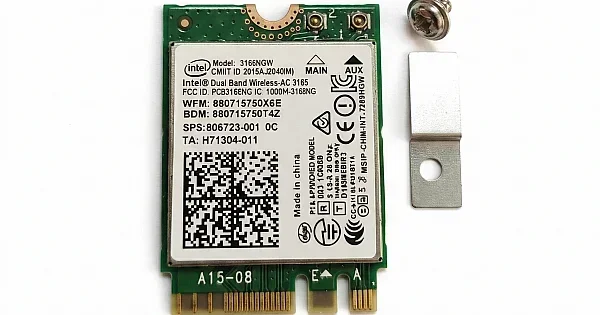
An M 2 wifi card is a small internal wireless adapter. It plugs directly into your computer’s motherboard through an M 2 slot. Unlike USB wifi dongles, these cards sit inside your PC case. They connect to antennas that you mount inside or outside the case. This setup gives you a cleaner look and often better performance.
M 2 slots were originally designed for SSD storage. But manufacturers soon realized they could use the same slot for wireless cards. Today, M 2 wifi cards support the latest WiFi 6 and even WiFi 6E standards. They offer fast speeds, low latency, and strong signals. Many also include Bluetooth support, but not all of them do.
How M 2 Wifi Cards Connect to Your System
These cards use the PCIe (Peripheral Component Interconnect Express) interface. This means they connect directly to your motherboard’s bus. The result is faster data transfer compared to USB connections. You also do not need to worry about USB port availability. The card takes up no external space at all. You just need to make sure your motherboard has a compatible M 2 slot.
Most M 2 wifi cards also come with one or two antennas. These antennas connect to the card through tiny cables. You can place the antennas in optimal positions for the best wireless range. Some cards even come with high-gain antennas for even stronger signals.
Do M 2 Wifi Cards Have Bluetooth?
This is the question everyone asks, and the answer is: it depends on the card. Let us break it down clearly.
Some M 2 wifi cards are combo cards. They include both wifi and Bluetooth in a single unit. These combo cards are super convenient. You get two wireless technologies in one small package. Other M 2 cards are wifi only. They handle wireless internet but have no Bluetooth capability at all.
If Bluetooth is important to you, you need to check the product specs before buying. Look for mentions of Bluetooth version and profile support. A card that says “WiFi 6 + Bluetooth 5.2” is a combo card. One that just lists WiFi speeds is probably wifi only.
Why Do Some Cards Include Bluetooth and Others Do Not?
The reason comes down to design and cost. Adding Bluetooth to a wifi card requires extra components and antenna space. It also increases the manufacturing cost. Some manufacturers leave Bluetooth out to keep the price low. They target users who only need wifi and already have a separate Bluetooth adapter.
On the other hand, many modern M 2 cards include Bluetooth because users expect it. Most people use Bluetooth for wireless mice, keyboards, headsets, and speakers. Having it built into the wifi card makes sense for a cleaner setup. That is why combo cards have become very popular in recent years.
Common Wireless Standards Found in M 2 Cards
When shopping for an M 2 wifi card, you will see different wireless standards. Here are the most common ones you will encounter:
- WiFi 5 (802.11ac): Still very common and reliable. Speeds up to 3.5 Gbps on the 5 GHz band.
- WiFi 6 (802.11ax): Faster and more efficient. Great for busy networks with many devices.
- WiFi 6E: The newest standard. Uses the 6 GHz band for even less interference.
- Bluetooth 4.2: Older but still works fine for basic peripherals.
- Bluetooth 5.0 and 5.2: Faster, longer range, and better battery efficiency for connected devices.
Cards that support the latest WiFi and Bluetooth standards give you the best wireless connectivity experience. They handle modern devices with ease and future-proof your setup.
How M 2 Wifi Cards Handle Wireless Connectivity
Understanding how these cards work helps you appreciate why they are so popular. Let us look at the technology behind them.
The Role of the PCIe Interface
The PCIe interface is the secret sauce of M 2 wifi cards. It provides a direct, high-speed connection to your motherboard. This means your wireless network card is not bottlenecked by USB speeds. Data flows quickly between the card and your system. You get lower latency and better overall performance.
Most M 2 wifi cards use a single PCIe lane. This is enough for even the fastest WiFi standards. The card also draws power directly from the motherboard. You do not need an extra power cable, which makes installation simple.
Antenna Design and Signal Strength
Antennas play a huge role in wireless performance. M 2 wifi cards usually come with external antennas. You connect these to the card with thin cables. The antennas can be placed anywhere inside your case. This flexibility lets you position them for the best possible signal.
Some cards use internal antennas instead. These are hidden inside the card itself. They take up less space but may not perform as well as external options. If you care about strong wireless range, look for cards with detachable external antennas.
Dual Band vs. Tri Band M 2 Cards
Most M 2 wifi cards support dual band frequencies. They work on both the 2.4 GHz and 5 GHz bands. The 2.4 GHz band offers wider coverage but slower speeds. The 5 GHz band is faster but has a shorter range. Dual band cards let you switch between them based on your needs.
Tri band cards add a third frequency band. This is usually the 6 GHz band available with WiFi 6E. Tri band cards are great if you live in a crowded area with lots of wireless networks. They reduce interference and give you a cleaner, faster connection.
Benefits of Using an M 2 Wifi Card With Bluetooth
If you are considering a combo card that includes both wifi and Bluetooth, there are some clear advantages. Let us look at why this setup works so well.
Cleaner Desktop Setup
The biggest benefit is a clutter-free workspace. You do not need a USB wifi dongle or a separate Bluetooth adapter. Everything is inside your computer. This is especially great for people who value a minimalist desk setup. No dangling cables, no bulky adapters. Just clean, invisible wireless performance.
Better Performance and Stability
Internal M 2 cards generally outperform USB adapters. They have better antennas and a direct connection to the motherboard. You get stronger signals and more stable connections. This matters for gaming, video calls, and streaming. A combo card handles both wifi and Bluetooth without breaking a sweat.
Space Saving
M 2 cards are tiny. They take up very little space inside your case. This is a big deal for small form factor PCs and mini towers. You get powerful wireless performance without taking up valuable room. Even large desktop cases benefit from the compact size of these cards.
Cost Efficiency
Buying a combo card that includes both wifi and Bluetooth is often cheaper than buying two separate adapters. You save money and still get top-notch wireless support. It is one of the smartest upgrades you can make for your desktop or laptop.
How to Choose the Right M 2 Wifi Card
Not all M 2 wifi cards are the same. Picking the right one depends on your needs. Here are the key factors to consider.
Check If Bluetooth Is Included
This is the first thing you should do. If you need Bluetooth, make sure the card supports it. Look at the product title and description carefully. A card that says “WiFi 6E + Bluetooth 5.2” is a combo card. One that just says “WiFi 6E” might not have Bluetooth. Always double check the specifications on the manufacturer’s website.
Consider Your WiFi Standards
Think about what WiFi standard you need. If you have a WiFi 6 router, a WiFi 6 card is perfect. If your router is older, a WiFi 5 card might be enough. Going for WiFi 6E is a great choice if you want the fastest speeds and least interference. Just make sure your other devices can support these standards too.
Look at Antenna Options
External antennas usually perform better than internal ones. If you need strong signals across your home, choose a card with high-gain antennas. Some cards come with antennas included. Others require you to buy them separately. Check what is in the box before you order.
Make Sure Your Motherboard Supports M 2 Slots
Not all motherboards have M 2 slots. And not all M 2 slots support wifi cards. Some M 2 slots are SSD only. Check your motherboard manual to confirm compatibility. Look for M 2 slots that support PCIe devices. This ensures your card will work properly.
Think About Your Budget
M 2 wifi cards range from budget-friendly to premium. A basic WiFi 5 card with Bluetooth can be found for under $30. High-end WiFi 6E cards with Bluetooth 5.3 can cost $80 or more. Set a budget before shopping and pick the best card within that range. You do not always need the most expensive option.
Common Mistakes When Buying M 2 Wifi Cards
Buying the wrong M 2 wifi card is easy if you do not know what to look for. Here are some common mistakes to avoid.
Assuming All Cards Have Bluetooth
This is the biggest mistake people make. They see “M 2 wifi card” and assume it includes Bluetooth. Many cards do not. Always verify Bluetooth support in the product listing. Reading the fine print saves you from a frustrating return.
Ignoring Motherboard Compatibility
Not every M 2 slot works with wifi cards. Some slots are designed only for SSDs. If you buy a card that does not fit your slot, you will be stuck. Always check your motherboard specifications before purchasing. A quick look at the manual can save you time and money.
Overlooking Antenna Quality
Some people buy a great card but ignore the included antennas. Cheap antennas can limit your wireless performance significantly. If the card comes with basic antennas, consider upgrading to high-gain options. This small change can make a big difference in signal strength.
Skipping Driver Updates
Even the best M 2 wifi card can underperform if drivers are outdated. Always download the latest drivers from the manufacturer’s website. Updated drivers improve stability, fix bugs, and sometimes boost performance. This is a step many people skip, but it matters.
Choosing Speed Over Range
Faster speeds do not always mean better real-world performance. If you need wifi in a distant room, prioritize range over raw speed. Look for cards with strong antennas and good signal penetration. A card with solid range is more useful than a fast card that drops signals in the next room.
Expert Tips for Getting the Most From Your M 2 Wifi Card
Here are some practical tips to help you get the best performance from your new card.
- Position your antennas properly: Place them vertically and away from metal objects for the best signal.
- Keep drivers updated: Check the manufacturer’s website monthly for driver updates.
- Use the 5 GHz band for streaming and gaming: It offers less interference and faster speeds.
- Use the 2.4 GHz band for IoT devices: Smart home devices work better on the lower frequency band.
- Update your Bluetooth drivers too: Combo cards need both wifi and Bluetooth drivers for full functionality.
- Consider a PCIe riser cable: If your M 2 slot is hard to access, a riser can make installation much easier.
- Clean your card and slot before installing: Dust can cause connection issues over time.
Frequently Asked Questions
Can I add Bluetooth to an M 2 wifi card that does not have it?
Yes, you can. You would need to install a separate Bluetooth adapter alongside your wifi card. Some people use a small USB Bluetooth dongle for this. However, a combo M 2 card is a cleaner and often cheaper solution if you are buying a new card.
What is the difference between an M 2 wifi card and a PCIe wifi card?
M 2 wifi cards use the M 2 form factor and slot directly into the M 2 connector on your motherboard. PCIe wifi cards use a larger PCIe x1 slot. Both connect via PCIe, but M 2 cards are much smaller and take up less space inside your case.
Do M 2 wifi cards work in laptops?
Some laptops have M 2 slots that support wifi cards. However, many laptops use a different internal card format called Mini PCIe or M 2 Key E. Always check your laptop’s manual or the manufacturer’s specifications before buying an M 2 wifi card for a laptop upgrade.
Is Bluetooth on M 2 wifi cards as good as a standalone Bluetooth adapter?
In most cases, yes. Modern combo M 2 cards use Bluetooth 5.0 or newer, which offers excellent speed and range. The Bluetooth performance is on par with standalone adapters. The shared antenna design may slightly affect performance in very demanding scenarios, but for everyday use, the difference is minimal.
How hard is it to install an M 2 wifi card?
It is quite simple. You open your PC case, locate the M 2 slot, align the card, and gently press it in. Secure it with a small screw. Then connect the antennas. Most people can install one in under 15 minutes. Just make sure your PC is powered off and unplugged before starting.
Do all M 2 wifi cards support WiFi 6 or WiFi 6E?
No, they do not. M 2 wifi cards come in different WiFi standards. You can find WiFi 4, WiFi 5, WiFi 6, and WiFi 6E cards. Always check the WiFi standard listed in the product specs. WiFi 6 and WiFi 6E cards offer the best performance for modern networks.
Final Thoughts
So, do M 2 wifi cards have Bluetooth? The answer is that many do, but not all of them. The key is to check the product specifications before you buy. If you want both wifi and Bluetooth in one clean, internal package, look for a combo M 2 card that explicitly lists Bluetooth support. These cards offer great performance, a tidy setup, and strong wireless connectivity.
Choosing the right M 2 wifi card comes down to your specific needs. Consider your WiFi standard, Bluetooth version, antenna options, and motherboard compatibility. Avoid the common mistakes we covered, and follow the expert tips for the best results. With the right card, you will enjoy fast wifi and seamless Bluetooth connectivity for years to come.
Take what you learned here and use it to make a confident purchase. Your wireless setup will thank you.