Can A Wifi Adapter Replace A Wifi Card And Save Money
Yes, a WiFi adapter can replace a WiFi card in most cases, and it can save you a significant amount of money. Whether you have a desktop or laptop, a USB WiFi adapter offers a simple, affordable way to get wireless connectivity without opening your PC or buying expensive internal hardware. This guide breaks down everything you need to know about WiFi adapter vs WiFi card comparisons, compatibility, performance, and cost savings.
If you have a computer with a broken or outdated wireless card, you might be wondering whether a WiFi adapter can do the same job. The short answer is yes. A USB WiFi adapter can absolutely replace an internal WiFi card, and it can save you a lot of money in the process.
Many people assume they need to buy a brand-new internal card or even a whole new computer just to get better wireless connectivity. That is simply not true anymore. Today, external network adapters are powerful, affordable, and incredibly easy to use. Whether you are a casual internet user or someone who needs strong bandwidth for gaming or streaming, a WiFi adapter might be all you need.
In this guide, we will walk you through everything you need to know. We will compare WiFi adapters and WiFi cards side by side. We will look at performance, compatibility, cost, and setup. By the end, you will know exactly whether swapping to a USB adapter makes sense for your situation.
Key Takeaways
- A USB WiFi adapter can fully replace an internal WiFi card: Most adapters deliver the same wireless performance at a fraction of the cost.
- You can save between $20 and $80: USB adapters are generally cheaper than internal WiFi cards, especially high-performance ones.
- Compatibility is usually not a problem: Modern adapters work with Windows, Mac, and Linux systems with minimal setup.
- WiFi 6 adapters are now affordable: You can get cutting-edge WiFi standards without paying a premium price.
- External adapters offer flexibility: You can move them between devices or use them as a portable wireless solution.
- Performance is nearly identical: For most users, the difference between a USB adapter and an internal card is negligible.
- Driver support matters: Always check driver availability before buying an adapter for your specific operating system.
📑 Table of Contents
- What Is a WiFi Adapter vs a WiFi Card?
- Can a WiFi Adapter Fully Replace a WiFi Card?
- Performance Comparison: WiFi Adapter vs WiFi Card
- How Much Money Can You Really Save?
- How to Choose the Right WiFi Adapter for Your Needs
- Setting Up a WiFi Adapter: It Is Easier Than You Think
- Common Mistakes People Make When Switching to a WiFi Adapter
- Expert Insights: What Networking Professionals Say
- Frequently Asked Questions
- Conclusion
What Is a WiFi Adapter vs a WiFi Card?
Understanding the Basics
Before we dive into the comparison, let us clear up the terminology. A WiFi card is an internal component that goes inside your computer. It connects directly to the motherboard through a PCIe slot or a USB header. It handles all of your wireless network communication.
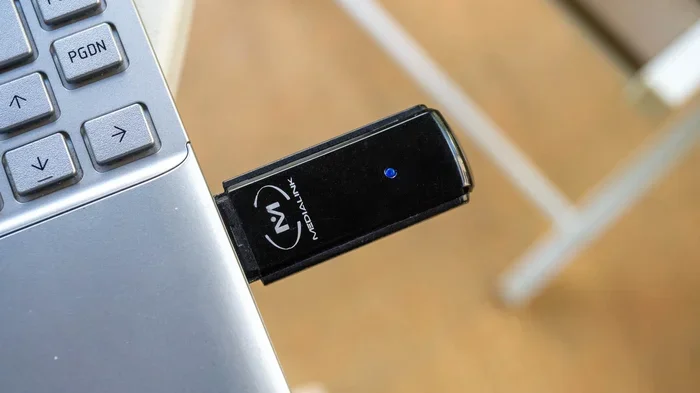
A WiFi adapter is an external device, usually a small USB dongle or a larger desktop unit with antennas. You plug it into a USB port, and it gives your computer wireless connectivity instantly. Think of it as a plug-and-play solution for WiFi connectivity.
Both devices serve the same core purpose. They let your computer connect to a wireless network. The main differences come down to form factor, price, and how easy they are to install.
Key Differences at a Glance
- Installation: A WiFi card requires opening your computer and installing it internally. A USB WiFi adapter simply plugs into an external port.
- Price: Internal wireless cards range from $25 to $150 or more. WiFi adapters can cost as little as $10 to $60 for excellent performance.
- Portability: You can carry a USB WiFi adapter with you. Internal cards are fixed to one computer.
- Performance: High-end internal cards and high-end USB adapters perform very similarly. Budget options on both sides will be slower.
- Upgradeability: Adapters are easy to swap out. Cards require opening the computer again.
Can a WiFi Adapter Fully Replace a WiFi Card?
The short answer is yes, for most users. A USB WiFi adapter can fully replace an internal WiFi card without any noticeable loss in daily performance. But there are a few important details you should understand before making the switch.
When a WiFi Adapter Is the Better Choice
There are several situations where a USB WiFi adapter makes more sense than replacing or installing a new internal card:
- You have a laptop or compact device: Many laptops do not have an open PCIe slot. A USB wireless adapter is the simplest upgrade path.
- Your internal card is damaged: If your WiFi card has failed, buying a new one means opening the computer. A USB adapter avoids that hassle entirely.
- You want to save money: WiFi adapters are generally cheaper than internal cards with similar specs.
- You need portability: If you use multiple computers or travel often, a USB dongle travels with you.
- Your desktop lacks expansion slots: Some small form factor PCs have limited room for internal cards.
When You Should Stick with an Internal WiFi Card
There are a few cases where an internal WiFi card might still be the better option:
- You need the absolute best performance: Top-tier internal cards with high-quality WiFi antennas can outperform most USB adapters in weak signal areas.
- Aesthetics matter to you: Internal cards are hidden inside the computer. A USB adapter sits outside and is visible.
- You have a permanent desktop setup: If your computer never moves, an internal card is a clean, permanent solution.
- You need enterprise-grade reliability: Some internal cards are built for heavy-duty, 24/7 use in business environments.
Performance Comparison: WiFi Adapter vs WiFi Card
One of the biggest concerns people have is whether a WiFi adapter can match the speed and reliability of an internal WiFi card. Let us break this down honestly.
Speed and Bandwidth
Modern WiFi 6 adapters can deliver speeds up to 2400 Mbps or more. High-end internal WiFi 6 cards can do the same. For most internet plans and activities, the difference is barely noticeable.
Here is what matters for speed:
- Your internet plan: If your plan only delivers 100 Mbps, even a basic adapter will handle it easily.
- Your router: A WiFi adapter is only as good as the router it connects to.
- Distance from the router: Both adapters and cards lose signal strength over distance.
- Interference: Walls, appliances, and other devices can slow down any wireless connection.
Signal Strength and Range
Some premium WiFi adapters come with external antennas that can actually outperform internal cards in certain setups. Desktop USB WiFi adapters with large antennas can pick up signals from farther away than many internal cards with built-in antennas.
If you live far from your router or have thick walls, a USB adapter with external antennas might actually give you better signal strength than your old internal card.
How Much Money Can You Really Save?
This is the question that matters most to many people. Let us look at real numbers.
Cost Breakdown
Here is a typical price comparison between WiFi adapters and internal WiFi cards:
- Budget USB WiFi adapter: $10 to $20. Good for basic browsing and email.
- Mid-range USB WiFi adapter: $25 to $50. Handles streaming, video calls, and light gaming.
- High-end USB WiFi adapter: $50 to $80. Supports WiFi 6 and gigabit speeds.
- Budget internal WiFi card: $25 to $40.
- Mid-range internal WiFi card: $45 to $80.
- High-end internal WiFi card: $80 to $150+.
As you can see, WiFi adapters are generally cheaper across the board. You can get excellent wireless performance for $30 to $50 with a USB adapter. That same performance from an internal card might cost $60 to $100 or more.
Hidden Costs to Consider
When you buy an internal WiFi card, you also need to consider:
- Installation time: Opening your computer and installing the card takes time and effort.
- Potential compatibility issues: You may need to check if the card fits your motherboard slot.
- Driver setup: Internal cards sometimes require more complex driver installation.
With a USB WiFi adapter, most of these hidden costs disappear. You plug it in, install the driver (often automatic), and you are done in minutes.
How to Choose the Right WiFi Adapter for Your Needs
Not all WiFi adapters are created equal. Here is how to pick the right one.
Check Your WiFi Standard
Look for adapters that support WiFi 5 (802.11ac) or WiFi 6 (802.11ax). WiFi 6 adapters offer better speed, lower latency, and improved performance in crowded areas. If your router supports WiFi 6, make sure your adapter does too.
Consider Your Use Case
- Basic browsing and email: A simple $15 to $20 adapter is all you need.
- Streaming and video calls: Look for an adapter with at least 300 Mbps speeds.
- Gaming and large downloads: Choose a WiFi 6 adapter with speeds of 1200 Mbps or higher.
- Large home or office: Pick an adapter with external antennas for better wireless range.
Check Compatibility
Before you buy, make sure the WiFi adapter is compatible with your operating system. Most adapters work with Windows 10 and 11. Some also support macOS and Linux. Always check the manufacturer’s specifications before purchasing.
Setting Up a WiFi Adapter: It Is Easier Than You Think
One of the biggest advantages of a USB WiFi adapter is how simple setup is. You do not need to open your computer or have any technical skills.
Step-by-Step Setup
- Plug the adapter into a USB port. A USB 3.0 port is best for the fastest speeds.
- Wait for Windows to recognize it. Most modern adapters are plug-and-play on Windows 10 and 11.
- Install the driver if needed. Some adapters require you to download a driver from the manufacturer’s website. Others install automatically.
- Connect to your wireless network. Click the WiFi icon, select your network, and enter your password.
- Test your connection. Run a speed test to confirm everything is working properly.
That is it. In less than five minutes, your WiFi adapter is up and running. No opening the computer case, no screwdrivers, no technical headaches.
Quick Tips for Best Performance
- Use a USB 3.0 port: USB 2.0 ports will limit your speed significantly.
- Place the adapter near a window: This improves signal strength and reduces interference.
- Update your drivers: Regular driver updates can improve wireless performance and fix bugs.
- Use the included software: Many adapters come with utility software that helps you manage connections and optimize settings.
Common Mistakes People Make When Switching to a WiFi Adapter
There are a few pitfalls to avoid when replacing your WiFi card with a USB adapter.
Buying the Cheapest Option
A $5 adapter might seem like a great deal, but these often have poor signal strength, slow speeds, and unreliable connections. Spending $20 to $40 on a quality adapter will save you frustration in the long run.
Ignoring Driver Support
Some adapters work poorly or not at all with certain operating systems. Always check that the manufacturer provides drivers for your specific OS before buying.
Using a USB 2.0 Port
Plugging a modern WiFi adapter into a USB 2.0 port will bottleneck your speed. Always use a USB 3.0 port for the best wireless performance.
Not Checking WiFi Standards
If you buy a WiFi 5 adapter but your router is WiFi 6, you will not get the full benefit of your router’s capabilities. Match your adapter’s standard to your router’s standard for the best results.
Expert Insights: What Networking Professionals Say
Many IT professionals and network specialists actually recommend USB WiFi adapters as a primary upgrade solution. Here is why:
- They are cost-effective: You get excellent wireless performance without spending a fortune.
- They are versatile: You can use the same adapter on a desktop, a laptop, or even a smart TV.
- They are future-proof: Many adapters support the latest WiFi 6 and even WiFi 6E standards.
- They are easy to replace: If one adapter fails, you simply buy a new one. No need to open your computer.
According to networking experts, for 90% of home users, a USB WiFi adapter delivers everything they need. The only people who truly need an internal card are those who demand maximum signal strength in challenging environments or who run heavy enterprise workloads.
Frequently Asked Questions
Is a WiFi adapter as good as a WiFi card?
For most users, yes. A quality USB WiFi adapter delivers the same speeds and reliability as an internal WiFi card. The difference is only noticeable in very specific, high-demand scenarios like competitive gaming in weak signal areas.
Can I use a WiFi adapter on any computer?
Most WiFi adapters work with any computer that has a USB port. They are compatible with Windows, macOS, and Linux. Just make sure to check driver support for your specific operating system before purchasing.
Will a WiFi adapter slow down my internet speed?
No, a WiFi adapter will not slow down your internet speed. In fact, it may improve speeds if your current internal card is outdated. The adapter’s speed is limited by your internet plan and router capabilities, not the other way around.
How much does a good WiFi adapter cost?
A solid WiFi adapter with WiFi 6 support typically costs between $25 and $60. This is significantly less than most internal WiFi cards with similar performance capabilities.
Do WiFi adapters work for gaming?
Yes, many WiFi adapters work great for gaming. Look for adapters with low latency and high speeds. WiFi 6 adapters are especially good for gaming because they reduce lag and handle multiple devices well.
Can I use a WiFi adapter with a desktop computer?
Absolutely. USB WiFi adapters work perfectly with desktop computers. They are a great option if your desktop does not have a built-in wireless card or if the existing card is outdated or damaged.
Conclusion
The answer to whether a WiFi adapter can replace a WiFi card is a clear yes. For the vast majority of users, a USB WiFi adapter delivers the same wireless performance at a much lower price. You save money, avoid the hassle of opening your computer, and get a portable, flexible solution for wireless connectivity.
Whether you are upgrading an old laptop, fixing a broken internal card, or simply looking for a better internet connection, a WiFi adapter is one of the smartest purchases you can make. The technology has caught up, and today’s adapters offer WiFi 6 speeds, strong signal range, and easy setup at a price that is hard to beat.
So the next time your WiFi card gives you trouble or you simply want better wireless performance, consider a USB WiFi adapter first. Your wallet will thank you, and your internet experience will be better for it.