Do I Need A Modem With My Nighthawk Router Setup Guide
Do I need a modem with my Nighthawk router? The answer depends on your setup and internet service provider. Most Nighthawk routers are standalone wireless routers and need a separate modem to connect to the internet, though some models work as a modem-router combo. In this guide, we break down exactly what you need, how to check your current setup, and how to get the best Nighthawk router setup for fast, reliable WiFi.
So you just got a Nighthawk router and you are ready to set up your home network. But then a question hits you: do I need a modem with my Nighthawk router? It is a very common question, and the answer is not always as simple as yes or no. The truth is, it depends on your internet setup, your ISP, and the type of Nighthawk model you own.
In this guide, we will walk through everything you need to know about modem and router setups. We will cover what a modem does, how it works with a router, and whether you really need one for your Nighthawk. By the end, you will know exactly what equipment you need and how to get the best WiFi speeds for your home.
Key Takeaways
- Most Nighthawk routers need a separate modem: The Nighthawk is a wireless router, not a modem, so you typically need a modem from your ISP or a separate purchase.
- Check your internet plan and ISP requirements: Your internet service provider may require a specific type of modem or a gateway device to work with your Nighthawk router.
- A modem-router combo can simplify your setup: If you want fewer devices and less cable clutter, a combo unit can handle both jobs in one box.
- Using a separate modem and router can boost performance: A dedicated Nighthawk router often delivers better WiFi range and speeds than a combo unit.
- Router configuration matters: Proper setup, firmware updates, and placement can make a big difference in your network performance.
- You can save money by buying your own modem: Ditching the ISP modem rental fee can save you $120 or more per year.
📑 Table of Contents
- What Does a Modem Do, and Why Does It Matter?
- Do You Need a Modem with a Nighthawk Router?
- Nighthawk Router Setup: Step by Step
- Nighthawk Router vs. ISP Gateway: Which Is Better?
- Common Mistakes to Avoid When Setting Up Your Nighthawk
- How to Know If You Need to Upgrade Your Equipment
- Expert Tips for Getting the Most Out of Your Nighthawk Router
- Final Thoughts
What Does a Modem Do, and Why Does It Matter?
A modem is the device that connects your home to the internet. Think of it as the bridge between your house and your internet service provider. Without a modem, your router has nothing to broadcast. It is like having a really nice speaker system but no music source.
Your ISP sends the internet signal through a cable, fiber line, or phone line into your home. The modem takes that signal and turns it into data your devices can understand. Then the router takes that data and spreads it out wirelessly to all your phones, laptops, and smart home gadgets.
How a Modem Works with a Router
Most home networks use two separate devices. The modem handles the connection to the outside world. The router handles the connection to your devices inside the house. When you use a separate modem and router, each device can do its job really well.
Here is a simple way to think about it:
- The modem brings the internet into your home from your ISP.
- The router takes that internet and shares it with all your devices.
- The Nighthawk router makes sure the WiFi signal is strong, fast, and covers as much of your home as possible.
Some people use a modem router combo, also called a gateway. This single device does both jobs. Your ISP might give you one of these when you sign up for service. But using a combo unit can sometimes limit your WiFi performance compared to a dedicated router like the Nighthawk.
Do You Need a Modem with a Nighthawk Router?
The short answer is yes, in most cases you do. The Nighthawk is a powerful wireless router, but it is not a modem. It needs a modem to get the internet signal first. Let us look at the different scenarios so you can figure out what applies to your situation.
Scenario 1: You Have a Separate Modem Already
If you already have a modem from your ISP, you are in great shape. You just need to connect your Nighthawk router to the modem using an Ethernet cable. Plug one end into the modem and the other into the WAN port on the back of your Nighthawk. Then power on both devices and follow the setup steps in the router app.
This setup gives you the best performance. Your modem handles the internet connection, and your Nighthawk router focuses entirely on spreading a strong WiFi signal throughout your home.
Scenario 2: You Have a Gateway Device from Your ISP
Many ISPs provide a gateway device. This is a modem and router all in one. If you are using a gateway, you might wonder if you even need a Nighthawk router. The answer is yes, if you want better WiFi range, faster speeds, and more control over your network settings.
Gateway devices from ISPs are often basic. They work, but they usually cannot match the performance of a dedicated Nighthawk router. You can put your Nighthawk in what is called “bridge mode” and let it handle the WiFi while the gateway handles the modem side of things.
Scenario 3: You Have Fiber Internet
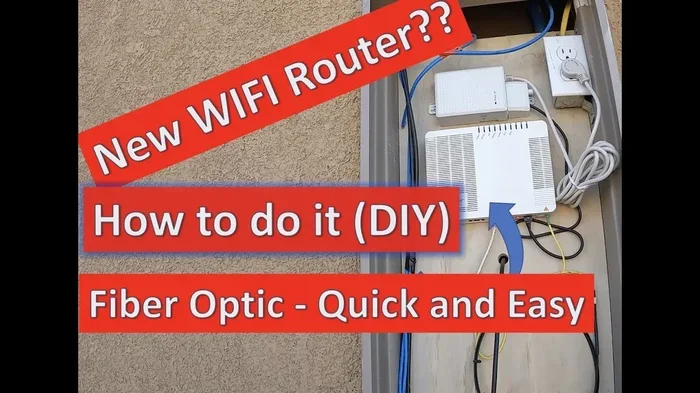
Fiber internet is a different animal. Some fiber providers use an optical network terminal or ONT. This device acts like a modem for fiber connections. In this case, you still need a router, and the Nighthawk is a great choice. You connect the ONT to the Nighthawk router with an Ethernet cable, and you are good to go.
Scenario 4: You Want to Buy Your Own Equipment
Buying your own modem can save you money over time. Most ISPs charge a modem rental fee of around $10 to $15 per month. That adds up to $120 to $180 per year. A good cable modem costs between $100 and $200, so you can pay it off in less than a year.
Just make sure the modem you buy is compatible with your ISP. Check your ISP website for a list of approved modems. Look for models that support DOCSIS 3.1 for the fastest cable internet speeds.
Nighthawk Router Setup: Step by Step
Now that you know whether you need a modem, let us talk about how to set up your Nighthawk router properly. A good setup makes a huge difference in your network performance and WiFi coverage.
Step 1: Gather Your Equipment
Before you start, make sure you have everything you need:
- Your Nighthawk router
- A modem (or gateway device from your ISP)
- An Ethernet cable (usually included with the router)
- A smartphone or computer for setup
- Your WiFi network name and password (found on the router label)
Step 2: Connect the Modem to the Router
Plug the Ethernet cable into the modem first. Then connect the other end to the WAN or internet port on the back of your Nighthawk router. The WAN port is usually a different color from the other ports, so it is easy to spot.
Next, plug in the modem and wait for it to fully start up. This can take one to two minutes. Then plug in the Nighthawk router and wait for the power light to turn solid.
Step 3: Configure Your Router
Open a web browser on your phone or computer. Type in the router IP address, which is usually 192.168.1.1 or 192.168.0.1. You can also use the Nighthawk app for a simpler setup experience.
Follow the on-screen prompts to set up your network name and password. Choose a strong password to keep your network secure. You can also update the router firmware during this step, which helps with security and performance.
Step 4: Place Your Router for Best Coverage
Where you put your router matters a lot. Here are some tips for the best placement:
- Put the router in a central location in your home.
- Keep it elevated, like on a shelf or table.
- Avoid placing it near walls, metal objects, or microwaves.
- Keep it away from other electronics that might cause interference.
Good placement can improve your WiFi range significantly without you needing to buy any extra equipment.
Nighthawk Router vs. ISP Gateway: Which Is Better?
This is a question a lot of people ask. Your ISP might tell you that their gateway is all you need. And for basic internet use, it might be fine. But if you care about speed, range, and reliability, a dedicated Nighthawk router wins hands down.
Performance Comparison
Nighthawk routers are built for high performance. They have better antennas, more powerful processors, and advanced features like WiFi 6 or WiFi 6E on newer models. ISP gateways are usually basic and do not offer the same level of performance.
Here is a quick comparison:
- Nighthawk Router: Faster WiFi speeds, better range, more features, easier to update and customize.
- ISP Gateway: Convenient because it is a two-in-one device, but slower and less customizable.
Cost Comparison
Using your own Nighthawk router means paying for the router once. But you also need to pay for a modem, either by buying one or renting one from your ISP. An ISP gateway includes both the modem and router in one monthly fee.
Over a few years, buying your own equipment usually saves money. You also get better performance, which is a big win if you stream movies, play games, or work from home.
Common Mistakes to Avoid When Setting Up Your Nighthawk
Setting up a router sounds simple, but there are a few mistakes that can cause big problems. Here are some to watch out for:
Skipping the Firmware Update
Router firmware is the software that runs your device. Manufacturers release updates to fix bugs, improve security, and boost performance. Skipping the update can leave your network slower and less secure. Always check for firmware updates during setup and periodically after that.
Placing the Router in a Bad Spot
We mentioned placement above, but it is worth repeating. Putting your router in a closet, behind a TV, or in a basement can kill your WiFi signal. Walls, floors, and large furniture all block wireless signals. Keep your Nighthawk out in the open for the best coverage.
Not Using a Strong Password
An open or weak WiFi password lets anyone connect to your network. This can slow down your speeds and put your personal data at risk. Always use a strong password with a mix of letters, numbers, and symbols.
Forgetting to Power Cycle
If your internet is slow or acting up, try turning off your modem and router, waiting 30 seconds, and turning them back on. This simple step, called power cycling, fixes many common connection issues.
How to Know If You Need to Upgrade Your Equipment
Even with a great Nighthawk router, your equipment can become outdated. Here are signs that it might be time for an upgrade:
- Your WiFi speeds are much slower than what your internet plan promises.
- You have dead zones in your home where the signal does not reach.
- Your router is several years old and does not support WiFi 6 or newer standards.
- You have more devices connected than your router can handle smoothly.
- Your ISP has upgraded your internet plan, but your current equipment cannot keep up.
If any of these sound familiar, it might be time to look at a newer Nighthawk model or add a WiFi extender to boost your coverage.
Expert Tips for Getting the Most Out of Your Nighthawk Router
Want to squeeze every bit of performance out of your Nighthawk? Here are some expert-backed tips:
- Use the Nighthawk app. It makes managing your router easy, from setting up guest networks to running speed tests.
- Enable QoS settings. Quality of Service lets you prioritize traffic for things like video calls or gaming.
- Create a guest network. This keeps your main network secure while still letting visitors get online.
- Check for interference. Baby monitors, cordless phones, and even neighboring WiFi networks can interfere with your signal.
- Restart your router regularly. A quick restart once a week can keep things running smoothly.
Final Thoughts
So, do you need a modem with your Nighthawk router? In most cases, yes. The Nighthawk is a fantastic wireless router, but it needs a modem to get the internet signal in the first place. Whether you use a separate modem or an ISP gateway, the key is making sure your equipment works together properly.
Setting up your Nighthawk router setup correctly makes a huge difference. From placing the router in the right spot to keeping the firmware updated, small steps lead to big improvements in your internet connection and WiFi speeds.
If you are tired of slow WiFi or spotty coverage, investing in a dedicated Nighthawk router is a smart move. Pair it with a good modem, follow the setup tips in this guide, and you will be on your way to a faster, more reliable home network. Your broadband connection will thank you.
Frequently Asked Questions
Can I use a Nighthawk router without a modem?
No, you cannot connect to the internet without a modem. The Nighthawk router spreads the WiFi signal, but it needs a modem to receive the internet from your ISP. If you have a fiber connection, you would need an ONT device instead of a traditional modem.
What is the difference between a modem and a router?
A modem connects your home to the internet through your ISP. A router takes that internet connection and shares it with your devices wirelessly. The Nighthawk is a router, not a modem, so you need both devices (or a combo unit) for full internet access.
Can I use my own modem with a Nighthawk router?
Yes, you can buy your own modem and connect it to a Nighthawk router. Just make sure the modem is compatible with your ISP and supports the right internet standard, like DOCSIS 3.1 for cable connections. This setup often gives you better performance than using an ISP-provided gateway.
Do I need a separate modem if I already have a gateway from my ISP?
No, you do not need a separate modem if your gateway is working properly. However, using a separate Nighthawk router with the gateway in bridge mode can give you much better WiFi speeds and range. It is a popular upgrade for people who want more from their home network.
How do I know if my modem is compatible with my Nighthawk router?
Any standard DOCSIS modem (for cable internet) or ONT (for fiber) will work with a Nighthawk router. You just need to connect them with an Ethernet cable. Check with your ISP if you are unsure about compatibility, and look for approved device lists on your provider’s website.
Will a Nighthawk router improve my internet speed?
A Nighthawk router can improve your WiFi speeds and coverage, but it cannot make your internet plan faster than what your ISP provides. If you have a slow internet plan, even the best router will not change that. Think of the router as the delivery truck, and your internet plan as the size of the package it carries.