Can You Use The AC1900 As A Router To Replace Your ISP
Yes, you can use an AC1900 router to replace your ISP gateway and gain better speed, security, and control. This guide walks you through everything from setup to choosing the right AC1900 model. You will learn how to put your ISP modem in bridge mode, connect the router, and enjoy a faster home network.
Wondering if you can cut the cord with your ISP’s rental router? The short answer is yes. You can use an AC1900 router to replace your ISP equipment and take back control of your home network. This guide explains Can You Use The AC1900 As A Router To Replace Your ISP and walks you through everything you need to know. You will learn how an AC1900 router works, what you need to set it up, and the real benefits of ditching the ISP gateway. Let us dive in and see if an AC1900 router is the right move for your internet setup.
Many people pay extra every month for a rental gateway from their internet provider. These devices often feel slow, lack advanced features, and offer limited control. A standalone AC1900 router gives you better speed, stronger signals, and modern wireless standards. The good news is that switching is easier than most think. With a few simple steps, you can run your own AC1900 router and enjoy a faster, more reliable home network.
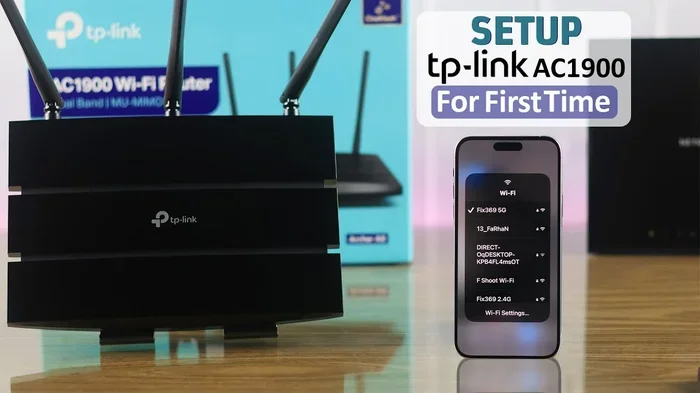
The term AC1900 refers to a dual-band wireless router that offers up to 600 Mbps on the 2.4 GHz band and 1300 Mbps on the 5 GHz band. It uses the 802.11ac Wi-Fi standard, also known as Wi-Fi 5. These routers are popular because they balance price and performance. They work great for medium to large homes with multiple devices. If you want to replace your ISP router with one of these, you are in the right place.
Key Takeaways
- An AC1900 router can replace your ISP router: You just need a separate modem or bridge mode on the ISP gateway.
- Better performance and features: AC1900 routers offer faster Wi-Fi 5 speeds, better antennas, and advanced settings like QoS.
- Bridge mode is key: It disables the ISP gateway’s router functions so your AC1900 handles all the work.
- Check compatibility first: Make sure your ISP modem is compatible with a standalone router and supports the right connection type.
- You keep your Wi-Fi password and settings: Using your own router means full control over security, parental controls, and firmware updates.
- Setup is simple: Plug the modem into the AC1900 WAN port, log in, and follow the quick setup wizard.
- Common mistake to avoid: Forgetting to set the ISP gateway to bridge mode causes double NAT and slow speeds.
📑 Table of Contents
- What Is an AC1900 Router and Why It Matters
- Can You Use The AC1900 As A Router To Replace Your ISP
- How to Set Up an AC1900 Router with Your ISP Modem
- Benefits of Ditching the ISP Gateway
- Things to Consider Before You Switch
- Common Mistakes to Avoid When Replacing Your ISP Router
- Expert Insights: Why Power Users Prefer AC1900 Routers
- Final Verdict: Should You Use an AC1900 as Your Main Router
What Is an AC1900 Router and Why It Matters
An AC1900 router is a standalone wireless router that delivers fast Wi-Fi speeds across two frequency bands. The “AC” stands for the 802.11ac standard. The number 1900 is the combined theoretical maximum speed of both bands. In real life, you will see speeds close to those numbers when conditions are good.
These routers have better antennas and processors than most ISP-provided gateways. They handle more devices without slowing down. They also offer features like dual-band router technology, which lets you separate smart home gadgets on the 2.4 GHz band and streaming devices on the 5 GHz band. This separation reduces interference and keeps your Netflix streams smooth.
How AC1900 Routers Work with Your ISP Modem
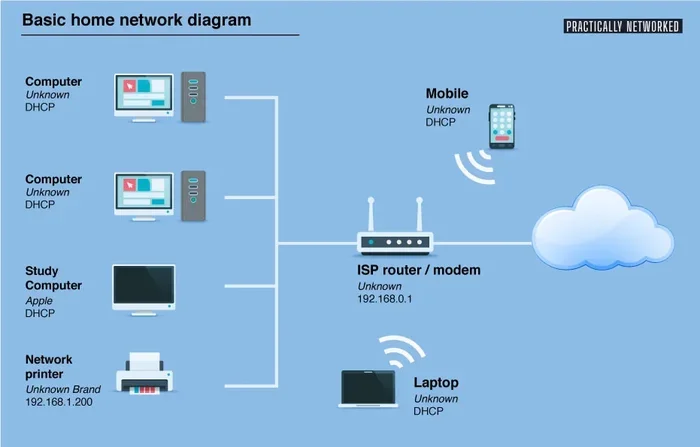
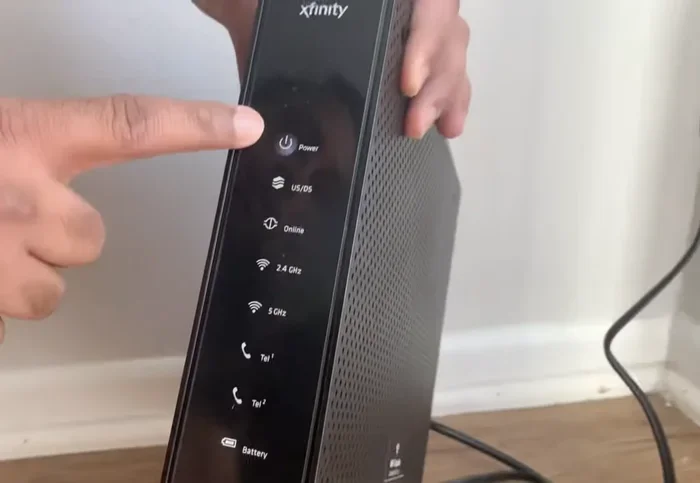
An AC1900 router does not have a built-in modem. It needs a modem to connect to the internet. If your ISP gives you a separate modem and router, you can simply unplug their router and connect the AC1900 to the modem. If they give you a modem-router combo (called a gateway), you need to put that gateway in bridge mode. This turns off its routing functions and lets your AC1900 do the work.
Bridge mode is simple. You log into the gateway’s admin page, find the bridge mode option, and enable it. The gateway then passes the public IP address to your AC1900 router. From that point on, your AC1900 handles all the wireless router duties like NAT, DHCP, and Wi-Fi broadcasting.
Can You Use The AC1900 As A Router To Replace Your ISP
The answer is a clear yes. You can use an AC1900 router to replace the routing part of your ISP equipment. The key is to understand what your ISP provides. Most ISPs offer a gateway that combines a modem and a router. You can keep the modem part and replace the router part with your own AC1900.
Using your own AC1900 as a router gives you more control. You can choose the best Wi-Fi 5 settings, update firmware whenever you want, and use advanced security features. You also avoid the extra monthly rental fee. Over a year, those savings can cover the cost of a good AC1900 router.
When You Need a Modem Plus a Router
If your ISP provides a separate modem, you just need to connect the AC1900 router to it. Use an Ethernet cable from the modem’s Ethernet port to the AC1900’s WAN port. The router will get a public IP address and start broadcasting Wi-Fi. This setup is clean and avoids the bridge mode step entirely.
For cable internet users, make sure your modem is compatible with your ISP’s network. For fiber users, the ISP often provides an ONT (optical network terminal) that acts as a modem. You then connect the AC1900 router to the ONT. The process is the same. The AC1900 becomes your main router and handles all traffic.
When You Have a Gateway (Modem-Router Combo)
If your ISP gave you a single box that does both modem and routing, you must enable bridge mode. Without bridge mode, you will have two routers fighting for control. This causes double NAT, which can block some online games, VPNs, and remote desktop connections. Double NAT also slows down your internet speed and makes port forwarding a headache.
To avoid this, log into the gateway’s admin panel. Look for bridge mode, AP mode, or passthrough mode. Enable it and save. Then connect the AC1900 router to one of the gateway’s Ethernet LAN ports. The gateway will now act like a simple modem, and your AC1900 will be the only router in charge.
What If Your ISP Blocks Third-Party Routers?
Some ISPs try to block third-party routers by locking the modem’s MAC address. This is rare but does happen. If you face this issue, call your ISP and ask them to release the MAC address or enable bridge mode from their side. They can usually do this remotely. Once they do, your AC1900 router will connect without problems.
How to Set Up an AC1900 Router with Your ISP Modem
Setting up your AC1900 router is straightforward. Follow these steps and you will be online in minutes.
Step-by-Step Setup Guide
- Put your ISP gateway in bridge mode. Log into the gateway, find the bridge mode setting, and enable it. Restart the gateway if needed.
- Connect the modem to the AC1900 router. Use an Ethernet cable from the modem’s Ethernet port to the AC1900’s WAN port. The WAN port is often colored differently or labeled “Internet.”
- Power on the AC1900 router. Wait for the lights to stabilize. The WAN light should show a solid connection.
- Connect a computer to the router. Use a second Ethernet cable or connect to the default Wi-Fi network printed on the router’s label.
- Open the router’s admin page. Type the router’s default IP address into your browser. Common addresses are 192.168.0.1 or 192.168.1.1.
- Run the quick setup wizard. The wizard will ask for your internet connection type. Most ISPs use DHCP or PPPoE. If you are not sure, check your ISP’s quick start guide or call their support.
- Set your Wi-Fi name and password. Choose a strong password and pick WPA3 or WPA2 encryption. Save the settings.
- Test your connection. Open a browser and visit a website. Run a speed test to confirm you are getting good speeds.
Quick Tips for a Smooth Setup
- Keep the AC1900 router in a central location. Avoid placing it inside a closet or behind a TV.
- If your home is large, consider using the AC1900 in access point mode with a mesh system later.
- Update the router’s firmware right after setup. This fixes bugs and improves security.
- Change the default admin password. This is a simple step that boosts router security a lot.
- Use the 5 GHz band for streaming and gaming. Use the 2.4 GHz band for smart home devices that need longer range.
Benefits of Ditching the ISP Gateway
Switching to your own AC1900 router brings real advantages. Here is why many people make the switch.
Better Speed and Range
ISP gateways often have weak antennas and slow processors. They struggle when you have more than a few devices connected. An AC1900 router has stronger hardware. It delivers faster wireless speeds and better range. You will notice smoother video calls and fewer buffering moments.
More Control and Features
With your own router, you get full access to settings. You can set up QoS (Quality of Service) to prioritize video calls or gaming. You can create a guest network without sharing your main password. Many AC1900 routers also offer parental controls, USB port sharing, and VPN support. These features are rare in ISP gateways.
Lower Long-Term Cost
ISP rental fees add up. A typical gateway costs $10 to $15 per month. Over two years, that is $240 to $360. A good AC1900 router costs $80 to $150 once. You save money every month after the payback period. Plus, you avoid the hassle of returning equipment when you move.
Stronger Security
ISP gateways often lag behind on firmware updates. They may have known vulnerabilities. A standalone AC1900 router gets regular updates from the manufacturer. You can enable firewall settings, disable WPS, and set up intrusion detection. These steps make your home network much safer.
Things to Consider Before You Switch
Before you buy an AC1900 router and cancel the ISP rental, check a few things.
Check Your Internet Speed Tier
An AC1900 router can handle speeds up to about 1 Gbps on a wired connection. Its wireless speed is lower than the theoretical max. If you pay for 1 Gbps internet, an AC1900 router may not deliver the full speed over Wi-Fi. You might need a Wi-Fi 6 router for that. But for most plans under 500 Mbps, an AC1900 is more than enough.
Verify Your Modem Compatibility
Make sure your modem supports bridge mode or can work in standalone mode. Some ISPs lock their gateways to prevent this. Call your ISP and ask directly. They can confirm if your specific model supports bridge mode. You can also search online for your modem model and “bridge mode” to see community reports.
Consider Your Home Size and Device Count
AC1900 routers work well for homes with 10 to 20 devices. If you have a smart home with dozens of gadgets, you might want a router with a stronger processor. If your home is very large, you may need a mesh system later. But an AC1900 is a great starting point for most households.
Think About Future-Proofing
Wi-Fi 6 is the newer standard. It offers better efficiency and handles many devices well. If you plan to stay with your ISP for years, a Wi-Fi 6 router might be a better long-term investment. But if you just want to replace the ISP router now, an AC1900 is a solid choice that will serve you well for several years.
Common Mistakes to Avoid When Replacing Your ISP Router
Avoid these common pitfalls to ensure a smooth transition.
- Skipping bridge mode: This causes double NAT and can break online gaming and VPN access.
- Using a cheap Ethernet cable: A bad cable limits your wired speed. Use a Cat5e or Cat6 cable for best results.
- Not changing default passwords: Leaving the admin password as “admin” makes your router an easy target.
- Ignoring firmware updates: Old firmware has security holes. Check for updates monthly.
- Placing the router near microwaves or thick walls: This weakens the 2.4 GHz signal. Keep the router in an open, central spot.
- Forgetting to set a static IP for the router: In some bridge mode setups, you need to assign a static IP to the AC1900 to keep it stable.
Expert Insights: Why Power Users Prefer AC1900 Routers
Networking experts often recommend standalone routers over ISP gateways. An AC1900 router gives you a clean, dedicated wireless router experience. It handles heavy traffic better and offers more tuning options. Many experts also appreciate the ability to flash custom firmware like DD-WRT or Tomato on supported models. This opens up advanced features that stock firmware does not offer.
From a performance standpoint, an AC1900 router with a strong CPU can manage bandwidth for multiple 4K streams without breaking a sweat. The throughput on the 5 GHz band is especially impressive for gaming and video calls. If you want to replace ISP router equipment and get a better experience, an AC1900 is one of the best value picks available today.
Final Verdict: Should You Use an AC1900 as Your Main Router
Yes, you can use an AC1900 router to replace your ISP router and improve your home network. The setup is simple, the benefits are real, and the savings are significant. Just make sure you have a compatible modem or enable bridge mode on your gateway. Once you make the switch, you will enjoy faster speeds, better security, and full control over your home network.
Can You Use The AC1900 As A Router To Replace Your ISP is a question with a confident yes. Take the steps outlined in this guide, and you will be on your way to a better internet experience. Grab your AC1900 router, follow the setup, and enjoy the difference.
Frequently Asked Questions
Do I need a modem if I use an AC1900 router to replace my ISP router?
Yes, you still need a modem. The AC1900 router does not have a built-in modem. If your ISP provides a separate modem, connect the AC1900 to it. If they give you a gateway, put it in bridge mode and then connect the AC1900 to the gateway’s Ethernet port.
Will my internet speed improve if I use an AC1900 router instead of the ISP gateway?
It can improve, especially if you have many devices. ISP gateways often have weak processors that slow down when multiple devices stream or game. An AC1900 router handles this load much better. You may see faster and more stable speeds, particularly on the 5 GHz band.
Is bridge mode the same as putting the ISP gateway in access point mode?
They are similar but not exactly the same. Bridge mode disables the gateway’s routing and DHCP functions. Access point mode also disables routing but the gateway still acts as a switch and Wi-Fi access point. For replacing the ISP router, bridge mode is the recommended setting because it hands off all routing to your AC1900.
Can I use an AC1900 router with any ISP, including fiber and DSL?
Yes, you can use an AC1900 router with most ISPs. For fiber, you connect it to the ONT. For DSL, you connect it to the DSL modem. For cable, you connect it to the cable modem. The key is to ensure the ISP device is set to bridge mode or is a modem-only device.
What is the difference between an AC1900 and an AC1200 router?
An AC1900 router offers faster speeds than an AC1200. AC1900 delivers up to 600 Mbps on 2.4 GHz and 1300 Mbps on 5 GHz. AC1200 offers up to 300 Mbps on 2.4 GHz and 867 Mbps on 5 GHz. The AC1900 is better for homes with more devices and heavier internet use.
Do I need to contact my ISP before switching to my own AC1900 router?
It is a good idea to let them know, especially if you need them to enable bridge mode remotely. Some ISPs also require you to return their gateway equipment. Check your contract or call support to confirm the process and avoid any extra fees.