Can You Share Wi Fi To Wi Fi Here Is How Easy It Is
Can you share Wi-Fi to Wi-Fi? Absolutely yes. You can share your existing Wi-Fi connection with another Wi-Fi network using several easy methods. Whether you need a Wi-Fi hotspot, a second router in bridge mode, or a wireless repeater, this guide covers every simple way to share internet connection without wires.
Have you ever been in a situation where you needed a second Wi-Fi network but only had one? Maybe you are at home with a weak signal in the garage, or you are at a rental property with a single Wi-Fi router that does not reach every room. The question is simple: can you share Wi-Fi to Wi-Fi? The answer is a resounding yes.
Sharing one Wi-Fi network with another is easier than most people think. You do not need expensive equipment or a computer science degree. Whether you want to share internet connection between two routers, create a wireless bridge, or simply extend your current network, there is a method that fits your needs. This guide walks you through every option in plain, simple language.
In this article, we will cover all the popular ways to share Wi-Fi to Wi-Fi. You will learn about mobile hotspots, bridge mode, wireless repeaters, and more. Each method comes with step-by-step instructions and real-world tips. Let us dive right in.
Key Takeaways
- Method 1: You can use your phone or laptop as a mobile hotspot to share Wi-Fi with other devices wirelessly.
- Method 2: Setting up a second router in bridge mode lets you extend your Wi-Fi network to a new area.
- Method 3: Wi-Fi extenders and repeaters are the easiest plug-and-play way to rebroadcast your existing signal.
- Method 4: Network bridging on Windows or Mac can connect two Wi-Fi adapters to share internet seamlessly.
- Method 5: Access point mode on modern routers turns any extra router into a wireless signal booster.
- Key Consideration: Each method has trade-offs in speed, setup complexity, and bandwidth sharing.
- Pro Tip: Always check your signal strength and router settings before choosing a sharing method.
📑 Table of Contents
- What Does It Mean to Share Wi-Fi to Wi-Fi?
- Method 1: Use a Mobile Hotspot to Share Wi-Fi Wirelessly
- Method 2: Share Wi-Fi Using a Second Router in Bridge Mode
- Method 3: Use a Wi-Fi Extender or Repeater
- Method 4: Share Wi-Fi Using Network Bridging on Your Computer
- Method 5: Set Up a Second Router as an Access Point
- Comparison of All Wi-Fi Sharing Methods
- Common Mistakes to Avoid When Sharing Wi-Fi
- How to Improve Your Shared Wi-Fi Performance
- Is Sharing Wi-Fi to Wi-Fi Safe?
- Conclusion
What Does It Mean to Share Wi-Fi to Wi-Fi?
When we talk about sharing Wi-Fi to Wi-Fi, we mean taking an existing wireless internet connection and rebroadcasting it so other devices can connect. Think of it like a relay race. The first runner carries the signal from your internet provider. The second runner picks up that signal and passes it along to your devices.
There are several reasons you might want to do this. Your main router might be too far from your home office. You might be renting a place where you cannot install a new modem. Or you might just want a separate network for guests. No matter the reason, sharing Wi-Fi to Wi-Fi solves the problem.
The process works because modern devices can act as both receivers and transmitters. Your phone, laptop, or a second router can accept a Wi-Fi signal and then send out its own Wi-Fi signal at the same time. This is called Wi-Fi bridging or wireless repeating, depending on the method.
Common Terms You Should Know
Before we go further, here are a few terms that will help you understand everything better:
- Wi-Fi Hotspot: A device or setting that broadcasts a wireless signal for others to connect to.
- Bridge Mode: A setting on a router that lets it connect to another Wi-Fi network and pass the signal along.
- Repeater: A device that receives a Wi-Fi signal and rebroadcasts it to extend range.
- Access Point: A device that creates a new Wi-Fi network connected to a wired or wireless source.
- Tethering: Using a phone or mobile device to share its internet connection with other devices.
Now that you know the basics, let us look at the different ways you can share Wi-Fi to Wi-Fi in real life.
Method 1: Use a Mobile Hotspot to Share Wi-Fi Wirelessly
The simplest way to share Wi-Fi to Wi-Fi is by using a mobile device as a portable hotspot. Both Android and iPhone make this very easy. You connect your phone to the existing Wi-Fi network, then turn on the hotspot feature. Other devices can now connect to your phone’s signal and access the internet through it.
How to Set Up a Mobile Hotspot on Android
- Open your Settings app.
- Tap on Network & Internet or Connections.
- Select Hotspot & Tethering.
- Tap Wi-Fi Hotspot and turn it on.
- Set a hotspot name and password.
- Connect your other device to the new hotspot.
How to Set Up a Personal Hotspot on iPhone
- Go to Settings.
- Tap Personal Hotspot.
- Toggle Allow Others to Join on.
- Set a strong Wi-Fi password.
- On the other device, find your iPhone’s hotspot name and connect.
Quick Tip: Using your phone as a hotspot works great for a few devices. But if you need to share Wi-Fi for many devices or over a long time, a dedicated router or repeater is a better choice. Phone batteries drain fast when the hotspot is active.
Method 2: Share Wi-Fi Using a Second Router in Bridge Mode
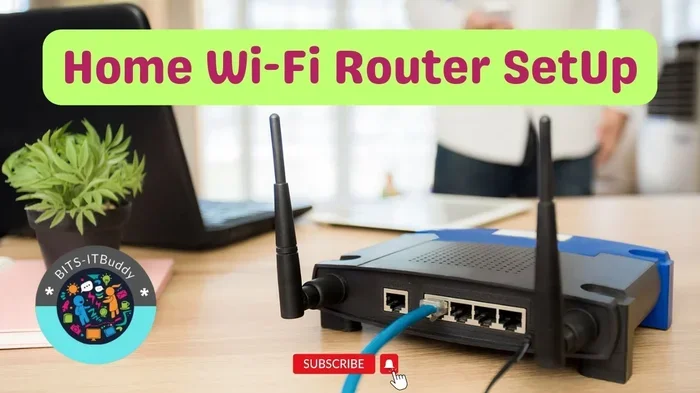
If you need a more permanent solution, setting up a second router in bridge mode is one of the best options. Bridge mode allows the second router to connect to your main Wi-Fi network wirelessly and then create its own Wi-Fi network. Both networks share the same internet source.
What You Need for This Method
- A second wireless router (any brand works).
- Access to the router’s admin panel.
- The Wi-Fi password of your main network.
Step-by-Step Setup
First, connect your computer to the second router using an Ethernet cable. Open the router’s admin page in your browser. Look for the wireless settings or operating mode section. Change the mode from “Router” to “Bridge Mode” or “Access Point Mode.” Enter the SSID and password of your main Wi-Fi network. Save the settings and reboot the router.
Once the second router connects to your main network, it will broadcast a new Wi-Fi signal. Devices can now connect to either network. The signal will travel from your main router to the second router, effectively sharing Wi-Fi to Wi-Fi without any cables between them.
When to Use Bridge Mode
This method is perfect when you have a large home or office. If your main router sits in the living room but you need strong signal in the backyard or a basement, a second router in bridge mode solves the problem. It is also ideal for rental properties where you cannot run Ethernet cables through walls.
Method 3: Use a Wi-Fi Extender or Repeater
A Wi-Fi extender or wireless repeater is the easiest plug-and-play solution for sharing Wi-Fi to Wi-Fi. These small devices plug into a wall outlet, connect to your existing Wi-Fi network, and rebroadcast the signal to areas with weak coverage.
How Wi-Fi Repeaters Work
A repeater listens to your main router’s signal. It then creates a new wireless access point that carries the same internet connection. The repeater does not create a separate internet source. It simply extends the range of your existing network.
Best Wi-Fi Extenders for Sharing Connections
Here are some popular options that make sharing Wi-Fi simple:
- TP-Link RE315: Affordable and easy to set up. Great for small to medium homes.
- Netgear EX6120: Supports dual-band speeds and works well for streaming.
- Google Nest Wifi: A mesh system that extends coverage seamlessly across large spaces.
- Linksys RE7000: High performance with a strong signal range.
Setting Up a Wi-Fi Extender
- Plug the extender into a wall outlet halfway between your router and the weak spot.
- Download the extender’s app or open its web page.
- Select your main Wi-Fi network from the list.
- Enter the Wi-Fi password.
- Wait for the extender to connect.
- Connect your devices to the extended network.
Quick Tip: Place your extender where it still gets a strong signal from the main router. If the repeater is too far away, it will amplify a weak signal, which slows down your internet speed for all connected devices.
Method 4: Share Wi-Fi Using Network Bridging on Your Computer
If you have a laptop with a Wi-Fi adapter, you can turn it into a bridge between two wireless networks. This method works well when you do not have a second router or extender available. Your computer receives the Wi-Fi signal and shares it through its own wireless capability.
How to Bridge Wi-Fi on Windows
- Open Control Panel and go to Network and Sharing Center.
- Click Change adapter settings on the left panel.
- Select both your Wi-Fi adapter and your Ethernet adapter (if using one).
- Right-click and choose Bridge Connections.
- Windows will create a network bridge that shares the internet connection.
How to Bridge Wi-Fi on Mac
- Open System Preferences and go to Sharing.
- Select Internet Sharing from the left list.
- Choose your main Wi-Fi connection as the source.
- Check the box for Wi-Fi under “Share your connection from.”
- Click Wi-Fi Options to set a network name and password.
- Turn on Internet Sharing.
This method is great for temporary situations. You do not need to buy extra hardware. Just use the computer you already have to share internet connection with nearby devices. The downside is that your computer must stay on and connected for the sharing to work.
Method 5: Set Up a Second Router as an Access Point
Another effective way to share Wi-Fi to Wi-Fi is by converting a second router into an access point. This is similar to bridge mode but with a slightly different setup. An access point connects to your main router, usually through an Ethernet cable, and broadcasts a new wireless signal using the same internet connection.
Access Point vs. Bridge Mode: What Is the Difference?
Both methods achieve similar results, but there are small differences. Bridge mode connects wirelessly to the main router. An access point usually connects through a cable for the most stable connection. If you can run an Ethernet cable between the two routers, the access point method gives you better signal strength and faster speeds.
Steps to Set Up a Router as an Access Point
- Connect the second router to your computer with an Ethernet cable.
- Log into the router’s admin panel.
- Disable DHCP on the second router. This prevents IP conflicts.
- Set a static IP address for the second router.
- Connect an Ethernet cable from the main router to the second router’s LAN port.
- Configure the wireless settings on the second router.
- Set a unique SSID or use the same name as your main network for seamless roaming.
Once set up, the second router acts as a wireless gateway. Devices connect to it just like they would connect to your main router. The internet comes from the same source, so you are effectively sharing Wi-Fi to Wi-Fi through a wired backhaul connection.
Comparison of All Wi-Fi Sharing Methods
Not every method works for every situation. Here is a quick comparison to help you choose the right one:
| Method | Ease of Setup | Speed Impact | Best For |
|---|---|---|---|
| Mobile Hotspot | Very Easy | Moderate | Temporary sharing with a few devices |
| Second Router (Bridge Mode) | Moderate | Low to Moderate | Permanent wireless extension in large spaces |
| Wi-Fi Extender / Repeater | Very Easy | Moderate | Quick fix for weak signal areas |
| Computer Network Bridge | Moderate | Low | Temporary sharing without extra hardware |
| Second Router (Access Point) | Moderate | Low (wired backhaul) | Best performance with Ethernet available |
As you can see, each method has its strengths. If you want the fastest and most stable connection, the access point method with a wired backhaul wins. If you want the simplest setup, a Wi-Fi extender or your phone’s hotspot gets the job done fast.
Common Mistakes to Avoid When Sharing Wi-Fi
Even though sharing Wi-Fi is straightforward, some common mistakes can cause problems. Here is what to watch out for:
- Double NAT issues: When two routers both perform network address translation, devices may have trouble connecting to the internet. Always set the second router to bridge mode or access point mode to avoid this.
- Same channel interference: If both routers broadcast on the same Wi-Fi channel, they can interfere with each other. Set the second router to a different channel for better performance.
- Weak backhaul signal: If your repeater or bridge router sits too far from the main router, the shared signal will be slow and unreliable. Place intermediate devices where they get a strong signal.
- Forgetting to change default passwords: Always set a strong Wi-Fi password on every network you create. Default passwords are easy targets for intruders.
- Ignoring bandwidth limits: When you share internet connection across multiple devices, the total bandwidth gets divided. Too many devices can slow everything down.
Expert Insight: According to networking professionals, the biggest mistake people make is placing a repeater or second router in a spot with a weak original signal. Always test your signal strength at the proposed location before finalizing the setup. A repeater can only be as strong as the signal it receives.
How to Improve Your Shared Wi-Fi Performance
Once you have set up your Wi-Fi sharing setup, you can take a few extra steps to make it faster and more reliable.
1. Use the 5GHz Band When Possible
Most modern routers support both 2.4GHz and 5GHz bands. The 5GHz band offers faster speeds but shorter range. For your shared network, use 5GHz for devices that need high speed, like laptops and streaming boxes.
2. Update Router Firmware Regularly
Router manufacturers release firmware updates that improve performance and fix bugs. Check for updates on your main router and any second router or extender you use. A simple update can boost your network stability significantly.
3. Limit the Number of Connected Devices
Every device that connects to your shared network uses a portion of the available bandwidth. If too many devices connect, the speed drops for everyone. Set a limit on guest networks and prioritize essential devices.
4. Restart Your Equipment Periodically
Routers and extenders benefit from regular restarts. Power cycling clears the memory and refreshes connections. Try unplugging your equipment for 30 seconds once a week to keep things running smoothly.
5. Position Your Equipment Strategically
Place your main router in a central location. Keep it elevated and away from thick walls and metal objects. For extenders and second routers, position them where they can still “see” the main router’s signal clearly.
Quick Tip: A simple Wi-Fi analyzer app on your phone can show you which channels are least crowded. Use this information to optimize the channel settings on both your main router and any shared network devices.
Is Sharing Wi-Fi to Wi-Fi Safe?
Security is an important concern whenever you share internet connection with others. The good news is that sharing Wi-Fi to Wi-Fi is generally safe as long as you follow basic precautions.
First, always use WPA3 or WPA2 encryption on every network you create. This ensures that only devices with the correct password can connect. Never leave a shared network open or unprotected.
Second, keep your router firmware updated. Manufacturers regularly patch security vulnerabilities. An outdated router can be an easy target for hackers.
Third, if you are sharing your network with guests, use a guest network feature. This keeps your main devices isolated from visitors. Even if a guest device gets compromised, your personal data stays safe.
Finally, change default admin passwords on all routers. A strong, unique password for each router’s admin panel adds an extra layer of protection. These simple steps keep your shared network secure and your data private.
Conclusion
So, can you share Wi-Fi to Wi-Fi? Without a doubt, yes. You have many simple options available, from using your phone as a mobile hotspot to setting up a second router in bridge mode or access point mode. Each method has its own benefits and best use cases.
For quick, temporary sharing, a mobile hotspot or Wi-Fi extender works perfectly. For a permanent setup, a second router in bridge mode or access point mode gives you the best long-term results. And for the simplest possible solution, a plug-and-play repeater handles most home coverage issues with minimal effort.
The key is to choose the method that fits your situation. Consider how many devices you need to connect, how far the signal needs to travel, and how much speed you can afford to lose through the sharing process. With the right setup, sharing Wi-Fi to Wi-Fi becomes seamless and reliable.
Now that you know all the options, pick the method that works best for you and get started. Your stronger, more reliable Wi-Fi network is just a few steps away.
Frequently Asked Questions
Can I share my Wi-Fi connection with another Wi-Fi network for free?
Yes, you can share Wi-Fi to Wi-Fi without paying extra. Methods like bridge mode, using a second router as an access point, or using a Wi-Fi extender do not require additional monthly fees. You only need the hardware, which you may already own.
Will sharing Wi-Fi slow down my internet speed?
It can. When you share internet connection wirelessly, some speed loss is normal because the signal is being received and transmitted again. Using a wired backhaul or a dual-band extender minimizes speed loss and keeps your connection fast.
Do I need a special router to share Wi-Fi to Wi-Fi?
No, you do not need a special router. Most modern routers support bridge mode or access point mode. Even an older router can work as a repeater or extender with the right settings. Check your router’s manual for supported modes.
Is it legal to share Wi-Fi with neighbors?
Sharing your own Wi-Fi with authorized guests is perfectly legal. However, sharing your connection with unknown or unauthorized users outside your household can violate your internet service provider’s terms of service. Always secure your network with a strong password.
What is the difference between a Wi-Fi extender and a Wi-Fi repeater?
In practice, they do the same thing. Both devices receive your existing Wi-Fi signal and rebroadcast it to extend coverage. Some manufacturers use the terms interchangeably. The key difference is in the technology used, but for most users, both work the same way to share Wi-Fi to Wi-Fi.
Can I share Wi-Fi from my phone to another router?
Yes, you can. When you turn on your phone’s hotspot, it creates a new Wi-Fi network. Another router can connect to this hotspot as its internet source. However, this setup works best for temporary situations due to battery drain and speed limitations on mobile networks.