Can You Just Buy A New Router And Plug It In And Go Online
Yes, you can buy a new router and plug it in, but going online isn’t always that simple. You need to check modem compatibility, configure network settings, and set up your Wi-Fi password before you can browse safely. This guide walks you through every step so you can get your new router up and running without frustration.
So you have a slow or broken router. Maybe it drops your Wi-Fi every few minutes. Maybe it can’t handle all your devices anymore. The easy fix seems obvious — just buy a new one and plug it in, right?
Well, not exactly. You can physically plug a new router into your wall and your modem, but getting it online involves a few more steps. The good news is that the process is simpler than most people think. You do not need to be a tech expert to set up a new router.
In this guide, we will walk you through everything you need to know. We will cover whether you can just buy a new router and plug it in, what setup steps you actually need, and how to avoid common mistakes that trip up most people. By the end, you will feel confident setting up your new router like a pro.
Let us get started with the basics of why you might need a replacement in the first place.
Key Takeaways
- Plugging in a new router is easy, but setup is required: You still need to connect it to your modem and configure basic settings.
- Compatibility matters: Your new router must work with your ISP and existing modem to establish a proper internet connection.
- Default settings are not secure: You must change the admin password, Wi-Fi name, and network password before using the router.
- Router placement affects performance: Even the best router will underperform if placed in a poor location.
- Firmware updates are essential: Always update your router firmware after setup for security and speed improvements.
- Common mistakes cause delays: Skipping steps like resetting the modem or checking cable connections leads to connection problems.
- Choosing the right router makes a big difference: Match your router to your home size, device count, and internet speed needs.
📑 Table of Contents
- Why You Might Need to Buy a New Router
- Can You Just Buy a New Router and Plug It In?
- How to Set Up a New Router After Plugging It In
- Common Mistakes People Make When Setting Up a New Router
- How to Choose the Right Router for Your Home
- Troubleshooting After Plugging In Your New Router
- When to Call a Professional for Help
- Final Thoughts
Why You Might Need to Buy a New Router
Routers do not last forever. Most consumer-grade routers work well for three to five years. After that, they start showing signs of wear. Your internet might slow down. Connections might drop unexpectedly. Newer devices might not connect properly.
Here are some clear signs your router needs replacing:
- Slow Wi-Fi speeds: Even with a fast internet plan, your connection crawls on wireless devices.
- Frequent disconnections: Your devices keep dropping off the network throughout the day.
- Limited range: Wi-Fi signals do not reach certain rooms in your home.
- Too few ports: You need more Ethernet connections for gaming consoles, smart TVs, or work computers.
- Outdated security: Older routers lack the latest encryption standards, leaving your network vulnerable.
- Overheating: Your router feels hot to the touch and randomly restarts.
- ISP upgrade: Your internet provider gave you a faster plan, but your old router cannot handle the speed.
If any of these sound familiar, it is time to consider a new purchase. A modern wireless router can transform your home network experience. But the real question remains — can you just plug it in and expect it to work?
Can You Just Buy a New Router and Plug It In?
The short answer is no. The longer answer is that plugging it in is just the first step. A new router needs proper configuration before it can deliver a working internet connection to your devices.
What Happens When You Plug It In
When you power on a brand-new router, it boots up with factory settings. These settings include a default Wi-Fi name (also called the SSID) and a default password. Both are printed on a sticker on the bottom of the router.
However, these default settings do not connect you to the internet automatically. The router needs to communicate with your modem. It needs to receive an IP address from your ISP provider. And it needs to be configured with your specific network details.
Think of it like buying a new phone. You can turn it on, but you still need to insert a SIM card, enter your account details, and set up your preferences before you can make calls.
The Role of Your Modem
Your modem is the device that brings the internet into your home. It connects to your ISP through a coaxial cable, fiber line, or phone line. The router then connects to the modem and distributes that internet signal to your devices.
Before plugging in a new router, you need to make sure it is compatible with your modem. Most modern routers work with standard modems, but some older modems or ISP-provided gateways may cause issues. Check the router specifications and confirm it supports your broadband speed and connection type.
Do You Need to Contact Your ISP?
In most cases, you do not need to call your internet service provider when replacing your own router. However, there are exceptions. Some ISPs lock their modems to specific router models. Others require you to register a new device on their network.
If you use a modem-router combo unit provided by your ISP, replacing it with a separate router might require a brief call to activate the new hardware. Always check your ISP’s policy before making a purchase.
How to Set Up a New Router After Plugging It In
Now that you know plugging in is not enough, let us walk through the actual setup process. Follow these steps carefully, and you will be online in about 15 to 30 minutes.
Step 1: Connect the Router to Your Modem
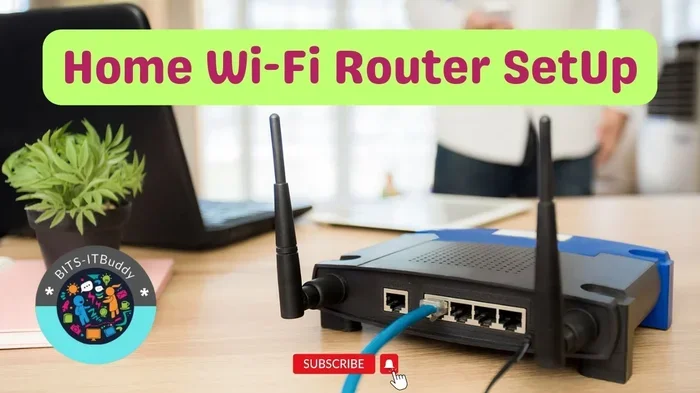
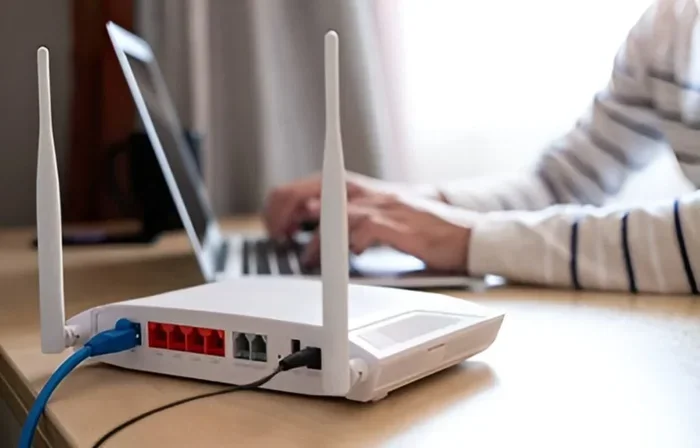
Start by powering off your modem. Use an Ethernet cable to connect the modem’s output port to the router’s WAN (or Internet) port. The WAN port is usually a different color from the other ports. It might be labeled “Internet” as well.
Then power on your modem first. Wait about one to two minutes for it to fully start. After that, plug in your new router and wait for it to boot up. The power light should turn solid, and the Wi-Fi indicator should start blinking.
Step 2: Connect to the Router
You can connect to your new router in two ways. The easiest method is to use the default Wi-Fi network printed on the router sticker. Open your phone or computer’s Wi-Fi settings and find the network name. Enter the default password.
Alternatively, you can connect via an Ethernet cable directly from your computer to one of the router’s LAN ports. This wired connection is more stable during the initial setup process.
Step 3: Access the Router’s Admin Panel
Open a web browser on your connected device. Type the router’s default gateway address into the address bar. This is usually something like 192.168.0.1 or 192.168.1.1. The exact address is printed on the router sticker or in the user manual.
You will see a login page. Enter the default admin username and password. These are also on the sticker. Common defaults are “admin” for both the username and password, or “admin” for the username and “password” for the password.
Once logged in, you are in the router’s admin panel. This is where the real setup happens.
Step 4: Configure Your Internet Connection
The router should automatically detect your internet connection type. Most home networks use DHCP, which means the router gets an IP address automatically from the modem. If your ISP uses a different method, such as PPPoE, you will need to enter a username and password provided by your ISP.
Check the internet status page in the admin panel. If you see a connected status and an IP address, your router has successfully established a connection to the internet.
Step 5: Set Up Your Wi-Fi Network
This is the most important step for security and performance. Go to the wireless settings section in the admin panel. Here is what you should do:
- Change the SSID: Rename your Wi-Fi network to something unique. Avoid using personal information like your name or address.
- Set a strong password: Use a mix of uppercase letters, lowercase letters, numbers, and symbols. Aim for at least 12 characters.
- Choose WPA3 or WPA2 encryption: These are the most secure wireless encryption standards available today.
- Select the right frequency band: Use 5 GHz for faster speeds over short distances. Use 2.4 GHz for wider coverage but slower speeds.
Step 6: Change the Admin Password
This step is often overlooked, but it is critical. The default admin password is publicly known. Anyone on your network could access your router settings and change your configuration. Go to the administration section and set a strong, unique admin password.
Step 7: Update the Firmware
Router firmware is the software that runs your device. Manufacturers release updates to fix bugs, improve Wi-Fi speed, and patch security vulnerabilities. Check the admin panel for a firmware update option. If an update is available, install it before connecting your important devices.
Common Mistakes People Make When Setting Up a New Router
Even with clear instructions, people still make avoidable mistakes during router setup. These errors can cause slow speeds, connection drops, and security risks.
Skipping the Factory Reset
If you are replacing an old router with a new one, do not just unplug the old one and plug in the new one. Some routers carry over settings that can conflict with the new device. A factory reset ensures a clean start. Look for a small reset button on the back of the router. Press it with a paperclip for about 10 seconds.
Placing the Router in a Bad Location
Where you put your router matters more than most people realize. Avoid placing it in a closet, behind a TV, or in a corner of the basement. These spots block the signal and weaken your signal strength throughout the home.
The best location is a central, elevated spot. A shelf or table in the middle of your home works great. Keep the router away from thick walls, metal objects, and microwaves, which all interfere with wireless signals.
Forgetting to Update Firmware
Outdated firmware is a security risk. Hackers can exploit known vulnerabilities in older firmware versions. Always check for updates right after setup and enable automatic updates if your router supports the feature.
Using the Default Network Name
Leaving the default SSID on your router tells everyone what brand and model you are using. This gives attackers information they can use to target known vulnerabilities. Always rename your network to something generic and unique.
Not Testing the Connection Properly
After setup, do not just assume everything works. Run a speed test on your phone or computer. Walk around your home and check for dead zones. If the internet connection is weak in certain areas, you may need to adjust the router placement or consider a mesh Wi-Fi system.
How to Choose the Right Router for Your Home
Not all routers are created equal. The right choice depends on your home size, the number of devices you use, and your internet speed plan.
Consider Your Home Size
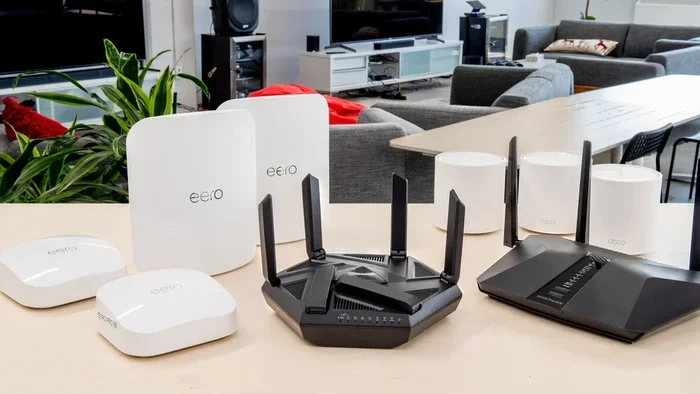
For a small apartment, a basic single-band router might be enough. For a medium-sized home, a dual-band router with strong antennas works well. For large homes with multiple floors, consider a mesh home network system that uses multiple nodes to cover every room.
Check the Speed Rating
Routers are rated by their maximum theoretical speed, such as AC1200 or AX3000. These numbers represent the combined speed across all bands. Choose a router that matches or exceeds your broadband speed plan. If you have a 500 Mbps internet plan, a router rated for at least 1000 Mbps will give you headroom.
Think About Your Device Count
Every device connected to your network shares the router’s bandwidth. Smart TVs, phones, laptops, tablets, smart home devices, and gaming consoles all count. If you have 15 or more devices, look for a router with a powerful processor and plenty of RAM to handle the load.
Look for Modern Features
Modern routers come with features that make a big difference in daily use. Look for Wi-Fi 6 or Wi-Fi 6E support, which offers faster speeds and better performance in crowded environments. Beamforming technology directs the signal toward your devices instead of broadcasting it equally in all directions. Quality of Service (QoS) settings let you prioritize traffic for video calls or gaming.
Troubleshooting After Plugging In Your New Router
Even after a careful setup, you might run into issues. Here are the most common problems and how to fix them.
No Internet Connection
If your router shows connected but you have no internet, the issue is usually between the modem and the router. Try power cycling both devices. Unplug the modem, wait 30 seconds, plug it back in, and wait two minutes. Then unplug the router, wait 30 seconds, and plug it back in. This simple step resolves most connection issues.
Slow Wi-Fi Speeds
Slow speeds can be caused by several factors. First, check if you are connected to the 5 GHz band for faster speeds. If you are on 2.4 GHz, move closer to the router. Interference from other electronic devices can also slow things down. Try changing the wireless channel in the router admin panel to a less congested one.
Devices Won’t Connect
If some devices connect but others do not, check your network security settings. Older devices might not support WPA3 encryption. Switch to WPA2/WPA3 mixed mode to maintain compatibility. Also verify that you are entering the correct Wi-Fi password — passwords are case-sensitive.
Router Keeps Freezing or Restarting
A router that freezes repeatedly might be overheating or running outdated firmware. Ensure the router has good ventilation and is not surrounded by other heat-producing electronics. Update the firmware and, if the problem persists, consider a factory reset and fresh setup.
When to Call a Professional for Help
Most router setups are straightforward and do not require professional help. However, there are situations where calling an expert makes sense. If you have tried all the troubleshooting steps and still cannot get online, contact your ISP. The problem might be on their end. If you have a large home with complex networking needs, a professional installer can set up a custom solution with proper wiring and optimal placement.
Also consider professional help if you are setting up a business network. Home routers are not designed for the demands of commercial use. A professional can recommend and configure enterprise-grade equipment that keeps your business running smoothly.
Final Thoughts
So can you just buy a new router and plug it in and go online? The honest answer is that plugging it in gets you started, but you still need to configure a few settings to get a working, secure connection. The good news is that the process is straightforward and takes less than half an hour for most people.
By following the steps in this guide, you can set up your new router with confidence. You will have a fast, secure home network that handles all your devices without dropping connections or slowing down. The investment in a quality router pays off quickly in better performance and fewer headaches.
Do not let setup fears keep you from upgrading your network. Grab your new router, follow these steps, and enjoy a better internet experience starting today.
Frequently Asked Questions
Do I need to contact my ISP when I buy a new router?
In most cases, no. You only need to contact your ISP if you are replacing a modem-router combo unit they provided. Standalone routers work with your existing modem without any ISP involvement. If you are unsure, check your ISP’s website or call their support line for confirmation.
How long does it take to set up a new router?
Most people can set up a new router in 15 to 30 minutes. The physical connection takes about five minutes. The configuration and security settings take another 10 to 20 minutes. If you encounter issues, it might take a bit longer, but the process is generally quick and straightforward.
Can I use any router with my modem?
Most modern routers work with any standard modem. However, you should check compatibility before purchasing. Make sure the router supports your connection type (cable, fiber, or DSL) and can handle your broadband speed plan. ISP-provided modems sometimes have specific compatibility requirements, so it is worth checking with your provider.
Should I reset my old router before throwing it away?
Yes, always perform a factory reset on any old router before discarding or recycling it. This clears all your personal settings, passwords, and network information. A simple reset protects your privacy and ensures the device is clean for its next use or recycling process.
What is the difference between a router and a modem?
A modem connects your home to the internet through your ISP. A router takes that internet signal and distributes it to your devices via Wi-Fi or Ethernet cables. Many people use a combined modem-router unit, but separate devices offer better performance, more features, and easier troubleshooting.
Do I need Wi-Fi 6 if my internet plan is slow?
Wi-Fi 6 offers benefits even on slower internet plans. It handles multiple devices more efficiently and reduces congestion in busy households. However, if you have a very slow plan and few devices, an older router might be sufficient. Wi-Fi 6 really shines when you have fast internet and many connected devices competing for bandwidth.