Can You Use Usb For Video Output With Any Device Today
Can you use USB for video output? The answer is yes — modern USB-C and USB 3.0 ports can carry video signals to monitors, TVs, and projectors. USB video output has changed how we connect screens, making it easier to share your display without extra cables. Whether you use a laptop, desktop, or a streaming device, understanding USB video capabilities helps you get the best setup.
Key Takeaways
- USB video output is real: USB-C and USB 3.0 ports can deliver video signals to external displays.
- Not all USB ports are equal: USB 2.0 ports lack the bandwidth for video, while USB-C and Thunderbolt support it fully.
- Adapters make it possible: You can use USB-to-HDMI adapters to connect almost any device to a screen.
- 4K resolution is achievable: With the right cable and port, USB video output supports high-resolution displays.
- Check compatibility first: Always verify your device supports USB video before buying adapters or cables.
- USB video is growing in popularity: More devices are dropping traditional ports in favor of USB-C video output.
📑 Table of Contents
- Can You Use USB For Video Output With Any Device Today?
- How USB Video Output Works
- Which Devices Support USB Video Output?
- USB Video Output vs Traditional Video Ports
- Best Adapters and Cables for USB Video Output
- Common Problems and How to Fix Them
- Quick Tips for Getting the Best USB Video Output
- Expert Insights on USB Video Output
- Common Mistakes to Avoid with USB Video Output
- Final Thoughts
Can You Use USB For Video Output With Any Device Today?
The short answer is yes. You can use USB for video output on many devices today. But not every USB port works the same way. Understanding how USB video output works helps you avoid frustration. It also saves you money on the wrong adapter.
USB ports have come a long way. What started as a simple way to transfer files now handles video, power, and data all at once. If you have a modern laptop or desktop, there is a good chance your USB port can push video to a screen. Let us break down exactly how this works and what you need to know.
Many people ask, “Can I just plug a USB cable into my laptop and get video on my TV?” The answer depends on the type of USB port and the device. USB-C video output has become the standard for newer laptops, tablets, and phones. Older USB-A ports may need an adapter to carry a video signal. This guide covers everything you need to make it work.
We will walk through the different types of USB ports, how they handle video, and which devices support USB video output. You will also learn about adapters, cables, and common mistakes to avoid. By the end, you will know exactly how to connect any device to a screen using a USB port.
Why USB Video Output Matters
USB video output has changed the way we set up our screens. In the past, you needed a dedicated video port like HDMI or VGA. Now, a single USB-C cable can handle video, audio, and power. This is especially useful for people who travel or work with multiple devices.
Think about how many cables you currently use. A laptop might need a power cable, an HDMI cable, and a mouse receiver. With USB video output, you can cut down on that clutter. One cable can do the job of three or more. This makes setups cleaner and more portable.
Streaming content through USB is also becoming more common. Devices like apps for finding local services are just one example of how USB connectivity supports modern workflows. Whether you are casting to a smart TV or connecting an external monitor, USB video output gives you flexibility.
How USB Video Output Works
USB video output sends a video signal through a USB connection instead of a traditional video port. The USB port acts as a bridge between your device and the display. It converts the digital signal into something your monitor or TV can read.
Not all USB connections handle video the same way. The version of USB and the type of port matter a lot. Let us look at the main types.
USB-C and Video Output
USB-C is the most popular port for video output today. It is small, reversible, and powerful. USB-C can carry video signals using two main protocols:
- DisplayPort Alt Mode: This lets USB-C send video directly to a display. It supports high resolutions and refresh rates.
- Thunderbolt: Thunderbolt 3 and 4 use the USB-C connector. They offer even more bandwidth for video and data.
With USB-C, you can connect to monitors, TVs, and projectors. You can also daisy-chain multiple displays from a single port. This makes it ideal for external display setups.
USB 3.0 and Video Output
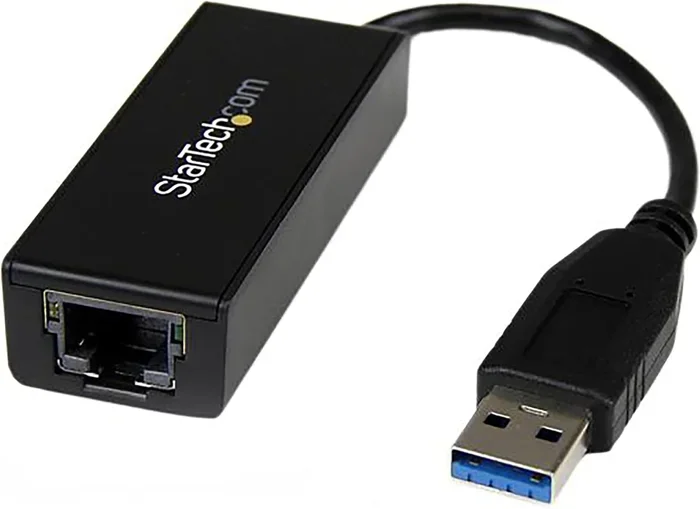
USB 3.0 and USB 3.1 can also carry video signals, but with limitations. They use a technology called USB 3.0 DisplayLink. This requires a special adapter or docking station. The adapter processes the video signal before sending it to the display.
USB 3.0 video output works well for everyday tasks. You can stream videos, browse the web, and work on documents on an external screen. However, it may struggle with heavy graphics or gaming. The bandwidth is lower than USB-C, so expect some compression or lower frame rates.
USB 2.0 and Video Output
USB 2.0 is the oldest and slowest type. It can technically carry video using DisplayLink technology. But the experience is not great. Video may lag, stutter, or drop frames. USB 2.0 is not recommended for any serious video output.
If your device only has USB 2.0 ports, consider upgrading. A USB 3.0 adapter is inexpensive and makes a big difference. It gives you the bandwidth needed for smooth video playback.
Which Devices Support USB Video Output?
Most modern devices support USB video output in some form. But the level of support varies. Here is a breakdown of common devices.
Laptops
Most laptops made after 2018 come with at least one USB-C port. These ports can handle video output easily. Brands like Dell, HP, Lenovo, Apple, and Microsoft Surface all support USB-C video. Some older laptops with only USB-A ports can use a DisplayLink adapter.
If you are unsure about your laptop, check the specifications. Look for terms like “DisplayPort Alt Mode” or “Thunderbolt.” These confirm that your USB port can output video natively.
Desktops
Desktop computers often have multiple USB ports. Many modern desktops include USB-C on the front or back panel. These ports can connect to an external monitor or a docking station. Some older desktops may only have USB-A ports, which require an adapter.
Using a USB docking station is a great way to add video output to a desktop. The docking station connects to one USB port and provides multiple display outputs. This is perfect for a dual-monitor or triple-monitor setup.
Tablets and Phones
Many tablets and phones now use USB-C. Devices like Samsung Galaxy tablets, Google Pixel phones, and iPads (with USB-C models) support video output. You can connect them directly to a monitor or TV using a USB-C to HDMI cable.
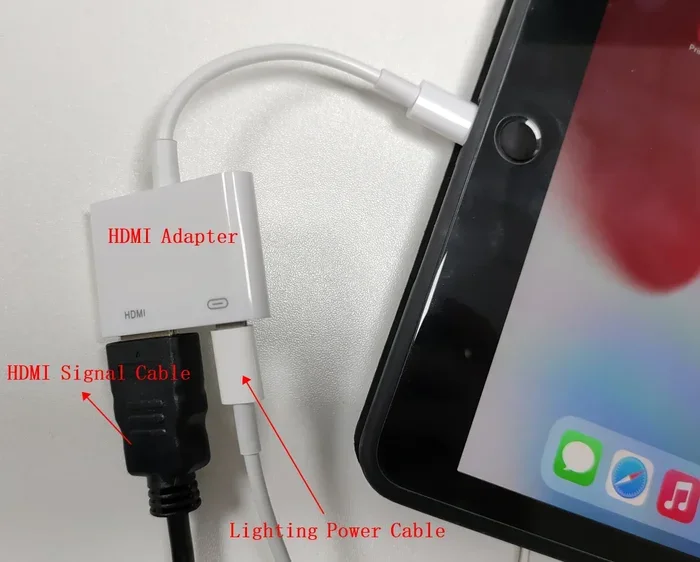
Older devices with Micro-USB or Lightning ports may also support video output. But they need a specific adapter. Always check your device manual for compatibility details.
Streaming Devices and Mini PCs
Streaming boxes and mini PCs often rely on USB ports for video output. Devices like Chromecast, Roku, and certain Android boxes can use USB for display. However, they usually need a powered USB hub or adapter to work correctly.
USB Video Output vs Traditional Video Ports
How does USB video output compare to traditional ports like HDMI or DisplayPort? Let us look at the key differences.
| Feature | USB-C Video | HDMI | DisplayPort |
|---|---|---|---|
| Video Resolution | Up to 4K or 8K | Up to 4K or 8K | Up to 8K |
| Bandwidth | High (with USB 3.1 or Thunderbolt) | High | Very High |
| Power Delivery | Yes (up to 100W) | No | No |
| Cable Versatility | Video, data, power in one | Video and audio only | Video and audio only |
| Device Compatibility | Most modern devices | Most TVs and monitors | Most PCs and monitors |
| Adapter Needed | Sometimes | Rarely | Rarely |
As you can see, USB-C video output is incredibly versatile. It combines video, data, and power into one cable. This makes it the most convenient option for most users. However, HDMI and DisplayPort still offer slightly better performance for high-end graphics work.
For everyday use like streaming, working, or presenting, USB video output is more than enough. You do not need a dedicated HDMI port unless you are a hardcore gamer or video editor.
Best Adapters and Cables for USB Video Output
Getting the right adapter or cable is key to a smooth USB video setup. Not all adapters are created equal. Some work better than others depending on your device and needs.
USB-C to HDMI Adapters
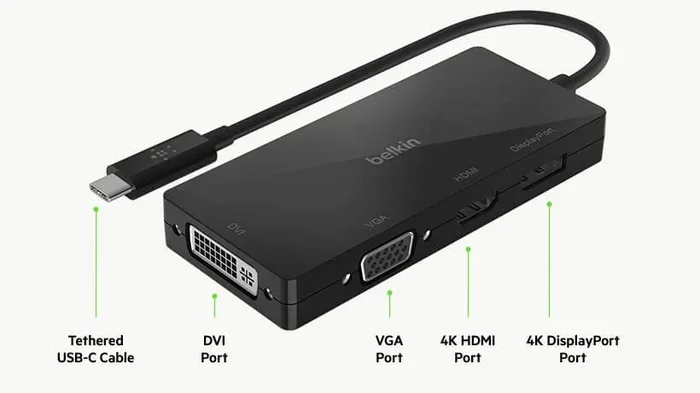
A USB-C to HDMI adapter is the most common choice. It plugs into your laptop or tablet’s USB-C port and connects to any HDMI display. These adapters are affordable and widely available. Look for ones that support 4K resolution and 60Hz refresh rate for the best experience.
USB-C Docking Stations
A USB-C docking station is a step up from a simple adapter. It connects to your device and provides multiple ports. You get HDMI or DisplayPort outputs, USB ports for peripherals, and sometimes even Ethernet. Docking stations are perfect for office setups or home workstations.
When choosing a docking station, check the bandwidth rating. USB 3.1 Gen 2 or Thunderbolt 3 docks offer the best video signal quality. They also support higher resolutions and multiple displays.
USB-C to VGA Adapters
Older projectors and monitors often use VGA connections. A USB-C to VGA adapter bridges this gap. However, VGA is an older standard and does not support high resolutions. You will be limited to 1080p at best. Use these adapters only when necessary.
Active vs Passive Adapters
Not all adapters work the same way. Passive adapters simply convert the signal without any processing. They work well when your device supports native video output over USB-C. Active adapters have a chip that processes the video signal. They are needed for devices that use DisplayLink technology or USB 3.0 ports.
Always check whether your device needs an active or passive adapter. Using the wrong type can result in no display or poor performance.
Common Problems and How to Fix Them
USB video output is not always plug-and-play. Sometimes you run into issues. Here are the most common problems and their solutions.
No Display Signal
If your screen goes black after connecting, do not panic. First, check that the adapter is fully seated in the USB port. Then, make sure the display is set to the correct input source. Many TVs and monitors have multiple HDMI inputs. Use your remote to switch to the right one.
If the problem persists, try a different USB port. Some ports on your device may not support video output. Always use the port labeled for video or data transfer.
Flickering or Lagging Video
Flickering or lag usually points to a bandwidth issue. USB 2.0 and older USB 3.0 ports may not have enough speed for smooth video. Upgrade to a USB-C port or a USB 3.1 adapter if possible.
Lowering the resolution can also help. Try setting your external display to 1080p instead of 4K. This reduces the load on the USB connection and often fixes flickering.
No Audio Through USB
USB video output sometimes carries audio, but not always. If you get video but no sound, check your device audio settings. On Windows, go to Sound Settings and select the USB display as the audio output. On macOS, go to Sound Preferences and choose the external display.
Some adapters do not support audio at all. In that case, you may need a separate audio cable or a different adapter model.
Adapter Not Recognized
If your device does not recognize the adapter, try these steps:
- Unplug the adapter and wait 10 seconds.
- Plug it back in firmly.
- Restart your device if needed.
- Update your display drivers through Device Manager (Windows) or System Preferences (Mac).
Outdated drivers are a common cause of adapter issues. Keeping them updated ensures smooth USB video output performance.
Quick Tips for Getting the Best USB Video Output
Follow these simple tips to get the most out of your USB video setup:
- Use certified cables and adapters: Cheap, uncertified adapters can cause poor video quality or damage your device.
- Check your USB port version: USB 3.0 or higher is recommended for reliable video output.
- Keep cables short: Longer cables can weaken the signal. Use the shortest cable that works for your setup.
- Use a powered USB hub: If you are connecting multiple devices, a powered hub ensures stable performance.
- Update your drivers regularly: Fresh drivers fix bugs and improve compatibility with new adapters.
- Test with a different display: If one screen does not work, try another to rule out display issues.
These tips apply whether you are connecting a laptop to a monitor, a phone to a TV, or a desktop to a projector. USB video output works best when you use quality equipment and follow best practices.
Expert Insights on USB Video Output
Technology experts agree that USB video output is the future of display connectivity. As more devices move away from traditional video ports, USB-C becomes the universal standard. This shift benefits consumers by simplifying setups and reducing cable clutter.
Experts also highlight the importance of understanding your device’s capabilities. Not every USB port delivers the same performance. A USB 3.0 port and a Thunderbolt 4 port may look identical, but they handle video very differently. Always check your device specifications before purchasing adapters.
The rise of USB video output has also made screen mirroring and external display setups more accessible. You no longer need expensive equipment to extend your screen or cast content. A simple adapter and a USB cable can do the job.
Common Mistakes to Avoid with USB Video Output
Avoid these common mistakes to ensure a smooth experience:
- Using a USB 2.0 cable for video: USB 2.0 lacks the bandwidth for smooth video. Always use USB 3.0 or higher.
- Buying the wrong adapter type: Passive adapters do not work with DisplayLink devices. Know which type you need.
- Ignoring power requirements: Some adapters need external power. Check if your adapter requires a power source.
- Assuming all USB-C ports support video: Some USB-C ports are data-only. Always verify video support before buying.
- Skipping driver updates: Outdated drivers can cause compatibility issues with USB video adapters.
Steering clear of these mistakes saves time, money, and frustration. It ensures your USB video output setup works right from the start.
Final Thoughts
Can you use USB for video output? Absolutely. Modern devices make it easy to connect any screen using a USB port. Whether you use a USB-C to HDMI adapter, a docking station, or a Thunderbolt connection, the options are plentiful and affordable.
USB video output has made external displays more accessible than ever. You do not need special video ports or expensive equipment. A simple USB cable and the right adapter can turn any screen into an extension of your device. This is especially helpful for remote workers, students, and anyone who values a clean, clutter-free setup.
As technology continues to evolve, USB video output will only get better. Faster USB standards mean higher resolutions and smoother performance. The days of carrying multiple cables for video are fading fast. Embrace the simplicity of USB video output and enjoy a more connected, streamlined workspace.
Start with what you have. Check your device’s USB ports, grab a compatible adapter, and test it out. You will be surprised how easy it is to get video flowing through a USB connection. Once you make the switch, you will wonder how you ever managed without it.
Frequently Asked Questions
Can any device use USB for video output?
Most modern devices can use USB for video output, but it depends on the port type. USB-C and Thunderbolt ports natively support video. Older USB-A ports need a DisplayLink adapter to output video. Check your device specifications to confirm support.
Do I need a special cable for USB video output?
Yes, you need the right cable or adapter. A standard USB data cable will not carry video. You need a USB-C to HDMI cable, a DisplayLink adapter, or a Thunderbolt cable. Using the correct equipment ensures a reliable video signal.
Can USB 3.0 carry video?
Yes, USB 3.0 can carry video using DisplayLink technology. However, it requires an active adapter or docking station. The video quality and performance are good for everyday tasks but may not match USB-C or Thunderbolt speeds.
Is USB video output good for gaming?
USB video output works for casual gaming but is not ideal for high-end gaming. The bandwidth of USB connections is lower than dedicated video ports like HDMI 2.1 or DisplayPort 2.0. For competitive gaming, use a native video port instead.
Does USB video output support 4K resolution?
Yes, USB-C video output supports 4K resolution, especially with USB 3.1 Gen 2 or Thunderbolt 3 ports. Some adapters can even handle 4K at 60Hz or higher. Check your adapter specifications for resolution support.
Can I connect multiple monitors using USB video output?
Yes, you can connect multiple monitors using a USB-C docking station. Thunderbolt docks are especially good for multi-monitor setups. They offer high bandwidth and support daisy-chaining displays from a single port.
=== CONCLUSION ===
Can you use USB for video output? The answer is a clear yes. USB video output has become a practical, reliable, and convenient way to connect your devices to external screens. From laptops and tablets to desktops and streaming devices, USB ports now handle video with ease.
The key is understanding your device’s capabilities and choosing the right adapter or cable. USB-C has revolutionized how we think about display connections. It combines video, data, and power into one simple cable. This makes setups cleaner, more portable, and more versatile.
Whether you are setting up a home office, presenting in a meeting, or casting content to your TV, USB video output has you covered. Invest in quality adapters, keep your drivers updated, and enjoy the flexibility of connecting any device to any screen. The future of display connectivity is USB, and it is here today.