Can You Use Philips Hue Without Sync Box Here Is How
Yes, you can absolutely use Philips Hue without the Sync Box. You can still create stunning ambient lighting for your TV, gaming setup, and movies using the free Hue Sync app and your existing Hue bridge. While you will miss out on some advanced features like full HDMI-CEC control and ultra-low latency syncing, the experience is still fantastic for most users.
This is a comprehensive guide about Can You Use Philips Hue Without Sync Box.
Key Takeaways
- Philips Hue works without the Sync Box: You can use the Hue Sync app on your PC, Mac, or mobile device to sync lights with your screen.
- The Hue Sync app is free: It works with Hue Bridge and compatible Hue lights to create ambient lighting effects.
- You lose some features without the Sync Box: HDMI-CEC control, game-specific optimizations, and ultra-low latency syncing are exclusive to the hardware box.
- Hue Play light bars are a great alternative: They offer a middle-ground solution for screen sync without the full Sync Box cost.
- Setting up without the Sync Box is simple: You just need the Hue Bridge, compatible lights, and the Hue Sync app.
- Budget-friendly option: Skipping the Sync Box saves you around $199 compared to buying the full entertainment setup.
- Best for casual users: If you are not a hardcore gamer or home theater enthusiast, the app-only approach works great.
[FEATURED_IMAGE_PLACEHOLDER]
So you have got a beautiful set of Philips Hue lights in your living room. Maybe you have got the iconic Hue bulbs, a few light strips, or even some Hue Play bars lined up behind your TV. And now you are wondering whether you need that expensive Philips Hue Sync Box to make everything work together.
Here is the good news. You do not need the Sync Box to enjoy ambient lighting with your Philips Hue setup. The Sync Box is a cool piece of hardware, but it is not required. There is a free app, a few simple steps, and a lot of creative potential waiting for you.
In this guide, I will walk you through everything you need to know about using Philips Hue without the Sync Box. You will learn how it works, what you gain, what you give up, and how to get the best results. Whether you are a casual movie watcher, a gamer, or someone who just wants cool smart lighting effects, this article has you covered.
What Is the Philips Hue Sync Box and What Does It Do?
Before we dive into using Philips Hue without the Sync Box, let us quickly understand what this little black box actually does. The Hue Sync Box is a dedicated hardware device made by Philips Hue. It sits between your TV, gaming console, or PC and your display.
Its main job is to analyze the content on your screen in real time. It looks at the colors, brightness, and movement on your display. Then it sends those color signals to your Philips Hue lights so they match what is happening on screen. The result is a super immersive ambient lighting experience that makes your room feel like part of the show.
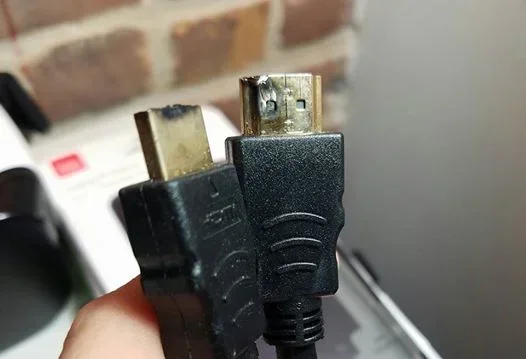
The Sync Box connects through HDMI cables. It also uses HDMI-CEC technology to turn your lights on and off automatically when your TV turns on and off. That is a really nice feature. But here is the thing. That hardware costs around $199. And for many people, that feels like a lot of money just for light effects.
Key Features of the Hue Sync Box
- Real-time screen analysis: It scans your display up to 60 times per second.
- HDMI-CEC control: Lights turn on and off with your TV automatically.
- Game-specific modes: Optimized settings for gaming with lower latency.
- Multiple device support: Connects to TV, PC, console, and Blu-ray player.
- Dedicated processing: Uses its own hardware to handle color matching.
Can You Use Philips Hue Without the Sync Box?
The short answer is yes. You can absolutely use Philips Hue without the Sync Box. The Hue Sync app is a free software solution that does many of the same things. It runs on your PC, Mac, or even your mobile device. It analyzes your screen content and sends color commands to your Hue lights through your Hue Bridge.
Now, the experience is not 100% the same as using the dedicated box. But for most people, the difference is small. The app version is more than good enough for everyday use. And the fact that it costs nothing extra is a huge win.
To use Philips Hue without the Sync Box, you need three things. First, a Philips Hue Bridge. This is the central hub that connects all your Hue devices to your home Wi-Fi network. Second, compatible Philips Hue lights. These can be bulbs, light strips, or Play bars. Third, the Hue Sync app, which you download for free.
Once you have those three pieces in place, you are ready to go. The app will detect your lights and start creating color-matching effects based on whatever is on your screen. It is really that simple.
Supported Devices for the Hue Sync App
- Windows PC: Works great with desktop monitors and laptops.
- Mac: Compatible with most Apple displays and MacBooks.
- iOS devices: iPhones and iPads support the app.
- Android devices: Some Android phones and tablets work with the app.
Note: The app does not work directly with your TV. It works with your computer or mobile device. So if you want to sync lights with your TV content, you need a workaround. More on that in a moment.
How to Set Up Philips Hue Without the Sync Box
Setting up Philips Hue without the Sync Box is straightforward. Let me walk you through the process step by step. You should be up and running in about 15 to 20 minutes.
Step 1: Make Sure You Have a Hue Bridge
The Hue Bridge is essential. Without it, your Hue lights cannot connect to the app or your home network. If you already have Hue lights, there is a good chance you already have the bridge. Check if you have a small white box connected to your router via Ethernet cable. That is your Hue Bridge.
If you do not have one yet, you will need to buy the Philips Hue Bridge. It usually costs around $60. It is a one-time purchase and it works with all Hue products.
Step 2: Install Compatible Hue Lights
Next, set up your Philips Hue lights in the room where you want the ambient effect. For the best results behind a TV or monitor, I recommend using:
- Hue Light Strips: These are flexible and easy to mount behind your screen.
- Hue Play Light Bars: Designed specifically for behind-TV placement.
- Hue Bulbs: Great for lighting up the walls or ceiling around your setup.
- Hue Gradient Lightstrip: Offers smooth color transitions and a premium look.
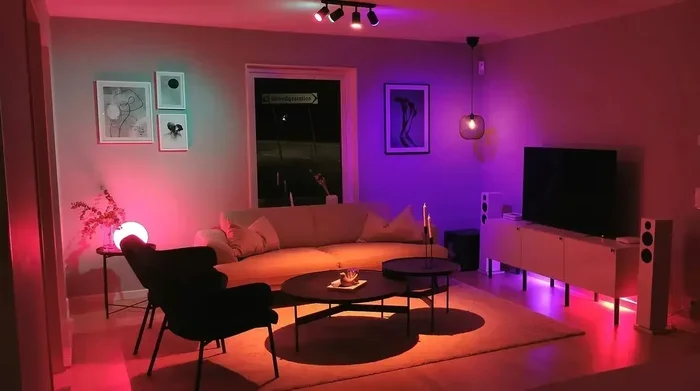
Place your lights behind the TV or monitor so they wash the wall with color. This creates the most immersive ambient lighting effect.
Step 3: Download and Open the Hue Sync App
Go to the Hue Sync app download page for your device. The app is free. Install it and open it. The app should automatically detect your Hue Bridge and the lights connected to it.
If it does not detect your bridge, make sure both devices are on the same Wi-Fi network. Also check that the bridge is powered on and connected to the internet.
Step 4: Adjust Your Settings
Once the app finds your lights, you can start customizing. Here are some settings to play with:
- Brightness: Adjust how bright the lights get during sync mode.
- Saturation: Control how vivid the colors appear.
- Transition speed: Decide how fast the lights change with the on-screen action.
- Mode: Choose between Movie, Game, or Music mode depending on your activity.
Step 5: Start Your Content and Enjoy
Now open a movie, a game, or any video content on your device. The Hue Sync app will analyze the screen in real time and adjust your lights accordingly. You will see colors on your walls that match what is happening on your screen. It is a really satisfying experience.
Quick Tip
For the best effect, dim your room lights first. When the room is darker, the Philips Hue ambient lighting really pops and creates a much more immersive atmosphere.
What You Lose When You Skip the Sync Box
Let us be honest. There are some real differences between using the Hue Sync app and using the Philips Hue Sync Box. If you know what you are giving up, you can make an informed decision.
No Automatic TV On/Off Control
Without the Sync Box, you lose HDMI-CEC control. This means your lights will not automatically turn on when you power on your TV. And they will not turn off when you shut down your TV. You will need to control the lights manually through the app or set up routines.
Higher Latency with TV Content
The app works directly with your computer or phone screen. So if you want to sync lights with your TV, you need to mirror or cast your TV screen to your device. This adds a small delay. The Sync Box connects directly to the TV through HDMI, so there is virtually no lag.
No Dedicated Gaming Mode
The Sync Box has a special gaming mode with ultra-low latency. It is optimized for fast-paced games where timing matters. The app does not offer this level of precision. For casual gaming, the app is fine. But for competitive gaming, the difference might be noticeable.
Limited Device Input Options
The Sync Box can accept input from multiple HDMI sources. You can switch between your TV, console, PC, and Blu-ray player without unplugging cables. The app only works with one device at a time. You need to switch sources manually.
No 4K HDR Passthrough
The Sync Box handles 4K HDR content while passing the video signal through to your display. The app does not interfere with video signals at all since it works on the device side. But if you want a clean, hardware-based solution for 4K HDR setups, the box is the way to go.
When Should You Skip the Sync Box?
Not everyone needs the Philips Hue Sync Box. Here are some situations where skipping it makes total sense.
You Are on a Budget
The Sync Box costs $199. That is a significant investment. If you are just getting into smart ambient lighting, saving that money and using the free app is a smart move. You can always upgrade later.
You Mostly Watch Content on Your Computer
If you stream movies and shows on your laptop or desktop, the Hue Sync app works perfectly. You get the full experience without any extra hardware.
You Are a Casual User
If you just want some cool color effects in your room while watching videos or playing casual games, the app delivers. You do not need the precision and speed of the dedicated box.
You Already Have a Hue Setup
If you already own Philips Hue lights and a Hue Bridge, adding the Sync Box might feel redundant. The app gives you a lot of value with what you already have.
Comparison: Hue Sync App vs. Hue Sync Box
Here is a side-by-side look at how the two options compare. This table should help you decide which approach fits your needs best.
| Feature | Hue Sync App | Hue Sync Box |
|---|---|---|
| Price | Free | $199 |
| Requires extra hardware | No | Yes |
| Works with TV directly | No (needs workaround) | Yes |
| HDMI-CEC support | No | Yes |
| Gaming mode | No | Yes |
| Latency | Slightly higher | Ultra-low |
| Multiple HDMI inputs | No | Yes |
| 4K HDR passthrough | N/A | Yes |
| Ease of setup | Very easy | Moderate |
| Works with PC/Mac | Yes | Yes |
As you can see, the Hue Sync app covers the basics really well. The Sync Box adds premium features that matter most to hardcore enthusiasts. For the average user, the app is more than enough.
Expert Tips for the Best Experience Without the Sync Box
Want to get the most out of Philips Hue without the Sync Box? Here are some expert tips that make a big difference.
Use Hue Play Bars Behind Your TV
Hue Play light bars are designed to sit right behind your TV. They cast a soft glow on the wall behind your screen. This creates a much more dramatic effect than bulbs placed around the room. The Play bars work perfectly with the Hue Sync app.
Place Lights Strategically
Do not just scatter lights randomly. Place them so they wash the wall evenly behind your TV. You can mount Hue light strips along the back edge of your TV or on the wall directly behind it. The goal is to create a smooth color gradient that fills the space.
Use the Music Mode for Parties
The Hue Sync app has a music mode that reacts to audio from your device. This is perfect for parties or gatherings. Connect your speakers, play some music, and watch your Philips Hue lights dance to the beat. It is a fun feature that does not require the Sync Box at all.
Create Routines for Automation
Use the Philips Hue app to create routines. You can set your lights to turn on at sunset, dim before bedtime, or switch to a specific color when you start a movie. These routines work independently of the Sync Box and add a lot of convenience to your smart home setup.
Keep Your Bridge Firmware Updated
Regular updates to your Hue Bridge firmware improve performance and add new features. Check for updates in the Hue app from time to time. A well-maintained bridge ensures smooth communication between your lights and the Sync app.
Common Mistakes to Avoid
- Placing lights too far from the screen: This reduces the visual impact. Keep them as close to the display as possible.
- Using too many colors at once: Stick to a cohesive color palette. Too many competing colors look chaotic.
- Forgetting to dim room lights: Ambient lighting works best in a dim or dark room.
- Ignoring the app settings: Spend a few minutes tweaking brightness and saturation. Default settings may not work best for your room.
Is the Hue Sync Box Worth It?
After all of this, you might be asking yourself whether the Philips Hue Sync Box is worth buying. The honest answer depends on your situation.
If you are a hardcore gamer who plays competitive titles and wants the lowest possible latency, the Sync Box is a great investment. If you have a dedicated home theater setup with a big TV and you want automatic on/off control, the box adds real convenience.
But if you are a casual user, a budget-conscious shopper, or someone who mostly watches content on a computer, the Hue Sync app is all you need. It is free, it works well, and it does not require any extra hardware.
Many people start with the app and then decide to upgrade to the Sync Box later. That is a perfectly valid approach. There is no rush. Philips Hue is flexible enough to grow with your needs.
Final Thoughts
Using Philips Hue without the Sync Box is absolutely possible and highly rewarding. The free Hue Sync app gives you powerful ambient lighting that reacts to your screen in real time. You get vibrant colors, smooth transitions, and a truly immersive experience without spending an extra $199.
Yes, you will miss out on some premium features like HDMI-CEC control and ultra-low latency gaming mode. But for most people, those features are nice-to-haves, not necessities. The app-based approach delivers 90% of the experience at zero extra cost.
So go ahead. Set up your Philips Hue lights behind your TV or monitor. Download the Hue Sync app. And enjoy a room that comes alive with color every time you watch a movie, play a game, or listen to music. Philips Hue without the Sync Box is not a compromise. It is a smart, affordable choice that still delivers amazing results.
Start small. Add a couple of light strips or a Play bar. Experiment with the settings. And build your setup over time. The beauty of the Philips Hue ecosystem is that it grows with you. You can always add the Sync Box later if you decide you need it. But chances are, you will be perfectly happy without it.
FAQs
Do I need the Hue Sync Box to use Philips Hue with my TV?
No, you do not need the Sync Box to use Philips Hue with your TV. You can use the Hue Sync app on your computer or mobile device and mirror your TV screen to it. The app will sync your Hue lights with the on-screen content. It is not as seamless as the Sync Box, but it works well for most users.
Is the Hue Sync app really free?
Yes, the Hue Sync app is completely free to download and use. There are no hidden fees or subscription costs. You just need a Hue Bridge and compatible Philips Hue lights. The app works with both the free version and the premium version, which offers additional features.
Can I use Philips Hue lights without a Hue Bridge?
Some Philips Hue lights can work with Bluetooth without a bridge, but the Hue Sync app requires the Hue Bridge. The bridge is necessary for the app to communicate with your lights and create the ambient lighting effects you want. So yes, you need a bridge for the app-based setup.
Does the Hue Sync app work with all Philips Hue products?
The Hue Sync app works with most Philips Hue products including bulbs, light strips, and Play bars. However, it does not work with every single Hue product. Make sure your lights are compatible with the Hue Sync app before purchasing. Check the Philips Hue website for the full list of supported devices.
Can I use the Hue Sync app with a gaming console?
The Hue Sync app does not work directly with gaming consoles like PlayStation or Xbox. You would need to connect your console to a PC or use a workaround. The Sync Box is the better option for console gaming because it connects directly via HDMI and has a dedicated gaming mode with low latency.
What is the difference between the Hue Sync app and the Sync Box?
The main difference is that the Hue Sync app is free software that runs on your computer or phone, while the Sync Box is a dedicated hardware device that connects between your TV and display. The app is more affordable and easier to set up. The box offers lower latency, HDMI-CEC control, and direct TV integration. Both create great ambient lighting effects.
Frequently Asked Questions
What is Can You Use Philips Hue Without Sync Box?
Can You Use Philips Hue Without Sync Box is an important topic with many practical applications.