Can You Use Mini Hdmi To Hdmi For All Your Devices
The short answer is yes — you can use a Mini HDMI to HDMI cable or adapter to connect smaller devices to larger screens. Mini HDMI is a compact version of the standard HDMI port found on many cameras, tablets, and portable media players. This guide covers everything you need to know, from compatibility to setup, so you can stream HD video and audio without any hassle.
Have you ever wanted to show off photos or videos from your camera on a bigger screen? Maybe you have a tablet that only has a Mini HDMI port, and you are not sure how to hook it up to your TV. The good news is that using Mini HDMI to HDMI is simpler than most people think. You do not need expensive equipment or technical skills. A basic adapter or cable does the job in seconds.
In this guide, we will walk you through everything you need to know about Mini HDMI to HDMI connections. We will cover what Mini HDMI is, which devices use it, and how to set it up the right way. By the end, you will feel confident connecting any device to any display. Let us get started.
Key Takeaways
- Mini HDMI to HDMI works on most devices: Cameras, tablets, and portable media players all benefit from this simple connection.
- The adapter is plug-and-play: No drivers or software installation needed for most setups.
- Video and audio transfer in one cable: Mini HDMI carries both signals simultaneously to your TV or monitor.
- Check compatibility first: Not every device uses Mini HDMI, so verify your port type before buying.
- Quality matters: A good-quality adapter ensures you get the full HD resolution your device supports.
- Common issues are easy to fix: Most problems with Mini HDMI connections are simple to resolve at home.
📑 Table of Contents
What Is Mini HDMI and Why Does It Matter
Mini HDMI is a smaller version of the standard HDMI connector. It carries the same high-definition video and audio signals but in a compact form. This makes it perfect for portable devices where space is limited. You will often find Mini HDMI on digital cameras, camcorders, and some tablets.
The standard HDMI connector is the big, flat one you see on TVs and monitors. Mini HDMI is about half the size. Despite the size difference, both connectors deliver the same quality signal. That means you get crystal-clear HD video and surround sound without any loss in quality.
How Mini HDMI Differs from Micro HDMI
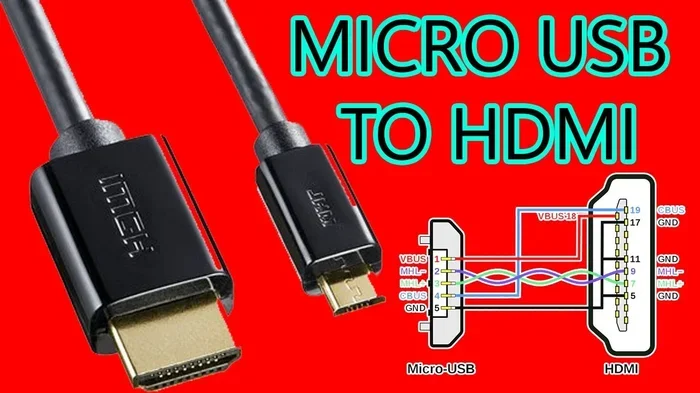
Do not confuse Mini HDMI with Micro HDMI. They look similar but serve different devices. Micro HDMI is even smaller and is used on some smartphones and action cameras. Mini HDMI is slightly larger and fits devices like DSLRs and portable media players. Always check which port your device has before buying an adapter.
The Role of HDMI in Modern Connectivity
HDMI has become the standard for audio and video connections. It replaced older cables like VGA and composite cables. With HDMI, you get one cable that handles both picture and sound. This simplifies setup and reduces cable clutter. Mini HDMI carries the same benefit in a smaller package.
Devices That Use Mini HDMI Ports
Many devices rely on Mini HDMI for output. Knowing which ones use it helps you decide if you need an adapter. Here are the most common devices that feature a Mini HDMI port:
- Digital cameras and DSLRs: Many Canon and Nikon cameras include a Mini HDMI output for viewing photos and videos on a TV.
- Portable media players: Some MP4 players and handheld gaming devices use Mini HDMI for big-screen viewing.
- Tablets: Certain Android tablets and older iPad models include a Mini HDMI port for external display output.
- Camcorders: Most consumer camcorders from the last decade use Mini HDMI for recording playback.
- Drones: Several drone models use Mini HDMI for live video feed to a monitor or goggles.
If you own any of these devices, a Mini HDMI to HDMI adapter opens up a world of possibilities. You can share your content on a larger screen with friends and family. It is also great for presentations or watching movies on your TV.
Some people also use Mini HDMI when setting up gadgets to make life easier at home. Whether it is a portable projector or a secondary monitor, the Mini HDMI connection keeps things simple and wireless-free. You can read more about helpful tech gadgets in our 10 Gadgets to Make Mom’s Life Easier guide.
How Mini HDMI to HDMI Connections Work
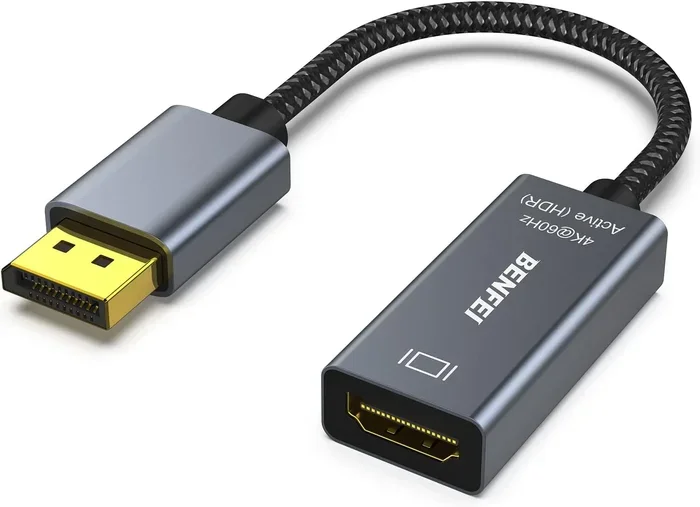
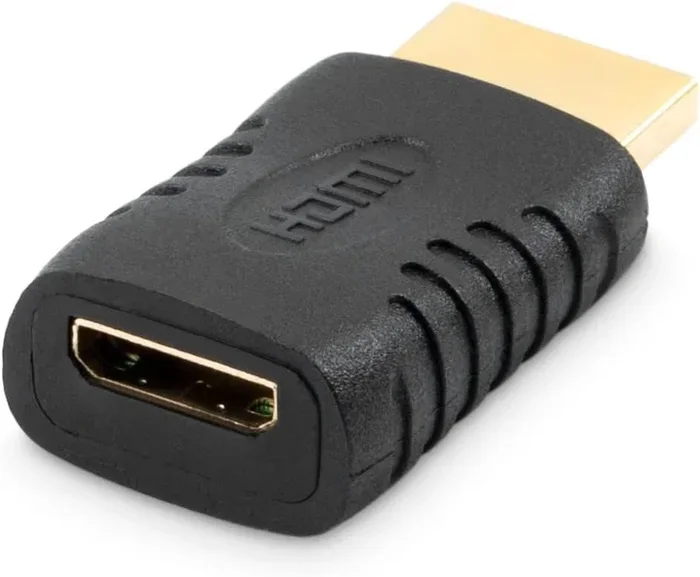
Setting up a Mini HDMI to HDMI connection is straightforward. You need either a Mini HDMI cable or a Mini HDMI to standard HDMI adapter. Both options work equally well. The adapter converts the smaller Mini HDMI plug into a standard HDMI plug that fits into your TV or monitor.
Step-by-Step Setup Guide
- Identify your device’s port: Check if your device has a Mini HDMI output or a standard HDMI output.
- Choose your cable or adapter: If your device has Mini HDMI, get a Mini HDMI to HDMI adapter or a cable with Mini HDMI on one end.
- Connect the Mini HDMI end: Plug the Mini HDMI connector firmly into your device.
- Connect the standard HDMI end: Plug the standard HDMI end into your TV, monitor, or projector.
- Switch the input source: On your TV or monitor, select the correct HDMI input channel.
- Enjoy your content: Your screen should now display on the larger display.
Does the Connection Carry Audio Too
Yes! One of the best things about HDMI is that it carries both video and audio through a single cable. With Mini HDMI to HDMI, you get the same benefit. You do not need a separate audio cable. The sound comes through the HDMI connection automatically. This makes setup even more convenient.
Some users also wonder about connectivity in other areas of their smart home setup. For example, if you are setting up a ring doorbell or security system, you might need to check whether all your rings are connected to WiFi. You can read more in our Are All Rings Connected to WiFi article for helpful tips on smart home connectivity.
Mini HDMI vs Standard HDMI: Key Differences
While Mini HDMI and standard HDMI share the same technology, there are a few differences worth knowing. Understanding these helps you choose the right cable or adapter for your needs.
| Feature | Mini HDMI | Standard HDMI |
|---|---|---|
| Connector Size | Smaller, compact | Larger, standard size |
| Signal Quality | Same HD quality | Same HD quality |
| Devices Used On | Cameras, tablets, camcorders | TVs, monitors, laptops |
| Cable Length Options | Shorter cables common | Available in longer lengths |
| Price | Slightly more for adapters | Widely available and affordable |
| Audio Support | Yes, multi-channel | Yes, multi-channel |
The table above shows that the signal quality is identical between the two. The only real difference is the physical size of the connector. This means you do not sacrifice any performance when using Mini HDMI to HDMI adapters. You get the same high-definition experience.
Common Misconceptions About Mini HDMI
Many people think Mini HDMI means lower quality. This is not true. The signal is exactly the same. Another misconception is that you need special equipment. In reality, any standard HDMI port works with a Mini HDMI adapter. You do not need a special TV or monitor.
Common Problems and How to Fix Them
Even though Mini HDMI to HDMI connections are simple, sometimes issues pop up. Here are the most common problems and their solutions.
No Signal on the TV or Monitor
This is the most common issue. First, check that both ends of the cable are firmly plugged in. Sometimes the connection feels secure but is slightly loose. Unplug and replug both sides. Also, make sure you have selected the correct HDMI input on your TV.
Poor Video Quality or Flickering
If your video looks blurry or flickers, the adapter or cable may be low quality. Cheap adapters can cause signal loss. Invest in a well-reviewed adapter from a reputable brand. Also, check that your source device supports the resolution you are trying to display.
No Audio Through HDMI
Sometimes video works but audio does not. Go into your device settings and check the audio output. Make sure it is set to HDMI rather than the device speaker. This is a simple fix that many people overlook.
Adapter Does Not Fit Properly
If the Mini HDMI plug does not fit snugly, the adapter may be damaged or the wrong type. Make sure you have a Mini HDMI adapter and not a Micro HDMI adapter. The two look similar but have different sizes.
When dealing with mobile device connections, you might also encounter issues with phone settings. For instance, if you are trying to add custom phone number formatting, our guide on Adding Prefixes to Numbers on iPhone can help you manage your device settings more effectively.
Quick Tips for the Best Mini HDMI Experience
Follow these simple tips to get the most out of your Mini HDMI to HDMI setup:
- Buy a quality adapter: A well-built adapter ensures a stable connection and the best signal quality.
- Keep cables short: Shorter cables reduce signal loss and provide a cleaner picture.
- Check your device settings: Always verify your output resolution matches your display’s capabilities.
- Use an adapter with gold-plated connectors: Gold plating prevents corrosion and improves signal transfer.
- Store adapters safely: Mini HDMI connectors are small and easy to lose. Keep them in a dedicated pouch.
- Test before you need it: Always test your setup before an important presentation or movie night.
These tips apply whether you are using a Mini HDMI cable or an adapter. Small preparations make a big difference in your viewing experience.
Expert Insights on HDMI Connectivity
Technology experts agree that HDMI remains the best all-in-one connection for most devices. The transition from Mini HDMI to newer standards like USB-C DisplayPort has been gradual. Many manufacturers still include Mini HDMI on professional-grade cameras and portable devices because of its reliability.
According to industry standards, Mini HDMI supports resolutions up to 1080p and even higher on some devices. This makes it perfectly suitable for HDTVs and monitors. As long as your source device outputs a compatible signal, you will enjoy a sharp and clear picture on any HDMI display.
Experts also recommend checking the HDMI version on both your device and your display. HDMI 1.4 and HDMI 2.0 both support Mini HDMI connections. The version affects features like 4K support and refresh rates. For most everyday uses, HDMI 1.4 is more than sufficient.
Final Thoughts
Using Mini HDMI to HDMI is one of the easiest ways to share your device’s screen on a bigger display. Whether you are a photographer showing off your latest shots, a traveler watching movies on a tablet, or a professional giving a presentation, this connection method works beautifully. The setup takes seconds, and the quality is excellent.
Remember to check your device’s port type before buying an adapter. Choose a quality adapter or cable for the best results. And do not let small issues like signal loss or audio problems discourage you. Most fixes are simple and take just a few minutes.
Mini HDMI to HDMI connections are here to stay. They offer a reliable, high-quality way to bridge the gap between portable devices and big screens. With the right adapter and a little know-how, you can enjoy HD video and audio on any display you choose. Start exploring your options today and make the most of every device you own.
Frequently Asked Questions
Can I use a Mini HDMI to HDMI adapter with any TV?
Yes, as long as your TV has a standard HDMI input port. Most TVs made in the last 15 years include HDMI ports. The adapter simply converts the smaller Mini HDMI plug to fit the standard HDMI port on your TV. It works with all HDMI-compatible displays.
Do I need to install any software to use Mini HDMI to HDMI?
No, Mini HDMI to HDMI connections are plug-and-play. There is no software or driver installation required. Simply connect the adapter and your device should automatically detect the external display. This makes it incredibly easy for anyone to set up.
Can I use Mini HDMI for 4K video output?
Most Mini HDMI connections support up to 1080p resolution. Some newer devices with Mini HDMI ports can output 4K, but this depends on the device itself. Check your device’s specifications to confirm its maximum supported resolution before expecting 4K output.
Is Mini HDMI the same as Micro HDMI?
No, they are different connectors. Mini HDMI is larger than Micro HDMI. Mini HDMI is commonly used on cameras and tablets, while Micro HDMI is found on some smartphones and action cameras. Always verify which port your device has before purchasing an adapter.
Can I connect a Mini HDMI device to a computer monitor?
Yes, you can connect any device with a Mini HDMI output to a computer monitor that has an HDMI input. The connection works exactly the same as connecting to a TV. You will get both video and audio through the single HDMI cable.
What should I do if my Mini HDMI connection keeps disconnecting?
First, check that the adapter is firmly plugged into both the device and the display. Loose connections are the most common cause of intermittent disconnects. If the problem persists, try a different adapter or cable. A faulty adapter is often the culprit behind unstable connections.
=== CONCLUSION ===
Using Mini HDMI to HDMI is simple, reliable, and widely compatible. Whether you are connecting a camera, tablet, or camcorder to your TV or monitor, this setup delivers excellent HD quality with no hassle. The adapter is affordable, the setup is fast, and the results are impressive.
Keep the quick tips and troubleshooting steps from this guide handy. They will save you time and frustration whenever you set up a new connection. With the right Mini HDMI to HDMI adapter, every device in your collection can shine on a bigger screen.