Can You Use Any Usb C Charger On A Macbook Properly
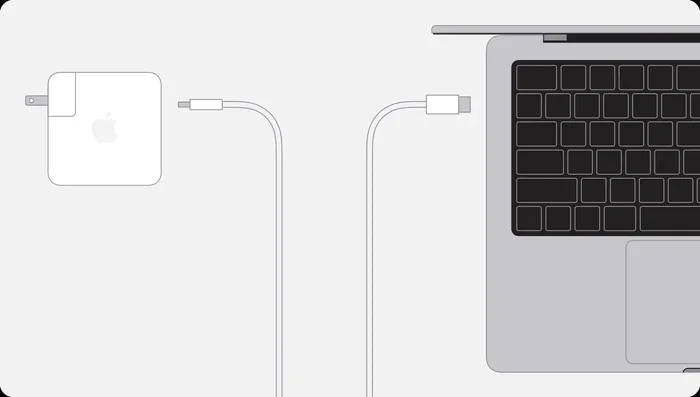
Yes, you can use any USB-C charger on a MacBook, but not all chargers will work the same way. The right charger depends on wattage, USB Power Delivery support, and cable quality. Using the wrong charger can lead to slow charging, battery damage, or safety risks. This guide covers everything you need to charge your MacBook safely and effectively.
You plug in your MacBook and the charging light does not come on. Or it charges so slowly that you wonder if something is wrong. If you have ever asked yourself, “Can you use any USB-C charger on a MacBook properly,” you are in the right place. The answer is yes, but there are important details you need to understand before you grab any charger off the shelf.
USB-C has become the standard connector for MacBooks, but not every USB-C charger is created equal. Can You Use Any Usb C Charger On A Macbook properly depends on wattage, power delivery protocols, cable quality, and your specific MacBook model. In this guide, we break down everything you need to know. By the end, you will feel confident choosing the right charger and avoiding common mistakes that could harm your device.
Key Takeaways
- USB-C is universal but not equal: Any USB-C charger can physically connect to a MacBook, but wattage and power delivery determine if it charges properly.
- Wattage is critical: MacBook Air models need 30W to 67W, while MacBook Pro 14-inch and 16-inch models need at least 96W for fast charging.
- USB Power Delivery matters: Always choose a USB-C Power Delivery certified charger to ensure safe and efficient charging.
- Cable quality affects performance: A cheap or low-rated USB-C cable can limit charging speed even with a great charger.
- Certified chargers are safer: Avoid counterfeit or uncertified chargers that can overheat and damage your MacBook battery.
- Higher wattage is safe: Your MacBook only draws the power it needs, so a 96W charger on a 30W MacBook Air will not cause damage.
📑 Table of Contents
- Understanding USB-C and Why It Matters for MacBooks
- Can You Use Any USB C Charger on a MacBook
- How to Choose the Right USB-C Charger for Your MacBook
- Common Mistakes People Make with USB-C Charging
- USB-C Charging and Your MacBook’s Battery Health
- USB-C Standards and Connectivity: What You Should Know
- Final Thoughts
Understanding USB-C and Why It Matters for MacBooks
USB-C is a small, reversible connector that has replaced older USB-A and even Apple’s MagSafe charger on newer MacBooks. Since 2016, every MacBook model has used USB-C for charging and data transfer. But the USB-C connector is just the physical plug. What matters most is what happens inside the charger and cable.
USB-C supports a standard called USB Power Delivery, which allows devices to negotiate the right amount of power. This means your MacBook and charger “talk” to each other when you plug them in. They agree on the best power level for safe and efficient charging. Not all USB-C chargers support this negotiation, which is why some work and others do not.
What Makes USB-C Different from Older Connectors
USB-C is reversible, meaning you can plug it in either way. This is a huge improvement over older USB-A ports that only work one way. USB-C also supports much higher power delivery, which is essential for charging laptops like MacBooks.
Here are the key features that make USB-C stand out:
- Reversible connector: No more flipping the cable to get it right.
- Higher power delivery: USB-C can deliver up to 240 watts with the latest USB Power Delivery 3.1 standard.
- Fast data transfer: USB-C supports speeds up to 40 Gbps with Thunderbolt 4.
- Video output: You can connect external displays directly through USB-C.
- Universal compatibility: The same connector works for phones, tablets, and laptops.
Because of these features, USB-C has become the backbone of Apple’s laptop charging system. But this also means you need a charger that supports the right USB-C power delivery standard for your specific MacBook model.
Can You Use Any USB C Charger on a MacBook
The question “Can You Use Any Usb C Charger On A Macbook” comes up constantly. The short answer is yes, any USB-C charger can physically connect to a MacBook. But the longer answer is that functional compatibility depends on several important factors. Let us break this down clearly.
Physical Compatibility vs. Functional Compatibility
Physical compatibility means the charger fits into your MacBook’s USB-C port. All USB-C chargers are physically compatible with MacBooks. The connector shape is universal. But functional compatibility is different. It means the charger can deliver enough power to charge your MacBook at a normal or fast speed.
Think of it like a water hose connected to a faucet. Any hose can attach to the faucet, but a thin garden hose will not fill a swimming pool quickly. Similarly, any USB-C charger can connect to a MacBook, but a low-wattage charger will charge it very slowly or not at all under heavy use.
For example, if you use a 5-watt USB-C charger designed for phones, your MacBook may not charge at all when you are browsing or working. A 96-watt USB-C charger, on the other hand, will charge your MacBook Pro quickly and efficiently even while you run demanding applications.
The Role of USB Power Delivery
USB Power Delivery, commonly known as USB-PD, is the protocol that allows USB-C chargers to deliver the right amount of power. When you plug a USB-PD charger into your MacBook, the two devices communicate and agree on the best charging speed. This negotiation happens in seconds and is completely automatic.
Not all USB-C chargers support USB-PD. Cheap or uncertified chargers might skip this feature to save costs. This is why it is crucial to look for chargers that are USB-C Power Delivery certified. These chargers have been tested to deliver safe, consistent power without damaging your device.
If you want your MacBook to charge properly and safely, always choose a charger that supports USB-PD with the correct wattage for your model. This single step can save you from slow charging, battery degradation, and even hardware damage.
MagSafe vs. USB-C: What Changed
Apple used to use its MagSafe charger for MacBooks. The MagSafe connector was magnetic, which made it easy to plug in and prevented accidental pulls. Apple transitioned to USB-C starting with the 2016 MacBook lineup. The new USB-C design is more versatile but lacks the magnetic safety of MagSafe.
Today, you can still buy MagSafe-compatible accessories through USB-C adapters. But the native charging solution for all modern MacBooks is USB-C. This shift has made charging more universal, since you can now use the same charger for your MacBook, iPhone, and iPad if they all support USB-C.
How to Choose the Right USB-C Charger for Your MacBook
Choosing the right charger does not have to be complicated. You just need to know your MacBook model and the wattage it requires. Here is a straightforward guide to help you decide.
Check Your MacBook Model
Different MacBook models need different wattage levels to charge properly. Using the wrong wattage can result in slow charging or no charging at all when the laptop is under load. Here is a simple breakdown:
- MacBook Air (M1, M2, M3): Works well with a 30W to 67W USB-C charger.
- MacBook Pro 13-inch: A 61W to 67W charger is ideal for full-speed charging.
- MacBook Pro 14-inch: You need at least a 96W charger for optimal performance.
- MacBook Pro 16-inch: A 96W to 140W charger ensures fast charging even under heavy workloads.
Using a charger with lower wattage than recommended will still charge your MacBook, but it will be much slower. This is especially noticeable when you are using your MacBook while it charges. The battery may not gain any charge at all if your workload exceeds the charger’s output.
Wattage: Why It Matters So Much
Wattage is the measure of power output from a charger. Higher wattage means faster charging. If you use a charger with too low wattage, your MacBook may not charge at all while you are running demanding apps like video editors or games.
Here is what happens at different wattage levels:
- Under 30W: Very slow charging or no charging when the MacBook is under load.
- 30W to 67W: Adequate for MacBook Air and lighter tasks like browsing and writing.
- 67W to 96W: Good for most MacBook Pro models under normal use.
- 96W and above: Fastest charging for all MacBook models, including Pro series.
If you want to charge your MacBook quickly, always match or exceed the recommended wattage for your specific model. This is the single most important factor in getting your USB-C charger to work properly.
Cable Quality Matters Too
Many people forget about the cable and focus only on the charger. A cheap USB-C cable can limit your charging speed even if you have an excellent charger. The cable is the bridge between the charger and your MacBook, and it must be able to handle the power flowing through it.
Look for cables that are rated for high power delivery and carry USB-IF certification. A good USB-C cable should support at least 60W of power. For MacBook Pro models, look for cables rated for 100W or more. The length of the cable matters less than its build quality, so do not assume a longer cable is worse.
Common Mistakes People Make with USB-C Charging
There are several common mistakes that people make when charging their MacBooks with USB-C. Avoiding these can save you time, money, and protect your device from damage.
Using a Phone Charger for Your MacBook
This is the most common mistake we see. Phone chargers are usually 5W to 20W, which is far too low for a MacBook. While it might work in an emergency, it will not charge your MacBook properly during normal use. Your MacBook may even lose battery while you use it with a phone charger plugged in.
If you are traveling and only have a phone charger, it can still be useful in a pinch. Your MacBook will charge, but it will be very slow. You might notice the battery percentage dropping even while the charger is connected. Always carry the right charger for your MacBook when you can.
Ignoring Cable Quality
Cheap cables from unknown brands can be dangerous. They may not handle the power correctly and could damage your MacBook’s charging port over time. Some cheap cables have thin wires that overheat under heavy load. Always use cables from reputable brands or those that carry USB-IF certification.
Using Uncertified or Counterfeit Chargers
Counterfeit chargers are a real problem in the market. They may look like genuine Apple or trusted third-party chargers but do not meet safety standards. These fake chargers can overheat, deliver inconsistent power, or even cause permanent damage to your MacBook’s battery and charging circuit.
Always buy chargers from trusted sellers. Look for certifications like USB-IF, MFi (for Apple accessories), or UL listing on the charger packaging. Spending a little more on a certified charger is worth it for your safety and your MacBook’s longevity.
Not Checking USB-C Hub Power Delivery
Many people use USB-C hubs to expand their MacBook’s connectivity. While most hubs work fine, some cheap hubs may not pass through enough power to charge your MacBook while connected. If you notice your MacBook not charging when plugged into a hub, the hub might be limiting the power output.
Just like you would check the advantages and disadvantages of a computer mouse before buying one for your setup, you should verify that your USB-C hub supports the power delivery your MacBook needs. Check the hub’s specifications for wattage pass-through capability.
USB-C Charging and Your MacBook’s Battery Health
How you charge your MacBook affects its long-term battery health. Using the right USB-C charger plays a big role in maintaining your battery over time. Let us look at what you can do to keep your battery healthy.
How Fast Charging Affects Battery Life
Fast charging with a high-wattage USB-C charger is generally safe for your MacBook. Apple designs its batteries to handle fast charging without significant degradation. However, consistently charging your battery to 100% and draining it to 0% can reduce overall battery lifespan over months and years.
To keep your battery healthy for as long as possible, try to keep your charge between 20% and 80%. This simple habit can extend your battery life significantly. macOS also includes battery health features that can help you manage charging cycles more effectively.
The Importance of Certified Chargers for Battery Health
Certified chargers have built-in safety features that protect your battery. They regulate power delivery carefully and prevent overcharging, overheating, and voltage spikes. Using uncertified chargers bypasses these protections and can slowly damage your battery over time.
If you want your MacBook battery to last for years without needing a replacement, invest in a quality USB-C charger from a reputable brand. The small extra cost is worth the long-term protection it provides to your device.
Charging While Using Your MacBook
It is perfectly fine to use your MacBook while it charges. However, if you use a low-wattage charger, the battery might not charge or might even drain slowly. This happens because your MacBook uses power faster than the charger can supply it during demanding tasks.
For the best experience, use a charger that meets or exceeds your MacBook’s recommended wattage. This way, you can work and charge at the same time without any issues. Your battery will stay healthy, and you will avoid the frustration of a slowly draining laptop.
USB-C Standards and Connectivity: What You Should Know
Understanding USB-C standards can help you make smarter choices when buying chargers and cables. The USB-C connector is just one piece of the puzzle. The standards behind it determine what your charger can actually do.
USB Power Delivery (USB-PD) Explained
USB-PD is the standard that allows USB-C chargers to deliver the right amount of power to your device. It is a negotiation protocol. When you connect a USB-C charger to your MacBook, they communicate and agree on the best power level for safe charging. This happens automatically within seconds.
USB-PD has evolved over the years. USB-PD 3.0 supports up to 100W, while USB-PD 3.1 supports up to 240W. For most MacBooks, a charger with USB-PD 3.0 and at least 67W or 96W is more than sufficient. Always check for USB-PD support when shopping for a charger.
Thunderbolt and USB-C: Are They the Same?
Thunderbolt uses the USB-C connector but offers much faster data transfer speeds. Thunderbolt 3 supports 40 Gbps, and Thunderbolt 4 also supports 40 Gbps with additional features. Many USB-C chargers also support Thunderbolt, but not all Thunderbolt cables are suitable for charging your MacBook.
For charging purposes, any USB-C cable that supports USB-PD will work perfectly. Thunderbolt cables are fine too, but they are usually more expensive and not necessary for charging alone. Do not pay extra for Thunderbolt cables unless you specifically need the faster data speeds.
It is also worth noting that connectivity standards like Wi-Fi and Bluetooth are separate from USB-C charging. If you are curious about your Wi-Fi standard, you can check whether you are on Wi-Fi 5 or Wi-Fi 6. Just as having the right connectivity standard matters for your wireless experience, having the right USB-C charger matters for your MacBook’s charging performance.
Final Thoughts
So, can you use any USB-C charger on a MacBook properly? The answer is yes, but with important caveats. You need to match the right wattage, use a USB-PD compatible charger, and choose a quality cable. Skipping any of these steps can lead to slow charging, battery damage, or even safety risks.
The good news is that USB-C has made charging more universal and convenient. You no longer need to carry a proprietary charger everywhere. A single USB-C charger can power your MacBook, phone, and other devices. This is a huge improvement over the old days of carrying multiple chargers for different devices.
Just remember to check your MacBook model, choose the right wattage, and invest in certified accessories. If you are curious about how Apple has standardized connectors across its product line, you can also explore how adding prefixes to numbers on iPhone reflects the broader shift toward USB-C in Apple’s ecosystem.
Choosing the right charger is a small decision that makes a big difference. Take the time to get it right, and your MacBook will stay powered, healthy, and ready for anything you throw at it.
Frequently Asked Questions
Can I use a 65W USB-C charger on a MacBook Pro 16-inch?
A 65W charger will charge your MacBook Pro 16-inch, but it may be slow during heavy use. Apple recommends a 96W charger for the 16-inch model for the best experience. You can still use the 65W charger, but expect slower charging speeds when running demanding applications like video editing or gaming.
Is it safe to use a third-party USB-C charger for my MacBook?
Yes, it is safe as long as the charger is from a reputable brand and supports USB Power Delivery. Look for certifications like USB-IF or UL listing on the charger. Avoid cheap, uncertified chargers from unknown brands, as they may not meet safety standards and could potentially damage your MacBook’s battery or charging port.
Why does my MacBook not charge when connected to a USB-C hub?
This usually happens when the USB-C hub does not support enough power delivery to charge your MacBook. Some hubs are designed for data transfer only and cannot pass through sufficient wattage. Check the hub’s specifications to ensure it supports the required power output for your specific MacBook model.
Can I charge my MacBook with a USB-C power bank?
Yes, you can charge your MacBook with a USB-C power bank, but the power bank needs to support USB Power Delivery and have enough wattage. Look for power banks rated at 60W or higher. Keep in mind that charging a MacBook from a power bank will drain the power bank quickly, so it is best for emergency situations or travel.
Does using a higher wattage charger damage my MacBook?
No, it does not. Your MacBook only draws the power it needs. If you use a 96W charger with a MacBook Air that only needs 30W, the charger will simply deliver 30W. The extra capacity is available if needed but will not force extra power into your MacBook. This makes higher-wattage chargers safe and future-proof for any MacBook model you may own.
How can I tell if my USB-C charger supports Power Delivery?
Check the charger’s label or packaging for USB-PD or USB Power Delivery certification. You can also check the charger specifications on the manufacturer’s website. Most quality USB-C chargers for laptops clearly state their USB-PD support and wattage output, making it easy to verify before you buy.