Can You Use Any Usb C Cable For A Dock And Why It Matters
Not all USB C cables work the same way with a dock. Using the wrong cable can cause slow data transfer, no video output, or even charging failures. Choosing the right USB C cable for your dock ensures you get full speed, reliable power delivery, and seamless connectivity every single time.
You plug in your USB C cable to your dock, and… nothing happens. The screen stays black. Your peripherals don’t connect. Your laptop still shows a low battery. It is frustrating, right? Many people assume that any USB C cable will work with any dock. That assumption can cost you time, speed, and even damage your gear.
Can you use any USB C cable for a dock? The short answer is no. Not every cable delivers the same performance. Some cables only carry power. Others handle data and video too. The right cable makes a huge difference in how your dock works every day.
In this guide, we will break down everything you need to know. You will learn about cable types, speed standards, power delivery, and how to pick the perfect cable for your setup. By the end, you will never second-guess your cable choice again.
Key Takeaways
- Not every USB C cable is equal: Different cables support different speeds, power levels, and data protocols.
- Cable quality matters: A cheap or damaged cable can ruin your docking experience and limit performance.
- Thunderbolt 3 and 4 cables offer the best compatibility: They work with most modern docks and deliver faster speeds.
- Check your dock’s requirements first: Always match the cable specs to what your dock actually needs.
- Cable length affects performance: Longer cables may reduce data and charging speeds.
- Using the wrong cable can damage equipment: In rare cases, poor-quality cables can harm your devices.
📑 Table of Contents
- What Is a USB C Dock and Why Do People Use One
- Can You Use Any USB C Cable for a Dock
- Understanding USB C Cable Types and Specifications
- What Happens When You Use the Wrong USB C Cable
- How to Choose the Right USB C Cable for Your Dock
- Common Mistakes People Make with USB C Cables and Docks
- Expert Insights on USB C Cable and Dock Compatibility
- The Future of USB C Docks and Cables
- Conclusion
What Is a USB C Dock and Why Do People Use One
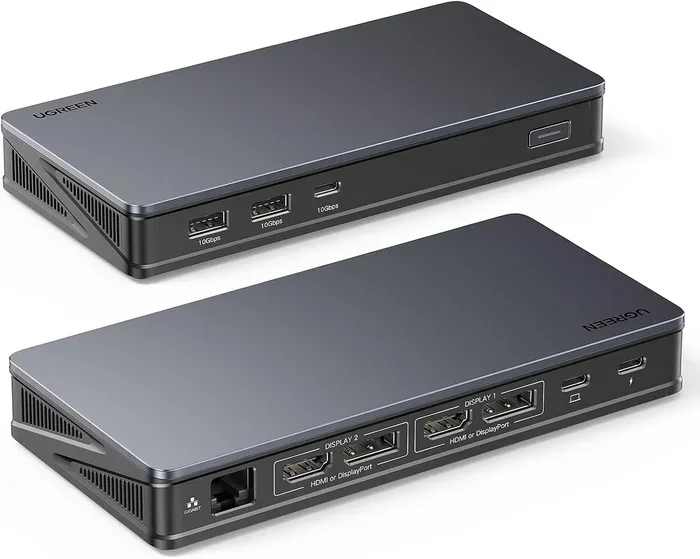
A USB C dock is a small hub that connects to your laptop or tablet through a single USB C port. It expands your device’s capabilities by adding extra ports. You get HDMI or DisplayPort outputs for monitors, USB A ports for older peripherals, Ethernet jacks for wired internet, and SD card slots for cameras.
People love docks because they simplify their workspace. Instead of plugging and unplugging five or six cables every day, you connect one cable and everything works. Your external monitor springs to life. Your keyboard and mouse connect. Your internet stays stable.
Docks are especially popular among remote workers and professionals who switch between a laptop and a desktop setup. They also help students who need multiple screens for research and study. The dock becomes the center of your productivity ecosystem.
But here is the thing most people overlook. The dock is only as good as the cable you use to connect it. A poor cable turns a powerful dock into a frustrating bottleneck.
Can You Use Any USB C Cable for a Dock
This is the big question. And the answer is more complicated than you might think. Can you use any USB C cable for a dock and expect great results? Probably not. Here is why.
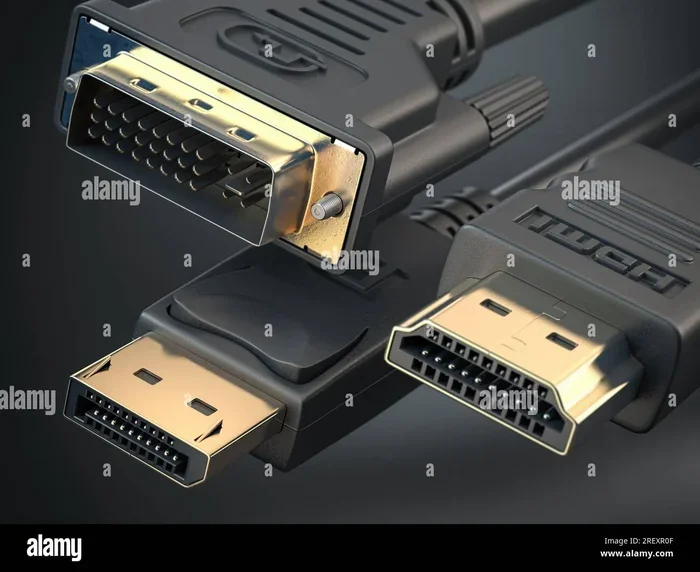
USB C is just a connector shape. It is not a standard. Think of it like a wall outlet. The shape is the same, but the power and features depend on what is behind the wall. A USB C cable might support USB 2.0, USB 3.0, USB 3.1, USB 3.2, or Thunderbolt 3 and 4. Each standard offers different speeds and capabilities.
Some USB C cables only carry electrical power. They are great for charging your phone. But they cannot transfer data or send video signals. If you plug one of these into a dock, your external monitor will stay dark and your files will not sync.
Other cables support data transfer but lack the bandwidth for video output. You might get your files to move, but you will not see anything on your big monitor. And some cables handle everything but only at lower speeds, which means lag and frustration during daily tasks.
The key takeaway is this. Not all USB C cables are created equal. You need to match the cable to what your dock requires. Let us look at what makes cables different.
Why Cable Quality Varies So Much
The USB C market exploded in popularity. Manufacturers rushed to produce cables at every price point. You can find a USB C cable for two dollars at a gas station. You can also find one for eighty dollars from a premium brand. The difference is huge.
Cheap cables often use thinner wires and lower-quality connectors. They may not support the full bandwidth needed for video or fast data transfer. They might also overheat during extended use. Premium cables use better materials, proper shielding, and certified chips that ensure reliable performance.
If you invest in a good docking station, do not cheap out on the cable. The cable is the bridge between your device and the dock. A weak link anywhere in that chain weakens everything.
Understanding USB C Cable Types and Specifications
To choose the right cable, you need to understand what the different specifications mean. Let us break this down in simple terms.
USB 2.0 Cables
USB 2.0 cables are the oldest and slowest. They transfer data at up to 480 megabits per second. That is fine for charging your phone or moving a small document. But it is painfully slow for large files or video output. A USB 2.0 cable will not support video signals through a dock in most cases.
USB 3.0 and USB 3.1 Cables
USB 3.0 cables offer speeds up to 5 gigabits per second. USB 3.1 Gen 2 doubles that to 10 gigabits per second. These cables handle data transfer well and can support video output depending on the dock. They are a solid middle-ground choice for most users.
USB 3.2 and Thunderbolt Cables
USB 3.2 cables push speeds even higher, reaching 20 gigabits per second. Thunderbolt 3 and Thunderbolt 4 cables go further, supporting up to 40 gigabits per second. These cables handle everything. Data, video, and power all at top speeds. If you want the best experience with your dock, a Thunderbolt cable is the way to go.
Power Delivery (PD) Ratings
USB C cables also carry power delivery ratings. Standard cables handle up to 60 watts. Some advanced cables support 100 watts or more. If your dock charges your laptop while connected, you need a cable rated for the wattage your laptop requires. Check your laptop’s charger specs and match the cable accordingly.
E-Marker Chips
Higher-quality USB C cables contain an E-Marker chip. This tiny chip tells your devices what the cable can handle. It communicates the cable’s speed rating, power capacity, and supported protocols. Cables without E-Marker chips are often limited to lower speeds and basic functionality.
What Happens When You Use the Wrong USB C Cable
Using the wrong cable with your dock leads to several problems. Let us walk through the most common issues people face.
No Video Output
This is the number one complaint. You plug your dock in, connect your monitor, and the screen stays blank. The cause is often a cable that does not support video output. USB 2.0 cables and power-only cables cannot carry display signals. You need a cable that supports USB 3.0 or higher, or a Thunderbolt cable for video through a dock.
Slow Data Transfer
Even if your dock connects, slow speeds make everything painful. Copying a 10-gigabyte file might take minutes on a fast cable but hours on a slow one. If your work involves large files, video editing, or regular backups, a slow cable is a serious problem.
Intermittent Connections
Cheap cables sometimes cause flickering monitors, dropped peripherals, or random disconnections. These issues are annoying and hard to troubleshoot. Often, replacing the cable solves the problem entirely.
Charging Issues
Some cables do not support the full power delivery your laptop needs. You might notice your battery drops even while the dock is connected. Or the charging speed is painfully slow. This happens when the cable’s wattage rating is too low for your device.
Potential Damage Risks
In rare cases, very poor-quality cables can overheat or cause electrical issues. While modern devices have built-in protections, consistently using substandard cables is not worth the risk. Protect your gear with certified cables from reputable brands.
How to Choose the Right USB C Cable for Your Dock
Choosing the right cable does not have to be confusing. Follow these simple steps and you will find the perfect match.
Step One: Check Your Dock’s Requirements
Read your dock’s manual or product page. Look for the recommended cable specifications. The manufacturer will usually list the minimum cable standard needed for full functionality. This includes the required USB standard, power delivery rating, and whether Thunderbolt support is needed.
Step Two: Match Your Device’s Capabilities
Check what your laptop or tablet supports. Does it have a Thunderbolt port? Does it support USB 3.2 or higher? Your cable can only perform as well as the weakest link in the chain. If your laptop only supports USB 3.1, buying a Thunderbolt 4 cable will not make it faster.
Step Three: Consider Your Use Case
Think about what you actually need from your dock. Do you just need extra USB ports for a mouse and keyboard? A basic USB 3.0 cable might be enough. Do you need dual 4K monitors and fast external storage? You will need a Thunderbolt or USB 3.2 cable with high bandwidth.
Step Four: Pick the Right Length
Cable length matters more than most people realize. Shorter cables generally perform better because there is less signal loss. A 0.5-meter or 1-meter cable is ideal for desk setups. If you need a longer cable, look for one that is specifically rated for high-speed performance at that length. Passive cables longer than 2 meters may lose speed.
Step Five: Buy Certified Cables
Look for cables that carry USB-IF certification or Thunderbolt certification. These labels mean the cable has been tested and meets official standards. Certified cables perform reliably and are less likely to cause problems. Brands like Anker, Belkin, CalDigit, and Cable Matters offer excellent certified options.
Quick Tips for Cable Selection
- Always check the cable’s data transfer speed rating before buying.
- Make sure the cable supports the wattage your laptop requires.
- Buy from reputable retailers to avoid counterfeit cables.
- If you use your dock for video, Thunderbolt or USB 3.2 cables are the safest bet.
- Keep a spare cable at your desk in case of accidental damage.
Common Mistakes People Make with USB C Cables and Docks
Even tech-savvy people make mistakes when it comes to cables and docks. Here are the most common ones to avoid.
Assuming All USB C Cables Are the Same
This is the biggest mistake. The USB C shape is universal, but the technology inside varies wildly. Treat every cable as its own product with specific capabilities.
Ignoring Power Delivery Ratings
People often focus only on data speeds and forget about power. A cable that handles data perfectly might still fail to charge your laptop at full speed. Always check both specs.
Using a Phone Charger Cable as a Dock Cable
Your phone charger cable is designed for charging only. It is not built for data transfer or video output. Using it with a dock will limit functionality significantly.
Buying the Longest Cable Available
A 3-meter cable looks convenient, but it may sacrifice speed and charging power. Shorter is almost always faster and more reliable for a desk setup.
Not Replacing Worn Cables
Cables wear out over time. Frayed ends, bent connectors, and internal damage reduce performance. If your cable looks worn or behaves inconsistently, replace it. A new cable is cheaper than troubleshooting a dock problem for hours.
Expert Insights on USB C Cable and Dock Compatibility
Technology experts consistently recommend Thunderbolt 3 or Thunderbolt 4 cables for dock setups. These cables offer the widest compatibility and the best future-proofing. They work with USB C docks, Thunderbolt docks, and most modern laptops.
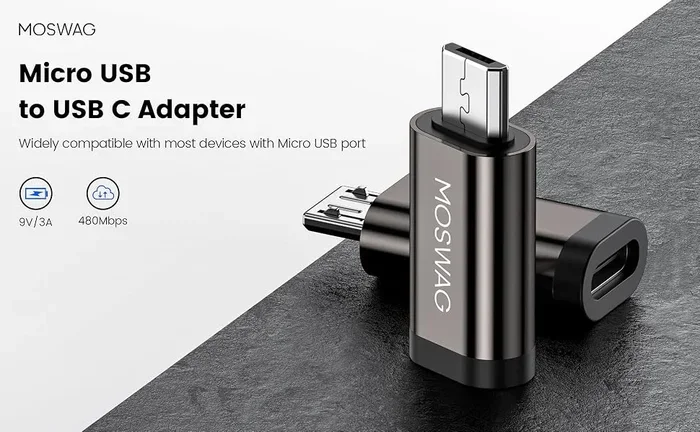
Another expert tip is to avoid cable adapters when possible. Adapters introduce extra connection points where signal loss can occur. A direct cable connection is always more reliable and faster than going through an adapter.
Professionals who work with external displays daily often keep multiple cables on hand. One cable for charging, one for video, and one for general data. This setup ensures they always have the right tool for the job and never experience downtime.
When setting up a productivity workspace, many experts also recommend reviewing all connected peripherals. For example, if you rely on a mouse connected through your dock, understanding its advantages and disadvantages can help you optimize your setup further. Similarly, if you work with spreadsheets or data, knowing how to handle common issues like a line that won’t delete in Microsoft Excel can save you from workflow interruptions. And for those who balance work with a busy lifestyle, exploring apps like Uber for finding dog walkers shows how technology can simplify everyday tasks too.
The bottom line is that your cable choice directly impacts your dock’s performance. Take a few minutes to research and invest in the right cable. It will pay off in reliability, speed, and peace of mind.
The Future of USB C Docks and Cables
The USB C ecosystem continues to evolve. New standards bring faster speeds, more power, and better compatibility every year. USB4, the latest protocol, builds on Thunderbolt 3 technology and offers up to 80 gigabits per second of bandwidth. As more devices adopt USB4, the need for high-quality cables will only grow.
Manufacturers are also working on smarter cables with built-in chips that automatically adjust to device requirements. These cables simplify the user experience by removing guesswork. You plug it in, and it negotiates the best possible connection.
For now, the best approach is to invest in certified, high-quality cables that meet current standards. Thunderbolt 3 and Thunderbolt 4 cables are excellent choices that will serve you well today and into the future. They offer broad compatibility across devices and docks from different manufacturers.
As more laptops, tablets, and monitors adopt USB C as the standard port, docks and cables will become even more central to how we work. Getting the right cable today means your setup will stay relevant for years to come.
Conclusion
Can you use any USB C cable for a dock? The honest answer is no, not if you want reliable performance. The right cable unlocks your dock’s full potential. It delivers fast data, crisp video, and consistent charging every time. The wrong cable leads to frustration, slow speeds, and missed opportunities.
Take the time to understand your dock’s requirements. Check your device’s capabilities. Choose a certified cable that matches both. This small decision makes a massive difference in your daily workflow. Your dock becomes a seamless extension of your laptop, not a source of headaches.
Remember, a great dock deserves a great cable. Invest wisely, set up once, and enjoy a smooth, productive experience every single day.
Frequently Asked Questions
Can I use any USB C cable with my docking station?
Not all USB C cables work equally well with docking stations. Some cables only carry power and cannot transfer data or video. Check your dock’s requirements and choose a cable that supports the necessary data speeds and display output for full functionality.
What happens if I use a USB 2.0 cable with a USB C dock?
A USB 2.0 cable is too slow for most dock setups. You will experience very slow data transfers and likely no video output to external monitors. Always use a USB 3.0, USB 3.2, or Thunderbolt cable for best results with a dock.
Do I need a Thunderbolt cable for my USB C dock?
It depends on your dock and what you need it to do. Thunderbolt cables offer the fastest speeds and the widest compatibility. If your dock supports Thunderbolt or you need high-speed data and dual 4K displays, a Thunderbolt cable is highly recommended.
Does cable length affect dock performance?
Yes, longer cables can reduce data transfer speeds and charging power. Signal loss increases with cable length. For desk setups, a cable between 0.5 and 1 meter long is ideal. If you need a longer cable, choose one rated for high-speed performance at that distance.
How can I tell if my USB C cable supports video output?
Check the cable’s specifications for support of USB 3.0 or higher, or Thunderbolt certification. Cables labeled as power-only or USB 2.0 will not carry video signals. The packaging or product listing should clearly state the supported protocols and speeds.
Are expensive USB C cables worth it for a dock setup?
Yes, investing in a certified, high-quality USB C cable pays off in reliability and performance. Cheap cables may overheat, fail to deliver full speeds, or cause intermittent connection issues. A good cable protects your equipment and ensures a smooth experience every day.
=== CONCLUSION ===
Can you use any USB C cable for a dock? Now you know the answer. The right cable is essential for unlocking your dock’s full power. From data speeds to video output and charging reliability, every detail depends on the cable you choose. Take the time to match your cable to your dock and your devices. Your future self will thank you for a setup that just works, every single time.