Can You Use 2 Hdmi Ports At The Same Time Right Now
Yes, you can use 2 HDMI ports at the same time to connect multiple displays or audio-video devices. Whether you are setting up a dual monitor workspace or a home theater system, running two HDMI outputs is entirely possible. This guide will walk you through the exact steps, tools needed, and common pitfalls to avoid for a seamless setup.
Have you ever looked at the back of your computer or TV and wondered if you could use more than one HDMI port at the same time? It is a common question for people who want to expand their screen space or set up a home theater. The good news is that using 2 HDMI ports at the same time is entirely possible for most setups. Whether you are a gamer, a remote worker, or a movie lover, running dual displays can change your workflow completely.
Many modern devices come with multiple HDMI outputs built right in. You just need to know how to connect them and what settings to adjust. This guide will walk you through everything you need to know. You will learn how to set up dual monitors, connect an AV receiver, and avoid common pitfalls. By the end, you will feel confident setting up your own multi-display system right away.
Key Takeaways
- Multiple Displays Work: You can absolutely run two HDMI outputs from your PC or laptop at the same time.
- Check Your Graphics Card: Your GPU must support multiple outputs to use 2 HDMI ports simultaneously.
- AV Receivers Need Ports: Using an HDMI port for a receiver and another for a monitor is a common setup.
- Watch for Bandwidth: Running two high-res displays can strain your bandwidth and lower refresh rates.
- Use the Right Tools: HDMI splitters and switches help manage signals when ports are limited.
- Update Drivers: Always update your graphics drivers to avoid detection issues with dual displays.
📑 Table of Contents
Understanding Your HDMI Ports The Basics
Before you dive into using multiple outputs, it helps to understand what an HDMI port actually does. HDMI stands for High-Definition Multimedia Interface. It is the standard cable used to send high-quality video and audio from a source device to a display. Think of it as the digital highway for your picture and sound. A single cable carries both signals, which is why it is so popular for home theaters and office setups. You do not need separate cables for video and audio anymore. This convenience is a huge reason why HDMI replaced older analog connections like VGA and composite cables so quickly.
Most modern computers, laptops, and televisions come with at least one HDMI port. However, many high-end devices feature two or even more HDMI inputs. Why is that? Well, different devices need different connections. For example, a desktop PC might need one port for a primary monitor and another for a secondary screen. Or a gaming console might need a direct connection while you also route audio through a receiver. Understanding these basics makes the rest of the process much easier. It removes the guesswork when you are plugging things in. You will feel more confident knowing exactly what each port does.
What Exactly Is an HDMI Port?
An HDMI port is a small, trapezoidal-shaped slot on the back of your TV, monitor, or computer. It has 19 pins inside that transmit digital data. This data includes video resolutions up to 4K and beyond, plus uncompressed audio channels. When you plug in an HDMI cable, you are creating a direct digital link between your source and your screen. There is no need for extra audio cables if you are using HDMI alone. The port supports various versions too, like HDMI 1.4, 2.0, and 2.1. Each new version brings better bandwidth. Better bandwidth allows for higher refresh rates and deeper color depths. For instance, HDMI 2.0 supports 4K at 60Hz. HDMI 2.1 can handle 4K at 120Hz or even 8K resolutions. Knowing your port version helps you pick the right cable. It also tells you what your device is truly capable of.
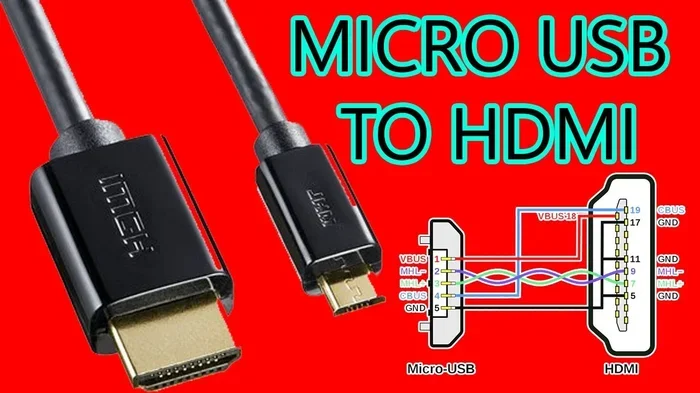
There are also different types of HDMI ports. The standard HDMI is found on TVs and monitors. The mini HDMI is smaller and often used on cameras and tablets. The micro HDMI is even tinier and fits in some phones. Despite their size differences, they all carry the same digital signal. You just need the right cable to connect them. Always check which size port your device has before buying a cable. A mismatched cable will not fit or work properly.
Why Do Devices Have Multiple HDMI Slots?
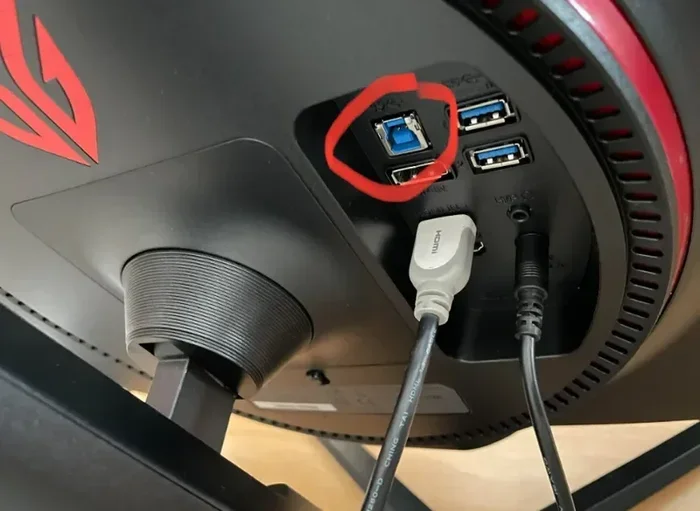
Manufacturers add multiple HDMI slots to devices because users often have more than one source device. A TV might have four HDMI ports so you can connect a cable box, a gaming console, a Blu-ray player, and a soundbar. On a PC or laptop, having two HDMI outputs lets you expand your workspace. You can look at the back of your graphics card and see several different ports. Some might be HDMI, while others are DisplayPort or DVI. This variety gives you flexibility. You can mix and match cables and adapters to fit your exact needs. When a device has multiple HDMI slots, it means it is built to handle complex setups with ease. You are not limited to just one screen or one audio output. The hardware supports your multitasking lifestyle.
Another reason for multiple slots is redundancy. If one port stops working, you have a backup. It also allows you to connect different types of devices at the same time. You might plug in a stationary desktop PC to one monitor and a laptop to another. Both use the same HDMI standard, so the connection is seamless. This universality is a massive advantage in modern computing. You do not need a new cable every time you buy a new gadget.
Can You Use 2 HDMI Ports At The Same Time
The short answer is a big yes. You can absolutely use 2 HDMI ports at the same time. Your computer or laptop can send video signals out of two different ports simultaneously. This is how you create a dual monitor setup. Instead of looking at one screen, you spread your workspace across two. It makes multitasking much simpler. You can have your email on one screen and your main work on the other. Or you can game on one screen and chat on the second. The key is making sure your hardware supports it. Not every computer can do this out of the box, but most modern machines can.
When you ask yourself, “Can You Use 2 Hdmi Ports At The Same Time,” the real question is about your graphics card. Your GPU must have at least two physical output ports. Integrated graphics on older laptops might only have one. However, most dedicated graphics cards today come with multiple outputs. You can check the back of your PC or the specifications of your laptop online. If you see two HDMI ports, you are good to go. If you see one HDMI and one DisplayPort, you can still run two monitors. You just need an adapter for one of them. The principle remains the same: your GPU must be able to render two separate images and send them to two different displays.
Using Two Ports for Dual Monitors
Using two HDMI ports for dual monitors is a very common practice. If your graphics card has two HDMI output ports, you can plug two monitors directly into them. You do not need a special splitter for this. Your PC treats each monitor as a separate display. You can choose to extend your desktop across both screens. This means your mouse can move freely from one screen to the next. You can drag windows between them. This is incredibly useful for video editors who need their timeline on one screen and their preview on the other. Alternatively, you can mirror your display, showing the exact same image on both screens. Extending is usually the better choice for productivity. It gives you more room for open windows and applications. Mirroring is better for presentations. You show the same slide to a room full of people while looking at your notes on your laptop.
You can also mix resolutions and refresh rates. One monitor can be 4K while the other is 1080p. One can run at 144Hz while the other runs at 60Hz. Your PC will adjust to the capabilities of each screen individually. Just be aware that the overall performance might be slightly lower than running a single high-refresh monitor. Your GPU has to work twice as hard to push frames to two screens. For casual office work, this is no big deal. For competitive gaming, you might notice a slight drop in frame rates.
Connecting an AV Receiver and a Monitor
Another popular way to use 2 HDMI ports at the same time is connecting an AV receiver and a monitor. Home theater enthusiasts do this all the time. You plug your PC or gaming console into the HDMI input on your AV receiver. Then, you run a second HDMI cable from the receiver to your TV or projector. This setup sends both video and audio to the right places. The TV gets the picture, and the receiver powers the speakers. You can also use the HDMI ports on your graphics card directly. You might run one cable to a monitor for work and another to a receiver for sound. Both setups work perfectly fine. Just make sure your source device can handle the load of pushing two video signals at once. Your graphics card needs enough processing power to drive two screens smoothly.
One important thing to know is the HDMI handshake. When you plug in a new display, the source device and the display must communicate. They exchange information about supported resolutions and audio formats. This is called the EDID handshake. Sometimes this handshake fails when you have two displays connected. The second monitor might show a black screen or a “no signal” error. This is usually a temporary issue. Simply turning the monitor off and back on often fixes it. Updating your graphics drivers can also prevent these handshake errors from happening in the first place.
How to Set Up Multiple HDMI Displays
Setting up multiple HDMI displays is easier than most people think. You do not need to be a tech expert to get it done. With a few simple steps, you can have two screens working in just minutes. The process is slightly different depending on whether you use a Windows PC or a Mac. But the basic idea remains the same. You plug in the cables, tell your computer to recognize the new displays, and arrange them to match your physical desk setup. A proper setup saves you tons of time during the workday. You will wonder how you ever worked with just one screen.
Step-by-Step Guide for PC Users
First, plug your second monitor into the second HDMI port on your PC or laptop. Make sure the cable is firmly seated. Turn on the second monitor. Next, right-click on your desktop and select Display settings. Windows will usually detect the new screen automatically. If it does not, click the Detect button. You will see two rectangles on your screen representing your monitors. You can drag them left or right to match how they sit on your desk. This controls where your mouse moves when you reach the edge of one screen. Here are the key steps to remember:
- Plug in the cable: Securely connect the HDMI cable to both the PC and the monitor.
- Open Display Settings: Right-click your desktop and choose Display settings.
- Detect the screen: Click the Detect button if Windows does not find it automatically.
- Choose your mode: Select Extend or Duplicate from the Multiple displays menu.
- Adjust scaling: Set the correct scaling for each monitor if they have different resolutions.
Click Apply, and your setup is complete. You can now move your mouse seamlessly across both screens.
After you extend your desktop, you should adjust the scaling. If your two monitors have different sizes, text might look bigger on one than the other. Go to Scale and layout in your display settings. Set the scaling percentage for each monitor individually. This ensures text and icons look consistent across both screens. You can also set the primary display. This is the monitor where your taskbar and start menu will appear by default. Right-click your desktop, go to Display settings, and scroll down to find the “Make this my main display” option. Click the monitor you want to be primary.
Setting Up Your Home Theater System
Setting up a home theater with two HDMI ports involves a slightly different approach. You want your video to go to your TV or projector, and your audio to go to your sound system. An AV receiver is the best tool for this job. Connect your source device, like a Blu-ray player or streaming box, to the HDMI input on your receiver. Then, connect an HDMI output from the receiver to your TV. Use the ARC (Audio Return Channel) feature if your TV supports it. This lets your TV send sound back to the receiver. You can also use the two HDMI ports on your graphics card if you are using a PC for both gaming and movie watching. Just route the audio through your receiver and the video through your main display. Test the sound and picture to make sure everything syncs up perfectly. Adjust the audio delay if the sound and video feel out of sync.
For gamers, using two HDMI ports means you can play your game on your primary monitor while streaming or chatting on a second monitor. You need to make sure your graphics card can handle the game on one screen while encoding a stream on the other. Modern GPUs are very powerful and can do this easily. Just make sure you have enough USB ports for your webcam and microphone if you are streaming. The HDMI connections handle the video, while USB handles the audio input for your stream. Keeping your cables organized will prevent a messy desk and potential signal issues.
Common Problems When Using Two HDMI Ports
Even with a simple setup, you might run into a few bumps in the road. Using two HDMI ports at the same time does not always go perfectly. Sometimes the second monitor does not detect. Other times, the image looks fuzzy or the refresh rate drops. Knowing what to look for helps you fix these issues fast. Most problems are related to settings, cables, or bandwidth limits. Do not panic if something goes wrong. Most fixes are simple and take just a few minutes. A little patience goes a long way.
Signal Loss and Bandwidth Issues
Signal loss is a common headache when running two displays. Your graphics card has a limited amount of bandwidth. Think of bandwidth like a highway. If you try to push too much data down a single lane, traffic slows down. When you run two 4K monitors, you are asking a lot of your GPU. The video signal might drop, or the screen might flicker. This happens because the two ports share resources on the graphics card. Long HDMI cables can also cause signal degradation. If your cable is too long or of poor quality, the digital signal might not reach the second monitor. Keep your cables as short as possible and invest in high-quality, certified HDMI cables. A good cable ensures a stable digital signal reaches both screens. Look for cables that are certified for the HDMI standard you need.
Another cause of signal loss is electromagnetic interference. If your HDMI cable runs parallel to a power cord, the electrical current can disrupt the digital signal. This results in flickering or a black screen. To prevent this, run your HDMI cables at a 90-degree angle to your power cords. Use cable ties or clips to keep them separated. If you must run them together, use shielded HDMI cables. These cables have extra layers of protection that block out electrical noise. A stable signal means a clear picture and no frustrating interruptions during your work or gaming sessions.
Resolution and Refresh Rate Drops
Another frequent issue is a drop in resolution or refresh rate. You might plug in your second monitor and find that both screens suddenly drop from 4K to 1080p. Or your smooth 144Hz gaming experience might drop to 60Hz. This happens because the HDMI standard has limits. Older HDMI versions cannot handle high resolutions on two screens at once. Check your HDMI port versions. If you are using HDMI 2.0, it might struggle with dual 4K displays. Upgrading to HDMI 2.1 cables or using DisplayPort for one of the monitors can solve this. Also, check your graphics card settings. Sometimes the PC defaults to a lower resolution to ensure both screens work. You can manually raise the resolution in your display settings if your hardware supports it. Always check the specs of your graphics card before buying two high-resolution monitors.
HDCP errors are also common when using two HDMI ports. HDCP stands for High-bandwidth Digital Content Protection. It is a copy protection system used by movie studios. If you try to play a protected Blu-ray or streaming video on two screens, one screen might go black. This happens because the content is encrypted and only authorized devices can decrypt it. You can usually fix this by updating your graphics drivers or the firmware on your TV or monitor. Sometimes simply turning the content off and back on resolves the HDCP handshake issue. It is a minor annoyance but an easy one to solve.
Waking from sleep is another common issue. Sometimes when your PC wakes up, only one monitor turns on. The second monitor stays black. This is usually a display detection problem. Simply moving your mouse to the edge of the black screen or pressing a button on the monitor can wake it up. You can also change your power settings to prevent the monitors from turning off automatically. Go to Power Options in your Control Panel. Adjust the turn off display timer to never if you prefer. This keeps both screens active during long work sessions.
Tools and Adapters You Might Need
Sometimes your device does not have two free HDMI output ports. In these cases, you need extra tools to make it work. Adapters and switches expand your connectivity options. They are affordable and easy to use. Understanding what each tool does prevents you from buying the wrong one. HDMI splitters and HDMI switches are not the same thing, and mixing them up is a common mistake. Buying the right tool saves you time and frustration. You will be glad you took the extra few minutes to learn the difference.
HDMI Splitters vs HDMI Switches
An HDMI splitter takes one input and sends it to multiple outputs. You plug your laptop into the splitter, and the splitter sends the same picture to two TVs. This is great for mirroring your screen to a projector and a TV at the same time. On the other hand, an HDMI switch takes multiple inputs and sends them to one output. You have a TV with only one HDMI port left. You plug your cable box, gaming console, and streaming stick into the switch. Then, you use one HDMI cable from the switch to your TV. You press a button on the switch to change inputs. If you want to use 2 HDMI ports at the same time for different screens, you do not need a splitter or a switch. You just need enough output ports on your graphics card. Splitters copy the signal. Switches select between signals. Knowing which one you need is the first step to a successful setup.
When buying a splitter or switch, look for one that supports the resolution you need. A cheap 1080p splitter will not work for a 4K setup. Also, check if the device requires its own power supply. Active splitters need to be plugged into an outlet to boost the signal. Passive splitters do not need power but can weaken the signal over long cable runs. For most home setups, an active HDMI splitter or switch is the safest bet. It ensures a strong, clear signal reaches all your displays.
When to Use a DisplayPort to HDMI Adapter
If your computer has only one HDMI port but two DisplayPort slots, you are in luck. You can use a DisplayPort to HDMI adapter for your second monitor. DisplayPort is excellent for driving high-resolution displays. It handles bandwidth very well. You just plug the adapter into your DisplayPort, connect an HDMI cable to the adapter, and plug it into your monitor. Your PC will recognize the second display instantly. This is a great workaround if your graphics card lacks a second HDMI output. It gives you the flexibility to mix different port types without buying a whole new monitor or graphics card. Active adapters are better for high resolutions. Passive adapters work fine for lower resolutions like 1080p.
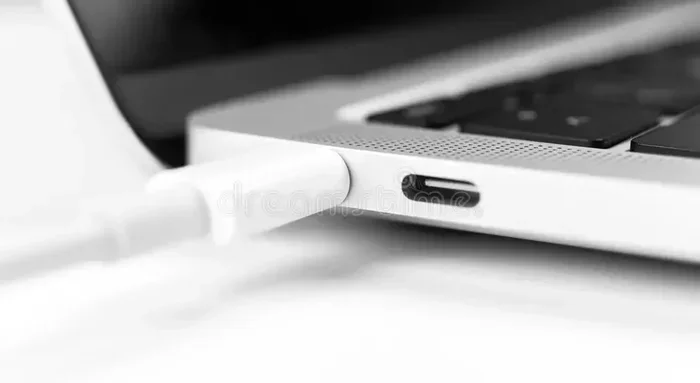
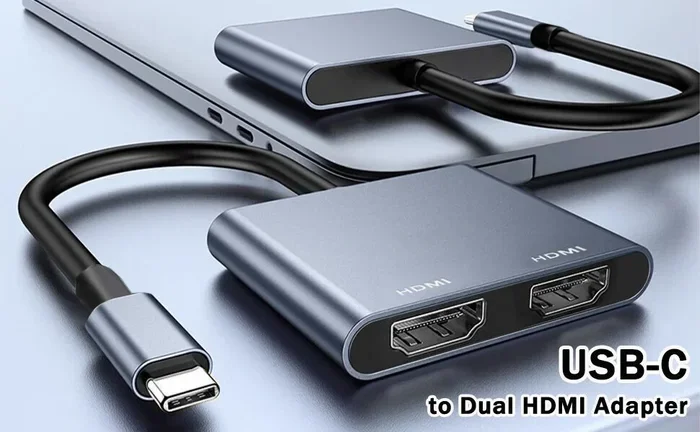
USB-C and Thunderbolt docks are another great option. Many modern laptops only have USB-C ports. A USB-C dock with HDMI output acts as an extra graphics port. You plug the dock into your laptop, and then you plug your monitor into the dock. This is incredibly convenient for travelers. You can set up a dual monitor desk setup with a single cable connection. Just make sure your laptop supports video output over USB-C. Not all USB-C ports can carry a video signal. Look for the lightning bolt icon or check your laptop specifications to be sure.
Expert Tips for Optimal Performance
To get the best experience from your dual HDMI setup, follow a few expert tips. These small adjustments can make a huge difference. They improve stability, image quality, and overall performance. You do not need expensive gear to see results. Just a little knowledge and the right habits go a long way. A well-optimized setup feels snappy and looks incredible.
Cable Quality Matters
Do not cheap out on your HDMI cables. A good cable ensures a stable digital signal reaches both screens. Look for cables that are certified for the HDMI standard you need. If you want 4K at 60Hz, buy an HDMI Premium High Speed cable. If you want 4K at 120Hz or 8K, you need an Ultra High Speed HDMI cable. Cheap, unbranded cables often cause flickering, dropouts, or no signal at all. Also, avoid running HDMI cables alongside power cords. This can cause electromagnetic interference. Keep your video cables separated from your power cables for the clearest picture possible. A quality cable is a small price to pay for a reliable connection. It saves you from the frustration of a dropping signal.
- Check the certification: Look for HDMI Premium High Speed or Ultra High Speed labels.
- Avoid long runs: Keep cables under 15 feet to prevent signal loss.
- Separate from power: Run HDMI cables away from power cords to avoid interference.
Cable length also matters. The longer the cable, the weaker the signal can become. For runs under 6 feet, any decent HDMI cable will work fine. For runs between 6 and 15 feet, look for active HDMI cables or add a signal booster. For runs over 15 feet, you might need an HDMI extender over Ethernet. These convert the HDMI signal to travel through a network cable. This allows you to place your displays far from your PC without losing quality. Always measure the distance between your PC and your monitors before buying cables.
Updating Your Graphics Drivers
Always keep your graphics drivers up to date. Your GPU manufacturer releases driver updates frequently. These updates fix bugs and improve compatibility with new monitors. If your second HDMI port is not being recognized, an outdated driver might be the culprit. Go to the website of your graphics card brand, whether it is NVIDIA or AMD. Download the latest driver package and install it. Restart your computer and check if both monitors work. Updated drivers also unlock new features. You might gain access to better scaling options or higher refresh rates. It is a simple step that solves many dual-monitor headaches. Make it a habit to check for updates once a month.
You can also use the control panel software from your GPU manufacturer. NVIDIA Control Panel and AMD Radeon Software offer advanced multi-monitor settings. You can adjust the resolution, refresh rate, and color format for each monitor individually. You can enable features like NVIDIA Surround or AMD Eyefinity for an even wider gaming experience. These tools give you deep control over how your two screens work together. Spend a few minutes exploring these settings to get the most out of your hardware.
Do not forget about your monitor firmware. Just like your PC, monitors receive firmware updates. These updates can fix compatibility issues with new GPUs. Check your monitor manufacturer website for the latest firmware. Updating your monitor firmware is usually simple. You download a file from the website and load it onto a USB drive. You then plug the USB drive into your monitor and follow the on-screen instructions. Keeping your firmware up to date ensures the best possible performance from your dual HDMI setup.
Conclusion
Using 2 HDMI ports at the same time is completely doable and very useful. Whether you are extending your desktop for work or building a cinematic home theater, the setup is straightforward. You just need a graphics card that supports multiple outputs and the right cables. Remember to check your HDMI versions and bandwidth limits to avoid resolution drops. If your PC lacks enough ports, an adapter or DisplayPort connection can fill the gap. With the right approach, you can enjoy a seamless multi-display experience today. Plug in your devices, adjust your settings, and enjoy the extra screen space. Your productivity and entertainment will thank you for it. Start setting up your dual display workspace now and see the difference for yourself.
Frequently Asked Questions
Can I use two HDMI ports on a laptop?
Yes, you can use two HDMI ports on a laptop if your laptop has two HDMI output ports. However, many laptops only have one HDMI output and one HDMI input. You must check your specific laptop model to see what is available. If your laptop has only one HDMI output, you can use a USB-C to HDMI adapter for your second monitor.
Does using two HDMI ports lower the quality?
Using two HDMI ports does not inherently lower the quality of each display. However, your graphics card must work harder to push frames to two screens. This might cause a slight drop in frame rates during heavy gaming. For everyday tasks and office work, you will not notice any drop in image quality at all.
What is the difference between an HDMI splitter and an HDMI switch?
An HDMI splitter copies one signal and sends it to multiple screens. An HDMI switch lets you choose between multiple source devices and sends the selected signal to one screen. If you want to show the same image on two TVs, use a splitter. If you want to connect multiple consoles to one TV, use a switch.
Can I run two 4K monitors from two HDMI ports?
You can run two 4K monitors from two HDMI ports if your graphics card and HDMI cables support it. You need HDMI 2.0 or higher ports and cables for 4K at 60Hz. If your GPU only has HDMI 1.4 ports, you might be limited to 4K at 30Hz, which can look choppy. Always check your hardware specifications first.
Do I need special cables to use two HDMI ports at once?
You do not need special cables, but you should use high-quality, certified HDMI cables. Standard HDMI cables work fine for 1080p and basic 4K setups. For higher refresh rates or longer cable runs, look for Premium High Speed or Ultra High Speed HDMI cables. Good cables prevent signal loss and ensure a stable connection.
Why is my second HDMI port not working?
If your second HDMI port is not working, first check the cable connections. Make sure the cable is firmly plugged into both the PC and the monitor. If the connection is secure, update your graphics drivers. Outdated drivers often cause detection issues. You can also try restarting your computer. A simple reboot can fix temporary software glitches that prevent the port from being recognized.