Can You Print From Iphone Directly To Printer Easily
Yes, you can print from iPhone directly to printer easily using AirPrint, Wi-Fi, or Bluetooth connections. This guide walks you through every method, recommended printers, and troubleshooting tips so you can start printing from your iOS device in minutes. Direct iPhone printing saves time and keeps you productive without needing a computer.
Have you ever been sitting on your couch and thought, “I really need to print this document right now”? Maybe it is a boarding pass, a recipe, or a school assignment. The good news is that you do not need a computer or a tangled web of cables to get the job done. Printing directly from your iPhone to a printer is simpler than most people think. In this guide, we will walk you through every method, every setup, and every trick to make iPhone direct printing work for you.
Whether you own a sleek home Wi-Fi printer or a portable Bluetooth model, your iPhone can connect and print with just a few taps. Wireless printing from iPhone has become a game-changer for students, parents, and professionals alike. You will learn how AirPrint works, which printers are compatible, and how to fix the most common hiccups along the way. Let us dive right in.
Key Takeaways
- AirPrint is the easiest way to print directly from your iPhone without installing extra software.
- Wi-Fi and Bluetooth printers both support direct iPhone printing with simple setup steps.
- Not all printers are compatible with iPhone, so check for AirPrint support before buying.
- Troubleshooting common issues like connection drops or blank pages is straightforward with a few quick fixes.
- Third-party apps expand printing options for printers that do not support AirPrint natively.
- Print quality depends on paper and settings, so choose the right options for photos vs. documents.
📑 Table of Contents
- What Is Direct Printing From iPhone?
- How AirPrint Works on iPhone
- Setting Up Your Printer for iPhone Printing
- Best Printers for iPhone Direct Printing
- Troubleshooting Common iPhone Printing Issues
- Tips for Better iPhone Print Quality
- Quick Tips for Everyday iPhone Printing
- Common Mistakes to Avoid When Printing From iPhone
- Expert Insights on iPhone Printing
- Key Takeaways
- Conclusion
What Is Direct Printing From iPhone?
Direct printing from iPhone means sending a document, photo, or webpage straight from your device to a printer without using a computer as a middleman. You skip the cables, skip the extra software, and go straight from your screen to paper. This process relies on wireless connections like Wi-Fi or Bluetooth to communicate between your phone and the printer.
The most well-known method is Apple’s built-in AirPrint feature. AirPrint lets you print photos, emails, web pages, and PDFs directly from any app that supports the share sheet. It works with hundreds of printer brands and models. If your printer supports AirPrint, you are already halfway there.
Why Direct Printing Matters
Direct printing matters because it saves time and removes unnecessary steps. You do not need to email documents to yourself, transfer files to a laptop, or fuss with USB cables. Mobile printing fits right into the way we live today. We are always on our phones, and our printers should work just as seamlessly. Whether you are at home, in a hotel room, or at the office, printing directly from your iPhone keeps you moving.
Another big reason is convenience. Imagine hosting a dinner party and realizing you forgot to print the recipe cards. Or needing to print a boarding pass five minutes before you leave for the airport. Direct iPhone printing turns those stressful moments into easy ones. You pull out your phone, tap print, and you are done.
How AirPrint Works on iPhone
AirPrint is Apple’s native wireless printing technology built right into iOS. It allows your iPhone to discover compatible printers on the same Wi-Fi network and send print jobs without any extra apps. AirPrint compatible printer models are made by brands like HP, Canon, Epson, Brother, and many others.
The AirPrint Process Step by Step
Here is how simple it is to use AirPrint for iPhone printing setup:
- Make sure your iPhone and printer are connected to the same Wi-Fi network.
- Open the app containing the document or photo you want to print.
- Tap the Share button (the square with an arrow pointing up).
- Scroll down and tap Print.
- Select your printer from the list of available printers.
- Choose the number of copies and any other settings you want.
- Tap the blue Print button in the top-right corner.
That is it. Your job is sent wirelessly and the printer starts working. The entire process takes less than a minute once you have done it a couple of times. Print documents iPhone users will find this workflow incredibly smooth and intuitive.
Which Printers Support AirPrint?
Most modern printers support AirPrint, but older models may not. Here are some quick ways to check:
- Look for the AirPrint logo on the printer’s box or manual.
- Visit the manufacturer’s website and search for “AirPrint compatible” models.
- Open the Print menu on your iPhone and see if your printer appears in the list.
If your printer does not show up, do not worry. We will cover alternatives in a later section. Print from iOS device users can still find a solution that works.
Setting Up Your Printer for iPhone Printing
Setting up your printer for direct iPhone printing is easier than you might expect. The exact steps vary slightly depending on whether you use Wi-Fi or Bluetooth, but the general process is straightforward. Wireless printer setup has become much simpler over the years, and most modern printers guide you through everything with on-screen prompts.
Wi-Fi Printer Setup
For Wi-Fi printers, the key requirement is that both your iPhone and printer must be on the same network. Here is what to do:
- Plug in your printer and connect it to your home Wi-Fi network using its control panel or the manufacturer’s app.
- On your iPhone, go to Settings > Wi-Fi and make sure you are connected to the same network.
- Open any app, tap Share, and select Print.
- Your printer should appear in the list of available printers.
If your printer does not appear, try turning Wi-Fi off and back on. Sometimes iPhone printer connection issues are caused by a simple network glitch. Restarting both devices can also help refresh the connection.
Bluetooth Printer Setup
Some portable printers connect via Bluetooth instead of Wi-Fi. These are great for travel or quick print jobs on the go. Here is the setup process:
- Turn on your Bluetooth printer and put it in pairing mode.
- Go to Settings > Bluetooth on your iPhone.
- Find your printer in the list of available devices and tap it.
- Once paired, open the app you want to print from and follow the same Share > Print steps.
Bluetooth printer for iPhone users should note that Bluetooth range is typically around 30 feet. Keep your printer nearby for the best results. Also, some Bluetooth printers require a companion app to handle print jobs, so check the manufacturer’s instructions.
Using Third-Party Apps for Non-AirPrint Printers
Not every printer supports AirPrint. But that does not mean you are out of luck. Many printer brands offer their own free apps that let you print from iPhone even without AirPrint support. Popular options include HP Smart, Canon Print, Epson iPrint, and Brother iPrint&Scan. These apps connect your phone to the printer through Wi-Fi or Bluetooth and give you full control over print settings.
Some third-party apps also let you print from printers that are not on the same Wi-Fi network. They use cloud printing or direct device connections to bridge the gap. Mobile printing has come a long way, and these apps make it possible to print almost anything from your phone.
Best Printers for iPhone Direct Printing
Choosing the right printer makes a huge difference in your iPhone printing experience. Not all printers are created equal, and some are much better suited for direct mobile printing than others. Here are some top picks based on compatibility, ease of use, and print quality.
| Printer | Connection Type | AirPrint Support | Best For |
|---|---|---|---|
| HP Envy 6055 | Wi-Fi | Yes | Home use and photos |
| Canon PIXMA TR4520 | Wi-Fi | Yes | Budget-friendly home printing |
| Epson EcoTank ET-2850 | Wi-Fi | Yes | High-volume printing with low cost |
| Brother HL-L2350DW | Wi-Fi | Yes | Office and document printing |
| Canon SELPHY CP1500 | Wi-Fi, Bluetooth | Yes | Printing photos directly from iPhone |
| HP Sprocket Plus | Bluetooth | No (uses HP Smart app) | Portable photo printing on the go |
When choosing a printer, think about what you will print most often. If you print lots of photos, a dedicated photo printer like the Canon SELPHY gives you beautiful results. If you print documents and schoolwork, a standard inkjet or laser model will serve you well. Print quality iPhone users can expect sharp text and vibrant colors from most modern AirPrint-compatible models.
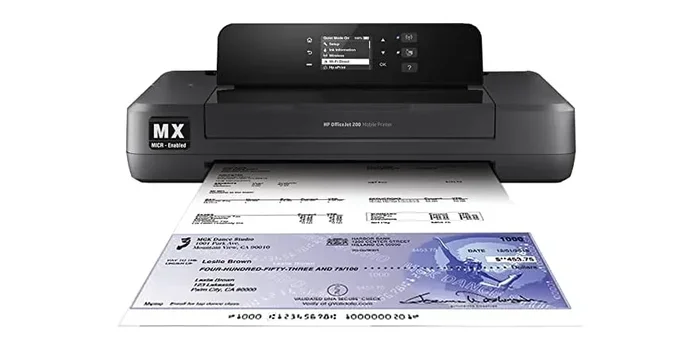
Portable printers are also worth considering if you travel frequently. Devices like the HP Sprocket let you print small photos directly from your phone without needing Wi-Fi. These compact mobile-friendly printer options are perfect for quick, on-the-go printing jobs.
Troubleshooting Common iPhone Printing Issues
Even with the best setup, you may run into hiccups now and then. Printer troubleshooting iPhone is usually quick and painless. Here are the most common problems and how to fix them.
Printer Not Showing Up on iPhone
This is the most common issue, and it is usually caused by a network mismatch. Make sure both your iPhone and printer are on the same Wi-Fi network. If they are, try these steps:
- Turn Wi-Fi off and back on on your iPhone.
- Restart your printer by unplugging it for 30 seconds.
- Restart your iPhone.
- Check that your printer is not in sleep mode or offline.
Sometimes simply refreshing the connection is all it takes. iPhone printer connection problems often resolve themselves with a quick restart of both devices.
Print Jobs Stuck in the Queue
If your print job seems to hang, open the Print Center app on your iPhone. You can access it by double-tapping the Home button (or swiping up from the bottom on newer iPhones) and swiping the print preview to the left. Tap Cancel to remove the stuck job, then try printing again.
Blank or Faded Pages
Blank or faded pages usually point to low ink or toner levels. Check your printer’s ink levels through its display panel or companion app. Running a printhead cleaning cycle can also help improve print quality. Print quality iPhone jobs look best when your printer’s cartridges are fresh and properly aligned.
Printer Prints the Wrong Size
If your document prints too large or too small, check the print settings before you send the job. In the Print menu, tap Options and make sure the page size matches your paper size (A4, Letter, etc.). This small setting can make a big difference.
Tips for Better iPhone Print Quality
Getting your document to the printer is only half the battle. Making sure it looks great on paper is the other half. Here are some practical tips to improve your print quality iPhone results every time.
Choose the Right Paper
Not all paper is the same. For photos, use glossy or matte photo paper designed for inkjet printers. For documents, standard 80gsm copier paper works perfectly. Using the wrong paper type can lead to smudging, fading, or poor color reproduction.
Adjust Print Settings for Each Job
Take a moment to review your print settings before hitting the Print button. For important documents, choose Best quality. For everyday drafts, Normal quality saves ink without sacrificing readability. If you are printing photos, select the Photo or High Quality option in the print menu.
Keep Your Printer Maintained
Regular maintenance keeps your printer running smoothly. Run the built-in cleaning cycle once a month, even if you are not experiencing any issues. Replace ink cartridges before they run completely dry. Wipe down the printhead gently if you notice streaks or lines on your prints.
Use the Right App for the Job
Some apps produce better print results than others. For example, printing photos directly from the Apple Photos app usually gives better color accuracy than printing from a social media app. Print documents iPhone users should also pay attention to the app they are using, as some apps may compress images or reduce resolution before sending them to the printer.
Quick Tips for Everyday iPhone Printing
Here are some handy tips to keep in mind for your daily iPhone printing routine:
- Save ink by using Draft mode for internal documents and rough drafts.
- Print multiple pages per sheet to save paper when printing reference materials.
- Use the Print Center app to monitor and manage active print jobs.
- Keep your iOS updated to ensure the best AirPrint compatibility.
- Organize your contacts with prefixes if you print labels or mailing lists. You can learn more about adding prefixes to numbers on iPhone to keep your contact lists tidy and ready for printing.
- Consider a portable printer for travel. Check out our list of 10 gadgets to make moms life easier for more handy devices that simplify home and office tasks, including compact printers.
These small habits add up over time. You will print faster, waste less paper, and get better results with every job. Direct printing from your iPhone becomes second nature once these tips become part of your routine.
Common Mistakes to Avoid When Printing From iPhone
Even experienced users sometimes make mistakes that cause frustrating print results. Here are the most common ones to watch out for:
- Assuming all printers work with AirPrint. Always check compatibility before you buy. Not every printer supports wireless printing from iPhone natively.
- Forgetting to update printer firmware. Manufacturers release updates that fix bugs and improve AirPrint compatibility. Check for updates regularly through the printer’s app or settings menu.
- Ignoring Wi-Fi signal strength. If your printer is far from your router, the connection may be weak or unstable. Consider moving your printer closer to the router or using a Wi-Fi range extender.
- Using low-quality paper for important documents. Cheap paper can cause ink to bleed and colors to look dull. Invest in decent paper for the best results.
- Not checking ink levels before a big print job. Running out of ink halfway through a multi-page document is frustrating and wastes paper. Always check levels first.
Avoiding these mistakes will save you time, money, and a lot of headache. iPhone printing setup and daily use should feel effortless, and steering clear of these common pitfalls helps make that happen.
Expert Insights on iPhone Printing
Mobile printing technology has evolved rapidly in recent years. According to industry experts, the shift toward wireless and direct mobile printing is only going to accelerate. More printers now include built-in Wi-Fi, touchscreens, and even voice-activated controls. Apple continues to refine AirPrint with each iOS update, making printing directly from iPhone more reliable and feature-rich.
Experts also recommend investing in a printer that supports both Wi-Fi and Bluetooth. This gives you flexibility to print from anywhere in your home or office. Wireless printer setup is now so streamlined that most users can go from unboxing to printing in under 15 minutes.
One thing professionals emphasize is the importance of a strong, stable Wi-Fi network. If your home network is congested or your signal is weak, iPhone printer connection issues will become more frequent. A mesh Wi-Fi system or a dedicated printer network can make a noticeable difference in reliability.
Finally, experts suggest keeping a list of your printer’s support resources handy. Bookmark the manufacturer’s support page, download the companion app, and register your warranty. When issues arise, having these resources at your fingertips makes printer troubleshooting iPhone much faster and less stressful.
Key Takeaways
- Yes, you can print from iPhone directly to printer using AirPrint, Wi-Fi, or Bluetooth without needing a computer.
- AirPrint is the simplest method and works with hundreds of printer brands out of the box.
- Setting up your printer takes just a few minutes and requires both devices to be on the same Wi-Fi network.
- Third-party apps expand your options if your printer does not support AirPrint natively.
- Choosing the right printer for your needs ensures the best print quality iPhone users can expect.
- Troubleshooting is usually quick and involves checking network connections, restarting devices, and reviewing print settings.
- Regular maintenance and good habits keep your printing experience smooth and frustration-free.
Conclusion
Can you print from iPhone directly to printer? Absolutely. The answer is a resounding yes, and the process is easier than most people expect. With AirPrint, Wi-Fi, and Bluetooth technology, direct iPhone printing has never been more accessible. Whether you are printing a quick photo, a school assignment, or an important work document, your iPhone can handle it all.
The key is choosing the right AirPrint compatible printer, setting it up correctly, and knowing how to troubleshoot when things do not go as planned. Follow the tips in this guide, keep your devices updated, and you will enjoy a seamless mobile printing experience every single time.
Start experimenting with printing directly from your iPhone today. You will wonder how you ever managed without it. Wireless printing from iPhone is not just a convenience, it is a lifestyle upgrade that puts productivity right at your fingertips.
Frequently Asked Questions
Can I print from my iPhone without Wi-Fi?
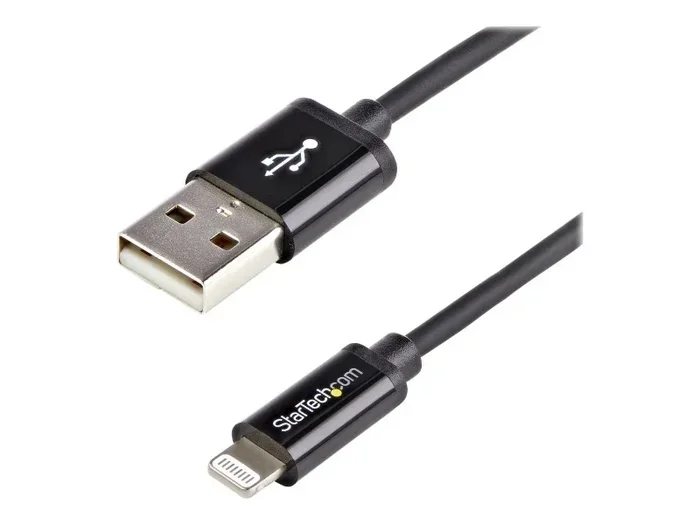
Yes, you can print without Wi-Fi if you use a Bluetooth printer or a printer with its own direct connection feature. Some portable printers like the HP Sprocket use Bluetooth to connect directly to your iPhone. You can also use a USB adapter with a Lightning to USB cable for wired printing in certain cases.
Why does my iPhone not find my printer?
The most common reason is that your iPhone and printer are not on the same Wi-Fi network. Check your Wi-Fi connection on both devices and make sure they are connected to the same network. Restarting both devices and your router can also help resolve the issue.
Do I need to download an app to print from my iPhone?
No, you do not need an app if your printer supports AirPrint. AirPrint is built into iOS and works automatically. However, if your printer does not support AirPrint, you will need to download the manufacturer’s app, such as HP Smart, Canon Print, or Epson iPrint.
Can I print photos from my iPhone directly?
Yes, you can print photos directly from your iPhone using the Photos app. Open the photo, tap Share, and select Print. Make sure your printer is AirPrint-compatible for the best results. For photo-specific printers like the Canon SELPHY, you will get especially vibrant and sharp prints.
Is direct iPhone printing safe and secure?
Yes, printing directly from your iPhone is secure. AirPrint uses encrypted wireless connections on your local network. As long as you are on a trusted home or office Wi-Fi network, your print jobs are safe. Avoid printing sensitive documents on public or unsecured networks.
What should I do if my print job keeps failing?
First, check that your printer is turned on and connected to the same Wi-Fi network as your iPhone. Then, open the Print Center app and cancel any stuck jobs. Restart both your iPhone and printer, and try again. If the problem persists, update your printer firmware and iOS software to the latest versions.