Can You Plug a Regular USB Cable Into a USB C Port
Yes, you can plug a regular USB cable into a USB C port using the right adapter or cable. A USB-A to USB-C adapter or a USB-C to USB-A cable makes this simple and easy. However, your data transfer speed and charging power may be limited by the older USB standard. Understanding USB cable compatibility helps you avoid frustration and get the best results.
You just grabbed your favorite USB cable. You plug it into your new laptop or phone. Nothing happens. You wonder, can you plug a regular USB cable into a USB C port? The short answer is yes. But the full story is a bit more interesting than that.
USB-C has become the go-to connector for modern devices. Laptops, tablets, smartphones, and even gaming consoles now use it. But millions of people still have older USB-A cables lying around. So what happens when you need to connect the old to the new? This guide covers everything you need to know about USB cable compatibility, adapters, speeds, and charging.
Whether you are at home, at the office, or on the go, understanding how these two connector types work together saves you time and money. Let us break it all down in simple terms.
Key Takeaways
- Yes, it works: You can plug a regular USB-A cable into a USB-C port with an adapter or compatible cable.
- Speed may vary: Older USB 2.0 or USB 3.0 cables won’t match the speeds of USB 3.1 or USB 4.
- Adapters are affordable: A simple USB-C to USB-A adapter solves most compatibility problems.
- Charging may be slower: Regular USB cables often deliver less power than USB-C power delivery cables.
- Check your devices: Not all USB-C ports support backward compatibility equally.
- Thunderbolt adds more: Thunderbolt 3 and 4 USB-C ports offer extra versatility and speed.
- Use the right cable: Choosing the correct cable prevents damage and ensures optimal performance.
📑 Table of Contents
What Are USB-A and USB-C Connectors?
Before we dive into whether a regular USB cable works with a USB-C port, let us understand what each connector type actually is. This makes everything clearer later on.
USB-A: The Classic Connector
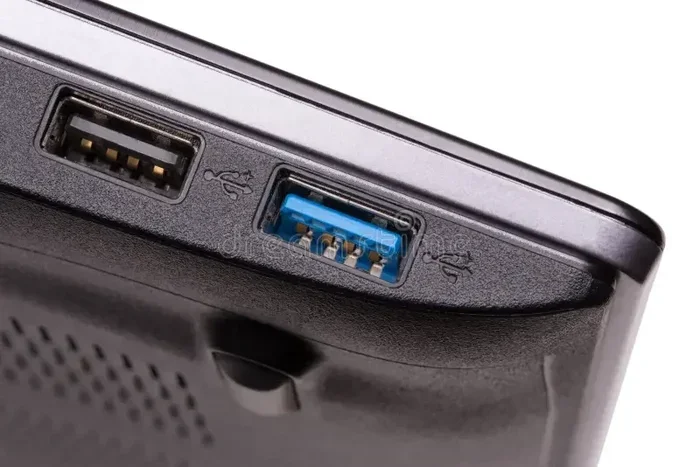
USB-A is the flat, rectangular connector you have probably used for years. It is the standard plug on most computers, wall chargers, and USB hubs. You know the shape. You have plugged it in a hundred times. It has been around since the late 1990s and remains widely used today.
USB-A connectors come in different versions. USB 2.0 is the most common and delivers up to 480 Mbps of data transfer. USB 3.0 and USB 3.1 offer faster speeds of 5 Gbps and 10 Gbps respectively. But the connector shape stays the same across all versions. The difference lies in the internal wiring and technology.
Most people refer to USB-A cables simply as “regular USB cables.” If your cable has a flat rectangular plug on one end, it is a USB-A connector.
USB-C: The Modern Connector
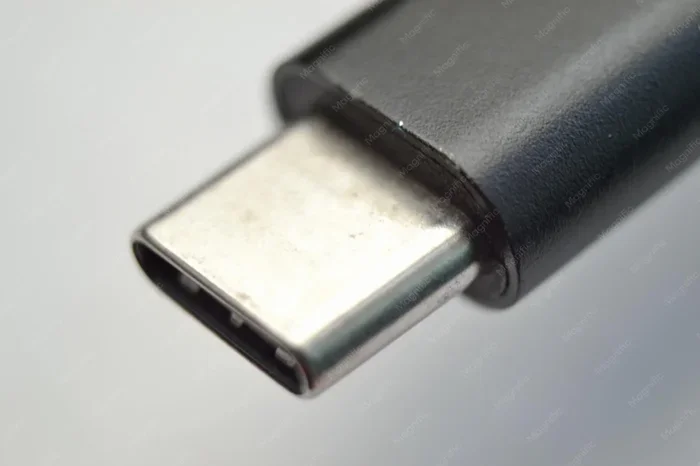
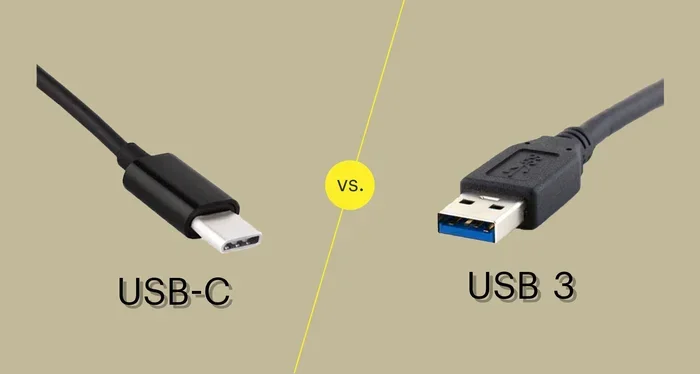
USB-C is smaller, oval-shaped, and reversible. You can flip it either way and it will plug in. No more flipping it three times to get the right orientation. This small design change made a huge difference in everyday use.
USB-C is not just a connector shape. It also supports newer USB standards like USB 3.1, USB 3.2, USB4, and Thunderbolt 3 or 4. These standards enable faster data transfer and more power delivery. A single USB-C cable can charge your laptop, transfer large files, and connect to external displays all at once.
But here is the key point. Not every USB-C port supports every standard. Some USB-C ports only support USB 2.0 speeds. Others support Thunderbolt or USB 4. So the port on your device matters a lot.
Can You Plug a Regular USB Cable Into a USB C Port?
Now for the big question. Can you plug a regular USB cable into a USB C port? The answer depends on what kind of regular cable you have and what kind of USB-C port you are using.
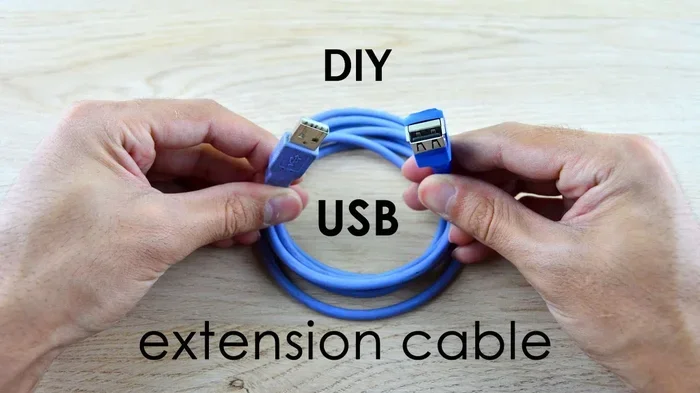
A standard USB-A cable will not fit directly into a USB-C port. The shapes are completely different. The USB-A connector is large and rectangular. The USB-C port is small and oval. So you cannot just jam one into the other. You need a bridge between the two.
There are two main ways to make this connection work:
- USB-C to USB-A adapter: A small dongle that plugs into the USB-C port and gives you a USB-A socket to connect your regular cable.
- USB-A to USB-C cable: A cable with a USB-A plug on one end and a USB-C plug on the other. This cable goes directly from your old cable to the new port.
Both options are simple and affordable. You can find them online or at any electronics store for just a few dollars. They solve the compatibility problem instantly.
Does It Work for Charging?
Yes, using a regular USB cable with a USB-C port works for charging. Your device will still charge. But the charging speed may be slower. Older USB cables and ports are not designed for the high wattage that USB-C USB power delivery supports.
USB-C power delivery can push up to 100 watts or more. A standard USB-A cable is limited to about 7.5 to 15 watts. So if you are trying to fast-charge your phone or laptop, a regular cable will not give you the fastest speeds.
Does It Work for Data Transfer?
It works, but with limitations. If your regular USB cable is USB 2.0, your data transfer speed will be capped at 480 Mbps. That is much slower than what a USB-C port can handle. USB 3.0 cables go up to 5 Gbps, which is better but still slower than USB-C 3.1 or USB 4.
So if you are transferring large video files or backing up a full hard drive, you will notice the speed difference. For everyday tasks like moving documents or photos, the speed is usually fine.
How Adapters and Cables Make It Work
Adapters and cables are the easiest way to connect your regular USB gear to a USB-C device. Let us look at your options in detail.
USB-C to USB-A Adapter
This is a tiny dongle that plugs directly into your USB-C port. It gives you a full-sized USB-A port to connect your existing cables. These adapters cost between $5 and $15. They are perfect for travel because they are so small.
Look for adapters that are metal-bodied. They tend to be more durable and handle heat better. Cheap plastic adapters can break after a few uses. A well-built adapter lasts much longer.
USB-A to USB-C Cable
This cable has a USB-A plug on one end and a USB-C plug on the other. You use it exactly like any other cable. Just plug the USB-A end into your charger or hub, and the USB-C end into your device.
These cables are great for permanent setups. Keep one at your desk. Keep one in your bag. They are handy for charging or syncing devices on the go.
USB-C Dongles and Hubs
If you need more than just one USB-A port, a USB-C hub is the way to go. These hubs add multiple ports to your laptop or tablet. You get USB-A ports, HDMI outputs, SD card slots, and more. A good hub turns your USB-C device into a full workstation.
Many people use a USB-C dongle with their laptops. It is especially popular with ultrabooks that have very few ports. One small dongle gives you back all the connections you lost when the manufacturer removed the USB-A ports.
Data Transfer and Charging Speeds Compared
Understanding speed differences helps you set realistic expectations. Here is a simple comparison of what you can expect when using a regular USB cable with a USB-C port.
| Cable or Adapter Type | Max Data Speed | Max Charging Power | Best For |
|---|---|---|---|
| USB 2.0 (USB-A to USB-C) | 480 Mbps | Up to 7.5W | Basic charging and file transfers |
| USB 3.0 (USB-A to USB-C) | 5 Gbps | Up to 15W | Faster file transfers and standard charging |
| USB 3.1 Gen 1 (USB-A to USB-C) | 5 Gbps | Up to 15W | Similar to USB 3.0, reliable performance |
| USB-C Power Delivery Cable | Up to 40 Gbps (USB4) | Up to 100W | Fast charging and high-speed data |
| Thunderbolt 3/4 Cable | Up to 40 Gbps | Up to 100W | Professional workflows and displays |
As you can see, a regular USB cable will not give you the full power of a USB-C port. But for many everyday tasks, it is more than enough. You do not always need the fastest speeds.
When Speed Matters
If you regularly transfer large video files, run external drives, or connect to multiple monitors, you should invest in a proper USB-C cable. The speed difference is significant. A 10 GB file takes about 3 minutes on USB 3.0 but over 3 minutes on USB 2.0. That gap adds up fast when you do it every day.
When Speed Does Not Matter
If you are just charging your phone overnight or moving a few photos now and then, a regular cable works perfectly fine. The slower speed does not matter for small files. You will not notice any delay in your daily routine.
Common Devices and Compatibility
Different devices handle the regular USB into USB C connection differently. Let us look at some common scenarios.
Smartphones and Tablets
Many Android phones use USB-C ports. If you want to charge your phone with an older USB-A charger and cable, it works fine. You just get standard charging speeds. No fast charging, but your phone still charges. Some newer phones support fast charging only with USB-C cables and compatible chargers.
Laptops and Computers
Most modern laptops have at least one or two USB-C ports. You can plug in a USB-A flash drive using an adapter. It works for transferring documents, photos, and other files. But if your laptop has a Thunderbolt USB-C port, using a basic adapter may limit what the port can do.
Some laptops charge exclusively through USB-C. In these cases, you need a proper USB-C power delivery cable to charge the laptop. A regular USB-A cable will not provide enough power. Always check your laptop’s charging requirements before relying on an adapter setup.
External Hard Drives and SSDs
Portable hard drives and SSDs often come with USB-C cables. If you want to connect an older USB-A external drive to a USB-C laptop, an adapter works. But the transfer speed will be limited by the older drive’s USB standard. You will not get the full benefit of the USB-C port this way.
Printers and Scanners
Many printers still use USB-A connections. If your new computer only has USB-C ports, a simple adapter or USB-A to USB-C cable lets you connect your printer without any problem. This is one of the most common use cases for these adapters.
Quick Tips and Common Mistakes
Here are some practical tips to keep in mind when using a regular USB cable with a USB-C port.
Quick Tips
- Buy a quality adapter: Cheap adapters can overheat or fail. Spend a few extra dollars on a reputable brand.
- Check your USB-C port specs: Look up your device to see what USB standards its USB-C port supports.
- Keep adapters in your bag: A small USB-C to USB-A adapter is a lifesaver when you need to connect older devices on the go.
- Use the right cable for charging: For fast charging, use a USB-C power delivery cable instead of a regular USB-A cable.
- Label your cables: It is easy to mix up cables. Label them so you always know which one is which.
Common Mistakes to Avoid
- Forcing a USB-A plug into a USB-C port: It will not fit. Do not try to make it work by forcing it. You can damage the port.
- Assuming all USB-C cables are the same: Not all USB-C cables support the same speeds or power levels. Check the specs before buying.
- Using a damaged adapter: A worn-out adapter can cause connection issues or even pose a safety risk. Replace it if it looks damaged.
- Ignoring firmware updates: Some devices need firmware updates to work properly with adapters. Keep your device updated.
- Expecting USB 3.0 speeds from a USB 2.0 setup: The speed is limited by the slowest component in the chain. A USB 2.0 cable will not magically become faster just because it is plugged into a USB-C port.
Expert Insights on USB-C and USB-A Compatibility
Technology experts agree that the transition from USB-A to USB-C is a natural evolution. The USB-C connector is simply better in almost every way. It is smaller, reversible, faster, and more powerful. But the world is not ready to abandon USB-A overnight.
Backward compatibility is one of the biggest strengths of USB-C. The USB Implementers Forum (USB-IF) designed USB-C to work with older USB standards. This means your investment in USB-A cables and devices is not wasted. You can still use them with modern USB-C devices through simple adapters.
Industry analysts also point out that the adoption of USB-C has accelerated rapidly. The European Union mandated USB-C as the standard charging port for many electronic devices. This means more devices will use USB-C in the future, and USB-A will slowly become less common.
Until then, adapters and hybrid cables are your best friends. They bridge the gap between the old and the new seamlessly. You do not need to rush out and replace all your USB-A cables. Just get a few adapters and keep using what you already have.
The Future of USB Connectors
USB-C is clearly the future. New laptops, phones, and tablets are dropping USB-A ports in favor of USB-C. Thunderbolt 4 and USB4 are built exclusively on the USB-C connector. These standards offer incredible speeds and power delivery.
But USB-A is not disappearing overnight. Millions of USB-A devices are still in use. Printers, keyboards, mice, flash drives, and chargers all rely on USB-A. The transition will take years. In the meantime, knowing how to connect the old to the new gives you a real advantage.
Final Thoughts
So, can you plug a regular USB cable into a USB C port? Absolutely. With the right adapter or cable, the connection is simple and reliable. You can charge your devices, transfer files, and use all your favorite USB-A accessories with a USB-C laptop or phone.
The key is understanding the limitations. A regular USB cable will not unlock the full potential of a USB-C port. But for most everyday tasks, it works just fine. The adapter is a small investment that saves you a lot of hassle.
Keep a few USB-C to USB-A adapters in your bag, on your desk, and in your car. They are small, affordable, and incredibly useful. You will be glad you have them when you need them most. Plug a regular USB cable into a USB C port with confidence and never worry about compatibility again.
Frequently Asked Questions
Do I need a special cable to plug a regular USB into a USB C port?
You need either a USB-A to USB-C cable or a USB-C to USB-A adapter. The regular USB-A cable itself will not fit directly into the USB-C port. These simple accessories bridge the gap between the two connector types. They are widely available and very affordable.
Will my data transfer speed be slower with a regular USB cable?
Yes, if you are using a USB 2.0 cable, your speed will be limited to 480 Mbps. USB 3.0 cables go up to 5 Gbps. The USB-C port may support faster speeds, but the cable you use determines the actual transfer rate. Always check the cable’s USB standard for the best results.
Can I use a regular USB cable to charge my USB-C laptop?
It depends on the laptop. Some laptops charge through USB-C power delivery and require a USB-C cable for fast charging. A regular USB-A cable may charge the laptop very slowly or not at all. Check your laptop’s charging specifications before relying on a regular cable.
Is it safe to use adapters with my USB-C devices?
Yes, it is safe as long as you use quality adapters from reputable brands. Cheap, poorly made adapters can overheat or cause connection problems. Look for adapters that are certified by the USB Implementers Forum for guaranteed safety and compatibility.
Can I plug a USB-C cable into a regular USB-A port?
No, a USB-C cable will not fit into a USB-A port directly. The shapes are different. You would need a USB-A to USB-C adapter or cable to make the connection work in reverse. The adapter has a USB-A female port on one side and a USB-C male plug on the other.
Will USB-C completely replace USB-A in the future?
USB-C is becoming the standard and is already required on many devices by regulations like the EU’s common charging law. However, USB-A will remain in use for many years. Millions of existing USB-A devices are still active. The transition will be gradual, not sudden. For now, adapters are essential for bridging the two standards.