Can You Password Lock A Usb Drive And Keep It Secure
Yes, you can password lock a USB drive using software encryption, hardware solutions, or built-in operating system tools. Protecting your portable storage with a strong password is one of the simplest and most effective ways to prevent data breaches and keep sensitive files safe. Whether you use a Windows PC, Mac, or Linux machine, there are reliable methods to add USB security and peace of mind.
Have you ever lost a USB flash drive or had one stolen? It is a terrifying thought. All those personal photos, work documents, and private files just gone. That is exactly why password locking a USB drive has become so important. In today’s world, portable storage devices hold some of our most sensitive information. A small device that fits in your pocket can contain years of memories or critical business data.
The good news is that you absolutely can password lock a USB drive and keep it secure. There are several straightforward methods to do this, ranging from free software to built-in operating system features. Whether you are a student protecting your research, a professional handling confidential files, or someone who just wants to keep personal photos private, this guide has you covered. Let us walk through everything you need to know about USB security and keeping your data safe.
Key Takeaways
- Multiple Methods Exist: You can password lock a USB drive using software like VeraCrypt, built-in OS tools like BitLocker, or hardware-encrypted drives.
- Software Encryption Is Affordable: Free and paid programs let you encrypt and password protect any USB flash drive without buying new hardware.
- Hardware Encryption Offers Stronger Security: Self-encrypted USB drives with built-in password protection provide a higher level of data encryption right out of the box.
- Built-In OS Tools Work Well: Windows BitLocker and macOS FileVault offer native options for locking USB drives without extra downloads.
- Regular Backups Matter: Always keep a backup of your encrypted data in case you forget your password or lose the drive.
- Avoid Common Mistakes: Using weak passwords, skipping backups, or relying solely on basic file hiding leaves your secure USB data vulnerable.
📑 Table of Contents
- Why You Should Password Lock Your USB Drive
- Methods To Password Lock A USB Drive
- How To Choose The Right Method For You
- Best Practices For USB Drive Security
- Common Mistakes People Make When Securing USB Drives
- Expert Insights On USB Drive Protection
- How To Unlock A Password-Protected USB Drive
- Final Thoughts On Password Locking Your USB Drive
Why You Should Password Lock Your USB Drive
USB drives are small, convenient, and easy to lose. They slip out of pockets, get left behind in laptop bags, or disappear from desk drawers. When that happens, anyone who finds your drive can access everything on it. Without password protection, your files are wide open.
Here are some real risks you face with an unprotected USB drive:
- Identity theft: Stolen documents can expose your personal information.
- Corporate data leaks: Confidential business files falling into the wrong hands can cost companies millions.
- Privacy violations: Personal photos, emails, and financial records become visible to strangers.
- Malware spread: An unlocked drive can carry and spread viruses to multiple computers.
- Ransomware exposure: Sensitive files can be copied and used against you.
Adding a flash drive lock eliminates these risks. Even if someone finds or steals your drive, they cannot open your files without the correct password. It is one of the simplest and most effective steps you can take for portable storage security.
Methods To Password Lock A USB Drive
Not all USB drives are created equal, and neither are the methods for locking them. Let us explore the main approaches you can use to add password protection to your USB storage.
Method 1: Using Built-In Operating System Tools
Both Windows and macOS come with built-in tools that let you encrypt and lock your USB drive. These options are convenient because you do not need to install anything extra.
For Windows Users (BitLocker): Windows Pro and Enterprise editions include BitLocker, a powerful drive encryption tool. To use it, simply plug in your USB drive, right-click on it in File Explorer, and select “Turn on BitLocker.” You will be prompted to create a password. Once set, the drive stays locked until you enter the correct password. Note that BitLocker is not available in Windows Home editions, which can be a limitation for some users.
For Mac Users (Disk Utility): macOS users can use the built-in Disk Utility to create an encrypted disk image. Open Disk Utility, select your USB drive, and choose “Encrypt.” You will set a password that must be entered every time you access the drive. This method works well for encrypted storage devices on Apple computers.
Method 2: Third-Party Encryption Software
Third-party software gives you more flexibility and works across different operating systems. Two of the most popular options are VeraCrypt and AOMEI Partition Assistant.
VeraCrypt: This is a free, open-source encryption tool that works on Windows, Mac, and Linux. You can create an encrypted volume on your USB drive and set a strong password. VeraCrypt uses advanced data encryption algorithms that make it extremely difficult for anyone to crack your password. It is a favorite among security-conscious users who want robust USB authentication.
AOMEI Partition Assistant: This tool offers a user-friendly interface for encrypting USB drives. It is a great option if you are not very tech-savvy. The software walks you through each step and lets you set a password quickly. It also supports file-level encryption, so you can protect specific folders on your drive.
Method 3: Hardware-Encrypted USB Drives
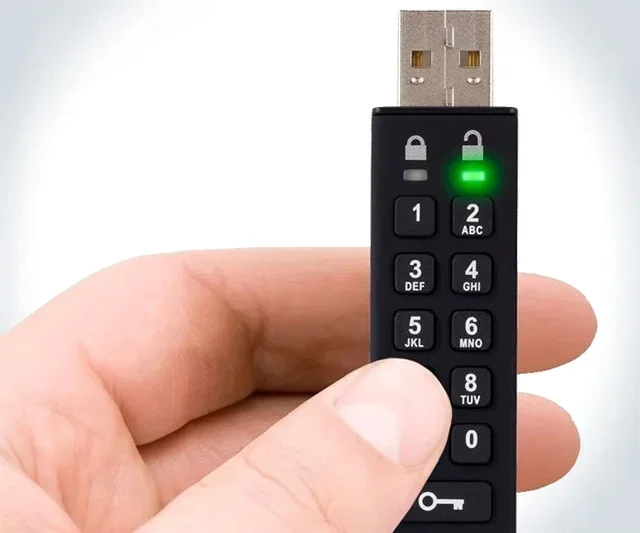
Some USB drives come with built-in hardware encryption and password protection. These are called secure USB drives or biometric USB drives. They have the encryption chip built right into the drive itself, which means you do not rely on software at all.
Popular brands like Kingston (IronKey), SanDisk, and Apricorn make drives with password protection built in. Some models even use USB fingerprint lock technology, where you unlock the drive with your fingerprint instead of a password. These drives are more expensive but offer excellent hardware encryption that is very hard to bypass.
Method 4: USB Locking Software
Dedicated USB locking software is another option. Programs like USB Secure and Rohos Mini Drive let you password protect your flash drive with just a few clicks. These tools are designed specifically for drive locking and are very easy to use. They work by creating a protected partition on your USB drive that requires a password to access.
Many of these programs also offer features like auto-lock, which automatically locks the drive when you remove it from the computer. This adds an extra layer of portable storage security and ensures your data stays protected even if you forget to lock it manually.
How To Choose The Right Method For You
Choosing the best method depends on your needs, budget, and technical comfort level. Here is a quick comparison to help you decide.
| Method | Cost | Ease of Use | Security Level | Cross-Platform |
|---|---|---|---|---|
| BitLocker (Windows) | Free (Pro/Enterprise) | Easy | High | Windows only |
| Disk Utility (Mac) | Free | Easy | High | macOS only |
| VeraCrypt | Free | Moderate | Very High | Windows, Mac, Linux |
| Third-Party Software | Free to Paid | Easy | Medium to High | Varies |
| Hardware-Encrypted Drive | Paid (Higher Cost) | Very Easy | Very High | Mostly Universal |
If you want the simplest solution and have a compatible Windows system, BitLocker is a great starting point. If you use multiple operating systems, VeraCrypt is your best bet. For maximum security without any technical setup, a hardware-encrypted USB drive is worth the investment.
Also, consider what you are storing on the drive. If you are keeping sensitive work documents or financial records, go with the strongest option available. If you are just protecting personal photos, a basic software lock may be enough.
Best Practices For USB Drive Security
Locking your USB drive is just the first step. To truly keep your data secure, follow these best practices for USB security.
Use Strong, Unique Passwords
A weak password defeats the purpose of locking your drive. Use a combination of uppercase letters, lowercase letters, numbers, and symbols. Aim for at least 12 characters. Avoid common words like “password123” or your birthday. A password manager can help you generate and store complex passwords safely.
Keep Your Encryption Software Updated
Software updates often include security patches that fix vulnerabilities. Make sure your encryption tool is always running the latest version. This applies whether you use VeraCrypt, BitLocker, or any other drive locking software.
Back Up Your Encrypted Data
What happens if you forget your password? You could lose access to your files forever. Always keep a backup of your encrypted data in a separate secure location. This could be another encrypted USB drive, an external hard drive, or a trusted cloud storage service.
Eject Your Drive Properly
Always use the “Safely Remove” option before pulling out your USB drive. Improper ejection can corrupt your encrypted files and make them inaccessible. This is a simple habit that goes a long way for secure USB maintenance.
Be Careful Where You Plug In Your Drive
Avoid plugging your USB drive into public or shared computers. These machines may have malware or keyloggers that can capture your password. If you must use a public computer, make sure you log out completely and never save your password on that machine.
Consider Physical Security Too
Software locks are great, but physical security adds another layer of protection. Use a USB drive with a durable casing or keep it in a secure pouch. Some people even use lanyards or keychain attachments so their drive does not get lost as easily.
Common Mistakes People Make When Securing USB Drives
Even with the best intentions, many people make mistakes that undermine their USB security. Here are the most common ones to avoid.
Using the default password: Many encryption tools come with default passwords. Always change them to something unique and strong. A default password is the first thing hackers try.
Relying on file hiding instead of encryption: Hiding files on a USB drive does not truly protect them. Anyone with basic computer knowledge can unhide files. Data encryption is the only reliable way to keep files private.
Sharing passwords carelessly: If you need to share access to your drive, do it securely. Avoid sending passwords through email or text messages. Use a secure messaging app or share them in person.
Ignoring software updates: Outdated encryption software may have known vulnerabilities. Update regularly to stay protected.
Not testing your lock: After setting up your password, test it by locking and unlocking the drive. Make sure everything works before you trust it with important files.
Storing passwords on the same drive: This might seem convenient, but it is a huge security risk. If someone accesses the drive, they also get the password. Keep your passwords stored separately, ideally in a dedicated password manager.
Expert Insights On USB Drive Protection
Cybersecurity experts consistently recommend encrypting any portable device that carries sensitive data. According to industry standards, hardware encryption provides the strongest protection because the encryption process happens inside the drive itself. Software encryption is also very effective but relies on the host computer’s processor.
Experts also emphasize the importance of using multi-factor authentication where possible. Some advanced USB drives support both a password and a fingerprint scan, adding two layers of protection. This makes it significantly harder for unauthorized users to access your data.
For enterprise environments, IT departments often deploy centralized USB security policies. These policies can enforce password requirements, restrict which USB devices are allowed on the network, and monitor drive usage. If you are using a work computer, check with your IT team before encrypting or locking any USB drive.
It is also worth noting that the way you protect a USB drive is similar to how you protect other USB-connected devices. For instance, peripherals like a computer mouse that connects via USB can also be a vector for security concerns if not properly managed on shared systems. While a mouse itself does not store data, the USB port it uses can be a point of entry for malware. This is why overall USB port security matters in addition to drive-level protection.
Another practical example involves protecting specific file types. If you store sensitive spreadsheets or financial records on your drive, you want to make sure those files are fully encrypted. Sometimes, issues with file integrity can occur, especially in programs like Microsoft Excel, where a line that won’t delete in Microsoft Excel can cause frustration and potential data exposure if the file is not properly secured or backed up. Encrypting the entire USB drive ensures that even if individual files have issues, the data remains protected behind your password.
How To Unlock A Password-Protected USB Drive
Unlocking your drive is just as important as locking it. The process depends on the method you used to secure the drive.
For BitLocker-protected drives: Plug the drive into your computer, open File Explorer, and right-click the drive. Select “Unlock Drive” and enter your password. The drive will become accessible again immediately.
For VeraCrypt volumes: Open VeraCrypt, select the encrypted volume, click “Mount,” and enter your password. The volume will appear as a regular drive letter on your system.
For hardware-encrypted drives: Simply plug in the drive and enter your password when prompted. Some biometric drives require you to scan your fingerprint instead.
For third-party locking software: Open the locking software, select your drive, and enter the password to unlock it. Most programs also offer an auto-unlock feature that remembers your password for convenience.
Always remember your password. Most encryption tools do not offer a password recovery option because that would defeat the purpose of encryption. If you lose your password, your data may be permanently inaccessible.
Final Thoughts On Password Locking Your USB Drive
Protecting your USB drive with a password is one of the most important steps you can take for data security. The methods are straightforward, many are free, and the peace of mind they provide is invaluable. Whether you choose software encryption, built-in OS tools, or a hardware-encrypted drive, the key is to take action now before an incident happens.
Remember to use strong passwords, keep your software updated, and back up your data regularly. These simple habits will keep your secure USB drive performing at its best. Your personal and professional files deserve the strongest protection you can give them.
Start today. Pick a method that works for you, set up your password lock, and enjoy the confidence that comes with knowing your data is safe. A few minutes of setup now can save you from a world of trouble later.
Frequently Asked Questions
Can I password lock any USB drive?
Most USB drives can be password locked using software encryption tools or built-in OS features. However, some very old or basic drives may not support advanced encryption. Hardware-encrypted drives work out of the box but cost more. Check your drive’s compatibility before choosing a method.
Is it free to password lock a USB drive?
Yes, several free options are available. BitLocker comes free with Windows Pro, VeraCrypt is completely free and open-source, and macOS Disk Utility is built into every Mac. Paid options like hardware-encrypted drives or premium software offer extra features but are not necessary for basic protection.
What happens if I forget my USB drive password?
Unfortunately, if you forget your password, you may lose access to your data permanently. Encryption is designed to be irreversible without the correct password. This is why it is crucial to store your password somewhere safe and consider using a password manager to keep track of it.
Can I use the same password for multiple USB drives?
You can, but it is not recommended. Using unique passwords for each drive adds an extra layer of security. If one password is compromised, your other drives remain protected. A password manager makes it easy to use and store different passwords for each drive.
How long does it take to encrypt a USB drive?
The time depends on the size of the drive and the encryption method. Small drives under 64GB can be encrypted in just a few minutes. Larger drives or drives with lots of existing data may take longer. Hardware-encrypted drives are typically ready to use immediately after setting the password.
Are hardware-encrypted USB drives worth the extra cost?
For users who handle highly sensitive data, hardware-encrypted drives are absolutely worth it. They provide stronger security because the encryption happens inside the drive itself, independent of the computer. They are also more convenient since they do not require installing software on every computer you use.
=== CONCLUSION ===
Password locking your USB drive is a simple yet powerful way to protect your data from unauthorized access. With the right combination of encryption software, strong passwords, and good security habits, you can keep your files safe no matter where your drive goes. Choose the method that fits your needs, follow the best practices outlined in this guide, and enjoy the confidence that comes with knowing your data is secure.