Can You Have Multiple Hdmi Ports And How To Use Them
Can you have multiple HDMI ports? Yes, most TVs, monitors, and AV receivers come with several ports built in. You can also add more using an HDMI switch, splitter, or hub. This guide covers everything you need to know about multiple HDMI ports and how to use them the right way.
Have you ever stood in front of your TV, staring at a tangle of HDMI cables, and thought, “I need more ports”? You are not alone. Can you have multiple HDMI ports on a single device? The short answer is yes. Most modern TVs, monitors, and AV receivers come with several ports already built in. And if you need even more, there are simple tools like HDMI switches and splitters that make it possible.
In this guide, we will walk you through everything you need to know about multiple HDMI ports. You will learn which devices have them, how to use them effectively, and when to add extra hardware. Whether you are setting up a home theater, a gaming station, or a simple living room setup, this article has you covered.
Let us dive right in and make sense of it all.
Key Takeaways
- Multiple HDMI ports are standard: Most modern TVs and monitors come with three to five ports.
- An HDMI switch expands options: It lets you connect more devices than your TV has ports.
- An HDMI splitter duplicates signals: It sends the same content to multiple displays at once.
- Cable quality matters: Use high-speed HDMI cables to avoid signal loss and support 4K resolution.
- HDMI 2.1 is the latest standard: It supports higher bandwidth, refresh rates, and features like eARC.
- Label your ports: This simple habit saves time and reduces cable confusion.
- Avoid signal degradation: Keep cable runs short and use powered splitters for long distances.
📑 Table of Contents
- What Are Multiple HDMI Ports and Why Do They Matter?
- Types of Devices With Multiple HDMI Ports
- How To Use Multiple HDMI Ports Effectively
- HDMI Switches and Splitters Explained
- Common Problems With Multiple HDMI Ports and How To Fix Them
- Expert Tips for Getting the Most From Your HDMI Setup
- Key Takeaways
- Conclusion
What Are Multiple HDMI Ports and Why Do They Matter?
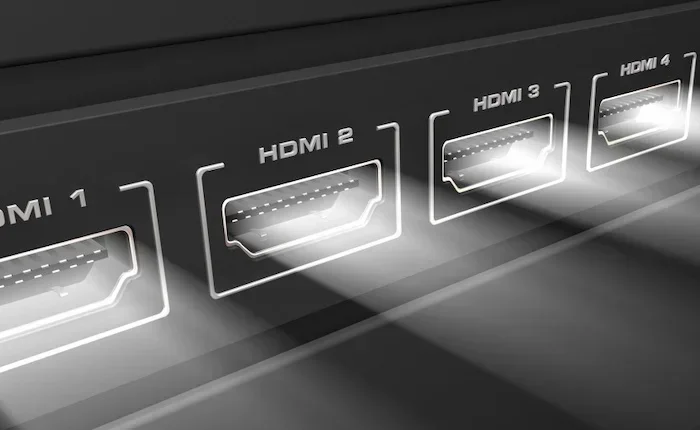
An HDMI port is a small rectangular slot on your TV, monitor, or AV receiver. It stands for High-Definition Multimedia Interface. This port carries both audio and video signals from a source device to a display. Multiple HDMI ports simply mean having more than one of these slots on a single device.
Why does this matter? Think about all the devices you want to connect. You might have a cable box, a gaming console, a streaming stick, a Blu-ray player, and a soundbar. Each one needs its own port. Without enough ports, you would have to unplug and replug cables every time you want to switch devices. That gets old fast.
Having multiple HDMI ports on your TV or display saves you from this hassle. You can keep all your devices connected at once. Just pick the input you want with your remote. It is simple, clean, and convenient.
How Many HDMI Ports Do Most Devices Have?
The number of ports varies by device. Here is a quick look at what you can expect:
- Budget TVs: Usually 2 to 3 ports
- Mid-range TVs: Typically 3 to 4 ports
- Premium TVs: Often 4 to 6 ports
- Computer Monitors: Usually 1 to 3 ports
- AV Receivers: Can have 5 or more ports
If you have a lot of devices, you may find yourself running out of ports quickly. This is where HDMI switches and splitters come in handy. We will cover those in detail later.
Types of Devices With Multiple HDMI Ports
Not all devices are created equal when it comes to HDMI connectivity. Let us look at the most common devices that offer multiple HDMI ports and what you can expect from each.
Televisions
Most modern TVs come with at least three HDMI ports. Many mid-range and premium models offer four, five, or even six. Smart TVs from brands like Samsung, LG, Sony, and TCL typically include multiple ports as standard. Some models also feature HDMI 2.1 ports, which support higher bandwidth and features like 4K at 120Hz.
If you have a soundbar, a cable box, a game console, and a streaming device, a TV with four ports will handle that easily. But if you add a Blu-ray player or a second streaming stick, you might need a switch.
AV Receivers
An AV receiver is the brain of a home theater system. These devices are designed with multiple HDMI ports to handle many input sources. A typical receiver might have five or more HDMI inputs and at least one output to your TV. This setup lets you connect all your devices to the receiver, not directly to the TV.
The receiver then sends the best audio and video to your display. It also handles audio processing for your speakers. This is a great option for serious home theater fans.
Computer Monitors
Some computer monitors come with more than one HDMI port. This is helpful if you use your monitor with both a PC and a gaming console. Monitors with two or three HDMI inputs let you switch between devices without unplugging cables.
Projectors
Home projectors often have two to three HDMI ports. This is useful for people who want to connect a streaming device, a laptop, and a gaming console to the same projector.
How To Use Multiple HDMI Ports Effectively
Having multiple HDMI ports is only useful if you know how to use them well. Here are some practical tips to get the most out of your setup.
Label Your Ports
This is one of the simplest and most helpful habits you can build. Use small stickers or tape to label each port with the device connected to it. For example, write “Xbox” or “Apple TV” next to the right port. When you need to switch inputs, you will know exactly which one to pick.
It sounds basic, but it saves a lot of frustration. No more guessing or unplugging things to figure out which port does what.
Use High-Speed HDMI Cables
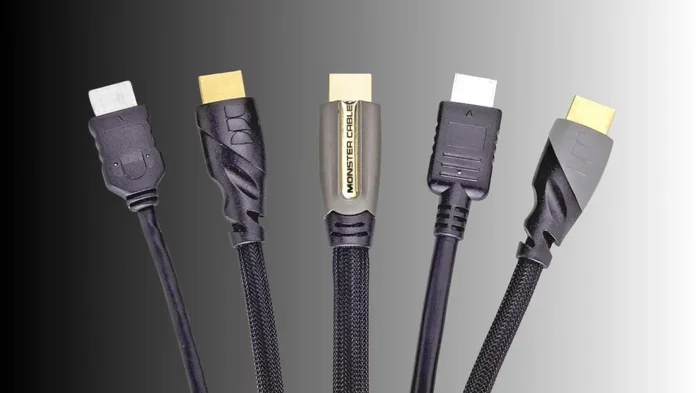
Not all HDMI cables are the same. If you want to enjoy 4K resolution and high refresh rates, you need a high-speed cable. Cheap or old cables may not support the latest features. Look for cables labeled “Premium High Speed” or “HDMI 2.1 certified.”
A good cable makes a big difference in video quality and audio return channel performance. Do not cheap out on cables if you want the best experience.
Keep Cable Runs Short
Longer HDMI cables can cause signal loss. For the best video quality, keep your cable runs under 15 feet. If you need a longer run, consider using an active HDMI cable or a powered signal booster.
Signal loss can show up as flickering, sparkles on screen, or no picture at all. Short, quality cables help avoid these problems.
Connect Devices Smartly
Think about how you use your devices. Put the devices you use most on the easiest-to-reach ports. For example, if you switch between your cable box and game console often, connect both to ports that are easy to access. Put less frequently used devices like a Blu-ray player on a port that is harder to reach.
This small adjustment makes your daily routine smoother and more convenient.
Enable HDMI-CEC for Easier Control
HDMI-CEC stands for Consumer Electronics Control. It lets you control multiple devices with one remote. For example, you can turn on your TV and your soundbar with the same button. Different brands call this feature by different names like Anynet+, Bravia Sync, or SimpLink.
When you have multiple HDMI ports connected, HDMI-CEC saves you from juggling multiple remotes. It is a small feature that makes a big difference.
HDMI Switches and Splitters Explained
Sometimes your TV does not have enough ports for all your devices. That is where an HDMI switch or HDMI splitter comes in. These are simple gadgets that expand your connectivity options.
What Is an HDMI Switch?
An HDMI switch takes multiple input sources and sends them to a single display. Think of it like a power strip for HDMI. You connect all your devices to the switch, and the switch connects to your TV with one cable.
You then use the switch’s remote or button to select which device you want to see. This is perfect when you have more devices than ports on your TV.
Most HDMI switches support 4K resolution and HDR. They are affordable and easy to set up. A good 5-port or 7-port switch can solve your port shortage problem in minutes.
What Is an HDMI Splitter?
An HDMI splitter does the opposite. It takes one input and sends it to multiple displays. For example, you can connect one cable box to a splitter and watch the same channel on two TVs in different rooms.
HDMI splitters are great for businesses, classrooms, or homes where you want the same content on more than one screen. Some splitters also amplify the signal to prevent loss over long cable runs.
HDMI Switch vs Splitter: Quick Comparison
| Feature | HDMI Switch | HDMI Splitter |
|---|---|---|
| Function | Multiple inputs to one output | One input to multiple outputs |
| Use Case | Connecting many devices to one TV | Showing same content on multiple TVs |
| Signal Direction | Many devices → one display | One source → many displays |
| Price Range | $10 to $50 | $10 to $60 |
| 4K Support | Most modern models | Most modern models |
When Do You Need Each?
You need an HDMI switch when you have more devices than ports. You need an HDMI splitter when you want one source to appear on multiple screens. These two tools solve different problems, so make sure you pick the right one for your needs.
Always check the resolution and bandwidth support before buying. A cheap splitter might not support 4K or HDR, which would be a waste of money.
Common Problems With Multiple HDMI Ports and How To Fix Them
Even with the best setup, you may run into issues. Here are the most common problems and how to solve them.
No Signal or Black Screen
This is the most common HDMI problem. It usually happens when you switch inputs or turn on a new device. Try these fixes:
- Check that the cable is firmly plugged in on both ends
- Try a different HDMI cable
- Switch to a different port on your TV
- Turn the source device off and on again
- Check if the cable supports your device’s resolution
Most of the time, a loose connection or bad cable is the culprit. Unplugging and replugging the cable often fixes the issue immediately.
HDMI Handshake Failures
An HDMI handshake is the process where devices recognize each other and establish a connection. Sometimes this handshake fails, and you get no picture. This can happen when you turn on multiple devices at the same time.
To fix this, turn on your source device first, then your TV. Or use an HDMI switcher that handles the handshake automatically. Power cycling the devices (turning them off and back on) also helps.
Audio and Video Sync Issues
Sometimes the audio and video get out of sync. This can happen with long cable runs or older cables. Using a high-speed, shorter HDMI cable usually fixes this problem. If you use an AV receiver, check its audio delay settings in the menu.
HDCP Errors
HDCP stands for High-bandwidth Digital Content Protection. It is a copy protection system used by movie studios. Sometimes you get an error message saying “HDCP unauthorized” or “content protected.”
This usually happens when you use a splitter or switch that does not support HDCP. Make sure your splitter or switch is HDCP compliant if you want to watch protected content like Netflix or Blu-ray movies.
Expert Tips for Getting the Most From Your HDMI Setup
Want to level up your HDMI setup? Here are some expert tips that make a real difference.
Upgrade to HDMI 2.1 When Possible
HDMI 2.1 is the latest version of the HDMI standard. It supports much higher bandwidth than older versions. This means better video quality, higher refresh rates, and features like Variable Refresh Rate (VRR) and Auto Low Latency Mode (ALLM).
If you have a gaming console like the PS5 or Xbox Series X, HDMI 2.1 ports on your TV give you the best experience. They support 4K at 120Hz and reduce input lag significantly.
Use an AV Receiver for Complex Setups
If you have a lot of devices and want great audio, an AV receiver is the way to go. It handles all the audio video switching for you. You connect all your devices to the receiver, and the receiver sends the best picture and sound to your TV and speakers.
This setup also supports audio return channel (eARC), which sends high-quality audio from your TV back to your sound system. It is the best option for a dedicated home theater.
Manage Your Cables
Good cable management keeps your setup clean and reduces signal problems. Use cable ties, raceways, or a cable box to keep things tidy. Avoid bending HDMI cables sharply or running them under heavy furniture.
Clean cable management also makes it easier to troubleshoot issues. When everything is organized, you can spot problems faster.
Firmware Updates Matter
Many modern TVs and AV receivers receive firmware updates that improve HDMI performance. Check for updates regularly. These updates can fix signal loss issues, add new features, and improve compatibility with newer devices.
Buy from Reputable Brands
When it comes to HDMI cables, switches, and splitters, stick with trusted brands. Cheap, no-name products often fail to support the bandwidth needed for 4K and HDR. Investing in quality gear saves you from frustration and replacement costs.
Key Takeaways
- Multiple HDMI ports are standard: Most modern TVs and monitors come with three to five ports.
- An HDMI switch expands options: It lets you connect more devices than your TV has ports.
- An HDMI splitter duplicates signals: It sends the same content to multiple displays at once.
- Cable quality matters: Use high-speed HDMI cables to avoid signal loss and support 4K resolution.
- HDMI 2.1 is the latest standard: It supports higher bandwidth, refresh rates, and features like eARC.
- Label your ports: This simple habit saves time and reduces cable confusion.
- Avoid signal degradation: Keep cable runs short and use powered splitters for long distances.
Conclusion
Can you have multiple HDMI ports on a single device? Absolutely. Most TVs, monitors, and AV receivers come with several ports already built in. And when you need even more, tools like HDMI switches and splitters make it easy to expand your setup.
The key is to understand your needs. If you have a few devices, your TV’s built-in ports will likely be enough. If you have many devices, consider an HDMI switch. If you want the same content on multiple screens, a splitter is your best bet.
Remember to use high-quality cables, label your ports, and keep your setup organized. These small steps make a big difference in your daily experience. With the right approach, your HDMI setup can be clean, reliable, and ready for anything.
Now that you know how to make the most of multiple HDMI ports, go ahead and set up your devices with confidence. Your home theater, gaming setup, or entertainment center is ready to shine.
Frequently Asked Questions
Do all TVs come with multiple HDMI ports?
Most modern TVs come with at least two or three HDMI ports. Budget models may have fewer, while mid-range and premium TVs typically offer four or more. Check the specifications before buying if you need a specific number of ports.
Can I use an HDMI switch with 4K content?
Yes, most modern HDMI switches support 4K resolution and HDR. Just make sure the switch you buy is rated for 4K. Look for “Premium High Speed” or “HDMI 2.1” labeling on the switch to ensure full compatibility.
Does an HDMI splitter reduce video quality?
A good quality HDMI splitter should not reduce video quality. However, cheap or powered splitters that do not support the right bandwidth may limit resolution or drop HDR features. Always buy from reputable brands to avoid quality loss.
What is the difference between HDMI 2.0 and HDMI 2.1?
HDMI 2.1 offers much higher bandwidth than HDMI 2.0. It supports 4K at 120Hz, 8K resolution, Variable Refresh Rate, and Auto Low Latency Mode. HDMI 2.0 can handle 4K at 60Hz, which is still great for most content.
How many devices can I connect with an HDMI switch?
HDMI switches come in various sizes. Common models support 3 to 7 input devices. Some larger switches can handle even more. Choose a switch with enough ports for all your current devices and a couple of extras for future additions.
Can I run HDMI cables longer than 50 feet?
Standard HDMI cables can lose signal over long distances. For runs longer than 15 to 20 feet, consider using active HDMI cables or a powered signal booster. These amplify the signal and prevent loss, ensuring a stable picture and sound on the other end.