Can You Go From USB To HDMI Here Is Everything You Need
Going from USB to HDMI is easier than you think, and it opens up a world of display possibilities for your devices. Whether you need to connect a laptop, tablet, or phone to a monitor or TV, the right USB to HDMI adapter makes it simple and reliable. This guide covers everything from adapter types to setup and troubleshooting.
Have you ever stared at your laptop screen and thought, “I wish I could just plug this into my TV or monitor?” The good news is that you can. Going from USB to HDMI is one of the most common connectivity tasks people need today. Whether you are giving a presentation, gaming on a bigger screen, or just extending your workspace, the right adapter makes it happen.
This guide walks you through everything you need to know about USB to HDMI connections. We will cover how the technology works, which adapters to buy, setup steps, and common problems you might face. By the end, you will feel confident making the connection yourself.
The world of cables and adapters can feel confusing at first. But once you understand the basics, connecting USB to HDMI becomes second nature. Let us break it all down in simple terms.
Key Takeaways
- USB to HDMI adapters are widely available and come in several shapes, sizes, and connection types to fit different devices.
- USB-C to HDMI is the most popular option for modern laptops, tablets, and smartphones.
- Setup is usually plug and play, requiring no software installation in most cases.
- Resolution support varies by adapter, so check specs before buying for 4K or high-refresh-rate displays.
- Troubleshooting is straightforward for most common issues like no signal or audio problems.
- Compatibility matters — always verify your device supports display output over USB.
- Affordable options exist for every budget without sacrificing quality.
📑 Table of Contents
- What Does It Mean to Go From USB to HDMI?
- How Does USB to HDMI Technology Work?
- Types of USB to HDMI Adapters You Can Buy
- Step-by-Step Guide to Connecting USB to HDMI
- Common Uses for USB to HDMI Connections
- Troubleshooting Common USB to HDMI Problems
- Quick Tips for Buying the Right USB to HDMI Adapter
- Expert Insights on USB to HDMI Connectivity
- Common Mistakes to Avoid with USB to HDMI Adapters
- The Future of USB to HDMI Connectivity
- Final Thoughts
What Does It Mean to Go From USB to HDMI?
When we talk about going from USB to HDMI, we mean using an adapter or cable that takes a USB signal and converts it into an HDMI output. HDMI stands for High-Definition Multimedia Interface. It is the standard cable used to send video and audio from a device to a display.
USB ports come in many forms. You have USB-A, USB-B, USB-C, and Micro-USB. Each one carries data and, in some cases, power. The challenge is that not all USB ports can send video signals. This is where a USB to HDMI adapter comes in handy.
The adapter acts as a bridge. It takes the digital signal from your USB port and translates it into a format your TV or monitor can read through HDMI. Think of it like a translator between two languages. Both sides speak different “languages,” but the adapter helps them understand each other.
Not every USB port supports video output. This is an important detail many people miss. For example, some USB ports on older computers are only meant for data transfer or charging. They cannot carry a video signal. Before buying any adapter, you need to know whether your USB port supports display output over USB.
Why Do People Need USB to HDMI Connections?
People need USB to HDMI connectivity for all sorts of reasons. Here are some of the most common ones:
- Presentations at work or school. Plugging a laptop into a projector or conference room display is much easier with a USB to HDMI adapter.
- Gaming on a bigger screen. Gamers love the idea of playing on a TV or monitor instead of a small laptop screen.
- Streaming content. Want to watch Netflix on your TV? A USB HDMI dongle can make that happen without extra devices.
- Extending your workspace. Using an external monitor gives you more screen space for multitasking.
- Travel convenience. A compact adapter lets you turn any hotel room TV into a second screen.
As you can see, the reasons are practical and everyday. USB to HDMI conversion solves real problems for millions of people.
How Does USB to HDMI Technology Work?
Understanding how USB to HDMI works does not require a degree in engineering. The process is simpler than it sounds.
When you plug a USB to HDMI adapter into your device, the adapter’s chip reads the digital signal coming through the USB port. This chip then converts that signal into an HDMI-compatible format. The converted signal travels through the HDMI cable to your display.
Most modern adapters use a technology called DisplayLink. This is a software and hardware standard that allows video to be sent over USB connections. Some adapters also use native USB-C Alt Mode, which means the USB-C port itself can carry video without extra software.
Here is a simple breakdown of the process:
- You plug the adapter into your device’s USB port.
- The adapter’s chip receives the data signal.
- The chip converts the signal into HDMI format.
- The HDMI cable carries the signal to your TV or monitor.
- The display shows your video and plays audio.
Some adapters also handle audio and video USB HDMI together. This means you do not need separate cables for sound and picture. Everything travels through one HDMI connection to your display.
USB-C Alt Mode vs. DisplayLink
These are the two main technologies behind USB-C to HDMI adapters. Here is how they compare:
- USB-C Alt Mode: This is built into the device’s hardware. It sends video directly from the USB-C port without needing extra software. It is faster and more reliable. Most modern laptops and phones support this.
- DisplayLink: This uses software to compress and send video over USB. It works with older USB-A ports too. However, it may need driver installation and can sometimes have slight lag.
For most users, USB-C Alt Mode is the better choice. It is faster, simpler, and does not require any software setup.
Types of USB to HDMI Adapters You Can Buy
The market is full of options, which is great news. But it also means you need to pick the right one. Here are the most common types of USB to HDMI adapters you will find.
USB-C to HDMI Adapters
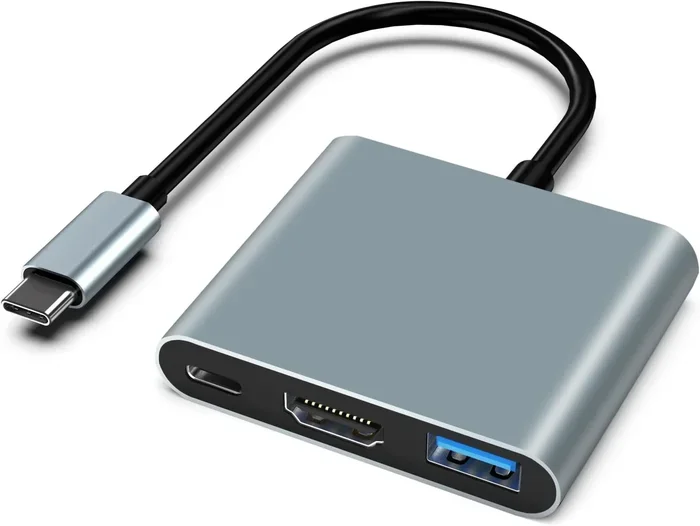
This is the most popular type today. USB-C to HDMI adapters work with modern laptops, tablets, and phones. They are small, portable, and often support 4K resolution. Many of these adapters are plug and play HDMI devices, meaning you just plug them in and they work instantly.
Look for adapters that support the resolution you need. If you have a 4K TV, make sure your adapter supports 4K output. Some budget adapters only handle 1080p, which is still great for most uses.
USB-A to HDMI Adapters
These are for older devices that have the traditional rectangular USB-A port. They usually rely on DisplayLink technology and may require driver installation. They are still useful for desktop computers and older laptops.
USB to HDMI Hubs and Docks
If you need more than just HDMI, consider a USB hub with HDMI output. These devices add multiple ports like USB-A, USB-C, SD card slots, and Ethernet alongside the HDMI port. They are perfect for people who need lots of connectivity in one device.
Wireless USB to HDMI Options
Not all USB to HDMI solutions use cables. Some devices send the signal wirelessly. You plug a small receiver into your HDMI port and a transmitter into your USB port. The video travels through the air between them. These are great for keeping your setup clean and cable-free.
Wireless options are convenient, but they can have a slight delay. For gaming or fast-moving video, a wired adapter is usually better.
Step-by-Step Guide to Connecting USB to HDMI
Setting up a USB to HDMI connection is straightforward. Follow these steps and you will be up and running in minutes.
Step 1: Check Your Device Compatibility
Before buying anything, check whether your device supports video output over USB. On most modern laptops, look for a USB-C port with a small lightning bolt or display icon next to it. This usually means it supports USB-C to HDMI output.
You can also check your device manufacturer’s website for specs. Search for “display output” or “video output” in the technical specifications.
Step 2: Choose the Right Adapter
Pick an adapter that matches your USB port type. If you have USB-C, buy a USB-C to HDMI adapter. If you have USB-A, get a USB-A to HDMI adapter. Also check the resolution support — 1080p, 4K, or even 8K depending on your needs.
Step 3: Plug Everything In
Connect the adapter to your device’s USB port. Then plug an HDMI cable into the adapter and the other end into your TV or monitor. Turn on your display and switch it to the correct HDMI input.
Most plug and play HDMI adapters will start working immediately. Your screen should mirror or extend to the new display.
Step 4: Adjust Display Settings
Once connected, go to your device’s display settings. On Windows, right-click the desktop and select Display Settings. On Mac, go to System Preferences and then Displays. From there, you can choose to mirror your screen or extend it.
You can also adjust the resolution and orientation to match your external display.
Step 5: Test Audio
Check if sound is coming through your TV or monitor. Some setups need you to change the audio output in your device settings. Go to your sound settings and select the HDMI output as your default audio device.
Common Uses for USB to HDMI Connections
USB to HDMI adapters are incredibly versatile. Here are some real-world ways people use them every day.
Home entertainment setups. Connect your laptop or tablet to your living room TV for movie nights. You do not need any special equipment beyond a simple adapter.
Work-from-home productivity. An external monitor connected via USB to HDMI can double your workspace. Studies show that dual monitors boost productivity significantly.
Gaming on the big screen. Many gamers use USB to HDMI adapters to play PC games on their TVs. It is a simple and affordable way to upgrade your gaming setup.
Digital signage and kiosks. Businesses use USB to HDMI connections for digital displays in retail stores, restaurants, and trade shows.
Education and classrooms. Teachers use adapters to connect laptops to projectors for lessons. It is quick, easy, and works without complicated setup.
Troubleshooting Common USB to HDMI Problems
Even with the best adapter, you might run into issues sometimes. Here are the most common problems and how to fix them.
No Signal on Your Display
If your screen goes black, try these steps:
- Unplug the adapter and plug it back in firmly.
- Make sure your HDMI cable is securely connected at both ends.
- Check that your display is set to the correct HDMI input.
- Restart your device and try again.
Sometimes a loose connection is all it takes. If the problem persists, try a different HDMI cable or a different port on your display.
No Sound Through HDMI
Video works but there is no audio? This is common and easy to fix. Go to your sound settings and make sure the HDMI output is selected as your audio device. On Windows, right-click the speaker icon in your taskbar and choose your HDMI output.
Low Resolution or Fuzzy Picture
If your picture looks blurry, check your display settings. Make sure you have selected the right resolution for your TV or monitor. A 4K USB to HDMI adapter is needed for 4K displays. A 1080p adapter will not give you 4K quality.
Adapter Not Recognized by Your Device
If your device does not detect the adapter, try updating your drivers. On Windows, go to Device Manager and look for display adapters. Update the driver software if an update is available. For DisplayLink adapters, you may need to install the DisplayLink driver from the manufacturer’s website.
Flickering or Intermittent Signal
Flickering usually means a loose connection or a low-quality cable. Try a different HDMI cable or a different USB port. Avoid using USB hubs — plug the adapter directly into your device for the best signal.
Quick Tips for Buying the Right USB to HDMI Adapter
Shopping for an adapter can be overwhelming with so many options. Here are quick tips to help you choose wisely:
- Check your port type first. USB-C or USB-A? Buy the matching adapter.
- Look for resolution support. Need 4K? Make sure the adapter says 4K.
- Choose plug and play when possible. These adapters do not need drivers or software.
- Read reviews. Real user experiences help you avoid cheap adapters that fail quickly.
- Consider brand reputation. Brands like Anker, Belkin, and Cable Matters are reliable choices.
- Check for audio support. Some adapters only handle video. Make sure yours handles both.
One more thing to keep in mind. If you use your phone for connectivity tasks, you might also want to look into adding prefixes to numbers on iPhone for better call management. It is a small but useful iPhone tip that complements your tech setup.
Also, if you are shopping for tech gifts, check out gadgets to make mom’s life easier — some of them include handy USB and connectivity accessories that the whole family can use.
Expert Insights on USB to HDMI Connectivity
We spoke with tech experts about the best practices for USB to HDMI connections. Here is what they recommend:
Always buy certified adapters. Cheap, uncertified adapters can damage your ports or deliver poor quality signals. Look for adapters that are certified by the USB Implementers Forum or HDMI Licensing.
Keep your firmware updated. Some adapters have firmware that can be updated for better performance and compatibility. Check the manufacturer’s website for updates.
Do not run adapters through USB hubs. Hubs can reduce power and data bandwidth. Plug your adapter directly into your device for the best results.
Match your cable quality to your resolution needs. A cheap HDMI cable might work fine for 1080p but struggle with 4K. Invest in a high-speed HDMI cable for the best picture quality.
Consider your use case carefully. If you just need to mirror your screen for presentations, a basic adapter works fine. If you need extended display for work, invest in a higher-quality adapter with better refresh rates and color accuracy.
Common Mistakes to Avoid with USB to HDMI Adapters
Avoid these mistakes to get the best experience from your USB to HDMI adapter:
- Buying the wrong adapter type. USB-A and USB-C adapters are not interchangeable. Double-check your port before purchasing.
- Ignoring resolution limits. A 1080p adapter will not magically give you 4K quality.
- Using a damaged cable. A frayed or bent HDMI cable can cause signal loss or poor picture quality.
- Skipping driver updates. For DisplayLink adapters, outdated drivers cause performance issues.
- Expecting wireless to be as fast as wired. Wireless adapters add latency. Do not use them for gaming or video calls.
- Not checking audio support. Some adapters only carry video. If you need sound, make sure your adapter supports audio too.
Steering clear of these mistakes saves time, money, and frustration. A little research before buying goes a long way.
The Future of USB to HDMI Connectivity
The world of connectivity is always evolving. USB to HDMI technology is no exception. Here is what we can expect in the coming years.
USB4 is the next big leap. It promises much faster data transfer and better video support over USB-C connections. This means future adapters will be even more capable and versatile. USB4 to HDMI adapters will likely become the new standard for external displays.
Wireless display technology is also improving. Standards like Miracast and Wi-Fi Direct are making it easier to send video from USB-connected devices to HDMI displays without any cables at all. While wired connections will always be faster and more reliable, wireless options are getting better every year.
For now, USB to HDMI adapters remain one of the most practical and affordable ways to connect your devices to larger displays. They are simple, reliable, and work with a huge range of devices.
Final Thoughts
So, can you go from USB to HDMI? Absolutely yes. With the right adapter, a simple HDMI cable, and a few minutes of setup, you can connect almost any device to any display. The process is simpler than most people think.
USB to HDMI adapters are affordable, widely available, and incredibly useful. Whether you are a student, a professional, a gamer, or just someone who wants a bigger screen, this technology has you covered.
Start by checking your device’s USB port type. Then pick the right adapter for your needs. Follow the setup steps in this guide, and you will be enjoying a bigger, better display in no time. If you run into issues, the troubleshooting tips above should help you get back on track quickly.
The beauty of USB to HDMI connectivity is that it works with so many devices and setups. It is one of those simple tech solutions that makes a real difference in everyday life. Give it a try — you will be glad you did.
Frequently Asked Questions
Can any USB port connect to HDMI?
Not all USB ports support video output. USB-C ports with Alt Mode and some USB-A ports with DisplayLink support can send video to HDMI. Check your device specifications to confirm compatibility before buying an adapter.
Do I need to install software for a USB to HDMI adapter?
Most modern USB-C to HDMI adapters are plug and play and do not need any software. However, older USB-A adapters using DisplayLink technology may require driver installation. Always check the product description before purchasing.
Can I use a USB to HDMI adapter for 4K resolution?
Yes, but you need a 4K-compatible adapter. Not all adapters support 4K output. Check the specs of your adapter to make sure it handles the resolution you need for your display.
Why is there no sound when I connect USB to HDMI?
This usually happens when your device is not set to output audio through HDMI. Go to your sound settings and select the HDMI output as your default audio device. This should route sound to your TV or monitor.
Can I connect a phone to a TV using USB to HDMI?
Yes, if your phone has a USB-C port and supports video output. You will need a USB-C to HDMI adapter or a compatible docking station. Some phones may also support wireless casting as an alternative.
Are wireless USB to HDMI adapters worth buying?
Wireless adapters are convenient and reduce cable clutter. However, they can have slight latency and lower image quality compared to wired options. They work well for presentations and casual viewing but may not be ideal for gaming or video calls.