Can You Go Displayport To Hdmi Yes You Absolutely Can
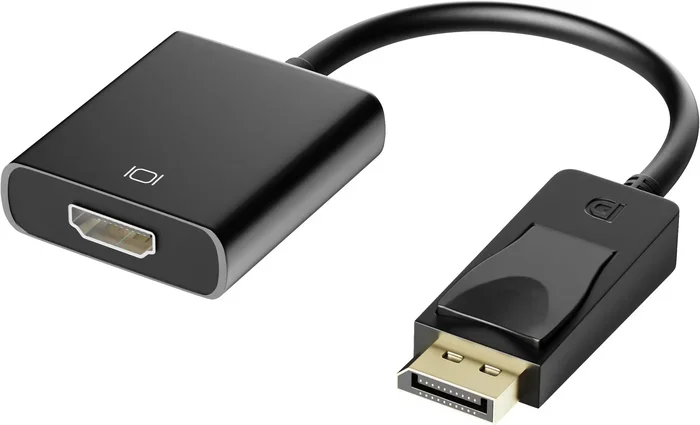
Yes, you absolutely can go from DisplayPort to HDMI. With the right adapter or converter, connecting a DisplayPort output to an HDMI display is simple and straightforward. This guide covers active and passive adapters, compatibility, resolution support, and step-by-step setup tips to make your display connection work perfectly.
Key Takeaways
- DisplayPort to HDMI is fully possible: You just need the right adapter or active converter to bridge the two standards.
- Active adapters are usually better: They handle signal conversion and often support higher resolutions like 4K.
- Check your devices first: Not all graphics cards or monitors support every adapter type, so verify compatibility before buying.
- Audio can travel through HDMI: Many adapters pass audio along with video, saving you extra cables.
- Cable quality matters: A good DisplayPort cable and HDMI cable make a big difference in signal quality and refresh rate.
- Plug and play is common: Most modern adapters work instantly without needing extra software or drivers.
📑 Table of Contents
- Can You Go Displayport To Hdmi? Yes, You Absolutely Can
- Understanding DisplayPort and HDMI Basics
- How DisplayPort to HDMI Conversion Works
- Choosing the Right Adapter for Your Setup
- Step-by-Step Setup Guide
- Common Problems and How to Fix Them
- Expert Tips for the Best DisplayPort to HDMI Experience
- When to Use a DisplayPort to HDMI Setup
- Final Thoughts
Can You Go Displayport To Hdmi? Yes, You Absolutely Can
So you have a DisplayPort output and an HDMI display. Maybe your graphics card only has DisplayPort, but your monitor uses HDMI. Or perhaps you are trying to connect a laptop to a TV. Either way, you are probably wondering: can you go DisplayPort to HDMI? The short answer is yes. You absolutely can. With the right adapter or converter, bridging these two display standards is simple and works in most situations.
DisplayPort and HDMI are both digital display connections. They carry video and audio signals from a source to a screen. The problem is that they use different connectors and slightly different signal protocols. This is where an adapter comes in. A DisplayPort to HDMI adapter converts the signal so your HDMI display can read what the DisplayPort source is sending. It is not magic. It is just smart engineering.
In this guide, we will walk you through everything you need to know. We will cover the types of adapters, what to look for, common mistakes, and expert tips to get the best results. By the end, you will feel confident making this connection yourself.
Understanding DisplayPort and HDMI Basics
Before you buy any adapter, it helps to understand what these two connections are and how they differ. Both DisplayPort and HDMI are digital display standards. They send video and audio from a source device to a display. But they were designed for slightly different purposes.
What Is DisplayPort?
DisplayPort is a display interface developed by VESA, the Video Electronics Standards Association. It is commonly found on graphics cards, docking stations, and PC monitors. DisplayPort was designed with computer displays in mind. It supports high resolutions, fast refresh rates, and can daisy-chain multiple monitors from a single port.
The DisplayPort connector comes in two main sizes. The standard DisplayPort is larger and often found on desktops. Mini DisplayPort is smaller and common on laptops, especially older MacBooks. Both carry the same digital signal and can be adapted to HDMI using the right converter.
What Is HDMI?
HDMI stands for High-Definition Multimedia Interface. It is the most common display connection for TVs, projectors, and home theater systems. HDMI is also found on many modern monitors. It carries both video and audio through a single cable. This makes it very convenient for connecting a laptop to a TV or a gaming console to a display.
HDMI has gone through several versions over the years. HDMI 1.4 supports 4K at 30Hz. HDMI 2.0 supports 4K at 60Hz. HDMI 2.1 supports even higher resolutions and refresh rates. When choosing a DisplayPort to HDMI adapter, matching the HDMI version to your needs matters.
Key Differences Between DisplayPort and HDMI
Here are the main differences between these two display standards:
- Connector shape: DisplayPort is rectangular with a clip. HDMI is a smaller, trapezoid-shaped plug.
- Primary use: DisplayPort is built for PCs and monitors. HDMI is built for TVs and home entertainment.
- Daisy-chaining: DisplayPort supports daisy-chaining multiple monitors. HDMI does not.
- Audio support: Both carry audio, but HDMI is more focused on audio-video sync for home theater.
- Version updates: HDMI has more consumer-facing versions. DisplayPort updates are more focused on PC use cases.
How DisplayPort to HDMI Conversion Works
Now that you understand the basics, let us talk about how the actual conversion works. When you go from DisplayPort to HDMI, the adapter does the heavy lifting. It takes the digital signal from the DisplayPort output and re-encodes it into an HDMI signal.
Active vs Passive Adapters
This is where many people get confused. There are two main types of adapters: active and passive.
Passive adapters simply change the connector shape. They do not convert the signal. Passive adapters work when both the source and display use the same signaling standard. They are cheaper and smaller, but they have limitations.
Active adapters contain internal electronics that actually convert the signal from one standard to another. Active adapters are more expensive, but they are far more versatile. They can handle different resolutions and refresh rates. For most DisplayPort to HDMI setups, an active adapter is the better choice.
If you are unsure which type you need, go with an active adapter. It gives you more flexibility and fewer headaches.
The Role of the Graphics Card
Your graphics card plays a big role in whether the adapter works well. Most modern GPUs from NVIDIA and AMD support DisplayPort to HDMI conversion natively. The graphics card sends the signal, the adapter converts it, and the HDMI display receives it.
Some older graphics cards may not support certain adapter types. If you run into issues, check your GPU specifications. Look for DisplayPort output support and HDMI input compatibility on your monitor or TV.
Choosing the Right Adapter for Your Setup
Not all adapters are created equal. Buying the wrong one can lead to frustration. Here is what you need to consider before making a purchase.
Check Your Resolution Needs
What resolution does your display support? If you have a 1080p monitor, most adapters will work fine. But if you have a 4K display, you need an adapter that supports 4K resolution. Look for adapters rated for 4K at 60Hz or higher.
Here is a quick comparison of what different adapter types can handle:
- Basic adapters: Usually support 1080p at 60Hz. Great for office work and everyday use.
- Mid-range adapters: Support 4K at 30Hz or 60Hz. Good for media consumption and light creative work.
- Premium adapters: Support 4K at 60Hz or higher. Ideal for gaming, video editing, and professional use.
Consider Refresh Rate
If you are a gamer, refresh rate matters a lot. A 60Hz display is standard. But if you have a 144Hz or 240Hz monitor, you need an adapter that can handle those speeds. Check the adapter specifications carefully. The box or product page should list supported refresh rates at each resolution.
Audio Passthrough
One great thing about HDMI is that it carries audio. Many DisplayPort to HDMI adapters support audio passthrough. This means you get both video and sound through a single HDMI cable. It is super convenient when connecting a PC to a TV or home theater system.
Not all adapters support audio, though. Always check the product specs. Look for “audio passthrough” or “audio supported” in the description. If audio is important to your setup, do not skip this step.
Cable Length and Quality
The length of your cables affects signal quality. A short cable is usually fine. But if you need a longer run, you may experience signal loss. For runs over 6 feet, consider a high-quality cable or an active signal booster.
Cheap cables and adapters often cause problems. They may work at first but fail under heavy use. Investing in a reliable adapter and good cables saves you time and frustration in the long run.
Step-by-Step Setup Guide
Setting up a DisplayPort to HDMI connection is straightforward. Follow these steps and you should be up and running in minutes.
- Turn off both devices. Power down your computer and your display before making any connections.
- Plug the DisplayPort end into your source. This is your PC, laptop, or graphics card. Push the connector in until it clicks.
- Plug the HDMI end into your display. Connect the other end to your monitor or TV.
- Power on your display first. Turn on the TV or monitor before starting your computer.
- Power on your computer. Wait for it to boot up fully.
- Check the display settings. On Windows, go to Settings > System > Display. On macOS, go to System Settings > Displays. Make sure the correct display is detected.
- Adjust resolution and refresh rate if needed. Select the native resolution of your display for the best picture quality.
That is it. Most adapters are plug and play. You should not need to install any special software. If the display does not show up, try unplugging and replugging the adapter. Sometimes a fresh connection is all it takes.
If you are having trouble with device connectivity, you might want to check our guide on adding prefixes to numbers on iPhone for general troubleshooting tips on device connections, or browse our top gadgets list for helpful accessories that can simplify your tech setup.
Common Problems and How to Fix Them
Even with the right adapter, you might run into issues. Here are the most common problems and how to solve them.
No Signal on the Display
This is the most common issue. If your screen shows no signal, try these steps:
- Check that both ends of the adapter are firmly plugged in.
- Try a different DisplayPort cable.
- Try a different HDMI cable.
- Test the adapter on another device.
- Update your graphics card drivers.
Often, a loose connection is the culprit. Unplug everything and plug it back in firmly.
Low Resolution or Blurry Image
If the image looks fuzzy or the resolution is lower than expected, your adapter may not support the display’s native resolution. Check the adapter specifications. Make sure it supports the resolution and refresh rate of your display.
You can also adjust the resolution manually in your display settings. On Windows, right-click the desktop and select Display Settings. Scroll down to Display Resolution and select the recommended option.
No Audio Through HDMI
If you get video but no sound, the adapter may not support audio passthrough. Check the product specs for audio support. You can also go into your sound settings and make sure the HDMI output is set as the default audio device.
On Windows, right-click the speaker icon in your taskbar. Select Sound Settings. Under Output, choose the HDMI display. On macOS, go to System Settings > Sound and select the HDMI output.
Flickering or Intermittent Signal
Flickering usually points to a cable or adapter quality issue. Cheap adapters struggle with stable signal transmission. Try a higher-quality adapter or a shorter cable. If the problem persists, the adapter may be defective.
Expert Tips for the Best DisplayPort to HDMI Experience
Here are some pro tips that can make a real difference in your setup.
Buy from reputable brands. Cheap no-name adapters often fail or cause compatibility issues. Brands like Cable Matters, UGREEN, and StarTech are reliable choices.
Match your HDMI version to your needs. If you want 4K at 60Hz, make sure your adapter and HDMI cable support HDMI 2.0 or higher.
Keep your drivers updated. Graphics card drivers are updated frequently. They often include fixes for display connectivity issues.
Use a powered adapter for demanding setups. If you are running multiple displays or high resolutions, a powered adapter has its own power source and handles the load better.
Test before you commit. If possible, test the adapter before buying. Many online retailers have good return policies. Use them if the adapter does not work as expected.
When to Use a DisplayPort to HDMI Setup
There are many real-world situations where going from DisplayPort to HDMI makes perfect sense. Here are a few common scenarios.
Connecting a PC to a TV. Many PCs only have DisplayPort outputs. But most TVs use HDMI inputs. An adapter lets you use your TV as a computer monitor or for streaming content.
Using a laptop with an external monitor. Some laptops have Mini DisplayPort or USB-C with DisplayPort Alt Mode. An adapter lets you connect to any HDMI monitor in the office or at home.
Gaming setups. Some monitors only have HDMI inputs. If your graphics card has DisplayPort outputs, an adapter is the easiest way to connect.
Home theater PCs. Building a small PC for your living room? DisplayPort to HDMI adapters make it easy to connect to your TV and enjoy high-quality video and audio.
Final Thoughts
So, can you go DisplayPort to HDMI? The answer is a clear yes. With the right adapter, a solid cable, and a bit of patience, you can connect any DisplayPort source to any HDMI display. The process is simple, the adapters are affordable, and the results are reliable.
Remember to check your resolution needs, refresh rate requirements, and audio preferences before buying. Choose an active adapter for the most flexibility. And always go for quality over price. A good adapter lasts for years and delivers a flawless viewing experience every time.
Whether you are setting up a home office, a gaming rig, or a home theater PC, DisplayPort to HDMI conversion is a practical and easy solution. You do not need to be a tech expert. Just follow the steps in this guide, and you will be good to go.
Start with the right adapter, enjoy your setup, and never worry about display compatibility again. The world of seamless connectivity is just one adapter away.
Frequently Asked Questions
Do I need an active or passive adapter for DisplayPort to HDMI?
For most setups, an active adapter is the best choice. Active adapters contain electronics that convert the signal between the two standards. Passive adapters only change the connector shape and work in limited situations. If you want reliable performance and broad compatibility, go with an active adapter.
Can I get 4K resolution using a DisplayPort to HDMI adapter?
Yes, you can get 4K resolution, but your adapter must support it. Look for adapters rated for 4K at 60Hz or higher. Cheaper adapters may only support 4K at 30Hz or 1080p. Always check the product specifications before purchasing.
Will audio work through a DisplayPort to HDMI adapter?
Many adapters support audio passthrough, which means you get both video and sound through the HDMI cable. However, not all adapters include this feature. Check the product description for audio support before buying if sound is important to your setup.
Do I need to install drivers for a DisplayPort to HDMI adapter?
Most adapters are plug and play and do not require any drivers. You simply plug them in and the connection works. However, keeping your graphics card drivers updated can help prevent compatibility issues and improve overall performance.
Why does my DisplayPort to HDMI connection show no signal?
A no-signal issue is usually caused by a loose connection, an incompatible adapter, or outdated drivers. Start by checking that all cables are firmly connected. Try a different adapter or cable if possible. Updating your graphics card drivers can also resolve the problem.
Can I use a DisplayPort to HDMI adapter with a gaming console?
DisplayPort to HDMI adapters are designed for devices with DisplayPort outputs, like PCs and laptops. Most gaming consoles use HDMI outputs natively, so you would not need an adapter for them. If you want to connect a console to a DisplayPort monitor, you would need an HDMI to DisplayPort adapter instead.