Can You Easily Extend 2 Displays With Hdmi Splitter
Yes, you can extend 2 displays with an HDMI splitter, but there are important things you need to know first. An HDMI splitter duplicates the same signal to multiple screens, while an HDMI switch lets you toggle between sources. Understanding the difference is key to setting up your ideal dual monitor workspace. This guide walks you through everything from choosing the right device to troubleshooting common issues.
Have you ever sat at your desk and thought, “I really need more screen space”? You are not alone. Many people want to extend their display to boost productivity, multitask with ease, and enjoy a better computing experience. One popular idea is to use an HDMI splitter to connect two monitors. But can you really extend two displays this way? The short answer is not exactly what most people expect.
An HDMI splitter takes one video signal and copies it to multiple screens. That means both monitors show the exact same image. This is called mirroring, not extending. If you want to stretch your desktop across two different screens, you need a different solution. Let us dive deep into how this all works, what your options are, and how to set things up the right way.
In this guide, we will cover everything from basic HDMI splitter functionality to the best alternatives for a true dual monitor setup. Whether you are a student, a remote worker, or a gamer, this article has practical advice you can use right away.
Key Takeaways
- HDMI splitters duplicate signals: They send the same image to multiple screens, not extend your desktop across them.
- An HDMI switch or GPU with multiple outputs is better for extending: These options let you run different content on each display.
- Not all splitters support high resolutions: Check for 4K or 1080p compatibility before buying.
- Signal degradation can happen: Longer HDMI cables or cheap splitters may reduce image quality.
- EDID management matters: A good splitter handles display communication properly to avoid blank screens.
- Setup is usually simple: Plug in, configure your OS settings, and you are ready to go.
- Consider your use case: Mirroring and extending serve very different purposes, so choose accordingly.
📑 Table of Contents
- What Is an HDMI Splitter and How Does It Work?
- Can You Actually Extend 2 Displays With an HDMI Splitter?
- HDMI Splitter vs HDMI Switch: What Is the Difference?
- How to Set Up Dual Displays for True Desktop Extension
- Best HDMI Splitters for Dual Display Setups
- Common Problems and How to Fix Them
- Expert Tips for the Best Dual Display Experience
- Quick Tips for HDMI Splitter Users
- Conclusion
What Is an HDMI Splitter and How Does It Work?
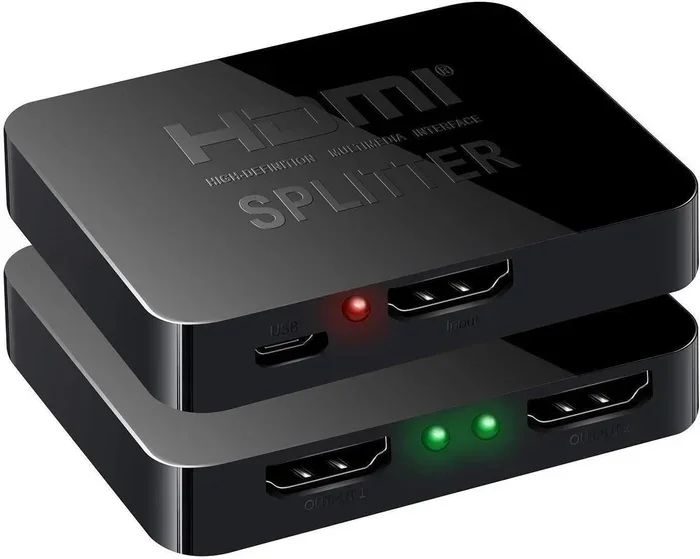
An HDMI splitter is a small device that takes a single HDMI input and sends that same signal to two or more outputs. Think of it like a water pipe splitter. Water flows in one end and comes out of two outlets. The same idea applies to video signals.
You plug your laptop, desktop, or media player into the splitter’s input port. Then you run two HDMI cables from the output ports to your monitors. Both screens display the identical content at the same time. This is known as screen mirroring.
Most HDMI splitters are plug-and-play. You do not need to install any software or drivers. Just connect the cables and power on the device. Some splitters also include an audio output, so you can route sound to speakers or headphones separately.
Types of HDMI Splitters
Not all splitters are the same. Here are the most common types you will encounter:
- Basic 1×2 splitters: One input, two outputs. These are the most popular and affordable options.
- 1×4 or 1×8 splitters: One input, four or eight outputs. Great for digital signage or conference rooms.
- Powered splitters: These require a USB power source. They boost the signal for longer cable runs.
- Unpowered splitters: These draw power from the HDMI connection itself. They work well for short distances.
- 4K-compatible splitters: Designed for high-resolution video. Make sure your splitter supports your desired display resolution.
Can You Actually Extend 2 Displays With an HDMI Splitter?
Here is the truth many people do not realize. An HDMI splitter cannot extend your desktop. It can only mirror your screen. Both monitors will show the same image, the same window, and the same cursor position. If you open a browser on the left side of your screen, it appears on both monitors in the same spot.
So if you want true display extension, where each monitor shows different content, an HDMI splitter is not the right tool. You need either a graphics card with multiple outputs or an HDMI switch combined with software support.
When Mirroring Is Actually Useful
Even though mirroring is not the same as extending, it still has real value. Here are situations where an HDMI splitter shines:
- Presentations: Show the same slide on a projector and your laptop at the same time.
- Digital signage: Display the same advertisement on multiple screens in a store or lobby.
- Gaming on two TVs: Share your gameplay with friends in the same room.
- Classroom setups: Students at the back of the room can see the same content as those in front.
For these use cases, an HDMI splitter works perfectly. Just do not expect it to give you an extended desktop.
HDMI Splitter vs HDMI Switch: What Is the Difference?
These two devices are often confused, but they do completely different things. Understanding the difference is essential before you buy anything.
An HDMI splitter takes one source and sends it to many displays. It duplicates the signal. An HDMI switch takes many sources and sends them to one display. It lets you choose which device to watch.
| Feature | HDMI Splitter | HDMI Switch |
|---|---|---|
| Input Sources | One | Two or more |
| Output Displays | Two or more | One |
| Primary Function | Duplicates signal | Switches between sources |
| Use Case | Mirroring content | Connecting multiple devices to one TV |
| Extends Desktop? | No | No (unless paired with software) |
Neither device alone will extend your desktop across two monitors. To achieve true extension, you need a graphics card or a computer with multiple video outputs built in.
What If You Want Both? A Combo Solution
Some advanced devices combine splitting and switching features. These are less common but can be useful in certain setups. For example, a splitter with EDID management can handle communication between your computer and multiple displays more smoothly. This helps prevent blank screens or resolution issues.
EDID stands for Extended Display Identification Data. It is how your computer talks to your monitor to figure out the best resolution and refresh rate. A good HDMI splitter or switch will handle this automatically, but cheap models often struggle with it.
How to Set Up Dual Displays for True Desktop Extension
If your goal is to extend your desktop across two monitors, there are better methods than using an HDMI splitter. Here are the most reliable approaches.
Method 1: Use a Graphics Card with Multiple Outputs
Most modern desktop computers come with a graphics card that has two or more video outputs. You might see HDMI, DisplayPort, or DVI ports on the back of your PC. Simply connect one monitor to each port, and your operating system will recognize both screens.
On Windows, go to Settings > System > Display. You will see two display icons. Select “Extend these displays” to spread your desktop across both monitors. On macOS, go to System Settings > Displays and choose “Extend Desktop.”
This is the easiest and most reliable way to extend two displays. No extra hardware is needed if your graphics card already has multiple outputs.
Method 2: Use a USB-to-HDMI Adapter
What if your computer only has one HDMI port? You can buy a USB-to-HDMI adapter. These small devices plug into a USB port and add an extra video output. They are affordable and work with most computers.
Look for an adapter that supports your desired resolution. Many budget adapters only handle 1080p at 30Hz. If you want 4K or higher refresh rates, you will need a better adapter. Brands like DisplayLink offer reliable options for extended desktop setups.
Method 3: Use an HDMI Switch with Software Support
Some HDMI switches come with software that allows display extension. These are more advanced and typically cost more than basic switches. They act as a virtual graphics adapter, telling your computer that multiple displays are connected.
This method works well for laptops that need a dual monitor setup on the go. You connect the switch to your laptop, and the software creates a virtual display that you can extend to an external monitor.
Best HDMI Splitters for Dual Display Setups
If you still want to use an HDMI splitter for mirroring or other purposes, choosing the right one matters. Here are some tips for finding a quality splitter.
What to Look For
- Resolution support: Make sure the splitter supports 1080p or 4K, depending on your needs.
- EDID handling: Good EDID management prevents display conflicts and blank screens.
- Signal boosting: Powered splitters maintain signal quality over longer cable runs.
- Build quality: Metal housings dissipate heat better than plastic ones.
- Brand reputation: Look for brands like Kinivo, UGREEN, or IOGEAR that have solid customer reviews.
Popular Options on the Market
The Kinivo 550BN is a popular powered splitter that supports 1080p and includes an IR remote. The UGREEN HDMI Splitter is a budget-friendly option that works well for basic mirroring. For 4K setups, the IOGEAR GB-SH24K offers excellent resolution support and reliable performance.
Before buying, check your specific needs. If you only need to mirror a presentation, a basic splitter will do. If you want the best image quality, invest in a higher-end model with proper signal amplification.
Common Problems and How to Fix Them
Setting up dual displays is not always smooth sailing. Here are the most common issues people face and how to solve them.
Blank Screen on One Monitor
This usually happens because of EDID handshake issues. Try unplugging all cables, powering everything off, and then plugging them back in. If that does not work, check your display settings to make sure both monitors are detected.
Low Resolution or Fuzzy Image
A cheap or unpowered splitter can degrade your signal. Upgrade to a powered model or shorten your cable lengths. Also, make sure your splitter supports the resolution you are trying to use.
No Sound Through HDMI
Sometimes the audio gets lost when splitting a signal. Check your sound settings in Windows or macOS and make sure the HDMI output is set as the default audio device. Some splitters have a separate audio out port you can use instead.
Flickering or Intermittent Signal
Flickering is often caused by a weak signal or a bad cable. Try a different HDMI cable or add a signal booster. Make sure all connections are secure and not loose.
Expert Tips for the Best Dual Display Experience
Want to get the most out of your setup? Here are some tips from experienced users and tech professionals.
First, always match your cable quality to your resolution needs. A cheap HDMI cable might work fine for 1080p, but it can cause problems at 4K. Invest in certified high-speed cables for the best results.
Second, keep your firmware and drivers updated. Graphics card manufacturers release regular updates that improve multi-display support. Check your GPU manufacturer’s website for the latest drivers.
Third, consider your desk layout carefully. Place your primary monitor directly in front of you and position the secondary monitor to the side at a comfortable viewing angle. This reduces neck strain and improves your workflow.
Finally, if you are running into persistent issues, try a different port on your computer or a different splitter. Sometimes the problem is with a specific port or device, not the setup itself.
Quick Tips for HDMI Splitter Users
- Always check that your splitter supports your desired resolution before purchasing.
- Use powered splitters for runs longer than 10 feet to avoid signal loss.
- Label your cables so you know which input goes to which output.
- Keep spare cables and adapters handy for quick troubleshooting.
- Test your setup with a simple image before using it for important work or presentations.
Conclusion
So, can you extend two displays with an HDMI splitter? The honest answer is no, not in the way most people mean. An HDMI splitter mirrors your screen, showing the same content on both displays. It does not stretch your desktop across two monitors.
However, that does not mean you cannot achieve a dual display setup. You have several great options available. Use a graphics card with multiple outputs, add a USB-to-HDMI adapter, or explore advanced switches with software support. Each method gives you the ability to extend your desktop and boost your productivity.
If mirroring is what you need, an HDMI splitter is a simple and affordable solution. Just make sure you buy the right one for your resolution and setup requirements. With the right approach, you can create the dual display workspace you have been dreaming of.
Take action today. Figure out what you need, pick the right solution, and enjoy the benefits of a bigger, more productive screen setup. Your workflow will thank you.
Frequently Asked Questions
Can an HDMI splitter extend my desktop across two monitors?
No, an HDMI splitter duplicates the same signal to both screens, which is called mirroring. To extend your desktop, you need a graphics card with multiple outputs or a USB-to-HDMI adapter paired with your operating system’s display settings.
What is the difference between an HDMI splitter and an HDMI switch?
An HDMI splitter takes one input and sends it to multiple displays, duplicating the image. An HDMI switch takes multiple inputs and sends them to one display, letting you choose which source to view. They serve opposite purposes.
Do I need a powered HDMI splitter?
Powered splitters are recommended for longer cable runs or when connecting to high-resolution displays. Unpowered splitters work fine for short distances and basic setups, but a powered model provides a stronger, more reliable signal.
Will an HDMI splitter support 4K resolution?
It depends on the model. Many budget splitters only support 1080p. If you need 4K support, look for a splitter specifically rated for 4K resolution and make sure your cables and source device also support it.
Can I use an HDMI splitter with a laptop?
Yes, you can. Plug the splitter into your laptop’s HDMI output and connect two monitors to the output ports. Remember that this will mirror your screen, not extend it. To extend, you would need a USB-to-HDMI adapter or a laptop with multiple video outputs.
Why is one of my monitors showing a blank screen after connecting the splitter?
This is often an EDID handshake issue. Try disconnecting all cables, powering off your devices, and reconnecting everything. Also check your display settings to make sure both monitors are recognized by your computer.