Can You Convert From USB to HDMI Everything You Need
Yes, you can convert from USB to HDMI using the right adapter or cable. This guide covers everything you need to know about USB to HDMI conversion, including how it works, which adapters to buy, setup steps, and common problems. Whether you want to connect a laptop, phone, or tablet to a TV or monitor, USB to HDMI conversion makes it simple and affordable.
Have you ever wanted to show something from your computer or phone on a bigger screen? Maybe you need to give a presentation at work, watch a movie on your TV, or just extend your display. The good news is that converting from USB to HDMI is easier than you think. With the right adapter, you can turn any USB port into a video output in just a few minutes.
This guide walks you through everything you need to know. We will cover how USB to HDMI conversion works, the different types of adapters available, and step-by-step setup instructions. We will also share tips to avoid common problems. By the end, you will feel confident buying and using a USB to HDMI adapter for your needs.
Key Takeaways
- USB to HDMI adapters are widely available: You can find plug-and-play options for under $20 that work with most devices.
- USB-C to HDMI is the most popular type: Modern laptops, tablets, and phones often use USB-C, making these adapters essential.
- Setup is simple and fast: Most USB to HDMI conversions require no software or drivers.
- Check compatibility first: Not every USB port supports video output, so verify your device specs before buying.
- Common issues are easy to fix: Problems like no signal or low resolution usually have simple solutions.
- These adapters open up big possibilities: From screen mirroring to presentations, USB to HDMI conversion expands your display options.
📑 Table of Contents
- What Is USB to HDMI Conversion?
- How Does USB to HDMI Conversion Work?
- Types of USB to HDMI Adapters and Cables
- Step-by-Step Guide to Converting USB to HDMI
- Common Problems and How to Fix Them
- Is Converting from USB to HDMI Worth It?
- Expert Tips for Getting the Best Results
- Quick Tips Summary
- Frequently Asked Questions
- Conclusion
What Is USB to HDMI Conversion?
USB to HDMI conversion means taking a signal from a USB port and turning it into an HDMI signal that a display can read. HDMI stands for High-Definition Multimedia Interface. It is the most common cable type for connecting devices to screens like TVs, monitors, and projectors.
USB ports were originally designed for data transfer and charging. But over time, newer USB standards added the ability to carry video signals too. This is why you can now use a USB to HDMI adapter to mirror or extend your screen.
Here are some common situations where you might need this conversion:
- Connecting a laptop to a TV for movie night or a big-screen presentation.
- Extending your desktop display to a second monitor at work.
- Screen mirroring from a tablet to a larger display for sharing photos or videos.
- Setting up a portable workstation with an external monitor using just one cable.
The beauty of USB to HDMI technology is that it removes the need for multiple cables and dongles. One small adapter can do the job of several cords. It is a simple connectivity solution that saves time and desk space.
How Does USB to HDMI Conversion Work?
Understanding how USB to HDMI adapters work helps you pick the right one. The adapter acts as a bridge between two different signal types. It takes the digital data from a USB port and converts it into an HDMI signal that a display understands.
The Role of the Adapter Chip
Inside every USB to HDMI adapter is a small chip called a converter. This chip handles the translation from USB data to HDMI output. Good adapters use high-quality chips that support smooth video and audio without lag.
Cheaper adapters may use low-grade chips, which can cause flickering, lag, or no signal at all. This is why it pays to buy from a trusted brand. A reliable USB to HDMI cable or adapter ensures your display output looks clean and clear.
USB Protocols and Video Support
Not all USB ports are the same. Here is a quick look at how different USB types handle video:
- USB 2.0: Basic data transfer. Some adapters work with USB 2.0, but video quality may be limited.
- USB 3.0: Faster data rates. Better support for higher resolutions like 1080p.
- USB-C: The newest standard. Supports video output natively on many devices. This is the best option for USB-C to HDMI adapters.
- Thunderbolt 3/4: Uses the USB-C shape but offers even faster speeds and better video performance.
When choosing an adapter, always check which USB protocol your device uses. This determines the maximum resolution and refresh rate you can expect.
Types of USB to HDMI Adapters and Cables
The market is full of options, which can feel overwhelming. But breaking it down into simple categories makes it easy. Here are the main types of USB to HDMI conversion products you will find.
USB-C to HDMI Adapters
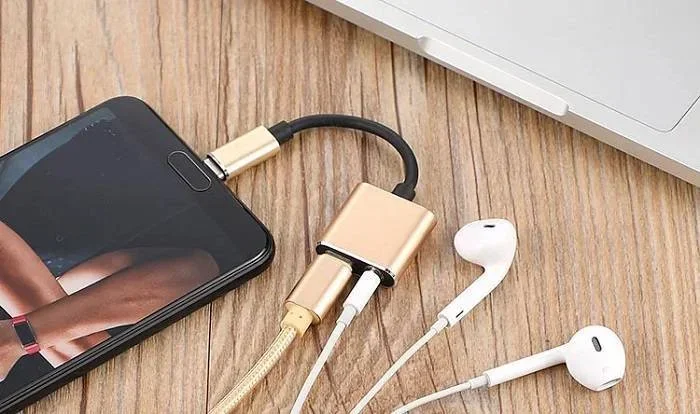
This is the most popular type right now. Most modern laptops, tablets, and smartphones use USB-C. A USB-C to HDMI adapter plugs directly into your device and gives you a standard HDMI output.
These adapters are usually plug and play, meaning you do not need to install any software. Just plug in the adapter, connect an HDMI cable, and your screen should appear on the display.
USB-A to HDMI Adapters
USB-A is the traditional rectangular USB port found on older computers. USB-A to HDMI adapters are available but less common. They work best with desktop PCs that have a USB-A port and an HDMI-ready monitor or TV.
Keep in mind that USB-A adapters may require a driver or software installation. Check the product description before buying to confirm compatibility with your operating system.
USB to HDMI Cables (All-in-One)
Some brands sell a single cable that has a USB connector on one end and an HDMI connector on the other. These USB to HDMI cables are convenient because they need no separate adapter. Just plug both ends in and go.
However, all-in-one cables can be limited by cable length and signal quality. For longer runs, a separate adapter plus HDMI cable often works better.
Docking Stations with USB to HDMI
If you need more than just video output, consider a USB docking station. These hubs provide HDMI output along with USB ports, Ethernet, and sometimes SD card readers. They are great for workstation setups and professionals who need multiple connections.
Step-by-Step Guide to Converting USB to HDMI
Setting up a USB to HDMI connection is straightforward. Follow these steps and you will be up and running in no time.
Step 1: Check Your Device Compatibility
Before buying anything, check what type of USB port your device has. Look for USB-C, USB-A, or Thunderbolt symbols near the port. Also, verify that your device supports video output over USB. Most modern devices do, but some budget models may not.
If you are unsure, check the manufacturer’s website or your device manual. A quick search for your model number plus “video output” usually gives you the answer.
Step 2: Choose the Right Adapter
Pick an adapter that matches your USB port type and your display needs. Consider these factors:
- Resolution support: Do you need 1080p, 4K, or even 8K?
- Refresh rate: Higher refresh rates (60Hz or more) give smoother motion.
- Audio support: Most adapters carry audio too, but check if you need it.
- Build quality: Metal-bodied adapters tend to perform better and last longer.
Step 3: Connect the Adapter
Plug the adapter into your device’s USB port. Then connect an HDMI cable from the adapter to your TV, monitor, or projector. Make sure both ends are fully seated.
Most USB to HDMI adapters are recognized instantly. Your screen should either mirror or extend, depending on your display settings.
Step 4: Configure Display Settings
On Windows, right-click the desktop and select Display Settings. On macOS, go to System Settings and choose Displays. From there, you can choose to mirror your screen or extend it as a second display.
Adjust the resolution and orientation to match your external display. This ensures the best picture quality and a comfortable viewing experience.
Step 5: Test and Enjoy
Play a video or open a presentation to test the connection. Check for smooth playback, clear audio, and no flickering. If everything looks good, you are all set!
Common Problems and How to Fix Them
Even with the best USB to HDMI adapter, you might run into issues now and then. Here are the most common problems and simple fixes.
No Signal on the Display
If your screen goes blank, try these steps:
- Unplug the adapter and plug it back in firmly.
- Try a different HDMI cable or HDMI port on your display.
- Restart your device and check the display settings.
- Make sure the adapter is compatible with your USB port type.
Low Resolution or Blurry Image
This usually happens when the adapter or cable does not support high resolutions. Upgrade to a USB-C to HDMI adapter that supports 4K if you want crisp, clear images. Also, check your display settings and set the resolution to match your monitor’s native resolution.
No Audio Through HDMI
Sometimes video comes through but there is no sound. In your device’s sound settings, select the HDMI output as the default audio device. This is a quick fix that solves the problem in most cases.
Flickering or Intermittent Signal
Flickering often points to a loose connection or a low-quality adapter. Try a different adapter or a shorter HDMI cable. A high-quality USB to HDMI cable with good shielding reduces signal interference and flickering.
Is Converting from USB to HDMI Worth It?
The short answer is yes. A USB to HDMI adapter is one of the most useful and affordable tech accessories you can own. For under $20, you get the ability to connect almost any device to any HDMI display.
These adapters are especially handy for people who work from home, travel frequently, or give presentations regularly. Instead of carrying multiple cables and adapters, one USB to HDMI adapter covers all your needs.
If you want to explore more tech gadgets that simplify everyday life, check out this guide to gadgets that make life easier for some great ideas.
USB to HDMI conversion also works great alongside other connectivity tools. For example, if you need to organize phone numbers with custom prefixes, you can look up how to add prefixes to numbers on iPhone for better contact management.
Overall, USB to HDMI adapters are a small investment with big returns. They expand your screen options, improve productivity, and make sharing content effortless.
Expert Tips for Getting the Best Results
Want to get the most out of your USB to HDMI setup? Here are some expert-backed tips that make a real difference.
- Use a powered USB hub: If your device has limited power output, a powered hub ensures the adapter gets enough juice for stable performance.
- Keep cables short: Longer cables can weaken the signal. Aim for HDMI cables under 6 feet for the best output signal quality.
- Update your drivers: On Windows, keeping your graphics and USB drivers updated prevents most compatibility issues.
- Buy from reputable brands: Companies like Cable Matters, UGREEN, and Anker make reliable USB to HDMI adapters with solid build quality.
- Test before important meetings: Always test your setup before a big presentation or movie night to avoid last-minute surprises.
These small habits go a long way in ensuring your USB to HDMI conversion experience is smooth and hassle-free.
Quick Tips Summary
- Always match your adapter type to your USB port (USB-C, USB-A, Thunderbolt).
- Check resolution and refresh rate support before purchasing.
- Plug and play adapters save time and avoid software headaches.
- A metal-bodied adapter usually performs better than a plastic one.
- Keep your HDMI cable and adapter connections clean and secure.
- If you experience issues, restart your device first before troubleshooting further.
Frequently Asked Questions
Can any USB port convert to HDMI?
Not all USB ports support video output. USB-C and Thunderbolt ports typically do, but older USB-A ports may require a specific adapter or driver. Always check your device specifications before purchasing a USB to HDMI adapter.
Do I need to install software for a USB to HDMI adapter?
Most modern USB to HDMI adapters are plug and play and do not require any software. However, some older USB-A adapters may need a driver. Check the product description to confirm before buying.
Can I use a USB to HDMI adapter for 4K video?
Yes, but you need an adapter that specifically supports 4K resolution. Look for adapters rated for 4K at 30Hz or 60Hz. A USB-C to HDMI adapter with 4K support gives you the best results for high-resolution content.
Why is my USB to HDMI adapter not working?
Common reasons include a loose connection, incompatible USB port, outdated drivers, or a faulty cable. Try reseating the adapter, using a different HDMI cable, and checking your display settings. If the problem persists, the adapter itself may be defective.
Can I connect a USB to HDMI adapter to a smart TV?
Absolutely. Most smart TVs have HDMI ports, so a USB to HDMI adapter works perfectly with them. Just connect the adapter to your device, plug in an HDMI cable to the TV, and select the correct HDMI input on your TV.
Are expensive USB to HDMI adapters worth the extra cost?
Generally, yes. Higher-priced adapters tend to use better converter chips, support higher resolutions, and offer more stable connections. If you use your adapter daily for work or entertainment, investing in a quality USB to HDMI adapter is a smart choice.
Conclusion
Converting from USB to HDMI is one of the simplest and most useful tech skills you can learn today. Whether you need to connect a laptop to a TV, extend your workspace with a second monitor, or share content on a big screen, a USB to HDMI adapter makes it all possible.
The process is straightforward. Pick the right adapter for your device, plug it in, and configure your display settings. Most setups take less than five minutes. And with prices starting under $20, there is no reason not to try it.
Remember to check compatibility before you buy, use quality cables, and test your setup before important moments. With the right USB to HDMI conversion tools, you can turn any screen into a bigger, better display.
Start exploring your options today. A small adapter can open up a world of possibilities for your devices and your daily routine.