Can You Connect Hdmi To Rgb And What You Need To Know
Yes, you can connect HDMI to RGB, but you need the right converter or adapter to bridge the digital and analog signals. This guide explains exactly what equipment you need, how the connection works, and common mistakes to avoid. Whether you are setting up a home theater, retro gaming rig, or office display, understanding HDMI to RGB conversion saves you time, money, and frustration.
Have you ever stared at a screen with only RGB ports and a pile of HDMI cables? You are not alone. Many people run into this problem when connecting newer devices to older displays. The good news is that connecting HDMI to RGB is absolutely possible. You just need the right tools and a basic understanding of how the signals work.
In this guide, we walk you through everything you need to know. From the basics of digital versus analog signals to the best adapters on the market, we have you covered. By the end, you will feel confident making this connection yourself. Let us dive in.
Key Takeaways
- HDMI is digital and RGB is analog: You cannot plug one directly into the other without a converter.
- An HDMI to RGB converter or adapter is essential: This device changes the digital signal into an analog one your screen can read.
- Audio may need a separate cable: HDMI carries both video and audio, but RGB only handles video, so you often need an extra audio connection.
- Resolution and refresh rate matter: Not all converters support high-definition signals, so check specs before buying.
- Common use cases include retro gaming, older monitors, and professional AV setups: Knowing when to use RGB helps you make the right choice.
- Avoid cheap knockoff adapters: Low-quality converters can cause signal loss, flickering, and poor image quality.
📑 Table of Contents
What Is HDMI and What Is RGB?
Before you can connect these two standards, you need to understand what each one is. Both HDMI and RGB carry video signals, but they do it in very different ways.
Understanding HDMI
HDMI stands for High-Definition Multimedia Interface. It is a digital signal standard that has been around since the early 2000s. HDMI cables carry both video and audio through a single cable. This makes them incredibly convenient for modern setups.
Most TVs, monitors, laptops, and gaming consoles use HDMI today. It supports high resolutions like 4K and even 8K in newer versions. The signal stays clean and digital from start to finish, which means less degradation.
Understanding RGB
RGB stands for Red, Green, and Blue. It is an analog video signal that has been around for decades. RGB splits the video signal into three separate color channels. Each color gets its own cable, which gives a total of three or four cables depending on whether sync is combined or separate.
You will find RGB connections on older monitors, projectors, and some professional displays. The RGB SCART connector is especially common in Europe. While the technology is older, many people still prefer the look of RGB on certain screens.
Can You Connect HDMI to RGB Directly?
The short answer is no. You cannot plug an HDMI cable directly into an RGB port. Here is why.
HDMI sends a digital signal. RGB expects an analog signal. Think of it like trying to plug a USB drive into a tape player. The formats simply do not match. Without a converter in between, the signals cannot communicate.
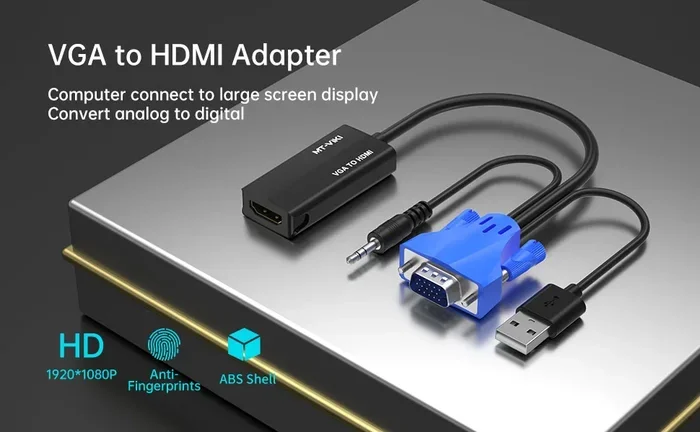
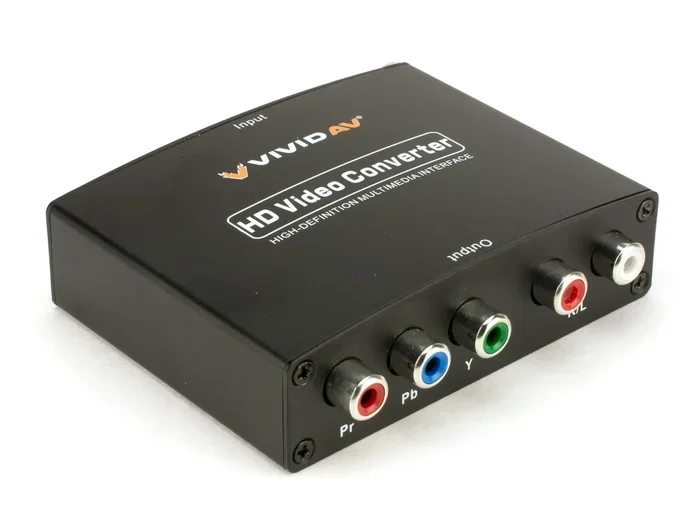
This is where an HDMI to RGB converter comes in. It takes the digital HDMI signal and translates it into an analog RGB signal. The converter does the heavy lifting so your older display can show the content from your modern device.
Some people wonder if they can just use an adapter cable. A simple cable adapter will not work here. You need an active converter box that processes the signal. Passive adapters only change the shape of the connector, not the signal type.
What You Need: Adapters and Converters
Now that you know a direct connection is not possible, let us talk about what you actually need to make it work.
HDMI to RGB Converter Box
This is the most important piece of equipment. A video converter box takes the HDMI input and outputs an RGB signal. Most converter boxes also include an audio output, usually through a 3.5mm jack or RCA cables.
When shopping for a converter, look for these features:
- Support for your resolution: Make sure the converter handles the resolution of your source device.
- Audio extraction: Choose a converter that separates audio from the HDMI signal.
- Build quality: Metal housings tend to perform better and last longer than plastic ones.
- Power supply: Most converters need USB power or a wall adapter to function.
RGB Cables and Connectors
Once you have your converter, you need the right RGB cable. The most common types are:
- RGB SCART: A single connector that carries RGB plus sync. Very common in European households.
- RGB Component: Uses three separate RCA plugs for red, green, and blue, plus additional cables for sync.
- RGB VGA: A 15-pin connector often found on older computer monitors.
Make sure you match the connector type to your display. Buying the wrong cable will lead to frustration and extra costs.
Audio Cables
Since RGB only carries video, you need a separate way to get sound. Most converter boxes include an audio output. You can use:
- 3.5mm aux cable: Connects to speakers or a soundbar.
- RCA audio cables: Red and white plugs for older audio equipment.
- Optical audio cable: For higher-quality audio setups.
Common Devices and Use Cases
People connect HDMI to RGB for many different reasons. Let us look at the most common scenarios.
Retro Gaming Setups
Retro gamers love RGB because it often looks better on older CRT televisions. If you have a classic console with HDMI output, a converter lets you connect it to your CRT display. This is one of the most popular reasons people seek out HDMI to RGB conversion.
Older Monitors and Projectors
Many offices and classrooms still have older monitors that only accept RGB or VGA inputs. Instead of replacing expensive displays, a converter lets you use them with modern laptops and media players. This is a smart and budget-friendly approach.
Home Theater Systems
Some home theater enthusiasts prefer the analog warmth of RGB on certain projection systems. If your projector only has RGB inputs, a converter opens up your options for modern media sources.
Professional AV Setups
In professional audio-visual environments, RGB connections are still used in some setups. Event organizers and AV technicians often need to bridge modern HDMI sources with legacy RGB displays. A reliable converter is essential in these situations.
For more ideas on useful tech accessories that simplify your setup, check out our guide on gadgets that make life easier for inspiration on organizing your tech space.
Step-by-Step Connection Guide
Ready to make the connection? Follow these steps carefully for the best results.
Step 1: Gather Your Equipment
Before you start, make sure you have everything ready:
- HDMI cable (from your source device)
- HDMI to RGB converter box
- RGB cable (matching your display’s input)
- Audio cable (for sound)
- Power supply for the converter
Step 2: Connect the HDMI Cable
Plug one end of the HDMI cable into your source device. This could be a laptop, gaming console, Blu-ray player, or streaming box. Plug the other end into the HDMI input on your converter box.
Step 3: Connect the RGB Cable
Take your RGB cable and plug it into the RGB output on the converter box. Then connect the other end to your display. Make sure each color plug goes into the correct matching port.
Step 4: Connect Audio
Plug your audio cable into the audio output on the converter. Connect the other end to your speakers, soundbar, or headphones. This step is easy to forget, so do not skip it.
Step 5: Power On the Converter
Plug in the power supply for your converter box. Turn on your source device and your display. The converter should power on automatically or have its own power switch.
Step 6: Adjust Settings
Go into the display settings on your source device. Make sure the output resolution matches what your converter and display support. Start with a lower resolution if you are unsure, then increase it until you find the sweet spot.
Common Mistakes and How to Avoid Them
Even with the right equipment, people make mistakes that cause problems. Here are the most common ones.
Using a Passive Adapter Instead of an Active Converter
This is the number one mistake. A passive adapter changes the shape of the connector but does not convert the signal. You need an active converter that processes the digital signal into analog. Always double-check that your product is a true converter, not just an adapter.
Ignoring Audio Output
Many people set up the video connection and forget about sound. Remember that RGB does not carry audio. Always connect a separate audio cable or you will have no sound.
Using a Low-Quality Converter
Cheap converters often produce a poor image. You may see flickering, color distortion, or no signal at all. Investing in a reputable brand saves you the hassle. Look for converters with good reviews and solid build quality.
Mismatched Resolutions
If your source device outputs a resolution your converter cannot handle, you will get a blank screen or a distorted image. Check the maximum resolution supported by your converter before purchasing.
Forgetting to Power the Converter
Some converter boxes need external power. If yours does and you skip the power supply, it simply will not work. Always check the power requirements before you set everything up.
Expert Tips for the Best Experience
Here are some pro tips that make a real difference in your setup.
Keep your cables short. Longer cables can degrade the signal, especially with analog RGB. Try to keep your RGB cable under six feet for the best picture quality.
Test with a known working device first. Before connecting your expensive equipment, test the converter with a simple device. This helps you rule out converter issues versus source device issues.
Check your display settings. Some older displays have limited input options. Make sure your display is set to the correct input mode before troubleshooting other problems.
Update your source device drivers. If you are connecting a computer, outdated graphics drivers can cause compatibility issues with your converter. Keep everything up to date.
For help with other device setup questions, you might find our article on adding prefixes to numbers on iPhone useful for managing how your devices display information.
Comparison: HDMI vs RGB at a Glance
| Feature | HDMI | RGB |
|---|---|---|
| Signal Type | Digital | Analog |
| Audio Support | Yes, built in | No, separate cable needed |
| Max Resolution | Up to 8K (HDMI 2.1) | Typically 1080p or lower |
| Cables Needed | One cable | Three to four cables |
| Common Use | Modern TVs, monitors, consoles | Older displays, CRTs, projectors |
| Signal Quality | Clean, no degradation | Can degrade over distance |
| Connector Types | Standard, Mini, Micro | SCART, RCA, VGA |
Final Thoughts
So, can you connect HDMI to RGB? Absolutely. It just requires a little extra equipment and know-how. The key is using a quality HDMI to RGB converter that properly translates the digital signal into analog. Once you have the right setup, you can connect virtually any modern device to an older display.
Remember to handle audio separately, choose the right cables for your display, and invest in a converter that matches your resolution needs. Avoid the common pitfalls we covered, and your setup will work smoothly.
Whether you are a retro gamer chasing that CRT glow, a professional setting up a legacy display, or someone trying to repurpose an old monitor, HDMI to RGB conversion gives you flexibility. You do not have to throw away perfectly good equipment just because it uses an older standard.
Take your time, follow the steps in this guide, and enjoy your connected setup. Happy viewing!
Frequently Asked Questions
Do I need a special converter to connect HDMI to RGB?
Yes, you need an active HDMI to RGB converter. A simple cable adapter will not work because HDMI is digital and RGB is analog. The converter box processes the signal and translates it into a format your display can read.
Can I get audio through an RGB connection?
No, RGB only carries video signals. You need a separate audio cable connected from the converter to your speakers or sound system. Most converter boxes include a 3.5mm or RCA audio output for this purpose.
What resolution can HDMI to RGB converters support?
It depends on the converter. Most support up to 1080p, while some higher-end models handle 4K. Always check the specifications before buying to make sure the converter matches your source device’s output resolution.
Is RGB better than HDMI for picture quality?
It depends on your display. On older CRT monitors and certain projectors, RGB can look excellent. On modern flat-screen displays, HDMI generally delivers a cleaner and sharper image because it is a digital signal with no analog-to-digital conversion loss.
Can I use an HDMI to RGB converter with a gaming console?
Yes, this is one of the most common uses. Retro gamers often use converters to connect modern or classic consoles with HDMI output to older CRT TVs that only have RGB inputs. Just make sure your converter supports the console’s resolution.
How do I know which RGB connector type I need?
Check the back of your display. If it has a single large multi-pin plug, you likely need an RGB SCART cable. If it has three separate round RCA plugs for red, green, and blue, you need an RGB component cable. If it has a trapezoid-shaped 15-pin port, you need an RGB VGA cable.
=== CONCLUSION ===
Connecting HDMI to RGB is straightforward once you understand the basics. The main takeaway is that you need an active converter to bridge the gap between digital HDMI and analog RGB signals. With the right converter, the correct cables, and a separate audio connection, you can make any setup work.
Avoid the common mistakes we highlighted, choose quality equipment, and take your time setting things up. Whether your goal is retro gaming, repurposing old hardware, or building a professional AV system, HDMI to RGB conversion opens up a world of possibilities. Start your setup today and enjoy the results!