Can I Use A Usb C To Usb A Cable Everything You Need
Yes, you can absolutely use a USB C to USB A cable to connect modern USB-C devices with older USB-A ports. This versatile adapter cable bridges the gap between new and legacy devices, making it a must-have accessory for anyone transitioning to USB-C technology. Understanding how this cable works helps you avoid frustration and get the most from your devices.
You just got a shiny new laptop, phone, or tablet with a USB-C port. But your old printer, external hard drive, or charger only has a USB-A plug. What do you do? The answer is simple. A USB C to USB A cable solves this problem in seconds.
These cables have become incredibly popular because they bridge the gap between old and new technology. Whether you are at home, in the office, or traveling, having a USB C to USB A cable in your bag can save you from a world of frustration. In this guide, we will walk you through everything you need to know about using these cables.
We will cover compatibility, data transfer speeds, charging capabilities, and how to pick the best cable for your needs. By the end, you will feel confident about using a USB C to USB A cable with any device in your setup.
Key Takeaways
- USB-C to USB-A cables work: They let you connect newer USB-C devices to older USB-A ports without any issues.
- Data transfer is supported: You can move files between devices using these cables at varying speeds depending on the USB standard.
- Charging works too: These cables support USB power delivery, though speeds depend on the cable quality and port specifications.
- Not all cables are equal: Cheap cables may limit speed or power, so choosing a quality option matters.
- Backward compatibility is a key feature: USB-C is designed to work with older USB-A ports through adapters and cables.
- Check your device specs: Always verify what USB standard your devices support before purchasing a cable.
📑 Table of Contents
- What Is a USB C to USB A Cable?
- How Does USB C to USB A Compatibility Work?
- Can You Transfer Data with a USB C to USB A Cable?
- Charging Speeds and Power Delivery
- Common Uses for USB C to USB A Cables
- How to Choose the Right USB C to USB A Cable
- Common Mistakes People Make with USB C to USB A Cables
- Key Takeaways
- Conclusion
What Is a USB C to USB A Cable?
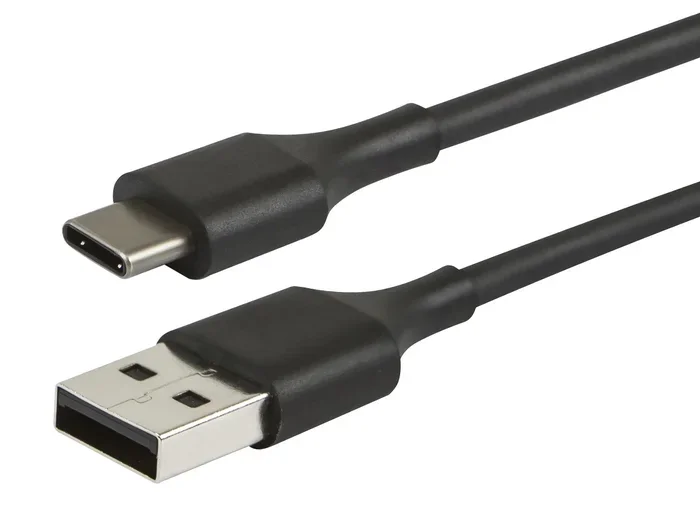
A USB C to USB A cable has two different connectors on each end. One side plugs into a USB-C port. The other side plugs into a traditional USB-A port. This design lets you connect devices that use different USB standards without needing extra adapters.
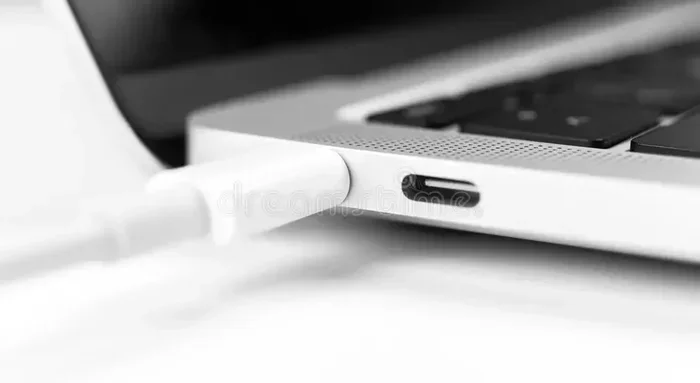
The USB-C connector is small, oval-shaped, and reversible. You can plug it in either way. The USB-A connector is the classic rectangular plug you have seen for years. Together, these two connectors create a simple bridge between old and new devices.
Understanding USB-C and USB-A Connectors
The USB-C connector is the newer standard. It is smaller, faster, and more versatile than USB-A. USB-C supports higher data transfer rates and more power delivery. It is also reversible, which means no more flipping the plug three times to find the right orientation.
The USB-A connector is the older, larger rectangular plug. You will find it on many printers, keyboards, mice, and older chargers. While it is slower and less versatile, it is still everywhere. That is exactly why USB C to USB A cables are so useful.
Many people wonder if these cables are safe for their devices. The short answer is yes. USB C to USB A cables are designed to be safe. They handle the communication between the two different port types automatically. Your devices will negotiate the right power and data settings on their own.
If you have been using gadgets for a while, you know how annoying it can be when cables do not fit. These cables eliminate that problem. They make your USB-C device work with any USB-A peripheral you already own.
How Does USB C to USB A Compatibility Work?
Compatibility is the biggest concern for most people. They worry that plugging a USB-C device into a USB-A port will damage something. Rest assured, it will not. These cables are built with smart circuitry that manages the connection safely.
USB-C was designed with backward compatibility in mind. This means USB-C devices can work with older USB-A ports through cables and adapters. The USB standard committee made sure of this from the start. Your USB-C laptop can connect to a USB-A printer without any extra software or drivers.
Devices That Work with USB C to USB A Cables
Almost any device with a USB-C port can use a USB C to USB A cable. Here are some common examples:
- Laptops and tablets: Many modern laptops now use USB-C. You can connect them to USB-A printers and external drives.
- Smartphones: Android phones with USB-C can connect to USB-A chargers and computers for data transfer.
- Cameras and audio devices: Professional gear often uses USB-C. You can transfer files to a USB-A external hard drive easily.
- Gaming controllers: Many modern controllers use USB-C and work fine when plugged into a USB-A port.
One thing to keep in mind is that the cable itself does not upgrade your USB-A port. If your computer only supports USB 2.0, the data transfer speed will stay at USB 2.0 levels. The cable simply provides the physical connection. The slower port will still limit your speeds.
This is an important distinction. A USB C to USB A cable does not magically make old ports faster. It simply allows the connection to happen. For the best experience, make sure both your devices support modern USB standards like USB 3.0 or USB 3.1.
Some users have reported issues when connecting their iPhone to a computer using these cables. If you run into trouble, check out our guide on adding prefixes to numbers on iPhone for related troubleshooting tips that might help with connectivity issues.
Can You Transfer Data with a USB C to USB A Cable?
Yes, data transfer is one of the main reasons people buy these cables. You can move photos, videos, documents, and more between devices. The speed depends on the USB standard supported by your ports and the quality of the cable.
Data Transfer Speeds by USB Standard
Not all USB cables are created equal. The speed of your data transfer depends on the USB standard your devices support. Here is a simple breakdown:
- USB 2.0: Up to 480 Mbps. This is the slowest common standard. Fine for basic file transfers.
- USB 3.0: Up to 5 Gbps. Ten times faster than USB 2.0. Great for large files.
- USB 3.1: Up to 10 Gbps. Twice as fast as USB 3.0. Ideal for video editing and big backups.
- USB 3.2: Up to 20 Gbps. The fastest widely available standard for USB-C connections.
When you use a USB C to USB A cable, the data transfer speed is limited by the slower of the two ports. If your laptop has a USB 3.0 USB-C port but your external drive only has a USB 2.0 USB-A port, you will get USB 2.0 speeds. Always check both ends of the connection.
Real-World Data Transfer Examples
Let us say you want to transfer a 5GB video file from your USB-C laptop to a USB-A external hard drive. With a USB 3.0 cable, this might take about 10 seconds. With a USB 2.0 cable, it could take over a minute. The difference is huge.
For everyday tasks like moving documents or photos, even USB 2.0 speeds feel fast enough. But if you work with large files regularly, investing in a high-quality USB C to USB A cable that supports USB 3.0 or higher is well worth it.
Many people also use these cables to back up their phones to a computer. You plug your USB-C phone into the cable, plug the other end into your PC’s USB-A port, and your files sync automatically. It is quick and easy.
Charging Speeds and Power Delivery
Charging is another major reason people use USB C to USB A cables. Your phone, tablet, or laptop can charge through this cable just fine. But the charging speed depends on several factors.
How USB Power Delivery Works
USB power delivery has improved a lot over the years. USB 2.0 ports typically provide 2.5 watts of power. USB 3.0 ports can provide up to 4.5 watts. USB-C ports with USB Power Delivery (PD) can provide much more, up to 100 watts or more.
When you use a USB C to USB A cable, the power delivery is limited by the USB-A port. A standard USB-A port cannot deliver the same high wattage as a USB-C PD port. This means your device may charge slower than it would with a USB-C charger and cable.
For most phones and tablets, this is not a big deal. They charge fine on USB 2.0 or 3.0 power levels. But if you have a laptop that needs fast charging, a USB C to USB A cable might not cut it. You would need a USB-C power source for that.
Quick Tips for Faster Charging
- Use a high-quality cable: Cheap cables often have thin wires that limit power flow.
- Check your charger: Make sure your USB-A charger supports the right wattage for your device.
- Avoid using your device while charging: This slows down the charging process significantly.
- Look for USB 3.0 cables: They support higher power delivery than USB 2.0 cables.
Some people wonder if using a USB C to USB A cable will damage their battery over time. The answer is no. These cables regulate the power flow safely. Your device only draws the power it needs. There is no risk of overcharging or battery damage.
Common Uses for USB C to USB A Cables
These cables have become essential in many everyday situations. Let us look at some of the most common ways people use them.
Connecting Printers and Scanners
Many printers still come with USB-A ports. If your new computer only has USB-C, a USB C to USB A cable is all you need. Plug one end into your printer and the other into your laptop. You are ready to print in seconds.
Using External Storage Drives
External hard drives and flash drives often have USB-A connectors. You can plug them into your USB-C laptop or tablet and access your files right away. This is perfect for transporting files between work and home.
Connecting Peripherals and Accessories
Keyboards, mice, webcams, and microphones often use USB-A. A USB C to USB A cable lets you connect all of these to your modern USB-C devices. It keeps your workspace clean and clutter-free.
Many people have built a collection of USB-A accessories over the years. These cables let you keep using them instead of buying new USB-C versions. That alone saves money and reduces e-waste.
For those who love tech gadgets, having the right cables makes a huge difference. Check out our article on 10 gadgets to make moms life easier for some great ideas on USB-powered tools that work well with these cables.
Data Transfer for Office and School Work
Students and office workers use USB C to USB A cables all the time. You plug your USB-C laptop into a USB-A flash drive and copy your presentation or essay. It is fast, reliable, and simple. No Wi-Fi needed. No cloud uploads. Just a direct cable connection.
If you work with spreadsheets and need to move data between devices, these cables make the process seamless. Whether you are pulling data from an older USB-A device or transferring files to a USB-A backup drive, the connection is straightforward and stable.
How to Choose the Right USB C to USB A Cable
Not all USB C to USB A cables are the same. Choosing the right one can make a big difference in performance and durability. Here are the key factors to consider.
Cable Length
USB C to USB A cables come in various lengths. Short cables (1 to 2 feet) are great for desk use. Longer cables (6 to 10 feet) give you more flexibility. Pick a length that fits your setup without creating clutter.
Build Quality and Materials
Look for cables with braided nylon or reinforced connectors. These last much longer than cheap rubber cables. A well-built cable will not fray or break after a few months of daily use.
USB Standard Support
Always check what USB standard the cable supports. A USB 3.0 or USB 3.1 cable will give you much faster data transfer than a USB 2.0 cable. The packaging or product description should clearly state the USB standard.
Brand Reputation
Stick with reputable brands when buying cables. Cheap no-name cables may not support the speeds or power levels they claim. Trusted brands test their cables for safety and performance.
Price vs. Value
You do not need to spend a fortune on a USB C to USB A cable. A good quality one typically costs between $5 and $15. Spending a little more on a durable, high-speed cable pays off in the long run.
If you ever run into issues with your cable not working properly, you are not alone. Many users face similar challenges with USB connectivity. For related troubleshooting advice, you might find our guide on fixing a line that wont delete in Microsoft Excel helpful for data management issues that sometimes arise from cable connectivity problems.
Expert Insights on USB C to USB A Cables
Tech experts agree that USB C to USB A cables are one of the most practical accessories you can own. They fill a critical gap during the transition from USB-A to USB-C. Even as more devices adopt USB-C fully, millions of USB-A devices are still in use worldwide.
Experts also recommend keeping at least two or three of these cables on hand. One at your desk, one in your bag, and one at home. They are small, lightweight, and easy to store. Having extras ensures you are never caught without a connection when you need it most.
Common Mistakes People Make with USB C to USB A Cables
Even though these cables are simple, people still make mistakes. Here are a few to avoid.
- Assuming all cables are the same: A USB 2.0 cable and a USB 3.0 cable perform very differently. Always check the specifications.
- Using cheap cables for fast charging: Low-quality cables can overheat or fail to deliver proper power. This can damage your device over time.
- Ignoring cable direction: While USB-C is reversible, USB-A is not. Make sure you plug the USB-A end in the right way.
- Expecting USB-C cables to upgrade old ports: A USB C to USB A cable cannot make a USB 2.0 port support USB 3.0 speeds. The port itself determines the maximum capability.
- Forcing the connector: If the cable does not fit, do not force it. Check that you are using the correct cable for your devices.
Avoiding these simple mistakes will keep your devices safe and your cables working for years.
Key Takeaways
- USB C to USB A cables are fully compatible: They bridge the gap between new USB-C devices and older USB-A peripherals seamlessly.
- Data transfer works at the speed of the slower port: Check both ends to understand your actual transfer speed.
- Charging is supported but limited by the USB-A port: These cables work for standard charging but may not support fast charging for laptops.
- Choose quality over price: A well-built cable from a reputable brand ensures safety and performance.
- Keep spares on hand: These cables are small and affordable. Having extras prevents connectivity headaches.
- They do not upgrade old ports: A USB C to USB A cable provides a connection but cannot change what your USB-A port supports.
Conclusion
A USB C to USB A cable is one of the most useful accessories you can own today. It connects your modern USB-C devices to the millions of USB-A peripherals still in use. Whether you need to transfer files, print documents, or charge your phone, this cable has you covered.
The beauty of the USB C to USB A cable lies in its simplicity. No extra adapters. No software downloads. Just plug and play. It works with laptops, phones, tablets, printers, external drives, and more.
When shopping for one, focus on build quality, USB standard support, and cable length. A good cable costs very little but delivers reliable performance for years. Avoid cheap knockoffs that may compromise speed or safety.
As technology continues to evolve, USB-C will become the universal standard. But for now, USB A ports are still everywhere. Having a reliable USB C to USB A cable ensures you are ready for today and prepared for tomorrow. Keep one in your bag, one at your desk, and one at home. You will be glad you did.
Start using a USB C to USB A cable today and experience the convenience of connecting all your devices without hassle. It is a small accessory that makes a big difference in your daily tech life.
Frequently Asked Questions
Can I use a USB C to USB A cable for fast charging?
It depends on the ports involved. USB-C ports with Power Delivery can fast charge, but USB-A ports typically cannot deliver the same high wattage. Your device will charge at whatever speed the USB-A port supports. For the fastest charging, use a USB-C charger and cable instead.
Will a USB C to USB A cable damage my device?
No, these cables are completely safe. They contain built-in circuitry that manages power and data flow between the two different port types. Your devices will communicate and negotiate the correct settings automatically. There is no risk of damage when using a proper USB C to USB A cable.
What is the difference between USB 2.0 and USB 3.0 USB C to USB A cables?
USB 2.0 cables support data transfer speeds up to 480 Mbps. USB 3.0 cables support speeds up to 5 Gbps. USB 3.0 cables are usually blue inside or have a “SS” (SuperSpeed) marking. For fast file transfers, always choose a USB 3.0 cable.
Can I connect a USB-C phone to a USB-A computer for file transfer?
Yes, absolutely. Plug the USB-C end into your phone and the USB-A end into your computer. Your phone should appear as a storage device on your computer. You can then drag and drop files between them just like any other USB drive.
How long do USB C to USB A cables last?
A good quality cable can last several years with daily use. Look for cables with braided nylon sheathing and reinforced connectors. These resist fraying and bending much better than cheap rubber cables. Expect a well-made cable to last at least two to three years.
Do I need any drivers or software to use a USB C to USB A cable?
No, you do not need any drivers or software. USB C to USB A cables are plug-and-play. Your operating system recognizes the connection automatically. You can start using the cable as soon as you plug it in.