Can I Use A Capture Card As An Hdmi Splitter Yes You Can
Yes, you can use a capture card as an HDMI splitter in certain situations. A capture card can pass through an HDMI signal to a display while simultaneously recording or streaming the feed. However, it does not create multiple independent output copies like a true splitter does. Understanding the differences helps you choose the right tool for your setup.
Key Takeaways
- Capture cards can pass through HDMI signals while recording or streaming, acting as a basic signal distributor.
- A true HDMI splitter creates multiple identical outputs, which a capture card cannot fully replicate.
- Capture cards work best for single-display setups where you need to record and monitor simultaneously.
- Signal quality and resolution may vary depending on the capture card model and HDMI version.
- Using a capture card as a splitter has limitations, including potential latency and limited output ports.
- A dedicated HDMI splitter is better for multi-monitor or multi-device setups that need clean signal distribution.
📑 Table of Contents
- Can I Use A Capture Card As An Hdmi Splitter? Yes You Can
- What Does A Capture Card Do?
- What Does An HDMI Splitter Do?
- When Can A Capture Card Replace A Splitter?
- When Do You Actually Need A Dedicated Splitter?
- Limitations Of Using A Capture Card As A Splitter
- Best Capture Cards For Splitter-Like Use
- Quick Tips For Using A Capture Card As A Splitter
- Common Mistakes People Make
- Expert Insights: Capture Cards vs Splitters For Content Creators
- Final Thoughts
Can I Use A Capture Card As An Hdmi Splitter? Yes You Can
Many people ask this question when they want to share an HDMI signal across multiple devices. The short answer is yes, you can use a capture card in place of a splitter. But the full answer is a bit more nuanced. A capture card can pass through an HDMI signal while also recording or streaming it. This makes it useful for content creators and gamers who need both a display and a recorded feed.
However, a capture card does not work exactly like a traditional HDMI splitter. A splitter duplicates the signal and sends it to multiple outputs. A capture card takes the signal, passes it through to one display, and sends a digital copy to your computer. If you need multiple independent displays, a splitter is the better tool. Let us dive deeper into how this all works.
In this guide, we will cover everything you need to know. We will look at how capture cards handle HDMI signals, when they can replace a splitter, and what limitations you should watch out for. By the end, you will know exactly which device fits your setup.
What Does A Capture Card Do?
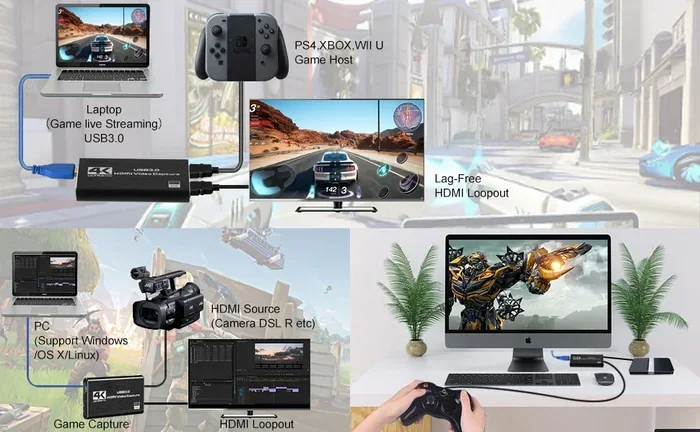
A capture card is a device that records or streams an HDMI video signal. It sits between your video source and your computer. The card receives the HDMI input, processes the signal, and sends a copy to your PC via USB or PCIe. At the same time, it passes the original signal through to a display or monitor.
People use capture cards for many reasons. Gamers use them to stream gameplay to platforms like Twitch or YouTube. Content creators use them to record high-quality video for editing. Professionals use them to capture presentations or video feeds for remote meetings. The versatility of a capture card makes it a popular tool in many setups.
How Does HDMI Passthrough Work?
Most capture cards feature HDMI passthrough. This means the video signal travels through the card without being altered. You connect your source device to the capture card, then connect the card to your TV or monitor. The display receives the same signal it would get directly from the source.
Meanwhile, the capture card sends a digital copy of that signal to your computer. Your computer can then record, stream, or process the video in real time. This dual-path setup is what makes capture cards so valuable for people who need both monitoring and recording capabilities.
What Does An HDMI Splitter Do?
An HDMI splitter takes one input signal and duplicates it across multiple outputs. You plug in one source, and the splitter sends the same signal to two, three, or more displays. Every connected screen shows the same content at the same time.
HDMI splitters are simple devices. They do not process or alter the signal. They just copy it. This makes them ideal for situations where you need to show the same content on multiple screens. For example, you might use a splitter to display a presentation on a projector and a laptop screen at the same time.
Key Differences Between A Splitter And A Capture Card
Here is a quick look at how these two devices compare:
- Signal Distribution: A splitter duplicates the signal to multiple outputs. A capture card passes the signal to one display while sending a digital copy to a computer.
- Recording Capability: A splitter cannot record. A capture card records or streams the signal to a computer.
- Number of Outputs: A splitter supports multiple displays. A capture card typically supports one display output plus one computer connection.
- Signal Processing: A splitter does not process the signal. A capture card converts and compresses the signal for computer use.
- Latency: A splitter has zero latency. A capture card may introduce slight delay depending on the model and settings.
When Can A Capture Card Replace A Splitter?
A capture card can work as a basic HDMI splitter in specific scenarios. If you only need to monitor the signal on one display while recording it, a capture card handles this perfectly. You do not need a separate splitter in this case.
Here are some situations where a capture card replaces a splitter effectively:
- Streaming and recording gameplay while playing on a single monitor or TV.
- Capturing a presentation on a laptop while displaying it on a projector.
- Recording a console game while watching it live on a television screen.
- Video conferencing setups where you need to capture a feed and display it locally.
In all these cases, the capture card handles both the display output and the recording task. You do not need a second device to split the signal.
When Do You Actually Need A Dedicated Splitter?
There are clear situations where a capture card cannot replace a splitter. If you need to send the same HDMI signal to multiple independent displays, you need a splitter. A capture card only outputs to one display at a time.
Consider these scenarios where a splitter is the right choice:
- Digital signage setups where the same content plays on several screens.
- Classroom or conference room displays that need to show the same feed on multiple projectors.
- Gaming setups where one player watches on a TV and another watches on a separate monitor in the same room.
- Testing environments where you need to compare the same signal across multiple screens simultaneously.
A capture card simply cannot create multiple independent outputs. It routes the signal in two directions: one to a display and one to a computer. If your goal is pure signal duplication across many screens, a dedicated splitter is the way to go.
Can You Combine A Capture Card And A Splitter?
Yes, you can use both devices together. You can place a splitter before the capture card. This way, the splitter sends the signal to multiple displays, and the capture card records the feed. This setup works well for complex streaming or recording environments.
For example, a tournament organizer might use a splitter to display gameplay on several monitors around a venue. At the same time, a capture card records the main feed for a live stream or highlight reel. Combining these devices gives you the best of both worlds.
Limitations Of Using A Capture Card As A Splitter
While a capture card can handle basic splitting duties, it comes with some limitations. You should understand these before relying on it as your only signal distribution tool.
Latency And Delay
Capture cards introduce a small amount of processing delay. The card needs to convert the HDMI signal and send it to your computer. This process takes time. Most modern capture cards have very low latency, usually under 10 milliseconds. But for fast-paced gaming or real-time applications, even a small delay can matter.
A dedicated HDMI splitter has zero latency because it does not process the signal at all. It simply copies it. If you need instant signal delivery to multiple screens, a splitter is the clear winner.
Resolution And Bandwidth Constraints
Not all capture cards support the same resolutions. Some cards max out at 1080p, while others handle 4K. If your HDMI source outputs at 4K and your capture card only supports 1080p passthrough, you will lose resolution on your display.
A good splitter passes the full signal without any compression or downscaling. It preserves the original resolution and quality. When using a capture card as a splitter, always check the supported HDMI version and bandwidth limits.
Limited Output Ports
Most capture cards have one HDMI input and one HDMI output. This means you can only connect one display directly. If you need to connect three or four screens, a capture card will not work. A multi-output splitter handles this easily.
Audio Extraction Challenges
Some capture cards handle audio separately from video. You might get video passthrough but lose audio on the display output. Always check your capture card specifications to confirm it supports audio passthrough along with video.
Best Capture Cards For Splitter-Like Use
If you plan to use a capture card in place of a splitter, choose one with strong passthrough capabilities. Here are some popular options:
- Elgato HD60 X: Supports 1080p60 passthrough with low latency. Great for gaming and streaming.
- AverMedia Live Gamer 4K: Handles 4K passthrough. Ideal for high-resolution setups.
- Magewell Pro Capture HDMI: Professional-grade card with reliable signal passthrough and excellent build quality.
- AVerMedia Live Streamer LX1: Compact and portable with solid 1080p passthrough.
Each of these cards handles HDMI passthrough well. But none of them can truly replace a multi-output splitter for large display setups.
Quick Tips For Using A Capture Card As A Splitter
Here are some practical tips to get the best results when using a capture card for signal distribution:
- Check your HDMI version. Make sure your capture card supports the resolution and refresh rate of your source device.
- Use high-quality cables. Cheap HDMI cables can cause signal loss, especially at higher resolutions.
- Test for latency. Before going live or recording something important, test the delay between your source and display.
- Update your drivers. Keep your capture card drivers up to date for the best performance and compatibility.
- Use a powered USB hub. Some capture cards draw a lot of power. A powered hub prevents connection drops and performance issues.
Common Mistakes People Make
Many users run into problems when trying to use a capture card as a splitter. Here are the most common mistakes:
- Expecting multiple display outputs. A capture card only outputs to one display. It cannot create additional outputs on its own.
- Ignoring audio settings. Some capture cards drop audio during passthrough. Always test both video and audio before relying on the setup.
- Overlooking bandwidth limits. Using an HDMI 2.0 cable with a card that only supports HDMI 1.4 will limit your resolution and frame rate.
- Using a low-quality capture card. Cheap cards often have poor passthrough quality and introduce noticeable lag.
- Not checking driver compatibility. Some capture cards do not work well with certain operating systems or software. Always verify compatibility before purchasing.
Avoiding these mistakes saves time, frustration, and money. Take a few minutes to research your setup before buying any equipment.
Expert Insights: Capture Cards vs Splitters For Content Creators
For content creators, the choice between a capture card and a splitter depends on your workflow. If you are a solo creator recording gameplay or streaming, a capture card handles both monitoring and recording. You do not need a splitter.
If you work in a team environment where multiple people need to see the same feed simultaneously, a splitter becomes essential. Many professional studios use both devices together. The splitter distributes the signal to multiple monitors for the team, while the capture card records the master feed for editing and archiving.
One thing to keep in mind is that some advanced capture cards offer software-based switching. These cards can route the signal to different outputs based on your software settings. While this is not the same as a hardware splitter, it offers more flexibility for creative workflows. If you are managing a complex setup, look into capture cards with software routing features.
Also, if you are recording your capture card outputs or logging data from your video feeds, you might find it helpful to know how to manage your data files. For instance, if you ever run into issues where a certain data line in your tracking spreadsheet will not delete in Microsoft Excel, it can be a small but frustrating technical hurdle that slows down your content workflow. Keeping your files clean and organized helps you stay productive.
Final Thoughts
So, can I use a capture card as an HDMI splitter? The answer is yes, with some important caveats. A capture card can pass through an HDMI signal to one display while recording or streaming it to your computer. This works well for solo creators, gamers, and presenters who need both monitoring and recording in one device.
But a capture card cannot replace a true HDMI splitter when you need multiple independent outputs. If you want to show the same content on several screens at once, a dedicated splitter is the right choice. Understanding these differences helps you make the best decision for your setup.
Take some time to evaluate your needs. Think about how many displays you need, whether you want to record or stream, and what resolution your source device outputs. With the right equipment and a clear plan, you will have a setup that works perfectly for your goals.
Whether you choose a capture card, a splitter, or both, the key is to match your tools to your specific use case. The right setup makes everything smoother, from recording your content to sharing it with your audience.
Frequently Asked Questions
Can a capture card split HDMI to two monitors?
No, a capture card cannot split an HDMI signal to two monitors. It passes the signal to one display and sends a digital copy to your computer. If you need two separate displays showing the same content, use a dedicated HDMI splitter instead.
Does using a capture card as a splitter cause lag?
Yes, capture cards can introduce slight latency because they process the signal for your computer. Most modern cards have very low latency, usually under 10 milliseconds. A dedicated splitter has zero lag because it does not process the signal at all.
What HDMI resolution can a capture card pass through?
This depends on the capture card model. Many cards support 1080p passthrough, while higher-end models handle 4K. Always check the specifications of your capture card to confirm the supported resolution and HDMI version.
Can I use a capture card to record from a gaming console?
Yes, capture cards are commonly used to record and stream gameplay from consoles like PlayStation, Xbox, and Nintendo Switch. You connect the console to the capture card, then connect the card to your computer via USB or PCIe.
Do I need special software to use a capture card?
Most capture cards come with their own software for recording and streaming. Popular options include OBS Studio, which is free and works with most capture cards. Some brands also offer proprietary software with additional features.
Is a capture card better than a splitter for streaming?
Yes, for streaming purposes, a capture card is better than a splitter. A capture card records or streams the signal to your computer while also displaying it on a monitor. A splitter only duplicates the signal to multiple displays and cannot record or stream.
=== CONCLUSION ===
Using a capture card as an HDMI splitter is possible and works well for many setups. A capture card passes through the HDMI signal to one display while sending a copy to your computer for recording or streaming. This makes it a versatile tool for content creators, gamers, and professionals. However, it cannot fully replace a dedicated HDMI splitter when you need multiple independent outputs across several screens. Understanding the strengths and limitations of each device ensures you choose the right solution. With the right equipment and a clear plan, your setup will deliver excellent results every time.