Can I Daisy Chain Usb C Docks Everything You Need To Know
Yes, you can daisy chain USB C docks in many cases, but it depends on your port type and devices. Thunderbolt 3 and Thunderbolt 4 docks support daisy chaining, while standard USB-C docks usually do not. This guide covers everything you need to know about USB-C dock chaining, including setup steps, compatibility, and common mistakes to avoid.
Have you ever looked at your desk and thought, “I need more ports”? You are not alone. Modern laptops have fewer ports than ever. That is where USB-C docks come in handy. They expand your connectivity in a snap. But what happens when one dock is not enough? Can you connect multiple docks together? This is where daisy chaining USB-C docks enters the picture.
Daisy chaining means linking devices one after another in a line. Think of it like a string of lights. The first light plugs into the wall. Then each light connects to the next one. In the tech world, daisy chaining lets you connect several USB-C hubs or docking stations to a single laptop or computer. The result? More ports, more monitors, and more devices — all from one connection point.
But here is the catch. Not all USB-C docks support daisy chaining. The answer depends on the type of port your device has. Thunderbolt ports behave very differently from regular USB-C ports. And using the wrong setup can cause frustration. That is why this guide exists. We will walk you through everything you need to know about daisy chaining USB-C docks. By the end, you will know exactly what works, what does not, and how to set it up the right way.
Key Takeaways
- Thunderbolt docks support daisy chaining: Thunderbolt 3 and Thunderbolt 4 ports allow you to connect multiple docks in a chain.
- Standard USB-C docks usually cannot be chained: Most basic USB-C docks only connect to a single host device.
- Check your port type first: Look for the Thunderbolt or USB4 symbol next to your USB-C port before chaining docks.
- Power delivery can be affected: Chaining docks may reduce the power available to each device in the chain.
- Display daisy chaining works differently: You can chain monitors through a single USB-C dock using DisplayPort over USB-C.
- Cable quality matters: Use high-quality certified cables to avoid signal loss and connection drops.
- You can mix and match hubs: Some setups allow combining Thunderbolt and USB-C hubs for expanded connectivity.
📑 Table of Contents
- What Is Daisy Chaining with USB-C Docks?
- Can You Daisy Chain USB-C Docks? The Short Answer
- How to Set Up a Daisy Chain with USB-C Docks
- Benefits of Daisy Chaining USB-C Docks
- Limitations and Things to Watch Out For
- Comparison: Thunderbolt vs. Standard USB-C Docks for Daisy Chaining
- Common Mistakes When Daisy Chaining USB-C Docks
- Best Practices for Daisy Chaining USB-C Docks
- Frequently Asked Questions
- Final Thoughts
What Is Daisy Chaining with USB-C Docks?
Daisy chaining is a simple concept once you break it down. Instead of plugging each device directly into your computer, you connect them in a sequence. One dock plugs into your laptop. The second dock plugs into the first dock. And so on. This creates a chain of devices that share a single connection to your computer.
The term “daisy chain” comes from the way daisies link together in a flower chain. Each flower connects to the next one. In the USB-C world, this means using USB-C docking station ports to pass data, video, and power through multiple devices in a row.
How Does Daisy Chaining Work?
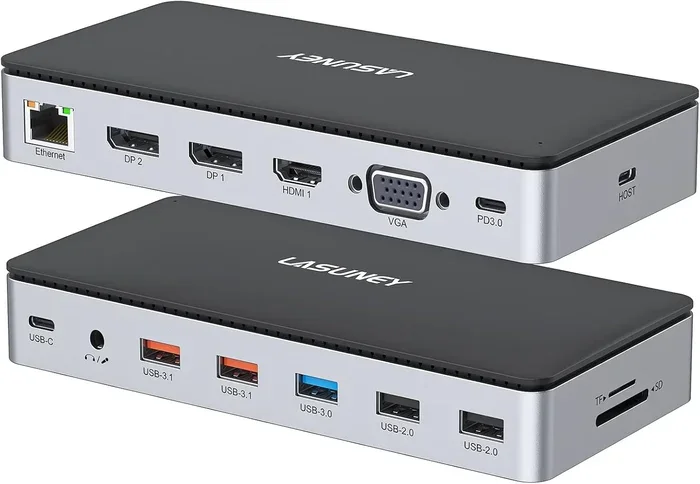
Here is how it works in practice. Your laptop has a single Thunderbolt or USB-C port. You plug in the first dock. That dock has multiple ports for your keyboard, mouse, and external drive. The dock also has an upstream port. You plug the second dock into that port. Now the second dock adds even more ports to your setup. This is the basic idea behind USB-C hub chaining.
The key requirement is that each dock in the chain must support pass-through connectivity. This means the dock must be able to forward data and signals to the next device in the chain. Not all docks are built this way.
USB-C Daisy Chain vs. Thunderbolt Daisy Chain
There is an important distinction here. Standard USB-C ports and Thunderbolt ports are not the same. USB-C is just a connector shape. Thunderbolt is a technology that uses the USB-C shape. Thunderbolt 3 and Thunderbolt 4 ports support daisy chaining natively. Standard USB-C ports usually do not.
Think of it this way. USB-C is like a regular highway lane. Thunderbolt is like a high-speed express lane. Both use the same road, but Thunderbolt carries much more data and supports more features. When it comes to daisy chaining USB-C docks, Thunderbolt is your best friend.
Can You Daisy Chain USB-C Docks? The Short Answer
The short answer is yes — but with conditions. Whether you can daisy chain USB-C docking stations depends on several factors. Let us break them down so you know exactly what to look for.
Thunderbolt 3 and Thunderbolt 4 Docks
Thunderbolt 3 and Thunderbolt 4 docks fully support daisy chaining. These docks are designed to pass data, video, and power through to the next device. You can connect a Thunderbolt dock to your laptop, then connect another Thunderbolt dock or a Thunderbolt external drive to the first dock. This creates a clean, streamlined setup.
Thunderbolt 4 is the latest standard and offers the best daisy chaining experience. It supports up to two Thunderbolt devices in a chain from a single port. It also supports display daisy chaining, which means you can connect multiple monitors through one dock.
Standard USB-C Docks
Standard USB-C docks, on the other hand, typically do not support daisy chaining. These docks use a USB-C or USB 3.x connection that only communicates with the host device — your laptop or desktop. They cannot forward signals to another dock downstream. If you try to plug a second dock into a standard USB-C hub, it usually will not work.
This is the most common mistake people make. They assume all USB-C docks can be chained together. They cannot. Always check the specifications before you buy.
USB4 Docks
USB4 is another option that supports daisy chaining. USB4 uses the same Thunderbolt protocol for data transfer. USB4 docks can daisy chain just like Thunderbolt docks. As USB4 becomes more common, you will see more options for USB-C dock chaining in this category.
How to Set Up a Daisy Chain with USB-C Docks
Setting up a daisy chain is easier than you might think. Follow these steps to get your USB-C hub chain up and running.
Step 1: Check Your Port Type
Look at the port on your laptop or computer. Is it Thunderbolt 3, Thunderbolt 4, or USB4? You will see a small lightning bolt icon next to the port. If you see that symbol, you are good to go. If you just see a USB-C symbol without the lightning bolt, your port likely does not support daisy chaining.
Step 2: Choose Compatible Docks
Make sure every dock in your chain supports Thunderbolt or USB4. Check the product specs for terms like “daisy chain capable” or “upstream port supported.” Buying the wrong dock is the fastest way to waste money.
Step 3: Connect the First Dock
Plug your first Thunderbolt dock into your laptop using a Thunderbolt cable. Make sure the dock powers on and your computer recognizes it. Connect your essential peripherals — keyboard, mouse, and external storage — to this dock.
Step 4: Chain the Second Dock
Take a second Thunderbolt cable and connect the upstream port of the second dock to a downstream port on the first dock. The second dock should power on. Your computer should recognize the additional ports automatically.
Step 5: Add More Devices and Test
Now connect your remaining devices to the second dock. This might include a second monitor, a printer, or a webcam. Test each connection to make sure everything works. If a device does not show up, try unplugging and replugging the cables.
Quick Tips for a Smooth Setup
- Use Thunderbolt-certified cables for the best results.
- Keep your cable runs short — under 3 feet is ideal.
- Avoid bending or pinching cables at sharp angles.
- Restart your computer if devices are not recognized after connecting.
- Update your Thunderbolt drivers regularly for compatibility.
Benefits of Daisy Chaining USB-C Docks
Why would you want to daisy chain docks in the first place? There are several real-world benefits that make this setup worth considering.
More Ports Without a Power User Setup
The biggest advantage is simple — more ports. A single dock might give you three or four extra USB ports and one or two monitor outputs. A daisy chain of two docks can double that. This is perfect for people who use multiple monitors, external hard drives, and other peripherals at the same time.
Cleaner Desk and Cable Management
Instead of plugging five or six cables directly into your laptop, you use one cable to connect to the first dock. Everything else flows through the chain. This keeps your desk tidy and reduces cable clutter. It also makes it easier to pack up and move your setup.
Single-Cable Connection to Your Laptop
With a daisy chain setup, you only need one cable between your laptop and the first dock. This is especially convenient for laptop users who dock and undock throughout the day. One cable in and everything is ready to go.
Scalability
Need more ports later? Just add another dock to the chain. This makes your setup flexible and scalable. You can start small and expand as your needs grow.
Limitations and Things to Watch Out For
Daisy chaining is not perfect. There are some limitations you should know about before you commit to this setup.
Power Delivery Reduces with Each Dock
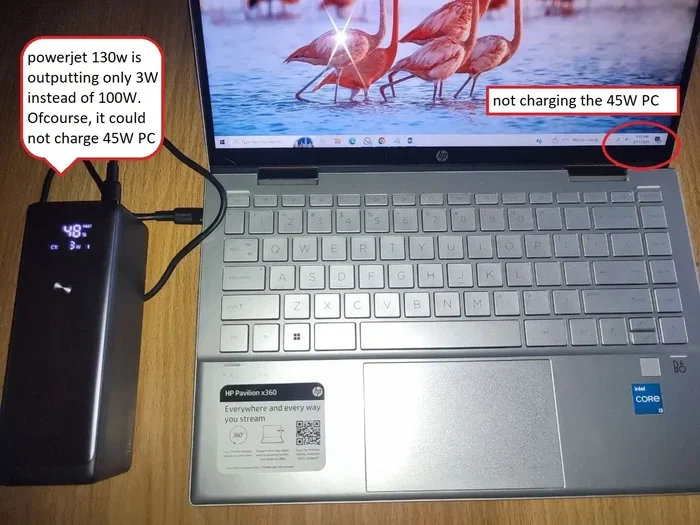
Every dock in the chain uses some power. When you daisy chain multiple docks, the total power available to each device decreases. If you are charging a laptop through the chain, this can be a problem. Your laptop may charge slowly or not at all if too many power-hungry devices are connected.
Bandwidth Gets Shared
Thunderbolt ports have a fixed amount of bandwidth. When you daisy chain docks, that bandwidth is shared among all connected devices. If you are running two 4K monitors and transferring large files at the same time, you might notice a slowdown.
Maximum Chain Length
Thunderbolt 3 supports a maximum chain length of about 2 meters (6.5 feet) total across all cables. Thunderbolt 4 allows slightly longer chains. Going beyond these limits can cause signal loss or connection drops.
Not All Monitors Support Display Daisy Chaining
You can daisy chain monitors through a Thunderbolt dock, but your monitors must support DisplayPort daisy chaining. Check your monitor specs for “DisplayPort Out” or “DP daisy chain” support. Without it, you cannot chain monitors in series.
Comparison: Thunderbolt vs. Standard USB-C Docks for Daisy Chaining
Not sure which type of dock you need? Here is a side-by-side comparison to help you decide.
| Feature | Thunderbolt 3/4 Dock | Standard USB-C Dock |
|---|---|---|
| Supports Daisy Chaining | Yes | No |
| Max Data Speed | 40 Gbps | 10 Gbps (USB 3.2) |
| Video Output | Up to two 4K displays | One 4K display |
| Power Delivery | Up to 100W | Up to 100W |
| Upstream Port | Yes | No |
| Price Range | $150 – $400+ | $30 – $100 |
| Best For | Multi-dock setups, power users | Basic port expansion |
As you can see, Thunderbolt docks are the clear winner for daisy chaining. They cost more, but the flexibility and performance are worth it for anyone who needs a multi-dock setup.
Common Mistakes When Daisy Chaining USB-C Docks
Avoid these common mistakes to save yourself time and frustration.
Assuming All USB-C Docks Can Be Chained
This is the number one mistake. Just because a dock has a USB-C port does not mean it supports daisy chaining. Always verify the dock specifications before purchasing.
Using Non-Thunderbolt Cables
Regular USB-C cables may not carry enough bandwidth for a daisy chain setup. You need Thunderbolt-certified cables for reliable performance. Using the wrong cable can cause slow transfers, dropped connections, or no connection at all.
Overloading the Chain
Connecting too many power-hungry devices to a daisy chain can overwhelm the setup. Your laptop may not charge properly, and peripherals may malfunction. Keep your chain reasonable and avoid connecting more than two or three docks in most cases.
Ignoring Driver Updates
Thunderbolt drivers and firmware need to stay up to date. Outdated drivers can cause compatibility issues with daisy chained docks. Check for updates from your laptop manufacturer and dock manufacturer regularly.
Expert Insight: What the Pros Say
Tech experts recommend keeping your daisy chain to two docks maximum for the best performance. More than two docks can introduce latency and reduce reliability. If you need many more ports, consider a larger single dock with more built-in ports instead of chaining multiple smaller ones.
Best Practices for Daisy Chaining USB-C Docks
Follow these best practices to get the most out of your daisy chain setup.
- Start with a Thunderbolt 4 dock. This gives you the best performance and the most ports.
- Use short, high-quality cables. Keep total cable length under 2 meters for optimal signal strength.
- Connect power-hungry devices to the first dock. This ensures they get the most power from your laptop.
- Monitor your bandwidth usage. If you notice slowdowns, reduce the number of active devices on the chain.
- Label your cables. It is easy to lose track of which cable goes where in a daisy chain setup.
- Test each dock individually first. Before chaining docks together, make sure each one works on its own.
Following these steps will help you build a reliable and efficient USB-C dock chain that works every time.
Frequently Asked Questions
Can I Daisy Chain Two USB-C Docks Together?
Yes, but only if both docks are Thunderbolt 3, Thunderbolt 4, or USB4 docks. Standard USB-C docks cannot be daisy chained. Check for the Thunderbolt logo on your docks and your laptop port before attempting to chain them together.
Does Daisy Chaining USB-C Docks Slow Down Performance?
It can. When you daisy chain docks, the available bandwidth is shared among all connected devices. Thunderbolt 4 handles this better than Thunderbolt 3. For most everyday tasks, you will not notice a difference. But for heavy data transfers or multiple 4K displays, you might see a slight slowdown.
Can I Chain a Thunderbolt Dock to a Standard USB-C Hub?
Generally, no. Thunderbolt docks require Thunderbolt or USB4 ports for daisy chaining. A standard USB-C hub does not have the upstream port needed to forward signals to another device. Always connect Thunderbolt to Thunderbolt for the best results.
How Many USB-C Docks Can I Daisy Chain?
Thunderbolt 3 supports up to two Thunderbolt devices in a chain. Thunderbolt 4 also supports up to two devices from a single port. In practice, most people chain two docks maximum. Going beyond two can cause signal degradation and power issues.
Do I Need Special Cables for Daisy Chaining USB-C Docks?
Yes. You need Thunderbolt-certified cables to daisy chain docks properly. Regular USB-C cables may work for charging but will not reliably carry the data and display signals needed for a daisy chain setup. Always look for cables marked as Thunderbolt certified.
Can I Daisy Chain Monitors Through a USB-C Dock?
Yes, if your dock and monitors support DisplayPort daisy chaining. Connect the first monitor to the dock, then connect the second monitor to the first monitor’s DisplayPort Out. This works through a single Thunderbolt dock connection and eliminates the need for multiple cables from your laptop.
Final Thoughts
Daisy chaining USB-C docks is a great way to expand your workspace without cluttering your desk. The key is knowing which docks support it and setting things up correctly. Thunderbolt 3, Thunderbolt 4, and USB4 docks all support daisy chaining. Standard USB-C docks do not. Always check your gear before you buy or connect.
If you follow the steps in this guide, you can build a clean, efficient, and powerful setup that meets all your connectivity needs. Start with a Thunderbolt dock, use quality cables, and keep your chain to two docks for the best experience. With the right setup, you will wonder how you ever worked without it.
Now you know the answer to the question, “Can I daisy chain USB-C docks?” The answer is yes — when you have the right equipment and setup. Go ahead and give it a try. Your desk (and your productivity) will thank you.