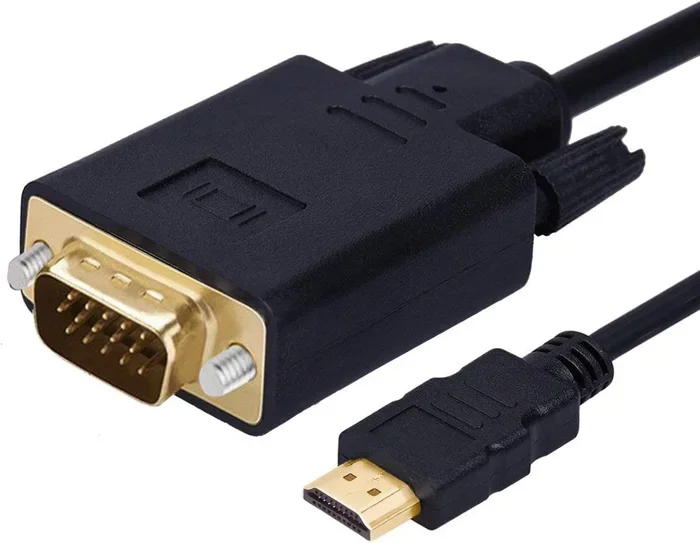
Can I Convert A VGA To HDMI Here Is Everything You Need
Yes, you can convert VGA to HDMI using a dedicated adapter or converter box. This simple process lets you connect older devices with VGA outputs to modern displays with HDMI inputs. We will walk you through every option, from budget adapters to full signal converters, so you can make the right choice for your setup.
So you have an older device with a VGA port and a shiny new monitor or TV with only HDMI inputs. It is a frustrating situation that many people run into. The good news is that you absolutely can convert VGA to HDMI. There are several ways to make it work, and you do not need to be a tech expert to get it done.
In this guide, we will cover everything you need to know about VGA to HDMI conversion. From the different types of adapters to signal quality tips, we have you covered. Whether you are setting up a projector, connecting a laptop to a TV, or reviving an old desktop setup, this article will help you find the right solution. Let us dive in and make those old and new devices work together.
Key Takeaways
- VGA to HDMI conversion is possible and affordable with the right adapter or converter.
- Active converters handle audio and video, while passive adapters only handle video signals.
- Compatibility matters — check your device outputs and display inputs before buying.
- Signal quality can degrade when converting from analog to digital, so invest in good hardware.
- Setup is simple and usually takes just a few minutes with no technical expertise needed.
📑 Table of Contents
- What Is VGA and Why Do We Still Use It?
- What Is HDMI and Why Is It the Standard Today?
- Can I Convert VGA to HDMI? Yes, Here Is How
- Step-by-Step Guide to Converting VGA to HDMI
- Common Problems and How to Fix Them
- Quick Tips for the Best VGA to HDMI Experience
- Expert Insights on Analog to Digital Conversion
- Key Takeaways
- Final Thoughts
What Is VGA and Why Do We Still Use It?
VGA stands for Video Graphics Array. It is an older analog connection standard that has been around since the late 1980s. For decades, it was the go-to way to connect computers to monitors and projectors. Even today, many devices still include VGA ports, especially in conference rooms, schools, and older desktop computers.
The VGA connector carries only video signals. It does not transmit audio at all. This is one of the biggest differences between VGA and HDMI. HDMI, on the other hand, handles both video and audio through a single cable. That is why converting from VGA to HDMI involves more than just plugging in a cable. You need to account for the analog-to-digital signal conversion process.
Here are some key facts about VGA connections:
- Analog signal type — VGA sends analog video data, which can be more prone to signal loss over long cable runs.
- No audio support — VGA only carries video, so you will always need a separate solution for sound.
- Max resolution — Standard VGA supports up to 640×480, but extended versions can reach 2048×1536.
- 15-pin connector — The VGA port has a distinctive blue connector with three rows of pins.
- Still widely found — Many projectors, laptops, and monitors manufactured before 2015 include VGA ports.
If you have ever struggled with a fuzzy image on a projector or noticed that your VGA connection does not carry sound, that is completely normal. It is simply how the technology works. The analog video signal from VGA does not include audio channels, and the resolution limitations are built into the standard itself.
What Is HDMI and Why Is It the Standard Today?
HDMI stands for High-Definition Multimedia Interface. It has become the most common display connection in the world. Nearly every modern TV, monitor, projector, and streaming device uses HDMI. The reason is simple — it delivers high-quality digital video and audio through one single cable.
HDMI has evolved over the years. Different versions support different features:
- HDMI 1.4 — Supports 4K at 30Hz and basic audio return channels.
- HDMI 2.0 — Supports 4K at 60Hz and higher bandwidth for smoother video.
- HDMI 2.1 — Supports 8K and 4K at 120Hz for gaming and high-end displays.
When you connect a VGA device to an HDMI display, you are bridging two very different technologies. VGA is analog and older. HDMI is digital and modern. The adapter or converter you choose needs to handle this conversion properly. That is the key to getting a good picture and sound.
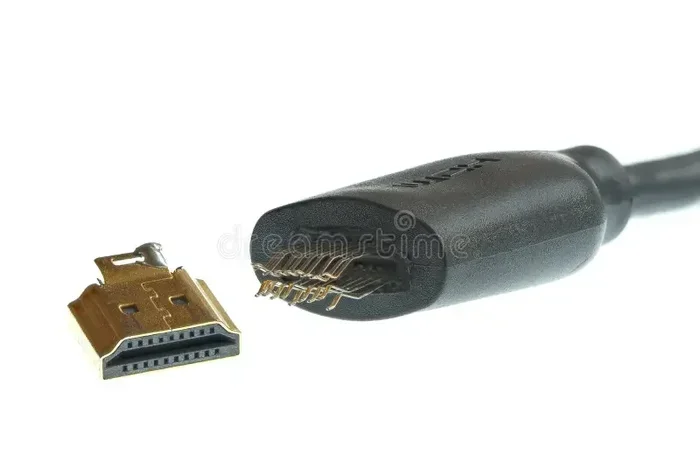
One thing many people do not realize is that not all HDMI ports are the same. A standard HDMI port on a TV will work fine for most setups. But if you are connecting to a smaller display or a specific device, you might encounter mini HDMI or micro HDMI ports. Make sure you know which type your display uses before you buy any adapter cables.
Can I Convert VGA to HDMI? Yes, Here Is How
The short answer is yes. You can convert VGA to HDMI. There are two main approaches, and each has its own benefits. Let us break them down so you can choose the best option for your situation.
Option 1: VGA to HDMI Adapter Cable
A VGA to HDMI adapter cable is the simplest and most affordable option. It is a cable with a VGA plug on one end and an HDMI plug on the other. You plug the VGA end into your device and the HDMI end into your display.
These adapter cables work best for basic setups. They are great for connecting an older laptop to a TV for a quick presentation. They are also handy when you need a fast solution and do not want to deal with extra boxes or power sources.
However, there are some limitations. Most VGA to HDMI adapter cables only handle video. They do not carry audio. If you need sound, you will need a separate audio connection, like a 3.5mm headphone jack or Bluetooth speakers. Also, the signal quality depends heavily on the build quality of the cable itself.
Option 2: Active VGA to HDMI Converter Box
An active converter box is a more robust solution. These small boxes take the analog VGA signal and convert it to a digital HDMI signal internally. They often include audio input ports so you can also get sound through your HDMI connection.
Active converters are ideal when you need reliable signal quality and audio support. They are especially useful in professional settings like boardrooms or classrooms where you cannot afford glitches or dropped connections. Many converter boxes also allow you to adjust the output resolution to match your display.
Here is a quick comparison of the two options:
| Feature | VGA to HDMI Adapter Cable | Active Converter Box |
|---|---|---|
| Price Range | $5 to $20 | $20 to $80 |
| Audio Support | Usually no | Yes, most models |
| Signal Quality | Basic, depends on cable | Better, built-in processing |
| Power Required | No | Usually yes (USB power) |
| Resolution Support | Up to 1080p (varies) | Up to 1080p or 4K (varies) |
| Setup Complexity | Very simple | Simple, but more cables |
| Best For | Quick, basic connections | Reliable, professional use |
When choosing between these two options, think about what you need most. If you just need a quick video connection and do not care about audio, an adapter cable will work fine. If you need both video and audio with better signal quality, go with an active converter box. This is the approach that most professionals recommend for a lasting setup.
Step-by-Step Guide to Converting VGA to HDMI
Setting up your VGA to HDMI connection is straightforward. Follow these steps and you will be up and running in minutes.
- Identify your VGA output. Look at your computer or device. Find the blue VGA port, which is a trapezoidal-shaped connector with 15 pins.
- Choose your conversion method. Decide whether you want an adapter cable or a converter box based on your needs and budget.
- Connect the VGA end. Plug the VGA connector into your device firmly. You should feel it click into place.
- Connect the HDMI end. Plug the HDMI connector into your display or TV.
- Add audio if needed. If your adapter does not carry audio, connect a separate audio cable from your device to your display or speakers.
- Power on the converter (if applicable). If you are using an active converter box, plug in the USB power cable.
- Switch your display input. On your TV or monitor, select the correct HDMI input source using the input or source button.
- Adjust resolution. Go to your device display settings and set the output resolution to match your display for the best picture quality.
Once you complete these steps, your VGA device should display on your HDMI screen. If you do not see an image, double-check all connections and make sure the correct input is selected on your display. Sometimes simply unplugging and replugging the cables fixes the issue.
For those who are also dealing with device-specific connection challenges, you might find our guide on adding prefixes to numbers on iPhone helpful if you are setting up contact or device configurations alongside your display setup. And if presentations are part of your workflow, you may also want to check out tips for fixing stubborn lines in Excel since display issues can sometimes affect how spreadsheets appear on external screens.
Common Problems and How to Fix Them
Even with the right adapter, you might run into issues. Here are the most common problems people face when converting VGA to HDMI, along with simple fixes.
No Signal on the Display
This is the most common issue. It usually means the display is not detecting the VGA input. Try these fixes:
- Check that the VGA cable is firmly plugged into both the device and the adapter.
- Make sure you have selected the correct HDMI input on your TV or monitor.
- Try a different HDMI port on your display.
- Restart both your device and the display.
No Audio Through HDMI
Since VGA does not carry audio, you will need a separate audio connection. The easiest fix is to use a 3.5mm audio cable from your device’s headphone jack to your display or external speakers. If you are using an active converter box, make sure the audio input is connected and that the volume is turned up on both the source device and the display.
Fuzzy or Distorted Image
A blurry picture often means the signal quality is poor. This can happen with cheap adapter cables or long VGA cables. Try these solutions:
- Use a shorter, higher-quality VGA cable.
- Upgrade to an active converter box for better signal processing.
- Lower the output resolution in your device settings to match what the display supports.
- Check that the VGA connector is clean and free of dust or debris.
Display Shows the Wrong Size or Aspect Ratio
Sometimes the image does not fill the screen properly. This is usually a resolution or aspect ratio mismatch. Go to your display settings on your source device and adjust the resolution to match your HDMI display. Most modern TVs work best at 1920×1080 (1080p).
If you are looking for helpful tech tools that simplify everyday life, our article on 10 gadgets to make moms life easier covers some great accessories that can complement your home tech setup, including display and connectivity solutions.
Quick Tips for the Best VGA to HDMI Experience
Want to get the most out of your conversion setup? Here are some expert tips that make a real difference:
- Invest in quality cables. A cheap VGA cable can ruin the picture quality even if your converter is great. Look for well-shielded cables with gold-plated connectors.
- Keep cable runs short. VGA signals degrade over distance. Try to keep your VGA cable under 10 feet for the best results.
- Update your display drivers. On computers, outdated graphics drivers can cause display issues. Update them before setting up your new connection.
- Match your resolutions. Set your source device output resolution to match your display’s native resolution for the sharpest image.
- Use an active converter for audio. If you need sound, do not rely on a simple adapter cable. Get an active converter box with audio support built in.
- Test before committing. Set up your connection and test it before mounting a TV on a wall or running cables through walls. It is much easier to fix problems at this stage.
Expert Insights on Analog to Digital Conversion
Converting from VGA (analog) to HDMI (digital) involves a process called digital signal processing. The converter takes the varying voltage levels of the analog VGA signal and translates them into digital pixels that an HDMI display can understand. This is why active converters with built-in processing chips produce better results than simple passive adapter cables.
According to display technology experts, the quality of the conversion chip matters more than anything else. A good conversion chip ensures color accuracy, smooth edges, and minimal latency. Cheap adapters with poor chips can introduce lag, color distortion, and flickering. If you are using the connection for anything important — like a business presentation or a gaming setup — spending a little extra on a quality converter pays off.
It is also worth noting that VGA to HDMI conversion is a one-way street. You cannot convert HDMI to VGA using the same type of adapter. HDMI outputs carry digital signals that VGA inputs cannot read without a different kind of converter. So if you ever need to go the other direction, you will need a separate HDMI to VGA converter, which is a different product entirely.
Key Takeaways
- VGA to HDMI conversion is simple and affordable. You can use either an adapter cable or an active converter box depending on your needs.
- Adapter cables are budget-friendly but usually do not carry audio. They work great for quick, basic setups.
- Active converter boxes offer better quality and include audio support, making them ideal for professional or regular use.
- Signal quality depends on cable quality and converter build. Invest in well-made hardware for the best results.
- Common issues like no signal, no audio, or fuzzy images usually have simple fixes like checking connections or adjusting resolution settings.
- Keep cables short and use quality components to minimize signal loss and enjoy a clear, reliable picture.
Final Thoughts
Converting VGA to HDMI is something anyone can do with the right tools and a little patience. Whether you are connecting an old laptop to a new TV, setting up a projector in a classroom, or reviving a vintage desktop setup, the right adapter or converter makes all the difference. The process is straightforward, the hardware is affordable, and the results are immediate.
Start by identifying what you need. Do you just need video? A simple adapter cable will do. Do you need both video and audio with reliable quality? An active converter box is the way to go. Either way, you are just minutes away from getting your older devices connected to modern displays.
Do not let an old VGA port hold you back from using your favorite display. With the right VGA to HDMI converter, your devices can work together perfectly. Pick the option that fits your budget and needs, follow the steps in this guide, and enjoy your upgraded setup today.
Frequently Asked Questions
Do I need a VGA to HDMI adapter or a converter box?
If you only need video and want a simple, affordable solution, an adapter cable works fine. If you need both video and audio or want better signal quality, an active converter box is the better choice. Think about what your setup requires before you buy.
Can I get audio through a VGA to HDMI adapter?
Most VGA to HDMI adapter cables do not carry audio because VGA only supports video signals. To get sound, you will need either an active converter box with audio inputs or a separate audio cable connected from your device to your speakers or display.
What resolution can I expect when converting VGA to HDMI?
Most VGA to HDMI adapters and converters support up to 1080p resolution. Some higher-end converter boxes can support 4K output. The actual resolution you get depends on your source device settings and the capabilities of your adapter or converter.
Will converting VGA to HDMI cause any lag or delay?
Basic adapter cables introduce very little to no lag. Active converter boxes may add a tiny amount of processing delay, but it is usually unnoticeable for everyday use like presentations or watching videos. If you are using the setup for fast-paced gaming, you may notice slight input lag with cheaper converters.
Can I use a VGA to HDMI converter with any device?
You can use a VGA to HDMI converter with any device that has a VGA output. This includes older laptops, desktop computers, projectors, and some tablets. Just make sure your display has an HDMI input, which most modern TVs and monitors do.
Is VGA to HDMI conversion a one-way process?
Yes, VGA to HDMI conversion goes from analog to digital. You cannot use a VGA to HDMI adapter to convert an HDMI output to VGA. You would need a separate HDMI to VGA converter for that direction, which is a different product with its own specifications and limitations.