Can I Connect A HDMI To My Phone And How To Do It Now
Yes, you can connect HDMI to most modern phones using the right adapter or cable. Whether you want to mirror your screen, share photos on a big TV, or present at work, a HDMI connection makes it simple. This guide walks you through every method, adapter type, and troubleshooting step you need.
Key Takeaways
- Most phones support HDMI output: You just need the correct adapter for your phone model.
- USB-C to HDMI is the most common method: Nearly all newer Android phones and some iPhones work this way.
- MHL adapters work for older devices: Check if your phone supports MHL before buying one.
- Wireless alternatives exist: Chromecast, AirPlay, and Miracast let you cast without cables.
- Troubleshooting is simple: Most HDMI issues come from adapter compatibility or cable quality.
- The right adapter matters: Cheap adapters often cause signal problems or no output at all.
📑 Table of Contents
- Can I Connect A HDMI To My Phone And How To Do It Now
- What Is HDMI And Why Connect It To Your Phone
- Types Of HDMI Connections For Phones
- How To Connect HDMI To Your Phone Step By Step
- Best HDMI Adapters And Cables For Phones
- Troubleshooting Common HDMI Connection Issues
- Wireless Alternatives To HDMI For Phone Screen Mirroring
- Can I Connect HDMI To Any Phone
- Expert Tips For The Best HDMI Phone Experience
- Final Thoughts
Can I Connect A HDMI To My Phone And How To Do It Now
Have you ever wanted to show something on your phone screen but wished it was bigger? Maybe you want to watch a movie on your TV, share photos with family, or give a presentation at work. The good news is that connecting HDMI to your phone is easier than you think. You do not need expensive equipment or technical skills. With the right HDMI adapter for phone, you can turn any small screen into a big display in minutes.
This guide covers everything you need to know. We will look at the different types of HDMI connections for phones, the best adapters to buy, step-by-step setup instructions, and how to fix common problems. By the end, you will feel confident connecting your smartphone to any display. Let us get started.
What Is HDMI And Why Connect It To Your Phone
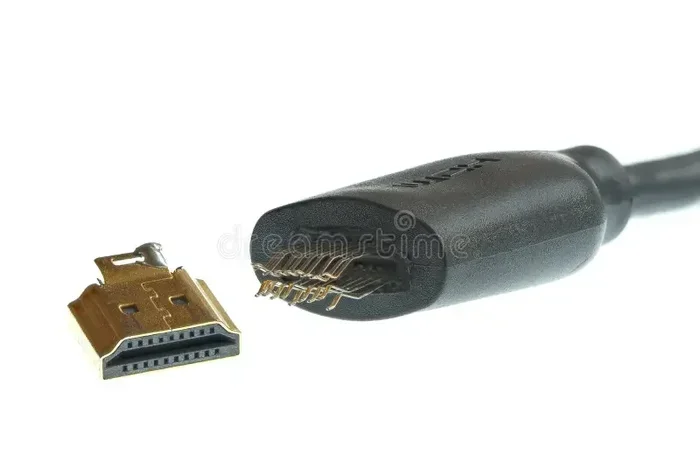
HDMI stands for High-Definition Multimedia Interface. It is a standard cable connection that carries both video and audio through a single cable. You probably have seen HDMI ports on TVs, monitors, and projectors. They look like small rectangular slots with angled edges.
So why would you want to use HDMI with your phone? Here are the most common reasons:
- Watch videos on a bigger screen: Streaming services look so much better on a TV than on a tiny phone display.
- Share photos and videos with family: Instead of huddling around a small screen, everyone can see memories on the living room TV.
- Work presentations: Connect your phone to a monitor or projector for meetings and slideshows.
- Gaming on a big screen: Some mobile games feel amazing when played on a TV.
- Digital display output: Use your phone as a media player or secondary computer screen.
The process for mobile device screen mirroring via HDMI depends on your phone model and the type of port it has. Let us explore the different connection types next.
Types Of HDMI Connections For Phones
Not all phones use the same port. Your connection method depends on what kind of phone you have. Here are the main types of HDMI connections for phones you will encounter.
USB-C to HDMI
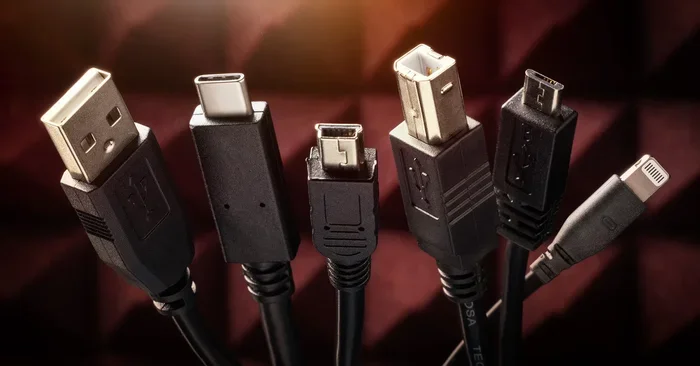
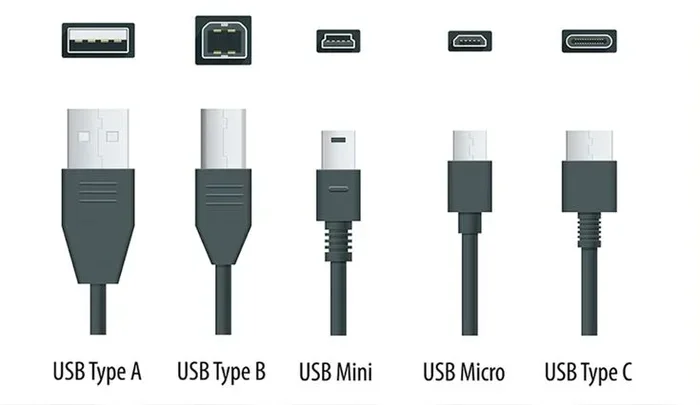
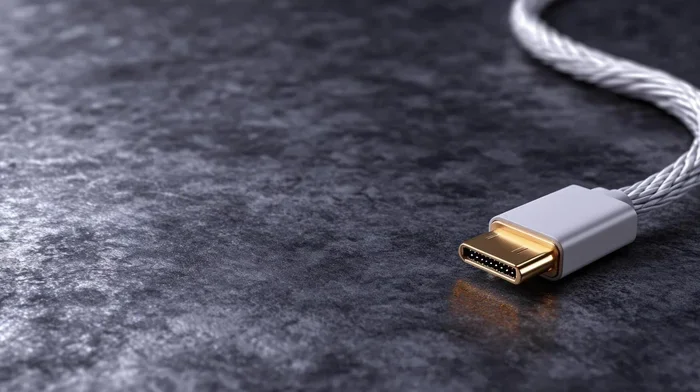
USB-C is the most common port on modern Android phones and some newer iPhones. A USB-C to HDMI adapter plugs into your phone on one end and has an HDMI cable on the other. This is the simplest and most reliable way to get a cable connection phone to TV. Most USB-C adapters support smartphone display output in full HD or even 4K resolution.
If you have a phone like the Samsung Galaxy S series, Google Pixel, or OnePlus devices, a USB-C to HDMI adapter is your best bet. These adapters are widely available and affordable.
Micro-USB to HDMI (MHL)
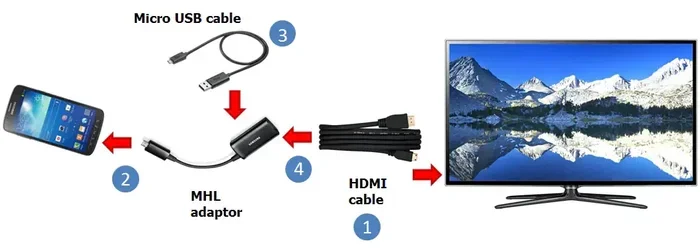
Older Android phones used Micro-USB ports. Some of these supported MHL, which stands for Mobile High-Definition Link. An MHL adapter lets you connect an older phone to an HDMI display. However, not all Micro-USB phones support MHL, so you need to check your phone specs first.
MHL adapters are less common now since most phones have moved to USB-C. But if you still use an older device, this is your go-to option for HDMI streaming phone connections.
Lightning to HDMI (For iPhones)
Apple iPhones use Lightning ports. To connect an iPhone to a TV or monitor, you need a Lightning to HDMI adapter. Apple sells its own official adapter, and several third-party options work well too. This adapter gives you the same mobile casting device experience as USB-C phones. You plug it in, and your iPhone screen appears on the TV.
Note that newer iPhones with USB-C ports (iPhone 15 and later) can use a standard USB-C to HDMI cable just like Android phones. This makes smartphone connectivity much simpler across all devices now.
USB-C to HDMI Cable (Direct)
Some phones support a direct USB-C to HDMI cable without needing a separate adapter. These cables have a USB-C plug on one end and an HDMI plug on the other. They work with phones that support DisplayPort Alt Mode over USB-C. This is the cleanest setup because there is no extra dongle or adapter block.
Brands like Samsung, Google, and Motorola support this feature on many of their flagships. Check your phone manual to see if it supports direct video output.
How To Connect HDMI To Your Phone Step By Step
Now let us walk through the actual setup process. The steps are simple and take only a few minutes.
Step 1: Check Your Phone Port Type
Look at the bottom of your phone. Do you see a USB-C port, a Lightning port, or an older Micro-USB port? This determines which adapter you need. If you are unsure, check your phone manufacturer website or the user manual. Knowing your phone port type saves you from buying the wrong adapter.
Step 2: Buy The Right Adapter Or Cable
Once you know your port type, buy the matching HDMI adapter for phone. Here is a quick guide:
- USB-C phone: Get a USB-C to HDMI adapter or a USB-C to HDMI cable.
- Lightning iPhone (older models): Get a Lightning to HDMI adapter.
- USB-C iPhone 15+: Get a USB-C to HDMI cable or adapter.
- Micro-USB phone: Get an MHL adapter if your phone supports it.
Buy from reputable brands. Cheap no-name adapters often cause HDMI connection problems like no signal, flickering, or poor audio. A quality phone HDMI cable from a trusted brand lasts longer and delivers better performance.
Step 3: Connect The Adapter To Your Phone
Plug the adapter into your phone firmly. Make sure it clicks in place. If using a direct cable, simply connect the USB-C or Lightning end to your phone.
Step 4: Connect The HDMI Cable To Your TV
Take a standard HDMI cable and plug it into the adapter. Then plug the other end into an available HDMI port on your TV or monitor. Most TVs have multiple HDMI ports. Note which port number you are using.
Step 5: Switch Your TV To The Correct Input
Use your TV remote to switch to the HDMI input you plugged into. Look for labels like HDMI 1, HDMI 2, or HDMI 3. Once you select the right input, your phone screen should appear on the TV.
Step 6: Adjust Display Settings If Needed
Sometimes the TV shows a black border or the wrong resolution. Go to your phone display settings and look for screen mirroring or cast settings. You can usually adjust the output resolution and orientation there. Some phones let you choose between mirroring your entire screen or outputting only video.
If you are using your phone to projector for work presentations, make sure to test this setup beforehand. Projectors sometimes have different input timing than TVs.
Best HDMI Adapters And Cables For Phones
Not all adapters are created equal. Here are some things to look for when shopping for a phone to TV cable or adapter.
What To Look For In A Good Adapter
- Resolution support: Look for adapters that support at least 1080p. Premium ones support 4K output for crisp visuals.
- Audio support: A good adapter carries both video and audio through the same cable. No need for separate audio connections.
- Build quality: Metal-bodied adapters last longer than plastic ones. They also dissipate heat better.
- Compatibility: Make sure the adapter works with your specific phone model. Check the product listing carefully.
- Brand reputation: Brands like Belkin, Anker, and Samsung make reliable adapters.
Quick Tips For Choosing The Right Product
- Always check your phone model number before buying.
- Read customer reviews to spot common issues.
- Avoid adapters that are much cheaper than others. You get what you pay for.
- Consider buying a slightly longer HDMI cable (6 feet or more) for flexibility.
- If you travel often, a compact Type-C HDMI adapter is a great portable option.
When you are looking at phone accessories, remember that a good HDMI adapter for phone is one of the most useful gadgets you can own. It transforms how you share content and present work. If you are curious about other handy phone accessories, check out our guide on 10 Gadgets To Make Moms Life Easier for some great ideas.
Troubleshooting Common HDMI Connection Issues
Sometimes things do not work the first time. Do not worry. Most HDMI connection problems have simple fixes. Here are the most common issues and how to solve them.
No Signal On The TV
If your TV shows no signal, try these steps:
- Unplug the adapter from your phone and plug it back in.
- Try a different HDMI port on your TV.
- Use a different HDMI cable to rule out a bad cable.
- Make sure your adapter is fully compatible with your phone model.
- Restart your phone and try again.
Sometimes the phone to TV cable just needs a fresh connection. This simple fix works more often than you would expect.
No Audio Through The TV
If you see the video but hear no sound, check these settings:
- Go to your phone sound settings and make sure media volume is up.
- On your TV, check that the audio output is set to HDMI.
- Some phones have a setting to route audio through HDMI. Look in your developer options or display settings.
- Make sure your adapter supports audio pass-through.
Flickering Or Distorted Video
Flickering usually means a compatibility issue. Try these fixes:
- Use a higher quality HDMI cable.
- Lower the output resolution on your phone.
- Try a different adapter. Cheap adapters often cause this problem.
- Make sure your adapter firmware is up to date if applicable.
Phone Does Not Recognize The Adapter
If your phone does not detect the adapter at all:
- Check if your phone supports the specific connection type (MHL, DisplayPort Alt Mode, etc.).
- Clean the phone port. Dust and lint can block the connection.
- Try the adapter with a different phone to see if the adapter itself is faulty.
- Update your phone software. Sometimes a software update adds support for new adapters.
For iPhone users who also deal with number formatting and contact management, you might find our article on Adding Prefixes To Numbers On Iphone helpful for keeping your contact list organized alongside your new setup.
Wireless Alternatives To HDMI For Phone Screen Mirroring
Not everyone wants to deal with cables. If you prefer a wireless setup, there are several great options for wireless screen casting from your phone to a TV or monitor.
Chromecast
Google Chromecast is a small device you plug into your TV HDMI port. You then cast content from your phone wirelessly. It works with both Android and iPhone. Chromecast supports most streaming apps like YouTube, Netflix, and Spotify. The setup is simple and the quality is excellent.
AirPlay (For Apple Devices)
If you have an iPhone and an Apple TV, AirPlay is your best wireless option. It mirrors your iPhone screen to the TV without any cables. AirPlay also works with many smart TVs from Samsung, LG, and Sony. The connection is smooth and supports high-quality video and audio.
Miracast
Miracast is a wireless standard built into many Android phones and some smart TVs. It creates a direct wireless connection between your phone and TV. No extra device is needed if your TV supports Miracast. Look for the screen cast or smart view option in your phone settings.
When To Use Wireless vs Wired HDMI
Wireless casting is great for casual viewing and sharing photos. But for gaming, presentations, or watching fast-action content, a wired HDMI connection is better. Wired connections have less lag and better image quality. They also do not depend on your Wi-Fi network strength.
If you use your phone for work tasks and run into issues with spreadsheets or documents while presenting, you might also find our guide on A Line Wont Delete In Microsoft Excel useful for fixing common Excel problems on the go.
Can I Connect HDMI To Any Phone
The short answer is no, not every phone supports direct HDMI output. Older budget phones may lack the necessary hardware or software support. However, the vast majority of phones made in the last five years can connect to HDMI with the right accessory.
Here is a quick compatibility check:
- Android phones with USB-C: Most support HDMI output via adapter or direct cable.
- iPhones with Lightning: Support HDMI with a Lightning to HDMI adapter.
- iPhones with USB-C (15+): Support HDMI with a USB-C to HDMI cable.
- Older Android phones with Micro-USB: Some support MHL, but check your model first.
- Very old or budget phones: May not support any form of HDMI output.
Before buying any adapter, confirm your phone supports video output. You can usually find this information in your phone settings under display or in the user manual. Searching online for your specific phone model plus HDMI output will also give you quick answers.
The smartphone connectivity landscape has improved dramatically. Today, connecting a phone to a TV or monitor is a standard feature that most manufacturers support. This makes HDMI streaming phone setups accessible to nearly everyone.
Expert Tips For The Best HDMI Phone Experience
Here are some insider tips from people who use phone-to-TV connections regularly:
- Use a high-speed HDMI cable: Standard HDMI cables work fine for 1080p, but for 4K you need a High Speed HDMI cable.
- Keep your phone cool: Extended video output can heat up your phone. Take breaks if it gets warm.
- Turn off notifications: During presentations or movie watching, enable Do Not Disturb mode to avoid interruptions.
- Adjust phone brightness: When mirroring to a TV, you can lower your phone screen brightness to save battery.
- Use an adapter with a passthrough charging port: This lets you charge your phone while outputting video. Very useful for long movie sessions.
Having the right accessories on hand makes all the difference. If you love collecting useful gadgets and tools, you might enjoy our list of 10 Gadgets To Make Moms Life Easier for more practical tech ideas.
Final Thoughts
So, can you connect HDMI to your phone? Absolutely. With the right adapter or cable, virtually any modern phone can output its screen to a TV, monitor, or projector. The process is straightforward and takes just a few minutes to set up. Whether you want to watch movies, share memories, give presentations, or play games on a bigger screen, HDMI phone connectivity opens up a world of possibilities.
Start by identifying your phone port type, then buy a compatible adapter. Follow the simple steps we outlined, and you will be streaming to your TV in no time. If you run into issues, the troubleshooting section has you covered. And if cables are not your thing, wireless casting options like Chromecast and AirPlay offer great alternatives.
Connecting your phone to HDMI is one of the most useful tech skills you can learn. It costs very little, takes minutes to set up, and instantly upgrades how you use your phone. Try it today and see the difference for yourself.
Frequently Asked Questions
Can I connect HDMI directly to my phone without an adapter?
Some newer phones with USB-C support DisplayPort Alt Mode can use a direct USB-C to HDMI cable without a separate adapter. However, most phones require an adapter or dongle to convert the phone signal to HDMI output.
Why is there no sound when I connect my phone to TV via HDMI?
This usually happens when the audio output setting on your phone or TV is not configured correctly. Check that your TV is set to receive audio through HDMI and that your phone media volume is turned up. Some adapters also need to support audio pass-through.
Do all Android phones support HDMI output?
Most Android phones made in the last five years with USB-C ports support HDMI output through an adapter. Older phones with Micro-USB may support MHL, but you need to verify compatibility for your specific model.
Can I use HDMI to play games from my phone on a TV?
Yes, you can. A wired HDMI connection provides the lowest latency, making it ideal for gaming. Wireless options like Chromecast have more lag and are better suited for streaming content rather than fast-paced games.
What is the difference between MHL and USB-C to HDMI?
MHL is an older standard that works with Micro-USB phones and requires a specific MHL adapter. USB-C to HDMI is the modern standard that works with phones using USB-C ports and offers better resolution support and easier compatibility.
Can I charge my phone while using HDMI output?
Yes, if you use an adapter that has a passthrough charging port. These adapters let you plug in a USB charging cable while the HDMI adapter is connected to your phone, so you can use and charge your device at the same time.
=== CONCLUSION ===
Connecting HDMI to your phone is a simple yet powerful way to get more out of your device. Whether you are watching movies, sharing photos, or giving a work presentation, the right adapter makes it all possible. We covered every connection type, from USB-C to HDMI and Lightning to HDMI, to MHL adapters for older devices. You also learned how to troubleshoot common problems and explore wireless alternatives like Chromecast and AirPlay.
The key takeaway is that nearly every modern phone can connect to an external display. You just need the right phone to TV cable or adapter. Invest in a quality product, follow the setup steps, and enjoy your phone content on a big screen. Start experimenting with your setup today and discover how much more you can do with your smartphone connectivity options.