Can Samsung Text Over Wi Fi Easily Without Any Issues
Yes, Samsung text over Wi-Fi is real and works on most Galaxy devices. You can send and receive messages without a cellular signal by using Wi-Fi connectivity. This feature, also known as RCS messaging or Wi-Fi messaging, keeps you connected even when you have no cell service.
Have you ever been in a place with no cell signal and wished you could still send a text message? Maybe you are in a basement, a remote area, or a building with terrible reception. The good news is that Samsung text over Wi-Fi makes this possible. You can stay connected and keep chatting with friends and family even when your cellular signal drops to zero.
This guide walks you through everything you need to know about Samsung text over Wi-Fi. We will cover how it works, how to set it up, common problems, and practical tips to get the best experience. Whether you have a Galaxy S series phone or a more budget-friendly Galaxy A model, this information applies to you.
By the end of this article, you will understand exactly how Samsung Wi-Fi messaging works and how to use it confidently. Let us dive right in.
Key Takeaways
- Samsung text over Wi-Fi works on Galaxy devices running One UI 4.0 or later with a Wi-Fi connection.
- You do not need a SIM card or cellular signal to send messages if Wi-Fi is available.
- RCS (Rich Communication Services) powers the Wi-Fi texting experience on Samsung phones.
- Enabling the feature is simple and can be done in just a few taps in your messaging settings.
- Common issues like failed sends or delivery problems can usually be fixed with basic troubleshooting steps.
- Wi-Fi texting is free and uses your internet connection instead of your cellular plan’s SMS limits.
- Not all carriers support the feature equally, so checking with your provider is a smart first step.
📑 Table of Contents
- What Is Samsung Text Over Wi-Fi?
- How Samsung Text Over Wi-Fi Works
- How to Enable Samsung Text Over Wi-Fi
- Common Issues and How to Fix Them
- Samsung Text Over Wi-Fi vs. Regular Texting
- Tips for the Best Samsung Text Over Wi-Fi Experience
- Expert Insights on Samsung Wi-Fi Messaging
- Key Takeaways
- Conclusion
What Is Samsung Text Over Wi-Fi?
Samsung text over Wi-Fi is a feature that lets you send and receive text messages using a Wi-Fi connection instead of a cellular network. This means you can message people even when you are far from any cell tower. The technology behind this is called RCS, which stands for Rich Communication Services.
RCS is the modern upgrade to traditional SMS. It offers read receipts, typing indicators, and higher-quality media sharing. When you use Wi-Fi messaging on Samsung, your phone sends messages over the internet just like it would when you browse a website or stream a video.
How Does It Differ From Regular Texting?
Regular texting, or SMS, relies on your cellular network. When you send a standard text, your phone communicates with the nearest cell tower. If there is no tower nearby, your message simply will not go through.
Samsung text over Wi-Fi bypasses the cell tower entirely. Instead, it routes your messages through your Wi-Fi network. This is a huge advantage in areas with poor cellular coverage. You also do not need an active SIM card in some cases, though most carriers still require one for full functionality.
Which Samsung Devices Support This Feature?
Most modern Samsung Galaxy phones support Wi-Fi texting. This includes the Galaxy S series, Galaxy Z fold and flip phones, and many Galaxy A and Galaxy M series devices. The feature works best on phones running One UI 4.0 or later. If your phone is older, you may still have the feature, but it might need a software update to work properly.
How Samsung Text Over Wi-Fi Works
Understanding how Samsung text over Wi-Fi actually works helps you troubleshoot problems and use the feature more effectively. The process is simpler than you might think.
The Role of RCS Messaging
RCS messaging is the backbone of Wi-Fi texting on Samsung. When you send a message, RCS packages it as data and sends it through your Wi-Fi connection. The message reaches the recipient through their own internet connection, whether that is Wi-Fi or mobile data.
This is different from traditional SMS, which travels through your carrier’s cellular infrastructure. RCS messages are essentially internet messages, similar to WhatsApp or iMessage, but they work within your default Samsung Messages app.
What Happens When You Send a Message Over Wi-Fi?
Here is a simple breakdown of what happens when you send a Samsung message over Wi-Fi:
- You type a message and hit send.
- Your phone detects that you are connected to Wi-Fi and that RCS is enabled.
- The message is converted into data packets.
- Those packets travel through your Wi-Fi router to your internet service provider.
- The ISP routes the data to the recipient’s device or carrier.
- The recipient receives the message on their end.
This entire process happens in seconds. You do not need to do anything special. As long as Wi-Fi messaging is turned on, your phone handles everything automatically.
Does Wi-Fi Texting Work Internationally?
Yes, Samsung text over Wi-Fi can work internationally. Since the messages travel over the internet, you can send texts to people in other countries without paying international SMS fees. However, the recipient must also have a compatible device and messaging setup. If they are using a phone that does not support RCS, your message may fall back to a standard SMS, which could incur charges depending on your plan.
How to Enable Samsung Text Over Wi-Fi
Setting up Samsung Wi-Fi messaging is straightforward. Most Galaxy phones have the feature built in, and you just need to turn it on. Here is how to do it step by step.
Step-by-Step Setup Guide
- Open the Messages app on your Samsung phone. This is your default texting app.
- Tap the three dots in the top right corner of the screen.
- Select Settings from the dropdown menu.
- Tap on RCS messages or Chat settings, depending on your One UI version.
- Toggle on the Wi-Fi messaging option. This is sometimes labeled as “Enable Wi-Fi messaging” or “Send over Wi-Fi.”
- Return to the main Settings menu and look for “Connections.”
- Tap on Wi-Fi calling and make sure it is enabled. Some carriers require Wi-Fi calling to be on for Wi-Fi messaging to work.
Once you complete these steps, your phone should automatically send messages over Wi-Fi when a cellular signal is weak or unavailable. You may see a small indicator in your messaging window showing that the message was sent via Wi-Fi.
Checking If Your Carrier Supports Wi-Fi Texting
Not all carriers support Samsung text over Wi-Fi the same way. Major carriers like AT&T, T-Mobile, and Verizon all offer some level of RCS and Wi-Fi messaging support. However, smaller carriers or prepaid plans may have limited or no support.
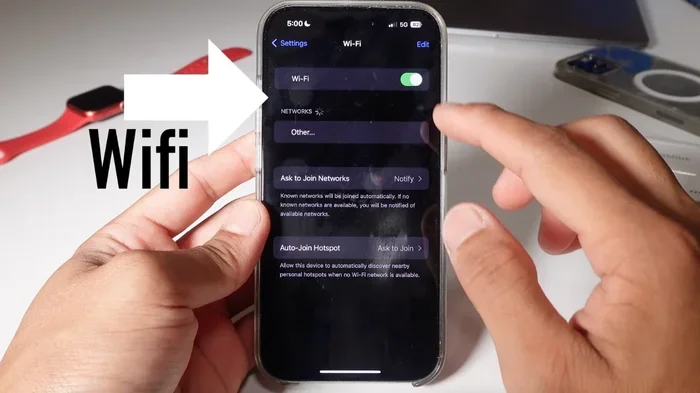
To check if your carrier supports the feature, go to your phone’s Settings, then Connections, then Wi-Fi calling. If you see Wi-Fi calling options, there is a good chance your carrier supports Wi-Fi messaging as well. You can also visit your carrier’s website or call their customer service to confirm.
Required Settings and Permissions
For Wi-Fi messaging on Samsung to work properly, make sure the following settings are enabled:
- Wi-Fi connection: You need to be connected to a Wi-Fi network.
- Mobile data: Even though you are texting over Wi-Fi, mobile data should be turned on in most cases.
- RCS messaging: This must be enabled in your Messages app settings.
- Wi-Fi calling: Some carriers require this to be active.
- Automatic network switch: This setting allows your phone to seamlessly switch between Wi-Fi and cellular data.
Common Issues and How to Fix Them
Even though Samsung text over Wi-Fi is a reliable feature, you may run into occasional problems. Here are the most common issues and how to solve them.
Messages Failing to Send
If your messages are not sending over Wi-Fi, the first thing to check is your Wi-Fi connection. Make sure you are connected to a working network. Try loading a webpage to confirm your internet is working.
Next, check that RCS messaging is turned on. Sometimes a software update can reset your messaging settings. Go back to the Messages app settings and make sure RCS is enabled. Restarting your phone can also help clear up temporary glitches.
Messages Falling Back to SMS
You might notice that your messages send as regular SMS instead of over Wi-Fi. This usually happens when your phone detects a strong cellular signal. The phone defaults to the cellular network because it thinks that is the better option.
If you want to force messages to go over Wi-Fi, you can turn off mobile data temporarily. This pushes your phone to use the Wi-Fi connection for messaging. However, this is not always necessary and can drain your battery if you are not careful.
Delivery Delays and Failed Reads
Occasionally, Samsung Wi-Fi messaging messages may be delayed or show as failed. This can happen if your Wi-Fi network has a weak signal or if your internet connection is unstable. Try moving closer to your router or switching to a different Wi-Fi network.
Another common cause is an outdated version of the Messages app. Check the Google Play Store for any available updates. Keeping your apps and your phone’s software up to date prevents most delivery issues.
Troubleshooting Checklist
If you are having trouble with Samsung text over Wi-Fi, run through this checklist:
- Check your Wi-Fi connection. Make sure it is active and working.
- Restart your phone. A simple reboot fixes many temporary issues.
- Update the Messages app. Go to the Play Store and check for updates.
- Clear the Messages app cache. Go to Settings, then Apps, then Messages, then Storage, and tap Clear Cache.
- Check your carrier settings. Some carriers push updates that affect messaging.
- Turn RCS off and back on. This refreshes the connection.
- Contact your carrier. If nothing else works, your carrier may be able to help.
Samsung Text Over Wi-Fi vs. Regular Texting
Understanding the differences between Samsung text over Wi-Fi and regular SMS texting helps you decide when to use each method. Here is a quick comparison.
| Feature | Wi-Fi Messaging (RCS) | Regular SMS |
|---|---|---|
| Connection Required | Wi-Fi or mobile data | Cellular network only |
| Works Without Signal | Yes, if Wi-Fi is available | No |
| Message Quality | High quality with read receipts | Basic text only |
| Media Sharing | High-resolution photos and videos | Compressed media |
| Cost | Free (uses data) | May cost per message on some plans |
| Cross-Platform | Works best with other RCS users | Works with any phone |
| International Use | Free over Wi-Fi | May incur international fees |
As you can see, Samsung text over Wi-Fi offers a superior experience in most situations. Regular SMS still has its place, especially when communicating with older phones or devices that do not support RCS. The best approach is to let your phone handle the decision automatically. It will choose the best method based on your connection and the recipient’s device.
Tips for the Best Samsung Text Over Wi-Fi Experience
Getting the most out of Samsung Wi-Fi messaging is easy when you follow a few simple tips. These recommendations help you avoid frustration and keep your messages flowing smoothly.
Keep Your Apps and Software Updated
Software updates often include fixes for messaging bugs and improvements to RCS functionality. Make sure your Samsung phone is running the latest version of One UI. Also, keep the Messages app updated through the Google Play Store. These small steps prevent many common issues.
Use a Stable Wi-Fi Connection
Samsung text over Wi-Fi works best on a stable, reliable Wi-Fi network. Public Wi-Fi networks at coffee shops or airports can be slow or unreliable. If possible, use your home or office network for the best messaging experience. A strong Wi-Fi signal means faster message delivery and fewer failed sends.
Enable Auto-Download for Media
When you send photos or videos over Wi-Fi messaging, the recipient may need to download them manually. To make things easier, go to your Messages settings and enable auto-download for media. This ensures that images and videos appear in the conversation without any extra steps.
Turn On Chat Notifications
RCS messages come with special notifications like read receipts and typing indicators. Make sure these are turned on so you can see when someone has read your message or is currently typing. Go to Messages Settings, then Chat settings, and toggle on these features.
Set Wi-Fi Messaging as Your Default
Some Samsung phones let you set Wi-Fi messaging as the default sending method. This ensures that every message you send goes through Wi-Fi when available. Check your Messages app settings to see if this option is available on your device.
Quick Tips for Better Wi-Fi Texting
- Restart your router if messages are slow or failing to send.
- Forget and reconnect to your Wi-Fi network to refresh the connection.
- Turn Airplane Mode on and off to reset all connections quickly.
- Check your storage space. Low storage can prevent media messages from sending.
- Disable battery optimization for the Messages app. This keeps the app running in the background and prevents message delays.
Expert Insights on Samsung Wi-Fi Messaging
According to networking experts, Samsung text over Wi-Fi has come a long way in recent years. The RCS protocol has matured significantly, and most users now enjoy a seamless messaging experience. However, carrier support remains the biggest variable. Some carriers have fully embraced RCS, while others are still rolling out updates.
Tech reviewers also point out that Wi-Fi messaging on Samsung is one of the best implementations on the market. Samsung works closely with Google, the main developer of RCS, to ensure compatibility. This partnership means Galaxy users often get new features and improvements before users of other Android brands.
Network engineers recommend that users always keep Wi-Fi calling enabled if they want the best Samsung Wi-Fi messaging experience. Even if you do not plan to use Wi-Fi calling for voice calls, having it enabled ensures that your messaging system stays connected and functional at all times.
Key Takeaways
- Samsung text over Wi-Fi works on most Galaxy devices and is a reliable way to stay connected without cellular signal.
- The feature uses RCS technology to send messages over your Wi-Fi connection, just like internet data.
- Enabling it takes only a few steps in your Messages app settings and phone connections menu.
- Common issues are usually easy to fix with basic troubleshooting like restarting your phone or updating your apps.
- Wi-Fi texting is free and can save you from international SMS fees when messaging abroad.
- Carrier support varies, so it is worth checking with your provider if you run into persistent problems.
- Keeping your software updated and using a stable Wi-Fi network gives you the best experience.
Conclusion
Samsung text over Wi-Fi is a powerful and convenient feature that keeps you connected in almost any situation. Whether you are in a dead zone, traveling internationally, or simply prefer using Wi-Fi for your messaging needs, this feature delivers. It works seamlessly on most Samsung Galaxy devices and requires minimal setup.
The key to success with Samsung Wi-Fi messaging is understanding how it works and knowing how to troubleshoot common issues. With the tips and guidance in this article, you are well-equipped to use the feature confidently. Keep your apps updated, maintain a stable Wi-Fi connection, and do not hesitate to reach out to your carrier if you need help.
Start using Samsung text over Wi-Fi today and enjoy the freedom of messaging without worrying about cell signal. Once you set it up, you will wonder how you ever managed without it.
Frequently Asked Questions
Can I send Samsung text over Wi-Fi without a SIM card?
In most cases, yes. Samsung text over Wi-Fi can work without a SIM card as long as you have a Wi-Fi connection. However, some carriers may require an active SIM for full RCS functionality. Check with your carrier if you are unsure.
Is Samsung Wi-Fi messaging free to use?
Yes, sending messages over Samsung Wi-Fi messaging is completely free. It uses your Wi-Fi data connection, not your cellular plan’s SMS allowance. You will not be charged extra for texting over Wi-Fi by your carrier.
Why do my Samsung messages keep falling back to SMS instead of Wi-Fi?
This usually happens when your phone detects a strong cellular signal and chooses the cellular network automatically. You can try turning off mobile data temporarily to force Wi-Fi messaging. Also, make sure RCS is enabled in your Messages app settings.
Does Samsung text over Wi-Fi work internationally?
Yes, Samsung text over Wi-Fi works internationally because the messages travel over the internet. You can send texts to people in other countries without paying international SMS fees, as long as both you and the recipient have internet access.
What is the difference between RCS and SMS on Samsung?
RCS (Rich Communication Services) is a modern messaging protocol that supports features like read receipts, typing indicators, and high-quality media sharing. SMS is the traditional text messaging format with basic functionality. RCS works over Wi-Fi and mobile data, while SMS requires a cellular network.
How do I know if my Samsung phone supports text over Wi-Fi?
Most Samsung Galaxy phones released after 2019 support Samsung text over Wi-Fi. Check your phone’s Settings, go to Connections, then Wi-Fi calling. If you see Wi-Fi calling options, your phone likely supports Wi-Fi messaging. You can also check your Messages app settings for RCS options.