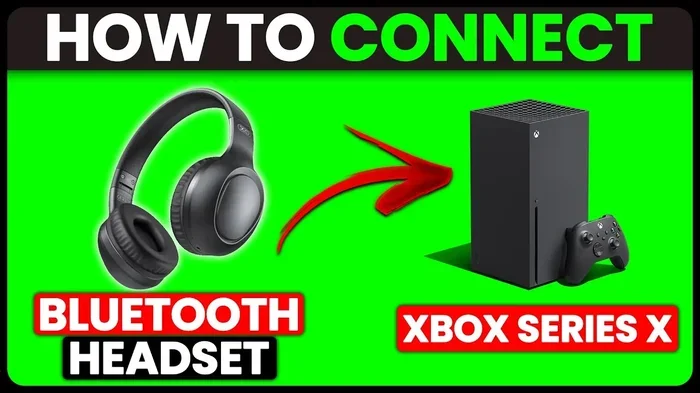
Can You Connect Bluetooth To Xbox Series X With Ease
Yes, you can connect Bluetooth to Xbox Series X, but the console does not support standard Bluetooth audio natively. You will need either a Bluetooth adapter, an Xbox Wireless headset, or a controller with a 3.5mm jack to get wireless audio working. This guide covers every method, workaround, and tip to help you set up Bluetooth devices with your Xbox console quickly and easily.
Understanding how to connect Bluetooth to Xbox Series X opens up a world of wireless gaming possibilities. Many gamers want to use their favorite Bluetooth headphones, controllers, and speakers with their Xbox console. The good news is that connecting Bluetooth to Xbox Series X is possible, though it requires a bit of know-how. This guide breaks down every method, limitation, and workaround you need to know.
Whether you want to pair a wireless headset for immersive audio or connect a Bluetooth controller for flexibility, you are in the right place. We will walk you through each step clearly and simply. By the end of this article, you will feel confident setting up any Bluetooth device with your Xbox console. Let us dive in and make your wireless gaming dream a reality.
Key Takeaways
- Xbox Series X does not support standard Bluetooth audio out of the box. You need an adapter or a compatible headset to connect wireless audio devices.
- Bluetooth Xbox controllers pair easily using the console’s built-in Bluetooth settings, making wireless gaming simple and convenient.
- A Bluetooth adapter is the best workaround for connecting Bluetooth headphones, speakers, and earbuds to your Xbox console.
- Audio lag and latency are common issues but can be minimized with the right adapter and proper placement.
- Keeping devices updated and charged ensures the smoothest Bluetooth connection on Xbox Series X.
- Xbox Wireless Headset offers the best native experience with zero latency and seamless pairing.
📑 Table of Contents
- Understanding Bluetooth on Xbox Series X
- How to Connect Bluetooth Devices to Xbox Series X
- Why Xbox Series X Does Not Support Standard Bluetooth Audio
- Best Bluetooth Accessories for Xbox Series X
- Common Bluetooth Connection Issues and Fixes
- Expert Tips for Better Bluetooth Performance
- Frequently Asked Questions
- Final Thoughts
Understanding Bluetooth on Xbox Series X
Before you start pairing devices, it helps to understand how Bluetooth works with Xbox Series X. The console uses a mix of proprietary wireless technology and standard Bluetooth. This dual approach can be confusing at first, but it becomes simple once you know the basics.
Does Xbox Series X Support Bluetooth?
The short answer is yes and no. Xbox Series X does have Bluetooth built in, but it works differently than you might expect. The console uses a custom wireless protocol called Xbox Wireless for most first-party accessories. This means standard Bluetooth pairing does not work the same way it does with phones or PCs.
However, you can still connect many Bluetooth devices through creative workarounds. The key is understanding what the console supports natively and what needs an adapter. Let us explore the details so you do not get stuck trying to pair something that will not work.
Xbox Wireless vs Standard Bluetooth
Xbox Wireless is Microsoft’s proprietary connection method. It offers lower latency and more stable connections than standard Bluetooth. Most Xbox controllers use this protocol by default. Standard Bluetooth, on the other hand, is the universal wireless tech found in phones, laptops, and many headsets.
The difference matters because Xbox Series X does not support standard Bluetooth audio out of the box. You cannot simply put your Bluetooth headphones in pairing mode and expect them to connect. This limitation frustrates many gamers, but there are solutions we will cover soon.
Xbox Wireless Protocol and Bluetooth Connectivity
The Xbox wireless protocol was designed specifically for gaming. It prioritizes speed and stability over universal compatibility. Bluetooth connectivity on Xbox Series X is limited to certain functions, mainly controller pairing. For audio output, you need additional hardware or a compatible headset.
This design choice makes sense from a performance standpoint. Gaming requires instant audio feedback, and standard Bluetooth can introduce delays. By using Xbox Wireless for core accessories, Microsoft ensures a smoother experience for serious gamers.
How to Connect Bluetooth Devices to Xbox Series X
Now that you understand the basics, let us get into the practical steps. Connecting Bluetooth devices to Xbox Series X depends on what you are trying to pair. Controllers are straightforward, but audio devices need extra steps. We will cover each scenario in detail below.
Connecting a Bluetooth Controller
Connecting a Bluetooth controller to Xbox Series X is the most common need for gamers. The Xbox Wireless Controller supports both Xbox Wireless and Bluetooth. Newer controllers released after 2020 have built-in Bluetooth capability. This makes it easy to connect your controller without a USB cable.
Here is how you pair a Bluetooth Xbox controller:
- Press and hold the Xbox button on the controller until it turns on.
- Press and hold the Pair button on the top of the controller for three seconds.
- On your Xbox Series X, go to Settings, then Devices and Connections.
- Select Add Bluetooth or other device and choose Bluetooth.
- Select your controller from the list and follow the on-screen prompts.
Once paired, your controller will connect wirelessly without the USB cable. This gives you more freedom to sit back and relax while gaming. It is a great way to set up a clean and clutter-free gaming station. Keeping your Xbox controller battery charged ensures a stable connection every time you play.
Pairing Bluetooth Headphones and Earbuds
Connecting Bluetooth headphones directly to Xbox Series X is trickier. As mentioned, the console does not natively support standard Bluetooth audio profiles. This means most Bluetooth headsets will not pair directly through the console’s settings menu.
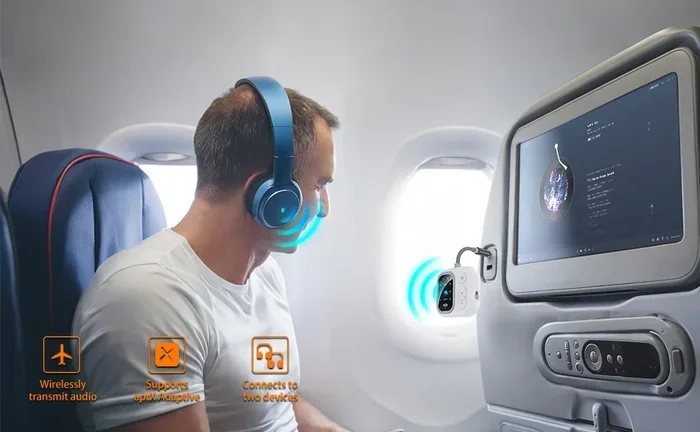
However, there are a few ways around this. Some third-party Bluetooth adapters plug into the Xbox controller’s 3.5mm jack or USB port. These adapters act as a bridge between your Bluetooth headphones and the Xbox console. They handle the Bluetooth connection while sending audio through the controller or console output.
Another option is to use headphones that connect through Xbox Wireless or via the Xbox app on your phone. Many modern gaming headsets offer both Xbox Wireless and Bluetooth, giving you flexibility. If you want a simple solution, check out some of the best gadgets for your setup to find compatible accessories. Investing in the right gear makes all the difference in your gaming sessions.
Using a Bluetooth Adapter for Full Compatibility
A Bluetooth adapter is your best friend when connecting Bluetooth to Xbox Series X for audio. These small devices plug into your console or controller and add Bluetooth support that the console lacks natively. They are affordable and easy to set up.
Here are some popular adapter options:
- Xbox Wireless Headset: Connects natively without any adapter needed.
- 3.5mm Bluetooth transmitter: Plugs into the controller jack and pairs with your headphones.
- USB Bluetooth audio transmitter: Connects to the Xbox USB port for wireless audio output.
Each option has its pros and cons. The Xbox Wireless Headset offers the best performance but costs more. A 3.5mm transmitter is affordable and easy to use. A USB transmitter gives you more flexibility with placement. Choose the one that fits your budget and gaming style.
When shopping for an adapter, look for Bluetooth 5.0 or newer. These versions offer better range and lower latency. Also check for support of the aptX codec, which improves audio quality over standard Bluetooth. A good adapter transforms your Xbox experience and lets you enjoy wireless audio without compromise.
Why Xbox Series X Does Not Support Standard Bluetooth Audio
The Xbox Wireless Protocol Explained
Microsoft designed Xbox Series X to use its own wireless protocol instead of standard Bluetooth. This decision was made to reduce latency and improve connection stability during gameplay. Standard Bluetooth can introduce delays that affect your gaming experience, especially in fast-paced games.
The Xbox Wireless protocol creates a direct connection between the console and certified accessories. This means fewer dropped signals and smoother performance. While this is great for gaming quality, it does limit your ability to use generic Bluetooth devices without extra hardware.
Think of it like a private highway for Xbox accessories. It is faster and more reliable than the public road of standard Bluetooth. The trade-off is that not every device can use it. You need Xbox-certified gear or an adapter to join the fast lane.
Limitations You Should Know About
Understanding the limitations helps you set realistic expectations. Here are the main restrictions when using Bluetooth with Xbox Series X:
- No native support for Bluetooth audio devices like standard headphones.
- No direct Bluetooth file transfers between your phone and Xbox.
- Limited compatibility with non-Xbox Bluetooth peripherals.
- Bluetooth pairing is restricted to controllers and specific adapters.
- Standard Bluetooth audio profiles like A2DP are not supported natively.
These limitations can feel frustrating, but workarounds exist for nearly all of them. The key is knowing which path to take for your specific device. With the right adapter or compatible headset, you can overcome every one of these restrictions.
Best Bluetooth Accessories for Xbox Series X
Top Bluetooth Headsets Worth Buying
Not all Bluetooth headsets are created equal when it comes to Xbox gaming. Some headsets connect natively through Xbox Wireless, while others rely on Bluetooth adapters. Here are a few top picks that work great with Xbox Series X:
- Xbox Wireless Headset: The official Xbox headset with zero latency and great sound quality.
- SteelSeries Arctis Nova 7X: Offers both Xbox Wireless and Bluetooth for multi-device use.
- Turtle Beach Stealth 700 Gen 2: A great budget option with Xbox Wireless support.
- HyperX Cloud III Wireless: Delivers comfortable fit and excellent audio for long gaming sessions.
Investing in the right headset makes a huge difference. You will enjoy clearer game audio and chat without wires getting in your way. A good headset is one of the most important gadgets for any gaming setup. If you are looking for more ways to enhance your home entertainment, you might also enjoy exploring 10 gadgets that make life easier for ideas on useful tech additions.
Bluetooth Speakers and Soundbars
Want to fill your room with sound? Bluetooth speakers and soundbars can enhance your Xbox experience, but they require a transmitter adapter. You cannot pair them directly to the console without one. The adapter bridges the gap between your Xbox and your Bluetooth speaker.
Look for a Bluetooth transmitter that supports aptX Low Latency. This codec reduces audio delay significantly. Connect the transmitter to your TV’s audio output or into the Xbox controller’s 3.5mm jack. Then pair your Bluetooth speaker or soundbar to the transmitter. You will get rich, immersive sound without any annoying lag.
Some soundbars even come with optical or HDMI ARC connections that bypass Bluetooth entirely. These are often better for gaming because they offer near-zero latency. Consider your setup carefully before choosing between Bluetooth and wired audio solutions. Both options have their place, and the best choice depends on your room layout and personal preferences.
Common Bluetooth Connection Issues and Fixes
Dealing with Audio Lag and Latency
Audio lag is the most common complaint when using Bluetooth with Xbox Series X. You hear the sound a fraction of a second after the action happens on screen. This can ruin your gaming experience, especially in competitive matches where timing is everything.
Here are some fixes to reduce audio lag:
- Use a Bluetooth adapter that supports aptX Low Latency or aptX Adaptive.
- Keep your Bluetooth device close to the console or controller.
- Reduce interference by moving away from Wi-Fi routers and other wireless devices.
- Update your adapter firmware regularly for the best performance.
- Use a wired connection for critical gaming sessions where every millisecond counts.
These simple steps can dramatically improve your Bluetooth audio experience. Most lag issues come from using cheap or outdated adapters. Spending a little extra on quality hardware pays off in the long run. Your ears will thank you during intense gaming moments.
Troubleshooting Pairing Problems
If your Bluetooth device will not pair with Xbox Series X, do not panic. Try these troubleshooting steps before giving up:
- Make sure your device is in pairing mode and within close range.
- Restart both your Xbox console and the Bluetooth device.
- Remove any previously paired devices from the Bluetooth list.
- Check for firmware or software updates on both devices.
- Try a different USB port if using a Bluetooth adapter.
- Reset your Bluetooth device to factory settings and try again.
Most pairing issues come from simple glitches that a quick restart fixes. If the problem persists, check the manufacturer’s website for specific troubleshooting steps. Sometimes a factory reset on your Bluetooth device does the trick. Patience and a systematic approach will solve most connection problems.
Optimizing Your Xbox Bluetooth Setup
Getting the most out of your Bluetooth connection on Xbox Series X comes down to a few smart choices. First, position your console in an open area with minimal obstructions. Walls and furniture can weaken Bluetooth signals and cause dropouts.
Second, keep your Bluetooth devices charged. Low battery levels can cause unstable connections and increased latency. Make it a habit to charge your controller and headset before gaming sessions. Nothing kills the vibe faster than your device dying mid-game.
Third, consider using the Xbox app on your phone for chat and media control. The app connects to your Xbox over Wi-Fi and gives you a secondary screen for managing your console. You can even use your phone to text your friends while gaming. If you ever need to customize your phone number settings for calls, check out how to add prefixes to numbers on iPhone to stay organized and keep your contacts tidy.
Expert Tips for Better Bluetooth Performance
Keeping Your Devices Updated
Software updates play a big role in Bluetooth performance. Both your Xbox console and your Bluetooth devices receive regular firmware updates that improve compatibility and fix bugs. Make sure to keep everything up to date for the best experience.
On your Xbox, go to Settings, then System, and select Updates. For your Bluetooth accessories, check the manufacturer’s app or website. Staying current ensures the smoothest possible connection and the best audio quality. Updates often include improvements specifically for wireless performance and stability.
Maximizing Your Wireless Range
Bluetooth range on Xbox Series X is typically around 30 feet in open space. However, walls, furniture, and other electronics can reduce this significantly. For the best results, keep your Bluetooth devices within a clear line of sight of the console or adapter.
If you experience dropouts, try moving closer to the console. You can also invest in a Bluetooth range extender for larger rooms. These small devices boost the signal and help maintain a stable connection across greater distances. A strong signal means uninterrupted audio and a better gaming experience overall.
Choosing the Right Bluetooth Codec
Not all Bluetooth codecs are created equal. The codec determines audio quality and latency. For Xbox gaming, look for adapters that support aptX Low Latency or aptX Adaptive. These codecs are specifically designed to minimize audio delay while maintaining good sound quality.
Standard SBC codec works but may introduce noticeable lag. AAC codec offers better quality on Apple devices but still has some latency. The best choice for Xbox gaming is aptX Low Latency, which keeps audio perfectly in sync with what you see on screen. Check your adapter’s specifications before purchasing to ensure it supports the right codec.
Frequently Asked Questions
Can You Connect Any Bluetooth Headphones to Xbox Series X?
Not all Bluetooth headphones work directly with Xbox Series X. The console does not support standard Bluetooth audio profiles natively. You will need a Bluetooth adapter, an Xbox Wireless headset, or a headset with a 3.5mm jack to connect wireless headphones. Some newer headsets that support both Xbox Wireless and Bluetooth offer the easiest path to wireless audio on your Xbox console.
Why Does My Bluetooth Keep Disconnecting From Xbox Series X?
Bluetooth disconnections usually happen due to interference, low battery, or distance. Keep your Bluetooth device within 10 feet of the console or adapter for the best results. Also, make sure both devices have the latest firmware. If problems continue, try removing the device from the paired list and pairing it again from scratch. A fresh pairing often resolves stubborn connection issues.
Can I Use Bluetooth to Connect My Phone to Xbox Series X?
Xbox Series X does not support direct Bluetooth file transfers or phone connections. However, you can use the Xbox app on your phone over Wi-Fi to control your console, chat with friends, and even stream games. The app provides a great wireless bridge between your phone and Xbox without needing Bluetooth. It is a convenient alternative that works seamlessly with your existing Wi-Fi network.
Is There a Way to Connect Bluetooth Speakers to Xbox Series X?
Yes, but you need a Bluetooth audio transmitter. Plug the transmitter into your TV’s audio output or into the Xbox controller’s 3.5mm jack. Then pair your Bluetooth speakers to the transmitter. This setup sends audio wirelessly to your speakers while keeping the connection stable. Just be aware that some audio delay may occur depending on the transmitter quality and the Bluetooth codec it supports.
What Is the Best Bluetooth Adapter for Xbox Series X?
The best adapter depends on your needs. For audio, a USB Bluetooth 5.0 transmitter with aptX Low Latency is ideal. For controllers, newer Xbox controllers already have built-in Bluetooth. If you want a simple all-in-one solution, the Xbox Wireless Headset eliminates the need for any adapter entirely. Look for adapters that support the A2DP and AVRCP profiles for the best results with your Xbox console.
Does Xbox Series X Support Bluetooth for VR Headsets?
Xbox Series X does not natively support VR headsets through Bluetooth. The console has limited VR compatibility overall. If you want to use a VR headset, you will likely need a PC connection or a compatible headset that works with Xbox. Check the specific VR headset manufacturer for Xbox compatibility details before purchasing any virtual reality gear.
Final Thoughts
Connecting Bluetooth to Xbox Series X is absolutely doable, even if the process is not always straightforward. The console uses its own wireless protocol for most accessories, which means you will often need an adapter for standard Bluetooth devices. But with the right tools and a little patience, you can enjoy wireless controllers, headsets, and speakers without any hassle.
Start by identifying what you want to connect and choosing the right method. Controllers are easy to pair natively. Audio devices need an adapter or a compatible Xbox Wireless headset. And always keep your devices updated and charged for the best performance. Small steps like these make a big difference in your daily gaming routine.
The world of wireless gaming keeps getting better. New accessories and adapters make it easier than ever to go completely cable-free. Embrace the freedom of Bluetooth and enjoy your Xbox Series X setup the way you want it. You deserve a clean, wireless gaming experience, and now you have everything you need to make it happen. Happy gaming!