Why Can Some Computers Not Have Bluetooth Built In
Not all computers come with Bluetooth built in, and there are clear reasons behind this. Budget laptops, older desktops, and compact mini PCs often skip Bluetooth to cut costs or save space. Bluetooth capability depends on the manufacturer, the computer’s purpose, and the hardware design. The good news is that you can easily add Bluetooth to almost any computer with a simple adapter or upgrade.
Key Takeaways
- Cost savings drive the decision: Manufacturers often leave out Bluetooth to keep prices low for budget-conscious buyers.
- Older computers lack wireless support: Bluetooth wasn’t standard in computers made before the mid-2010s.
- You can add Bluetooth easily: A USB Bluetooth adapter is the simplest and most affordable fix.
- Bluetooth versions matter: Newer versions offer better range, speed, and energy efficiency.
- Wireless connectivity is not automatic: Even modern computers sometimes rely on Wi-Fi only and skip Bluetooth hardware.
- Troubleshooting is simple: Most Bluetooth issues come from missing drivers or outdated software.
- Check before you buy: Always verify Bluetooth capability when shopping for a new computer.
📑 Table of Contents
- What Is Bluetooth and Why Does It Matter?
- Reasons Why Some Computers Don’t Have Bluetooth
- How to Check if Your Computer Has Bluetooth
- How to Add Bluetooth to a Computer That Doesn’t Have It
- Bluetooth Versions and What They Mean
- Common Bluetooth Problems and How to Fix Them
- Should You Buy a Computer Without Bluetooth?
- Final Thoughts
What Is Bluetooth and Why Does It Matter?
Bluetooth is a wireless technology that lets devices talk to each other without cables. You use it every day. Think about your wireless headphones, your phone, or your wireless mouse. All of these devices connect through Bluetooth.
The technology uses short-range radio waves to send data between devices. It works within about 30 feet for most versions. Newer versions can reach much farther. Bluetooth capability has become a standard feature on most smartphones and tablets. But when it comes to computers, things get interesting.
Not every computer ships with this wireless feature turned on. Some machines simply don’t include the hardware needed. This surprises a lot of people. They assume all modern computers have built-in Bluetooth by default. That is not always true.
Understanding what Bluetooth does helps you appreciate why some computers skip it. It handles wireless file transfer, audio streaming, and peripheral connections. Without it, you need cables or alternative wireless options. Let’s explore why some computers don’t include this handy feature.
How Bluetooth Works in Simple Terms
Bluetooth uses tiny radio waves to create a short-range network. Your computer needs a special chip to send and receive these signals. This chip is called a Bluetooth module. Without it, there is no wireless connectivity for Bluetooth devices.
Think of the Bluetooth module like a tiny radio inside your computer. It broadcasts and listens for signals. When you pair a device, the module handles the connection. If your computer doesn’t have one, you simply can’t connect wirelessly through Bluetooth.
Reasons Why Some Computers Don’t Have Bluetooth
There are several reasons a computer might not include Bluetooth support. Each reason ties back to design choices, cost, or the computer’s intended use. Let’s break them down.
Cost and Budget Constraints
The biggest reason is cost. Adding Bluetooth hardware costs money. Manufacturers who build budget laptops and desktops want to keep prices low. They often cut features that most buyers don’t notice right away. Bluetooth is one of those features.
A basic computer without Bluetooth capability can cost $50 to $100 less than one with it. For price-sensitive buyers, that difference matters. Manufacturers know this. They build computers that meet basic needs without extras. Bluetooth gets left on the cutting room floor.
Older Computers and Legacy Hardware
Bluetooth wasn’t always standard. Computers made before 2010 rarely included it. At that time, wireless technology was still growing. Most people used wired connections for everything. Mice, keyboards, and headphones all plugged in with cables.
If you use an older computer, don’t be surprised if it lacks Bluetooth. The hardware simply wasn’t designed for it. Even some computers from 2012 to 2015 skipped Bluetooth. They relied on Wi-Fi for wireless needs. Bluetooth came later as a standard addition.
Compact and Specialized Designs
Some computers are built for specific purposes. Mini PCs, thin clients, and industrial machines often leave out Bluetooth. These devices prioritize size, power efficiency, or durability. Every millimeter of space matters in compact designs.
For example, a small office PC might focus on Ethernet and Wi-Fi only. It doesn’t need to connect to wireless headphones or speakers. The manufacturer removes the Bluetooth module to save space and reduce complexity. This is common in business-grade machines.
Manufacturer Choices and Target Audience
Different brands target different users. A gaming computer almost always includes Bluetooth. It needs to support wireless headsets, controllers, and peripherals. But a basic office desktop might not. The manufacturer assumes the user will work with wired devices.
Chromebooks also vary widely. Some include wireless peripheral support through Bluetooth. Others skip it entirely to keep costs down. Always check the specs before buying. Don’t assume every computer in a brand’s lineup has the same features.
How to Check if Your Computer Has Bluetooth
Before you panic, check your computer first. You might be surprised. Many computers have Bluetooth even if the box doesn’t advertise it. Here is how to find out for sure.
Checking on Windows Computers
On Windows, open the Device Manager. Click the Start menu and type “Device Manager.” Look for a section called “Bluetooth.” If you see it, your computer has Bluetooth hardware installed. Expand the menu to see the specific device name.
Another way is through Settings. Go to Settings, then Devices, then Bluetooth & other devices. If you see a toggle for Bluetooth, your computer supports it. If the option is missing, your computer likely lacks the hardware entirely.
Checking on Mac Computers
Mac computers almost always include Bluetooth. Apple has included it in every Mac since 2011. To check, click the Apple menu, then System Preferences, then Bluetooth. If you see Bluetooth options, your Mac supports it.
Older Mac models from before 2011 might be exceptions. Check the specific model specs online if you own a vintage Mac. But in general, you can count on Bluetooth on any modern Apple computer.
Checking the Specifications Online
You can also look up your computer’s model number online. Visit the manufacturer’s website. Find the full specifications page. Look for “Bluetooth” in the connectivity section. If it lists a Bluetooth version, your computer has it.
Some computers list wireless technology details in the manual. Check the product manual or quick-start guide. It often lists all included features. This is a quick way to confirm Bluetooth support without opening your computer.
How to Add Bluetooth to a Computer That Doesn’t Have It
Don’t worry if your computer lacks Bluetooth. You have several options to add it. None of them require replacing your entire computer. Let’s look at the best solutions.
USB Bluetooth Adapter
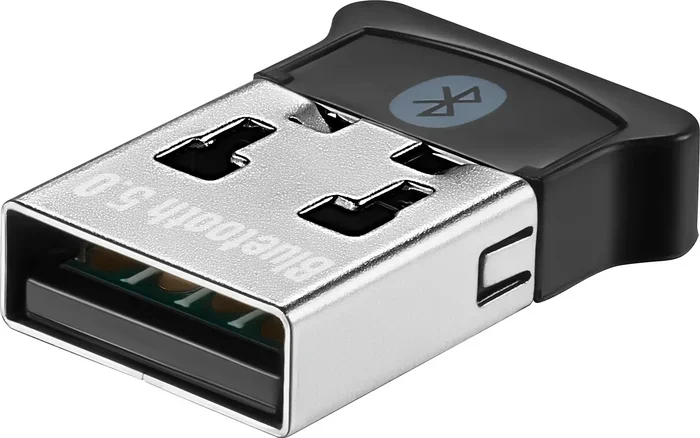
The easiest and most popular solution is a USB Bluetooth adapter. It’s a small dongle you plug into a USB port. It adds Bluetooth support instantly. Most adapters cost between $10 and $30.
Plug the adapter in, and Windows or your operating system usually recognizes it right away. You may need to install a driver. The adapter usually comes with one. After that, go to your Bluetooth settings and start pairing devices. It works with wireless headphones, keyboards, mice, and more.
Look for adapters that support Bluetooth 5.0 or higher. These offer better range and faster speeds. Some adapters also support Bluetooth pairing with multiple devices at once. Read reviews before buying to find a reliable brand.
Internal Bluetooth Card Upgrade
For desktop computers, you can install an internal Bluetooth card. These plug into a PCIe slot on your motherboard. They offer better performance than USB adapters. They also free up a USB port.
This option costs more, usually between $20 and $50. You also need to open your computer case and install the card. If you are comfortable with basic hardware, this is a great choice. It gives your computer permanent Bluetooth capability without any external dongles.
Bluetooth-Enabled USB Hub
Another option is a USB hub with built-in Bluetooth. This adds Bluetooth while also giving you extra USB ports. It’s a two-for-one solution. Great for people who need more ports and wireless connectivity.
These hubs cost a bit more than simple adapters. But they offer extra convenience. You get Bluetooth and additional USB connections in one device. This is ideal for desktop setups with limited port availability.
Using a Smartphone as a Bridge
Here is a creative workaround. If your phone has Bluetooth and your computer has Wi-Fi, you can bridge the gap. Use apps that share your phone’s Bluetooth connection with your computer through Wi-Fi.
This is not a perfect solution. It adds a small delay. But it works in a pinch. You can transfer files or connect wireless peripherals this way. It’s a good temporary fix until you get a proper adapter.
Bluetooth Versions and What They Mean
Not all Bluetooth is the same. The technology has evolved over the years. Newer versions bring better speed, range, and energy efficiency. Understanding these differences helps you choose the right adapter.
Bluetooth 4.0 and Earlier
Bluetooth 4.0 was a major milestone. It introduced low energy consumption. Devices could connect without draining batteries quickly. Most computers from the 2010s used Bluetooth 4.0 or earlier.
These versions work fine for basic tasks. They handle wireless headphones and file transfers well. But they have shorter range and slower speeds compared to newer versions. If your computer has Bluetooth 4.0, it still works perfectly for everyday use.
Bluetooth 5.0 and Newer
Bluetooth 5.0 doubled the range and speed. It also improved energy efficiency. Most modern computers and adapters use Bluetooth 5.0 or newer. Bluetooth 5.3 is the latest version as of now.
Newer versions support wireless streaming with better quality. They handle multiple connections more smoothly. If you are buying a new Bluetooth adapter, look for version 5.0 or higher. You will get the best experience.
Why Version Numbers Matter
The version number affects real-world performance. A Bluetooth 5.0 adapter connects faster and reaches farther. It also uses less power. This matters for wireless headphones and portable devices.
Older Bluetooth versions can still connect to newer devices. The connection just won’t be as fast or stable. Always match or exceed the Bluetooth version of your peripherals. This ensures the best wireless connectivity experience.
Common Bluetooth Problems and How to Fix Them
Even computers with Bluetooth can run into issues. Connection drops, pairing failures, and audio problems are common. Most of these issues have simple fixes.
Bluetooth Not Showing Up in Settings
If Bluetooth doesn’t appear in your settings, the hardware might be disabled. Check your BIOS or UEFI settings. Restart your computer and enter the BIOS. Look for Bluetooth under the advanced settings. Make sure it is enabled.
Another cause is a missing driver. Open Device Manager and look for unknown devices. Right-click and update the driver. You can also download the latest driver from your computer manufacturer’s website. This fixes most hidden Bluetooth issues.
Pairing Failures and Connection Drops
Sometimes devices won’t pair. The most common cause is distance. Move the devices closer together. Bluetooth works best within 10 to 30 feet. Walls and obstacles weaken the signal.
Restart both devices and try again. Remove the device from the paired list and re-pair it. This clears old connection data. Bluetooth troubleshooting often starts with a simple restart. Don’t overcomplicate it.
Audio Quality Issues
Wireless headphones with crackling or lag can be frustrating. This often happens with older Bluetooth versions. Bluetooth 4.0 and below struggle with audio streaming.
Upgrade to a Bluetooth 5.0 adapter if you experience audio issues. Also, check for interference. Wi-Fi routers and microwaves can disrupt Bluetooth signals. Move your router or Bluetooth adapter away from these devices.
Driver and Software Updates
Outdated drivers cause many Bluetooth problems. Check for Windows updates regularly. Microsoft often includes Bluetooth driver updates. These fix bugs and improve compatibility.
You can also visit your computer manufacturer’s support page. Download the latest Bluetooth driver for your model. Installing it takes just a few minutes. It solves most connection issues without any hassle.
Should You Buy a Computer Without Bluetooth?
This is a common question. The answer depends on your needs. If you use wired peripherals and don’t stream audio wirelessly, you might be fine without Bluetooth. Many office workers fit this category.
But if you want wireless freedom, Bluetooth matters a lot. Wireless headphones, speakers, and mice all rely on it. Wireless file transfer also needs Bluetooth or a similar technology. Think about how you use your computer daily.
If you buy a computer without Bluetooth, plan to add it later. A USB adapter is cheap and easy. It solves the problem in minutes. Just factor in that small cost when you shop.
For most people, Bluetooth is now essential. It adds convenience and reduces cable clutter. Even if you don’t need it today, you might tomorrow. A computer with Bluetooth support gives you flexibility. It future-proofs your setup.
Final Thoughts
Not every computer has Bluetooth built in. There are clear reasons for this. Cost, age, design, and manufacturer choices all play a role. But the lack of Bluetooth is never permanent. You can add it with a simple adapter or internal card.
Understanding why some computers skip Bluetooth helps you make smarter buying decisions. Check the specs before you purchase. Know what you need and what you are getting. If your current computer lacks Bluetooth, don’t stress. The fix is quick and affordable.
Wireless technology keeps evolving. Bluetooth 5.0 and newer offer amazing performance. Whether you add it through an adapter or buy it built in, Bluetooth makes your computer more versatile. Embrace the wireless world and connect freely.
Frequently Asked Questions
Why don’t some laptops include Bluetooth?
Manufacturers often leave out Bluetooth on budget laptops to keep the price low. The Bluetooth module adds a small cost to production. For price-focused buyers, this trade-off makes sense. Always check the specifications before purchasing a laptop.
Can I add Bluetooth to any desktop computer?
Yes, you can add Bluetooth to almost any desktop. A USB Bluetooth adapter is the simplest method. You plug it in, install the driver, and you are ready to go. Internal Bluetooth cards are another option for permanent upgrades.
Is Bluetooth the same as Wi-Fi?
No, Bluetooth and Wi-Fi are different wireless technologies. Wi-Fi handles internet connections and longer-range networking. Bluetooth connects devices directly over short distances. Both use radio waves but serve different purposes.
What is the range of Bluetooth on a computer?
Most Bluetooth versions work within 10 to 30 feet. Bluetooth 5.0 and newer can reach up to 80 feet in open spaces. Walls and obstacles reduce the range. Moving closer to the connected device improves the signal.
Do I need to install drivers for a Bluetooth adapter?
Most modern Bluetooth adapters install drivers automatically. Windows and macOS recognize them right away. If the adapter does not work, visit the manufacturer’s website for the latest driver. Updating drivers usually fixes connection problems.
Can I use Bluetooth on an older computer?
Yes, you can add Bluetooth to older computers. A USB Bluetooth adapter works with most systems. It does not matter how old your computer is. As long as it has a USB port, you can add wireless connectivity through Bluetooth.
=== CONCLUSION ===
Bluetooth capability is not universal across all computers. Some machines leave it out on purpose. Budget models, older systems, and specialized designs often skip this feature. But that does not mean you are stuck without wireless connectivity.
Adding Bluetooth to any computer is simple and affordable. A USB adapter costs less than $30 and takes minutes to set up. Internal cards offer a more permanent solution. Either way, you get wireless connectivity without replacing your computer.
Now you know why some computers don’t have Bluetooth built in. You also know how to fix it. Check your specs, choose the right solution, and enjoy the freedom of wireless connections. Bluetooth support makes your computer more versatile and ready for the modern wireless world.