Can Samsung Earbuds Connect To Multiple Devices Easily
Yes, Samsung earbuds can connect to multiple devices, but the method depends on your model and features. Most newer Galaxy Buds support multipoint Bluetooth pairing, letting you switch between a phone and laptop without re-pairing. Older models may need manual reconnection. In this guide, you will learn exactly how to set up multi-device audio, which earbuds support it, and tips to avoid common connection problems.
Have you ever been listening to music on your phone and then needed to jump on a laptop call? You know the drill. You pause your music, go to your computer, and try to reconnect your earbuds. It is annoying, right? If you own a pair of Samsung earbuds, you might be wondering whether they can handle multiple devices without all that hassle.
The short answer is yes. But the full answer depends on your specific model and a few settings you need to check. In this guide, we will walk through everything you need to know about connecting your Samsung earbuds to more than one device at a time. We will cover supported models, step-by-step setup instructions, and tips to keep your audio experience smooth and frustration-free.
Whether you use the Galaxy Buds2 Pro, the Galaxy Buds Pro, or an older model, this article has you covered. Let us dive in.
Key Takeaways
- Multipoint Connection: Newer Samsung earbuds like the Galaxy Buds2 Pro support dual-device pairing out of the box.
- Manual Switching Works Too: Even older models can connect to multiple devices, but you will need to switch manually.
- Samsung Devices Have an Edge: Samsung phones and tablets make the process smoother thanks to built-in integration.
- Settings Matter: Enabling the right Bluetooth and audio settings is key to seamless switching.
- Common Issues Are Fixable: Most connection problems stem from Bluetooth interference or outdated firmware.
- Not All Models Are Equal: Check your specific Galaxy Buds model to confirm multipoint support.
📑 Table of Contents
- What Is Multipoint Bluetooth Connection?
- Which Samsung Earbuds Support Multiple Device Connections?
- How to Connect Samsung Earbuds to Multiple Devices
- Tips for Smooth Multi-Device Audio Switching
- Common Problems and How to Fix Them
- Samsung Earbuds vs. Other Wireless Earbuds for Multi-Device Use
- Final Thoughts
What Is Multipoint Bluetooth Connection?
Before we get into the specifics of Samsung earbuds, let us talk about what multipoint Bluetooth actually means. In simple terms, multipoint connection allows your wireless earbuds to stay paired with two or more devices at the same time. You do not need to disconnect from one device to connect to another.
This is different from standard Bluetooth, which typically connects to just one device at a time. With multipoint, your earbuds can receive audio from a phone and a tablet simultaneously. When a call comes in on your phone, the earbuds automatically switch to your phone. When the call ends, they switch back to your tablet or laptop.
How Multipoint Works in Practice
Here is a real-world example. Imagine you are watching a video on your iPad. Your Samsung Galaxy Buds are connected to the iPad for audio. Suddenly, your phone rings. The earbuds detect the incoming call and automatically pause the iPad audio. They connect to your phone so you can answer the call. After you hang up, they switch back to the iPad. All of this happens in seconds, without you touching a single setting.
This kind of seamless audio switching is a game-changer for people who work across multiple devices. It saves time and keeps you in the flow. Not all earbuds support this feature, which is why it is important to know whether your specific pair does.
Which Samsung Earbuds Support Multiple Device Connections?
Not every pair of Samsung earbuds has the same capabilities. Samsung has released many models over the years, and multipoint support varies by model. Here is a breakdown of popular models and what you can expect.
Galaxy Buds2 Pro
The Galaxy Buds2 Pro is one of Samsung’s flagship wireless earbuds. It supports multipoint Bluetooth connecting to two devices at once. This model uses Bluetooth 5.3, which provides a stable and fast connection. You can pair it with a Samsung phone and a Windows laptop, for example, and switch between them effortlessly.
Galaxy Buds Pro
The Galaxy Buds Pro also supports multipoint connection. It was one of the first Samsung earbuds to offer this feature. You can connect it to two devices and enjoy seamless connectivity without constant re-pairing. The Bluetooth 5.0 connection is reliable and offers good range.
Galaxy Buds2
The Galaxy Buds2 supports multipoint as well. It is a more affordable option that still delivers solid multi-device audio performance. You can pair it with a phone and a tablet, or a phone and a computer, and switch between them with ease.
Galaxy Buds Live
The Galaxy Buds Live has a unique bean-like design. However, it does not support native multipoint connection. You will need to manually disconnect from one device and connect to another when switching. It is still a great pair of wireless earbuds, but it lacks this particular convenience feature.
Galaxy Buds FE
The Galaxy Buds FE (Fan Edition) is a budget-friendly option. It does not support multipoint Bluetooth. Like the Buds Live, you will need to manually switch between devices. However, it still offers good sound quality for the price.
Older Galaxy Buds Models
If you are using the original Galaxy Buds or the Galaxy Buds+, multipoint is not supported. These older models connect to one device at a time. Switching devices requires you to go into your phone’s Bluetooth settings and manually connect to the other device.
How to Connect Samsung Earbuds to Multiple Devices
Now that you know which models support multipoint, let us walk through the setup process. The steps vary slightly depending on your model and the devices you are using.
Setting Up Multipoint on Galaxy Buds2 Pro
Setting up multipoint connection on the Galaxy Buds2 Pro is straightforward. Here is what you need to do:
- Open the Galaxy Wearable app on your Samsung phone.
- Tap on your Galaxy Buds2 Pro from the device list.
- Go to the Bluetooth settings section.
- Enable the “Multi-device connection” toggle.
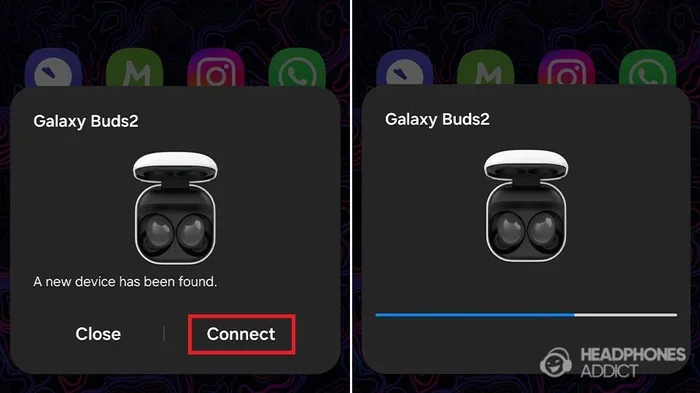
- Pair the earbuds with your second device through its Bluetooth settings.
Once both devices are paired, your earbuds will remember them. When you play audio on one device, the earbuds connect to it automatically. When you switch to the other device, they follow suit. It really is that simple.
Setting Up Multipoint on Galaxy Buds Pro
The process for the Galaxy Buds Pro is very similar:
- Open the Galaxy Wearable app on your Samsung phone.
- Select your Galaxy Buds Pro.
- Navigate to the connection settings.
- Turn on the “Dual audio” or “Multi-device” option.
- Pair with your second device via Bluetooth.
Some users also find that enabling Dual Audio on their Samsung phone helps. This setting allows your phone to stream audio to two Bluetooth devices at the same time. It is not the same as multipoint, but it can be useful in certain situations.
Manual Switching for Non-Multipoint Models
If your earbuds do not support multipoint, you can still connect them to multiple devices. You just need to switch manually. Here is how:
- Turn off Bluetooth on the device you are not using.
- Go to the Bluetooth settings on the device you want to connect to.
- Select your Samsung earbuds from the list of available devices.
- Wait for the connection to establish.
This method works with any model, including the Galaxy Buds Live and Galaxy Buds FE. The downside is that it takes a few extra seconds each time you switch. But once you get into the habit, it becomes second nature.
Tips for Smooth Multi-Device Audio Switching
Getting your Samsung earbuds to work with multiple devices is one thing. Keeping the experience smooth is another. Here are some practical tips to help you get the best results.
Keep Firmware Updated
Samsung regularly releases firmware updates for its earbuds. These updates often include Bluetooth connectivity improvements and bug fixes. Make sure you keep your earbuds updated through the Galaxy Wearable app. An outdated firmware version can cause connection drops and switching delays.
Stay Within Bluetooth Range
Bluetooth has a limited range, typically around 30 feet. If your devices are too far apart, the connection can become unstable. Try to keep the devices you are switching between in the same room or close proximity. This helps maintain a strong and reliable wireless earbuds connection.
Reduce Bluetooth Interference
Other wireless devices can interfere with your Bluetooth signal. Wi-Fi routers, microwaves, and even other Bluetooth devices can cause interference. If you experience connection issues, try moving away from other wireless devices. You can also try turning off Bluetooth on devices you are not actively using.
Use Samsung Devices When Possible
If you use a Samsung phone alongside a Samsung tablet, the experience is even smoother. Samsung devices are designed to work together. Features like Samsung Smart Switch and built-in Bluetooth integration make device switching faster and more reliable. If you use a mix of Samsung and non-Samsung devices, the experience is still good, but Samsung-to-Samsung connections tend to be the most seamless.
Reset Your Earbuds if Needed
If you are experiencing persistent connection issues, a reset can often help. To reset most Samsung earbuds, place them in the charging case, press and hold the button on the back of the case for about 10 seconds, and then re-pair them with your devices. This clears any cached connection data and gives you a fresh start.
Manage Your Bluetooth Device List
Sometimes, having too many Bluetooth devices in your list can cause confusion. Your earbuds might try to connect to a device that is out of range, causing delays. Go through your Bluetooth settings on each device and remove any devices you no longer use. This keeps your connection list clean and helps your earbuds connect faster.
Common Problems and How to Fix Them
Even with the best Samsung earbuds, you might run into some issues when connecting to multiple devices. Here are the most common problems and their solutions.
Earbuds Won’t Connect to the Second Device
This is usually a simple pairing issue. Make sure Bluetooth is turned on for the second device. Also, check that the earbuds are in pairing mode. You can usually enter pairing mode by opening the charging case lid while the earbuds are inside. If the problem persists, try removing the earbuds from the second device’s Bluetooth list and re-pairing them.
Audio Cuts Out When Switching Devices
Audio cutting out during device switching can be frustrating. This often happens when both devices are trying to send audio at the same time. Make sure you are not streaming content on both devices simultaneously. Also, check that your earbuds’ firmware is up to date. Outdated firmware can cause low latency audio issues and switching delays.
Earbuds Connect to the Wrong Device
If your earbuds keep connecting to the wrong device, it might be because that device has an active Bluetooth signal. Try turning off Bluetooth on the device you do not want to connect to temporarily. Once the earbuds are connected to the correct device, you can turn Bluetooth back on the other device.
Poor Sound Quality on One Device
Sometimes the sound quality drops on one device but not the other. This can happen due to different Bluetooth codecs supported by each device. Samsung earbuds typically use the AAC codec for Samsung devices and SBC for others. If you notice poor quality, check the Bluetooth audio settings on the affected device.
Samsung Earbuds vs. Other Wireless Earbuds for Multi-Device Use
How do Samsung earbuds compare to other wireless earbuds when it comes to multi-device connectivity? Here is a quick comparison.
| Feature | Samsung Galaxy Buds2 Pro | Apple AirPods Pro | Sony WF-1000XM4 |
|---|---|---|---|
| Multipoint Support | Yes | Yes | Yes |
| Max Simultaneous Devices | 2 | 2 | 2 |
| Switching Speed | Fast | Very Fast | Moderate |
| Samsung Integration | Excellent | None | None |
| Price Range | Mid to High | High | High |
As you can see, most premium wireless earbuds now support multipoint. Samsung earbuds hold their own, especially if you are already in the Samsung ecosystem. The seamless integration with Samsung phones and tablets gives them an edge over competitors from other brands.
If you are also interested in making your tech life easier in other ways, check out these 10 Gadgets To Make Moms Life Easier for more helpful tech tips.
Final Thoughts
So, can Samsung earbuds connect to multiple devices? The answer is a clear yes, at least for most of the newer models. Whether you have the Galaxy Buds2 Pro, Galaxy Buds Pro, or Galaxy Buds2, you can enjoy multipoint Bluetooth and seamless audio switching between your devices.
Even if you have an older model, manual switching is always an option. It just takes a few extra seconds. The key is to understand what your specific model supports and to keep your firmware and settings up to date.
Once you get used to the convenience of connecting to multiple devices, going back to single-device earbuds feels like a step backward. Samsung earbuds deliver a smooth and reliable experience that makes working and listening across devices a breeze.
If you are managing multiple devices and want to keep your numbers organized, you might also find this guide on adding prefixes to numbers on iPhone helpful for keeping your contacts in order.
We hope this guide has answered your questions and given you practical steps to get the most out of your Samsung earbuds. Happy listening!
Frequently Asked Questions
Can all Samsung earbuds connect to two devices at once?
No, not all models support multipoint Bluetooth. The Galaxy Buds2 Pro, Galaxy Buds Pro, and Galaxy Buds2 do support dual-device connections. However, older models like the Galaxy Buds Live and Galaxy Buds FE require manual switching between devices.
How do I know if my Samsung earbuds support multipoint?
Check your Galaxy Wearable app. If you see a “Multi-device connection” or “Dual audio” option in the settings, your earbuds support multipoint. You can also check the product specifications on Samsung’s website for your specific model.
Can I connect Samsung earbuds to an iPhone and a Samsung phone at the same time?
Yes, you can. Samsung earbuds use standard Bluetooth, so they can pair with any Bluetooth-enabled device. You can connect them to both an iPhone and a Samsung phone simultaneously if your model supports multipoint.
Why do my Samsung earbuds keep disconnecting from one device when I switch?
This is usually caused by Bluetooth interference or outdated firmware. Try moving closer to the device you want to connect to, turning off Bluetooth on unused devices, and updating your earbuds through the Galaxy Wearable app.
Is there a way to speed up device switching with Samsung earbuds?
Yes. Keep your earbuds’ firmware updated, reduce the number of paired Bluetooth devices, and stay within range of both devices. Using Samsung devices together also helps because of built-in integration features that make switching faster.
Can I connect more than two devices to my Samsung earbuds?
Most Samsung earbuds with multipoint support connect to two devices at a time. You cannot connect to three or more devices simultaneously. However, you can manually switch between devices as needed.
=== CONCLUSION ===
Connecting your Samsung earbuds to multiple devices is easier than you might think. With multipoint support on newer models, you can switch between your phone, tablet, and laptop without missing a beat. Even older models work well with a little manual effort.
The key takeaways are simple. Check your model for multipoint support, keep your firmware updated, and manage your Bluetooth settings wisely. These small steps make a big difference in your daily listening experience.
Whether you are working from home, commuting, or just relaxing, your Samsung earbuds can keep up with your multi-device lifestyle. Enjoy the seamless connectivity and make the most of your wireless audio experience.