Can I Use My Bluetooth Headset As A Mic For Calls And Gaming
Yes, you can absolutely use your Bluetooth headset as a microphone for both calls and gaming without needing any extra gear. Most modern headsets support hands-free profiles that let you take calls, chat with teammates, and record voice input directly from your headset’s built-in mic. In this guide, we will show you how to set up your Bluetooth headset as a mic, troubleshoot common issues, and get the best audio quality for your setup.
Key Takeaways
- Most Bluetooth headsets support microphone functionality. Check your model’s specs to confirm mic compatibility.
- Enable mic access in Bluetooth settings. Without this, your headset won’t capture voice input.
- Gaming may experience slight audio latency. Wired headsets offer lower delay for competitive play.
- Use a Bluetooth codec that supports mic data. This ensures clear voice during calls.
- Phone calls work seamlessly with any Bluetooth headset. Gaming requires a mic-enabled profile like HFP.
- Battery life drops faster when the mic is active. Keep your headset charged for long sessions.
📑 Table of Contents
How Bluetooth Headsets Work as Microphones
Using a Bluetooth headset as a mic is something more people are asking every day. Whether you are taking work calls, chatting with friends, or jumping into a gaming session, the idea of going wireless sounds appealing. But the question remains: can your Bluetooth headset actually function as a reliable microphone?
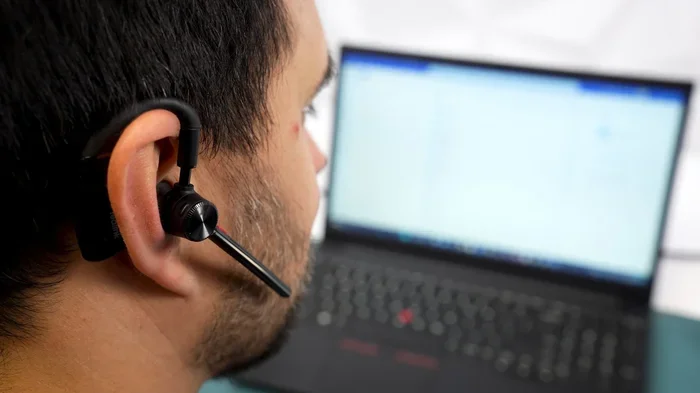
The short answer is yes. Most modern Bluetooth headsets come with built-in microphones that handle both audio playback and voice input. These devices use Bluetooth connectivity to pair with your phone, computer, or console. Once paired, the headset microphone captures your voice and sends it as an audio input device to the receiving end.
However, not all Bluetooth headsets are created equal. Some models shine as wireless headset microphone combos, while others struggle with voice clarity. The difference often comes down to microphone quality, Bluetooth protocol version, and how well the headset handles voice chat in noisy environments. Understanding these factors helps you get the best results from your setup.
Many people assume that any wireless headset will work perfectly as a mic. That is not always true. Microphone sensitivity and audio driver support vary widely between brands and price points. Let us break down exactly how this works and what you need to know.
Setting Up Your Bluetooth Headset as a Mic
Pairing Your Headset for Microphone Use
Getting your Bluetooth headset to work as a mic is usually straightforward. The process depends on the device you are connecting to. Here is a simple walkthrough for the most common setups.
On a smartphone or tablet:
- Turn on Bluetooth on your device.
- Put your headset into pairing mode.
- Select the headset from the list of available devices.
- Once connected, the headset mic should activate automatically.
On a Windows computer:
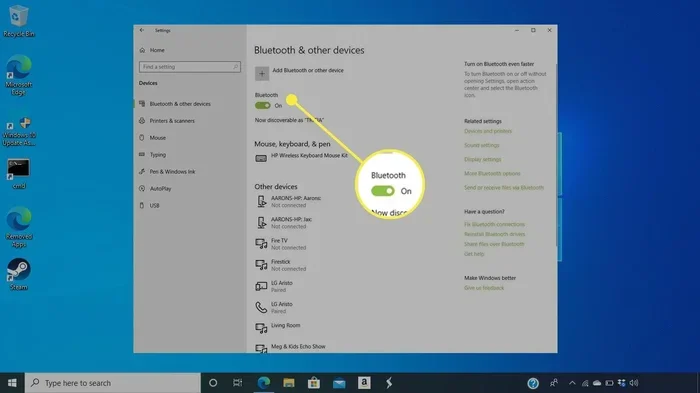
- Go to Settings and open the Bluetooth menu.
- Add a new device and select your headset.
- Navigate to Sound Settings and set the headset as the default input device.
- Test the mic using the recording tool or a call app.
On a Mac:
- Open System Preferences and click Bluetooth.
- Pair your headset and select it from the input options.
- Go to Sound settings to confirm the mic is recognized.
For gaming consoles like the PlayStation or Xbox, the process can be trickier. Some consoles do not support Bluetooth audio directly. You may need a Bluetooth adapter that connects through the USB port. This adapter handles both audio output and microphone input, giving you a seamless wireless experience.
One thing many people overlook is that your headset microphone setup might need fine-tuning. Even after pairing, the mic might not pick up your voice clearly. Adjusting the microphone sensitivity in your device settings can make a big difference. On Windows, you can access this through the Sound Control Panel under Recording Devices.
Interestingly, even people working with productivity tools like spreadsheets sometimes run into audio hiccups. For instance, if you are on a call while working on a document and a formatting issue comes up like a line that a line wont delete in Microsoft Excel, having a reliable wireless headset mic keeps you hands-free and focused on the task at hand.
Quick Setup Tips for Better Performance
- Always update your Bluetooth drivers before setting up a new headset.
- Keep your headset charged. Low battery can cause mic dropouts.
- Stay within 30 feet of your connected device for the strongest signal.
- Restart both devices if the mic does not connect on the first try.
- Use a quiet environment for your first test call to gauge baseline quality.
Bluetooth Headset Mic Quality for Calls vs Gaming
Call Quality: What to Expect
Using your Bluetooth headset as a mic for phone calls is where most people start. The good news is that modern headsets handle everyday calls very well. Voice clarity has improved dramatically with newer Bluetooth audio standards like Bluetooth 5.0 and above.
For casual calls, a standard wireless headset mic will serve you fine. You will sound clear to the person on the other end, and they will hear you without much background noise. Hands-free calling is one of the biggest advantages of using a headset over a phone speaker.
However, if you are in a noisy environment like a coffee shop or a busy office, the mic might pick up surrounding sounds. Cheaper headsets often lack advanced noise cancellation. This can make your voice harder to hear during important calls. Investing in a headset with noise reduction technology pays off if you take many calls in loud spaces.
Gaming Performance: Where Things Get Interesting
Using a Bluetooth headset microphone for gaming introduces a new challenge: latency. Latency issues happen because Bluetooth adds a small delay between when you speak and when the other person hears you. For casual gaming, this delay is usually unnoticeable. For competitive or fast-paced games, it can feel distracting.
Here is a quick look at how wireless headset mic performance compares across different use cases:
| Use Case | Latency Level | Voice Clarity | Background Noise Handling | Overall Rating |
|---|---|---|---|---|
| Casual Phone Calls | Very Low | Excellent | Good | Great |
| Video Conferences | Low | Very Good | Moderate | Very Good |
| Casual Gaming | Moderate | Good | Fair | Good |
| Competitive Gaming | Noticeable | Good | Fair | Fair |
| Streaming / Content Creation | Moderate | Very Good | Good | Good |
For serious gamers, a wired headset or a gaming-specific wireless headset with a dedicated USB dongle often performs better. These options bypass standard Bluetooth latency by using specialized audio input device protocols. That said, many casual gamers are perfectly happy with their wireless earbuds microphone setup for games like Minecraft or casual multiplayer titles.
Voice Quality Comparison: Wired vs Wireless
Wired headsets generally deliver slightly better voice quality because they do not compress audio data the way Bluetooth does. The difference is small on most modern headsets, but audiophiles and professional streamers often notice it. For everyday use, though, a good Bluetooth headset mic is more than enough.
When you compare the two side by side, the convenience of a wireless headset often outweighs the slight audio quality gap. You can move freely around your room, answer calls without reaching for your phone, and avoid tangled cables. For most people, that trade-off is worth it.
Common Problems and How to Fix Them
Mic Not Recognized by the Device
This is one of the most common issues people face. Your headset connects for audio output, but the microphone settings do not activate. The fix is usually simple. Go to your device sound settings and make sure the headset is set as the default input device. On Windows, right-click the speaker icon, open Sound Settings, and scroll down to the Input section.
Sometimes the audio driver needs updating. Outdated drivers can prevent your device from recognizing the headset mic properly. Check your device manufacturer website for the latest Bluetooth and audio drivers. A quick restart after updating often solves the problem.
Echo or Feedback During Calls
Hearing your own voice echoed back is frustrating. This usually happens when the headset mic picks up audio from the headset speakers. To fix this, lower the speaker volume on your headset or move the mic slightly away from your mouth. Most modern headsets have built-in echo cancellation, but it does not always work perfectly.
Short Battery Life Affecting Mic Performance
A low battery can weaken your Bluetooth connectivity and cause the mic to cut out. Keep your headset charged above 30% for the most stable performance. If you notice the mic quality dropping during long calls, plug in your headset and continue.
Another hidden culprit is distance. If you walk too far from your connected device, the signal weakens. The mic might start sounding choppy or cut out entirely. Stay within range and avoid walls and obstacles between you and your device for the best Bluetooth audio experience.
Background Noise Interference
Background noise can make your voice hard to understand. If your headset mic picks up too much ambient sound, try using a noise gate app on your computer. These apps mute your mic when you are not speaking, which cuts down on background noise significantly.
Some headsets also let you adjust the mic gain through a companion app. Lowering the gain slightly can reduce background noise without affecting your voice clarity. Experiment with these settings to find the sweet spot for your environment.
Best Bluetooth Headsets for Mic Use
Not all wireless headsets deliver the same microphone quality. Some stand out for their excellent voice input and reliable Bluetooth pairing. Here are a few options worth considering.
For Calls: Look for headsets with noise-canceling microphones and multipoint connectivity. Models like the Jabra Evolve2 and Poly Voyager series are popular choices for professionals who take many calls throughout the day.
For Gaming: Gaming headsets with low-latency wireless technology work best. The SteelSeries Arctis Nova and HyperX Cloud Flight are well-regarded options that offer solid mic quality without the lag that standard Bluetooth can introduce.
For General Use: If you want a versatile headset that works well for both calls and light gaming, the Sony WH-1000XM5 and Apple AirPods Pro are excellent choices. Both offer clear voice pickup and reliable wireless headset microphone performance.
What to Look for When Buying
- Bluetooth version: Choose 5.0 or higher for better stability and lower latency.
- Microphone type: Built-in mics with noise reduction are ideal.
- Battery life: At least 8 hours ensures long calls without interruption.
- Multipoint support: Lets you connect to two devices simultaneously.
- Comfort: If you wear the headset for hours, comfort matters a lot.
- Driver size: Larger drivers often mean better overall audio quality.
Final Thoughts on Using a Bluetooth Headset as a Mic
The answer to the question can I use my Bluetooth headset as a mic is a clear yes. Whether you are on a work call, chatting with friends, or playing games, a Bluetooth headset as mic setup works well for most situations. The convenience of going wireless is hard to beat.
That said, your experience depends on the headset model, your device, and the environment you are in. A quality headset with a good microphone will serve you well for calls and casual gaming. For competitive gaming or professional streaming, you might want to consider a dedicated wired or gaming-grade wireless option.
Setting up your headset microphone correctly makes all the difference. Take the time to adjust your microphone settings, update your drivers, and test your setup before an important call or gaming session. Small tweaks can dramatically improve your voice quality and overall experience.
Wireless technology keeps improving, and Bluetooth headsets are only getting better. The gap between wired and wireless microphone quality is closing fast. If you have not tried using your wireless headset mic for calls or gaming yet, now is a great time to give it a shot. You might be surprised at how well it works.
Just remember to keep your headset charged, stay within range, and adjust your settings to match your environment. With the right setup, a Bluetooth headset microphone can handle everything from daily work calls to relaxed gaming sessions. Embrace the wireless freedom and enjoy the convenience it brings to your everyday communication.
Frequently Asked Questions
Can I Use My Bluetooth Headset As A Mic For Calls?
Yes, you can use your Bluetooth headset as a mic for calls on most smartphones, tablets, and computers. Just pair the headset with your device and select it as the audio input source in your call app settings. Most modern Bluetooth headsets come with built-in microphones that work seamlessly for voice calls.
How Do I Set Up My Bluetooth Headset As a Microphone?
First, turn on your Bluetooth headset and put it in pairing mode. Then go to your device’s Bluetooth settings, find the headset, and connect to it. Once connected, go to your sound or audio settings and set the Bluetooth headset as the default input device for calls or voice apps.
Is a Bluetooth Headset Good for Gaming Calls?
A Bluetooth headset can work for gaming calls, but it depends on your platform and the headset’s latency. Some Bluetooth headsets may have a slight audio delay that can affect real-time communication in fast-paced games. For the best gaming experience, look for headsets with low-latency Bluetooth codecs or use a wired connection when possible.
Why Is the Mic on My Bluetooth Headset Not Working?
The most common reason is that the headset is not set as the default input device in your system or app settings. Make sure Bluetooth is enabled, the headset is properly paired, and microphone permissions are granted for the app you are using. Sometimes simply restarting both your headset and your device fixes the issue.
Can I Use Any Bluetooth Headset As a Mic?
Most Bluetooth headsets with a built-in microphone can be used as a mic, but the quality and compatibility vary. Some headsets are designed only for audio playback and do not have a microphone at all. Always check the product specs to confirm that your headset supports microphone functionality before purchasing.
What Should I Look for in a Bluetooth Headset With a Mic?
Look for features like noise cancellation, clear voice pickup, and a comfortable fit for long calls or gaming sessions. Check that the headset supports your device’s Bluetooth version and has a decent battery life for extended use. Reading user reviews can also help you find a headset that delivers reliable mic performance for both calls and gaming.