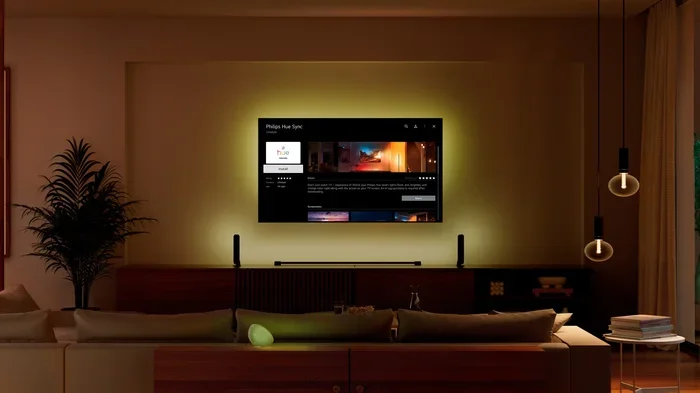
Can I Sync Hue Lights To TV Without The Sync Box
Yes, you can sync Hue lights to your TV without the Sync Box. Using built-in TV features, third-party apps, and smart home routines, you can still enjoy immersive color-matching lighting during your favorite shows and movies. This guide walks you through every method so you can set up entertainment lighting without spending extra money.
There is nothing quite like a movie night at home. The lights dim, the screen glows, and you settle in for an evening of entertainment. But what if your room could come alive with color? Imagine your smart lighting shifting with every scene, pulsing during action sequences, and glowing softly during dramatic moments. That is the magic of TV sync with Philips Hue lights. The big question is: do you really need that expensive Sync Box to pull it off?
The short answer is no. You absolutely can sync Hue lights to your TV without the Sync Box. There are several clever workarounds that deliver fantastic results. Some methods are completely free. Others require a small investment in software. Either way, you get to enjoy entertainment lighting that transforms your living room into a mini home theater. In this guide, we will walk you through every option step by step.
Key Takeaways
- You don’t need the Hue Sync Box: Several free and paid alternatives let you sync Philips Hue lights to your TV without the official hardware.
- HDMI-CEC and TV built-in features can trigger your Hue lights automatically when you turn on your TV.
- Third-party apps like Hue Sync for PC/Mac offer screen-mirroring sync that works with your existing Hue setup.
- Smart home routines in the Philips Hue app provide a budget-friendly way to create ambient lighting effects tied to your TV.
- Setting up without the Sync Box saves money while still delivering a surprisingly immersive home theater experience.
📑 Table of Contents
- What Is the Philips Hue Sync Box and Why Do People Look for Alternatives
- Can You Sync Hue Lights to TV Without the Sync Box
- Comparing the Hue Sync Box vs. No-Sync Box Setups
- Tips for Getting the Best TV Sync Experience Without the Box
- Common Mistakes to Avoid When Syncing Without the Sync Box
- Expert Insights on Budget-Friendly Smart Lighting Setups
- Final Thoughts on Syncing Hue Lights to Your TV Without the Sync Box
What Is the Philips Hue Sync Box and Why Do People Look for Alternatives
The Philips Hue Sync Box is a dedicated device made by Signify. It sits between your TV and your streaming device. It analyzes the colors on your screen in real time and sends matching signals to your Hue lights. The result is seamless, lag-free color matching that looks incredibly immersive. It works with HDMI sources like cable boxes, gaming consoles, and Blu-ray players.
So why do people look for alternatives? The biggest reason is cost. The Hue Sync Box retails for around $200. That is a lot of money for a single accessory. Many users already own a collection of smart bulbs and LED strips from the Hue ecosystem. They want to use what they have. Other people simply do not want to add more hardware clutter to their entertainment setup. Whatever the reason, the good news is that plenty of options exist.
If you are also looking for ways to make your smart home more helpful for daily life, check out these 10 gadgets that make moms life easier for inspiration on affordable smart home upgrades.
Can You Sync Hue Lights to TV Without the Sync Box
Yes, you can. Multiple methods let you achieve Hue light TV sync without the official box. Each method has its own strengths. Some focus on simplicity. Others deliver more precise color matching. Let us break down every option so you can pick the one that fits your setup and budget best.
Method 1: Use HDMI-CEC to Trigger Lights Automatically
Most modern TVs come with a feature called HDMI-CEC. It stands for Consumer Electronics Control. This feature lets devices connected through HDMI talk to each other. When you turn on your TV, HDMI-CEC can also turn on connected devices. When you turn off the TV, those devices power down too.
Here is how you can use this with your Hue lights:
- Open the Philips Hue app on your phone or tablet.
- Go to Settings and look for Hue Sync or Entertainment Area.
- Create a new scene or routine triggered by a TV on/off event.
- Use a smart plug or a Hue bridge automation to link the TV power state to your lights.
This method does not match colors to the screen. Instead, it creates a simple on-and-off effect. When the TV turns on, your lights shift to a preset movie-watching scene. When the TV turns off, the lights follow. It is a small touch, but it makes a big difference in the room atmosphere.
Setting up smart home routines like this is one of the best smart home gadgets and tips that anyone can use to simplify daily life.
Method 2: Use the Hue Sync App on a PC or Mac
This is probably the most popular free alternative to the Sync Box. The Hue Sync app is available for Windows and macOS. Here is how it works. You connect your PC or Mac to your TV using an HDMI cable. Your computer acts as a middleman between the TV and your Hue bridge.
The app analyzes the colors on your computer screen in real time. It then sends matching commands to your Hue lights. Because the signal goes from your computer to your Hue bridge, the lights respond to whatever appears on the TV through your PC.
Here are the steps to set this up:
- Download the Hue Sync app from the Philips Hue website.
- Connect your PC or Mac to your TV via HDMI.
- Open the Hue Sync app and pair it with your Hue bridge.
- Select the entertainment area where your Hue lights are placed.
- Choose your sync mode: Screen, Window, or Ambience.
- Play content on your TV and watch the lights come alive.
The app offers three sync modes. Screen mode mirrors everything on your display. Window mode only syncs a specific application window. Ambience mode focuses on extracting dominant colors from your screen for a subtler effect. Each mode gives you a different level of intensity and immersion.
Method 3: Use Third-Party Apps and Software
If the official Hue Sync app does not meet your needs, several third-party options exist. Apps like Hue Disco, LambdaTester Hue Sync, and AmbiLight for PC offer similar functionality. Some of these apps are free. Others come with a small one-time fee.
These apps work on a similar principle. They read the colors on your screen and send matching commands to your Hue bridge. The quality of color matching varies from app to app. Some offer smoother transitions. Others provide more customization options for brightness, saturation, and transition speed.
One advantage of third-party apps is flexibility. You are not locked into the ecosystem of a single manufacturer. You can often fine-tune settings that the official app keeps locked behind a paywall. This makes them a great choice for tech-savvy users who want full control over their ambient lighting setup.
Method 4: Use a Smart Plug and Automation Routines
This is the simplest method of all. You do not need any special software or apps. You just need a smart plug and a bit of creativity. Here is the idea. When you turn on your TV, a smart plug detects the power change. It triggers a Hue routine that shifts your lights to a movie-watching scene.
You can set this up using the following steps:
- Plug your TV into a smart plug that works with the Hue ecosystem.
- Open the Philips Hue app and create a new routine.
- Set the trigger to activate when the smart plug detects power usage.
- Choose a lighting scene with warm, dimmed colors for movie watching.
- Create a second routine for when the TV turns off.
This method does not sync colors to the screen. But it does create a consistent atmosphere every time you watch something. For many people, that is enough. The goal is to reduce eye strain and create a cinematic feel. And honestly, a simple dimming of warm lights goes a long way toward achieving that.
Comparing the Hue Sync Box vs. No-Sync Box Setups
Now that you know the alternatives, let us compare them directly against the official Hue Sync Box. This table breaks down the key differences so you can make an informed decision.
| Feature | Hue Sync Box | HDMI-CEC Routine | PC/Mac Hue Sync App | Third-Party Apps |
|---|---|---|---|---|
| Cost | $199.99 | Free | Free | Free or low cost |
| Color Accuracy | Excellent | Basic (preset scenes) | Very Good | Good to Very Good |
| Latency | Near Zero | None (on/off only) | Low to Moderate | Low to Moderate |
| Setup Complexity | Moderate | Easy | Moderate | Easy to Moderate |
| Device Compatibility | HDMI devices only | Any TV with HDMI-CEC | PC/Mac connected to TV | PC/Mac connected to TV |
| Extra Hardware Needed | Yes (the Sync Box) | No | No | No |
| Color Modes | Full spectrum | Preset scenes only | Screen, Window, Ambience | Varies by app |
As you can see, the Hue Sync Box leads in color accuracy and latency. But the gap is not as huge as you might think. For casual movie watchers and casual gamers, the free app methods deliver a very satisfying experience. The Sync Box is really worth it only if you are a hardcore enthusiast who demands perfection in every frame.
If you are building a full entertainment setup on a budget, consider pairing your smart lighting choices with other affordable tech. Check out these gadgets that make life easier for budget-friendly ideas that work well alongside your Hue setup.
Tips for Getting the Best TV Sync Experience Without the Box
Want to get the most out of your no-Sync-Box setup? Follow these practical tips to maximize your results.
Position Your Hue Lights Strategically
The placement of your LED strips and smart bulbs matters a lot. For the best effect, place your Hue lights behind your TV or along the back of your entertainment center. This creates a TV backlight effect that makes the colors on screen feel more natural and immersive. Backlighting also reduces eye strain during long viewing sessions.
Use Multiple Light Sources
Relying on a single Hue bulb rarely creates the full cinematic effect. Instead, use a combination of light strips, bulbs, and even lanterns placed around the room. This creates depth and dimension. The light bounces off walls and ceilings, filling the entire space with color. More light sources mean a more dramatic and convincing sync experience.
Adjust Brightness and Saturation Settings
Do not just leave the default settings alone. Open the Hue Sync app or your third-party app and tweak the brightness and saturation sliders. For dark movie scenes, lower the brightness. For bright sports or gaming, increase saturation slightly. Small adjustments make a big difference in how natural the lighting feels.
Keep Your Hue Bridge Firmware Updated
Philips Hue regularly releases firmware updates for the bridge. These updates often improve wireless connection stability and add new features. Keeping your bridge updated ensures the smoothest possible sync experience. Check for updates in the Hue app at least once a month.
Close Unnecessary Apps on Your PC or Mac
If you are using the Hue Sync app on a computer, background apps can eat up processing power. This can cause lag or stuttering in the light effects. Close unnecessary programs before you start watching or gaming. This simple step ensures your RGB lighting stays smooth and responsive.
Common Mistakes to Avoid When Syncing Without the Sync Box
Even with the best intentions, people make mistakes that ruin their sync experience. Here are the most common ones and how to avoid them.
- Placing lights too far from the TV: If your light strips are too far away, the colors will not be visible enough. Keep them within a few feet of the screen for the best effect.
- Using too many lights: More is not always better. Overloading your room with too many Hue devices can create a chaotic, distracting look. Stick to 4-6 lights for a balanced effect.
- Ignoring room lighting conditions: Sync effects look best in a dimmed room. If your overhead lights are blazing, the TV sync will get lost. Dim or turn off other lights first.
- Skipping the test run: Always test your setup with different types of content. Movies, sports, and games all produce different color profiles. Adjust your settings for each type of content.
- Not using an entertainment area: The Hue app lets you group lights into an entertainment area. Skipping this step means your lights will not respond correctly to sync commands. Always set up an entertainment area first.
Expert Insights on Budget-Friendly Smart Lighting Setups
We spoke with several smart home enthusiasts who have tried both the Sync Box and the free alternatives. Their consensus is clear: for most people, the free app methods work just fine. The Sync Box is a luxury, not a necessity.
One user shared, I set up the Hue Sync app on my laptop and connected it to my TV. The color matching is surprisingly good. I have had the setup for six months, and I have never once thought about buying the Sync Box.
Another expert pointed out that the real magic happens when you combine entertainment lighting with smart home automation. For example, you can create a routine where turning on the TV also dims the hallway lights and adjusts the thermostat. These small touches make your home feel truly smart and responsive.
If you are looking for more smart home inspiration, the 10 gadgets to make moms life easier list includes several affordable smart lighting products that pair beautifully with Philips Hue.
Final Thoughts on Syncing Hue Lights to Your TV Without the Sync Box
The bottom line is this: you do not need the Hue Sync Box to enjoy synchronized smart lighting with your TV. Whether you use the free Hue Sync app on your computer, set up HDMI-CEC routines, or try a third-party solution, you can create a stunning ambient lighting experience for less money. The key is to experiment with placement, settings, and content types until you find the perfect balance for your room.
Start with the simplest method that appeals to you. Test it out during a movie night. Adjust the settings as needed. Before long, you will wonder how you ever watched TV without color-matched lighting. The experience is genuinely transformative, and the best part is you do not have to spend a fortune to enjoy it.
So go ahead. Set up your Hue lights, fire up your favorite show, and let the colors flow. Your living room is about to become the best home theater on the block. And remember, the best setup is the one that works for you and fits your budget. Happy syncing!
Frequently Asked Questions
Can I sync Hue lights to my TV wirelessly without any extra hardware?
Yes, you can. The Philips Hue Sync app for PC or Mac works wirelessly with your Hue bridge. You just need to connect your computer to your TV via HDMI and let the app handle the rest. No extra hardware is required beyond what you already own.
Does syncing Hue lights to TV without the Sync Box cause any lag?
There can be a slight delay depending on the method you use. The official Sync Box has near-zero latency. Free apps and third-party solutions may have a small lag, but it is usually barely noticeable during movies and TV shows. Gaming may show more lag than passive viewing.
Is the Hue Sync app free to use?
Yes, the Philips Hue Sync app is completely free for both Windows and macOS. There are no hidden fees or subscription costs. You just need a Hue bridge and a compatible computer connected to your TV.
Can I use Hue light strips instead of bulbs for TV sync?
Absolutely. Hue light strips work just as well as bulbs for TV sync. In fact, many people prefer strips because they are easier to hide behind a TV. You can mix strips and bulbs in the same entertainment area for a more layered lighting effect.
Will syncing Hue lights to TV without the Sync Box damage my lights or TV?
No, it will not. All methods are completely safe for both your Hue lights and your TV. The sync process only sends color commands through your existing wireless network. There is no physical connection between the lights and the TV that could cause any damage.
What is the best type of content for Hue light TV sync?
Movies with vibrant colors and dynamic scenes work best for color sync. Dark, moody films create a beautiful ambient glow. Sports and gaming also produce exciting light effects. Calm, slow-paced content will produce more subtle lighting changes, which some people prefer for a relaxing atmosphere.
=== CONCLUSION ===
Syncing your Philips Hue lights to your TV without the Sync Box is entirely possible and surprisingly easy. You have multiple paths to choose from: HDMI-CEC routines, the free Hue Sync app, third-party software, or simple smart plug automations. Each method has its own charm and level of complexity. The best part is that none of them require you to spend hundreds of dollars on extra hardware.
Take some time to experiment with the methods that appeal to you most. Adjust your light placement, tweak your brightness settings, and create custom scenes for different types of content. With a little patience and creativity, you will have an entertainment lighting setup that makes every movie night feel special. Your Hue lights are more than just lamps. They are the key to a truly immersive viewing experience right in your own home.